


Tutorial · Hoopla
Activate TV devices within Hoopla
Pair a TV device with Hoopla using an activation code, assign it a channel, and check its display status.
Activate Windows, Mac, or Chromebook Devices to Play Hoopla Channels
Section titled “Activate Windows, Mac, or Chromebook Devices to Play Hoopla Channels”TV Display activation gives Hoopla Admins the ability to control Hoopla TV Channels remotely with the click of a button. It also provides security for your Hoopla TV Channels and enables authorized TVs, determined by the Admin, to play a Hoopla TV Channel.
✅ Recommendation: For optimal performance, use a Displai Device. We also support Windows PCs, Macs, and Chromebooks with at least 4GB of RAM. Check our supported hardware devices .
Step 1: Setting up your Device on the TV
Section titled “Step 1: Setting up your Device on the TV”-
Make sure that the device is connected to the proper port on the TV and that both are powered on.
-
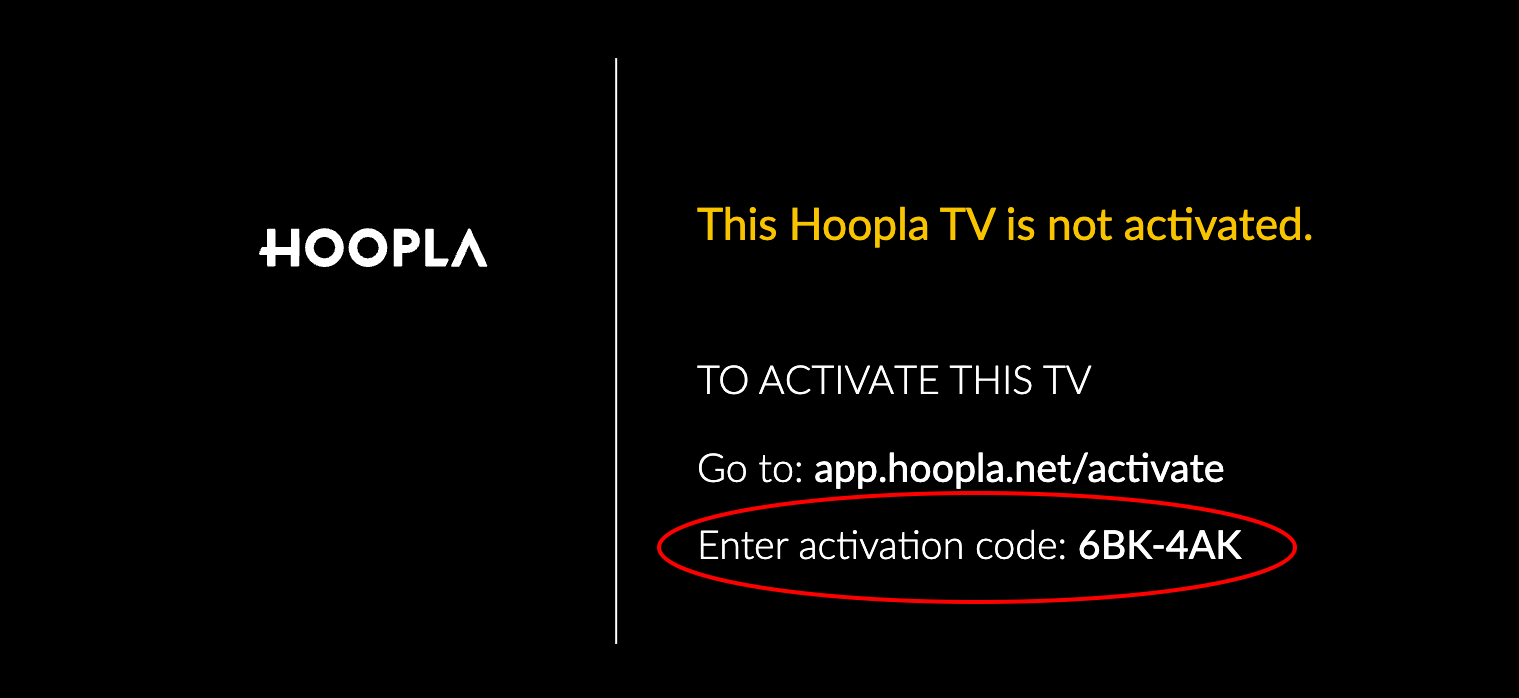
Open a Chrome browser window and enter https://tv.hoopla.net in the address bar to get to the activation screen. Keep the secure HTTPS connection when pairing the device.
-
Take note of the unique activation code shown at the bottom of the screen.
-
Leave the activation screen up on the TV and go to the computer you use to access Hoopla.
Step 2: Activating your Device within Hoopla
Section titled “Step 2: Activating your Device within Hoopla”-
From the computer you normally use to access Hoopla. Navigate to Configure > Channels and TV > TV Displays and click Activate.
-
Enter the activation code provided and name your display. Best Practice: TV Display names should be named based on location so the TVs are more easily identified.
-
After your TV display has been named, click Submit.
-
Use the dropdown to choose the channel you want to broadcast on the TV and click Save.
If you’re using a laptop as your device, be sure to adjust your Chrome browser settings:
-
On Windows, Mac or Chromebook, open Chrome’s three-dot menu at the top right. Beside Zoom, select the Full screen icon to show the channel full-screen. See Chrome full-screen help.
-
Ensure that the computer’s settings are adjusted to avoid the computer or display from going to sleep.
-
To ensure audio plays, you will have to whitelist Hoopla in the Chrome Sound Settings. Instructions for whitelisting can be found in the Audio Troubleshooting article.
View TV Display Status in Hoopla
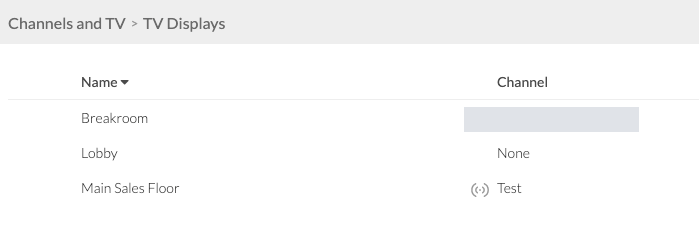
Section titled “View TV Display Status in Hoopla”In Configuration > TV Displays, you can see at a glance which displays are streaming their assigned Channel.
-
A green animated icon indicates an actively-streaming Channel
-
No icon will be present for devices without an assigned Channel
-
A gray icon indicates that the assigned Channel is not streaming
Related articles
Section titled “Related articles”- Supported hardware devices Check which devices and computer specs you can use to show Hoopla channels on your TVs, and why smart TV browsers won’t work.
- Audio troubleshooting Fix Hoopla TV audio that won’t play or sounds distorted by checking connections, Chrome sound settings and channel sound settings.
- Create a channel Create a channel, add steps such as metrics, posts and leaderboards, then assign it to teams and publish it to your TV displays.
Still having trouble?
Email our support team.