


How-to · Hoopla
Troubleshoot a streaming newsflash that won't appear on your TV channel
Work through the channel, player, watcher, criteria, and Salesforce API checks when a streaming newsflash won't show.
Why aren’t my Newsflashes showing up on my TV Channel?
Section titled “Why aren’t my Newsflashes showing up on my TV Channel?”Here are some things to check if you’re having trouble with your Streaming Newsflash.
Check to make sure you’ve added your Streaming Newsflash to the appropriate Channel
Section titled “Check to make sure you’ve added your Streaming Newsflash to the appropriate Channel”-
In the Configure tab, click ChannelsunderChannels and TV in the left nav, and select the appropriate channel to edit.
-
Newsflashes are displayed at the top of the Default lineup.
-
If your newsflash is not in the channel, drag the Newsflash step over to Default lineup and configure it.
-
Click Save.
Ensure that you’ve added the appropriate users to the Streaming Newsflash
Section titled “Ensure that you’ve added the appropriate users to the Streaming Newsflash”-
In the Configure tab, click Streaming Newsflashes under Newsflashes in the left nav.
-
Click on the appropriate Streaming Newsflash.
-
Scroll to the Players section.
-
Ensure that the users you wish to recognize for this Newsflash are added.
-
Click Save.
See if the Newsflash is triggering at all
Section titled “See if the Newsflash is triggering at all”Navigate to the Activity tab and check if the Newsflash has triggered. If you do not see it, make sure you’re added as a Watcher of the Newsflash.
-
In the Configure tab, click Streaming Newsflashes under Newsflashes in the left nav.
-
Click on the appropriate Streaming Newsflash.
-
Scroll to the Watchers section.
-
Ensure that you are added as a Watcher.
-
Click Save.
Once you’ve become a Watcher, you will get all future newsflash activities, however, you will not see any prior ones.
”My Newsflashes aren’t triggering at all”
Section titled “”My Newsflashes aren’t triggering at all””Ensure that you’ve added the appropriate users to the Streaming Newsflash
Section titled “Ensure that you’ve added the appropriate users to the Streaming Newsflash”See steps above to check.
Check that you are using supported criteria
Section titled “Check that you are using supported criteria”-
Opportunity “Won” and “Closed” checkboxes are not supported by Salesforce. Instead, use “Stage equals Closed Won” or whatever Stage values designate a closed-won deal in your org.
-
Formula fields are not supported by Salesforce.
-
Some Salesforce workflow rules will interfere with Streaming Newsflashes. Keep your Streaming Newsflash criteria simple and streamlined. When possible, do not rely on fields that are updated via Salesforce workflows.
”I’ve checked everything and my Streaming Newsflash still doesn’t work”
Section titled “”I’ve checked everything and my Streaming Newsflash still doesn’t work””If you have verified that your Streaming Newsflash is configured properly, following all the steps above, and you still don’t see Newsflash events in the Activity tab or on your Channel, please send us an email to support@displai.ai with the following information:
-
Name of Streaming Newsflash
-
Name of person who should have been recognized
-
Time it should have been triggered
-
Salesforce record ID for the record that should have triggered the Streaming Newsflash
”My Streaming Newsflash was working, but it has stopped”
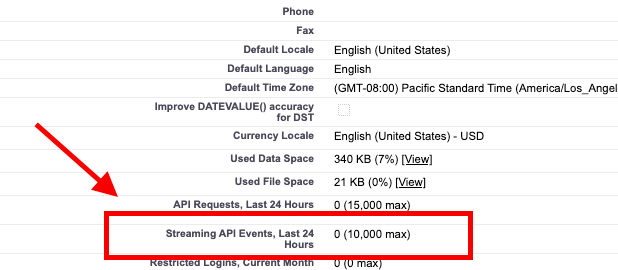
Section titled “”My Streaming Newsflash was working, but it has stopped””If your Streaming Newsflashes were streaming but have stopped, it could mean you have reached your streaming API limit through Salesforce.
To check your API limit:
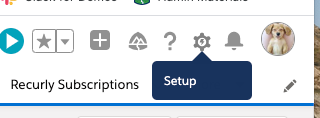
Go to Setup in Salesforce
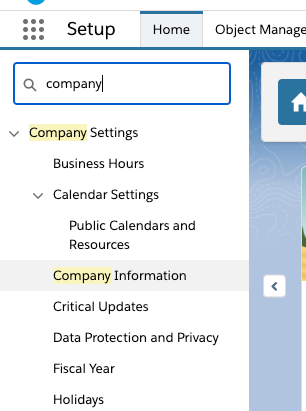
Go to Company Information
On the right hand column to see how many you have and have used in the past 24 hours:
Here is more information: https://help.salesforce.com/articleView?id=000314951&type=1&mode=1
Related articles
Section titled “Related articles”- Create a Salesforce streaming newsflash in Hoopla Trigger real-time newsflashes on your Hoopla TV channels when individual Salesforce records, such as closed opportunities, meet your criteria.
- Supported objects for streaming newsflashes in Hoopla See which Salesforce standard and custom objects you can use in PushTopic queries for Hoopla streaming newsflashes.
- Stream newsflashes using formula field values in Hoopla Trigger a streaming newsflash from a calculated value by having a Salesforce workflow write your formula’s result into a standard field.
- Salesforce API credit usage in Hoopla Understand how Hoopla report syncs use Salesforce API credits, how streaming newsflashes count toward PushTopic limits, and how to reduce credit usage.
Still having trouble?
Email our support team.