


How-to · Hoopla
Set up Microsoft Teams notifications in Hoopla
Send Hoopla newsflashes, challenges, calendar events, and leaderboards to your Microsoft Teams channels.
How it works
Section titled “How it works”-
Add Integration and Authenticate.
-
Create a Workflow in MS Teams.
-
Set up the notification preferences in the channel.
Initial Setup from Hoopla
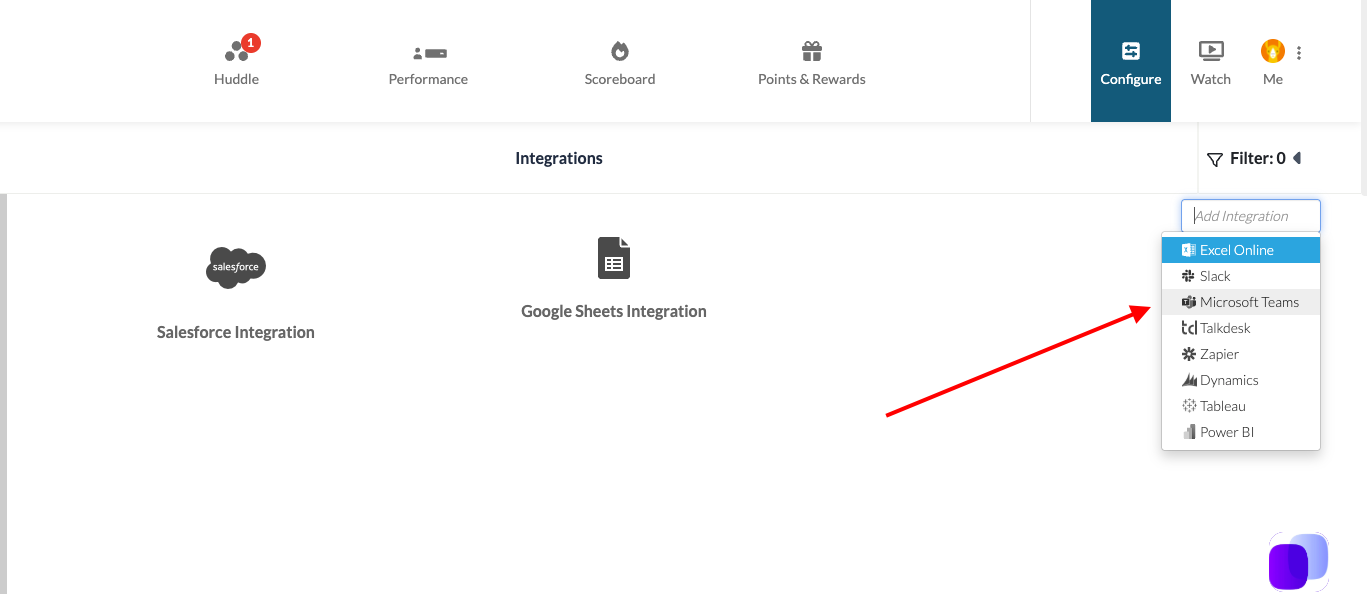
Section titled “Initial Setup from Hoopla”- On Hoopla, go to Integrations page and select Microsoft Teams in the dropdown.
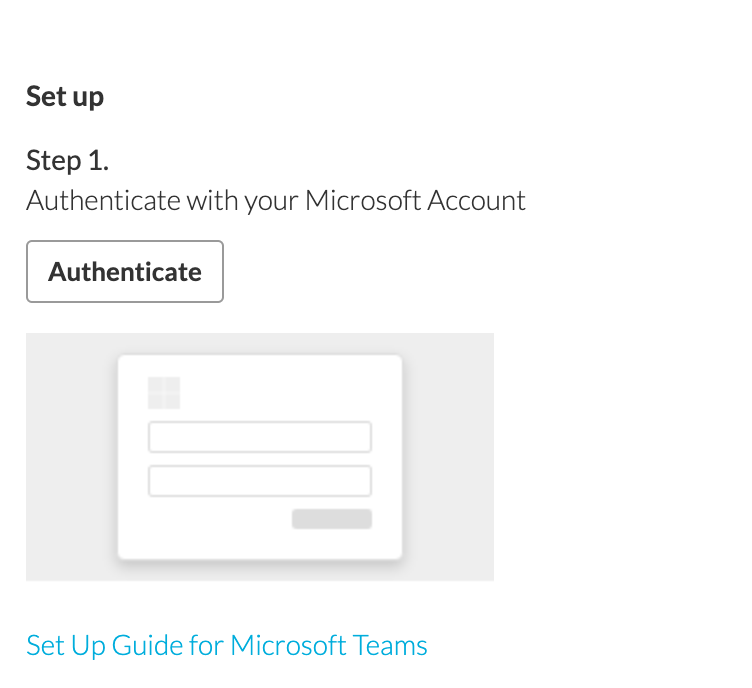
- Click into the integration and click the Authenticate button.
-
Sign in to your Microsoft account using your Microsoft credentials.
-
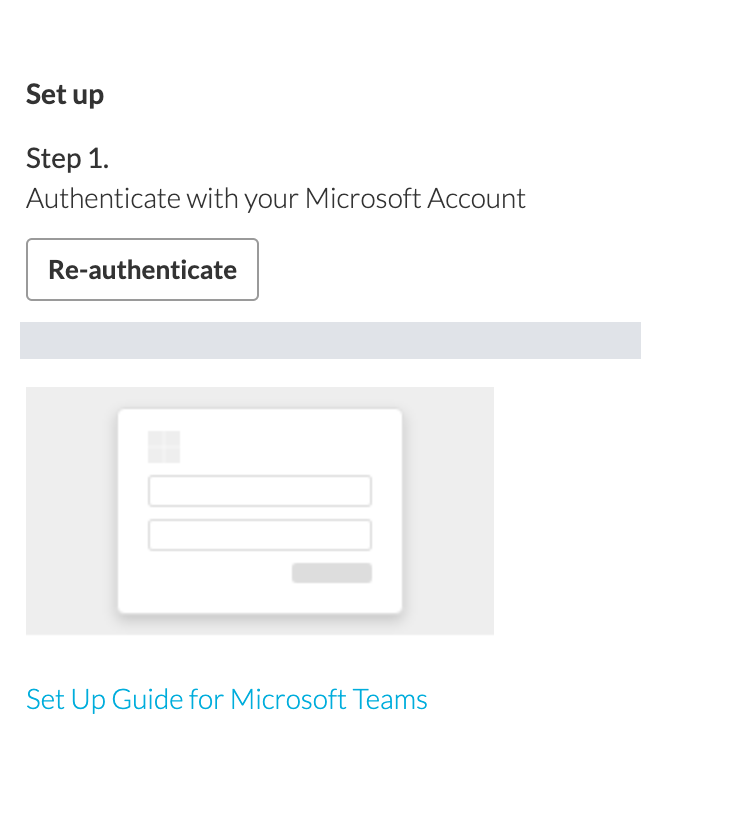
Once connected, you should see the following screen.
Authentication scope
Section titled “Authentication scope”Authentication process uses OAuth2 protocol and the Hoopla app requires these scopes from Microsoft in order to push messages to Teams:
-
openid
-
email
-
profile
-
offline_access
-
User.Read.All
The next step of the integration happens in MS Teams.
How to set up a workflow from Microsoft Teams
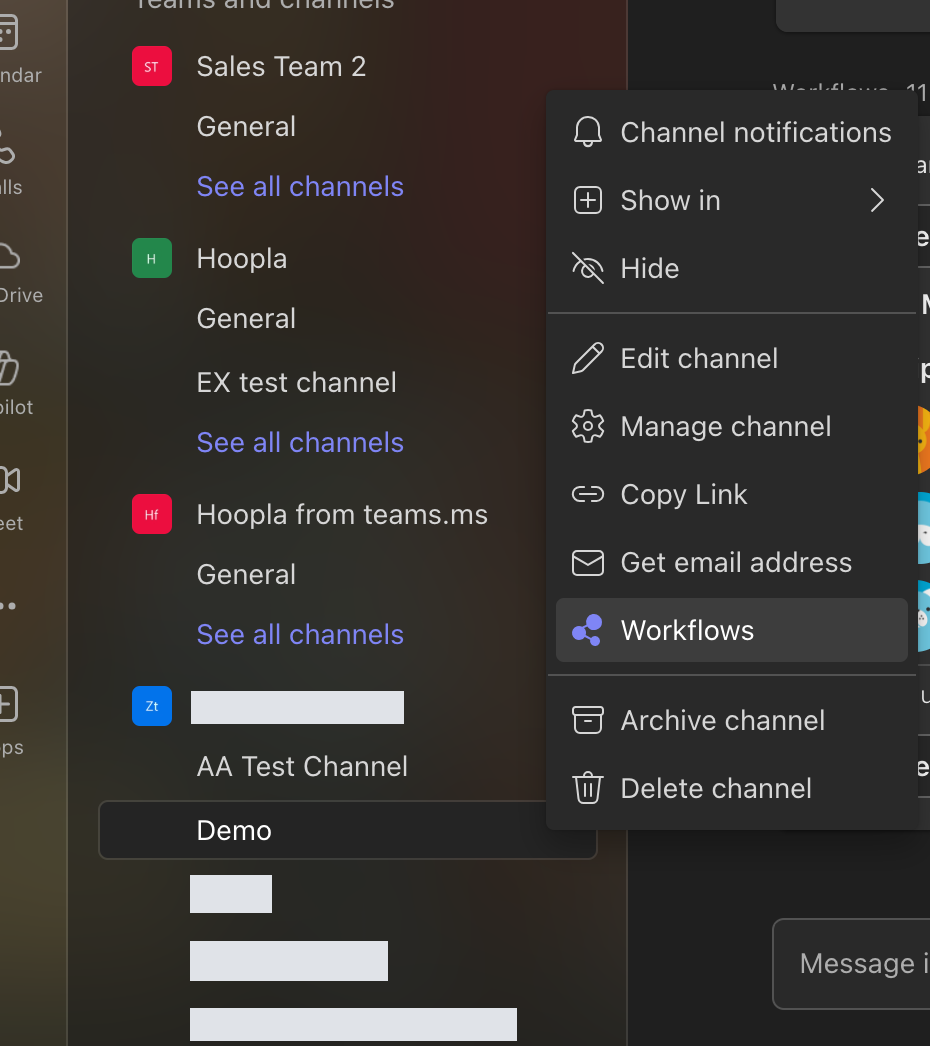
Section titled “How to set up a workflow from Microsoft Teams”Right click from the channel, and select Workflows.
Then search for this Teams prebuilt flow: Send webhook alerts to a channel
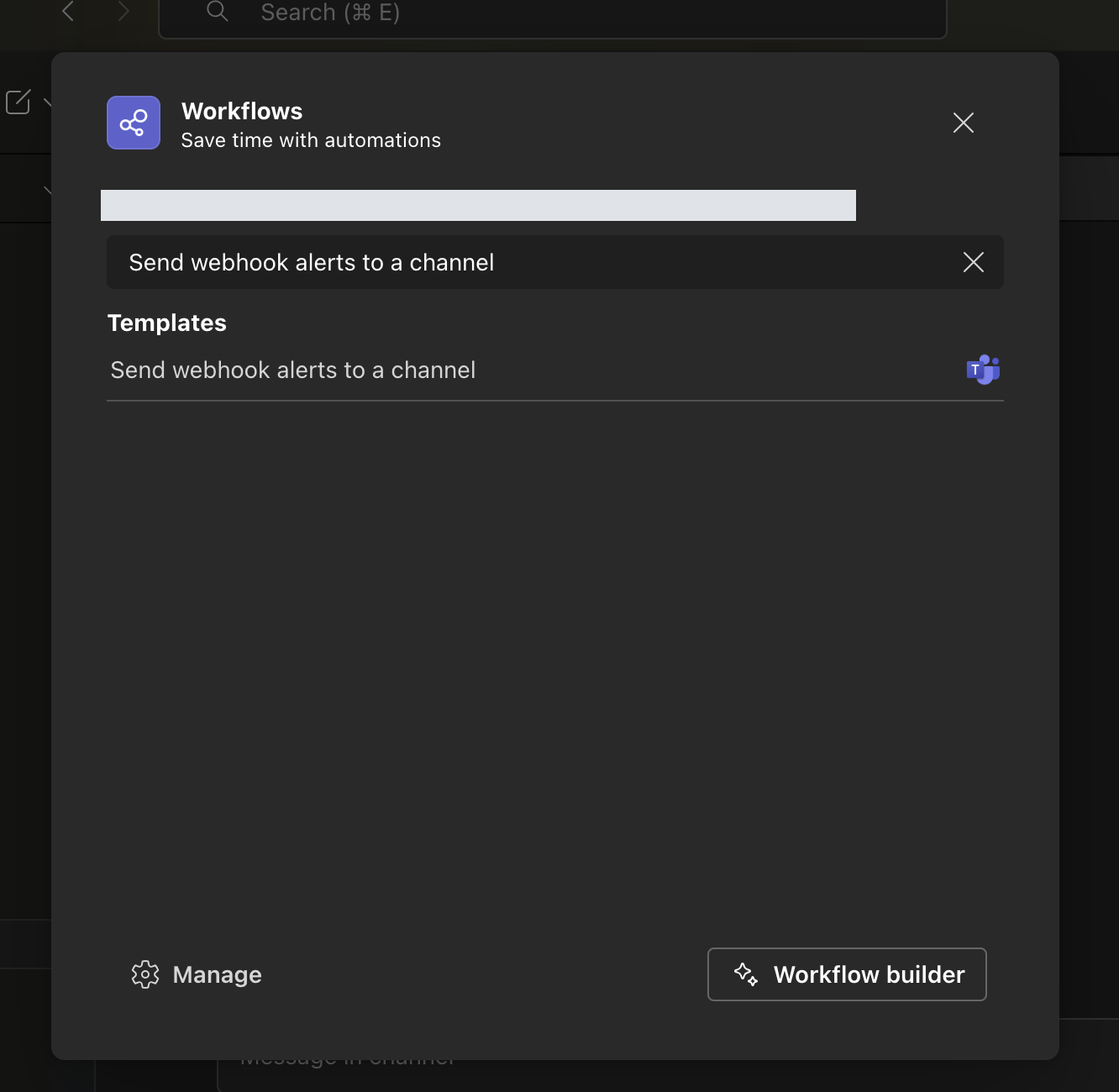
Click on it to finish the setup
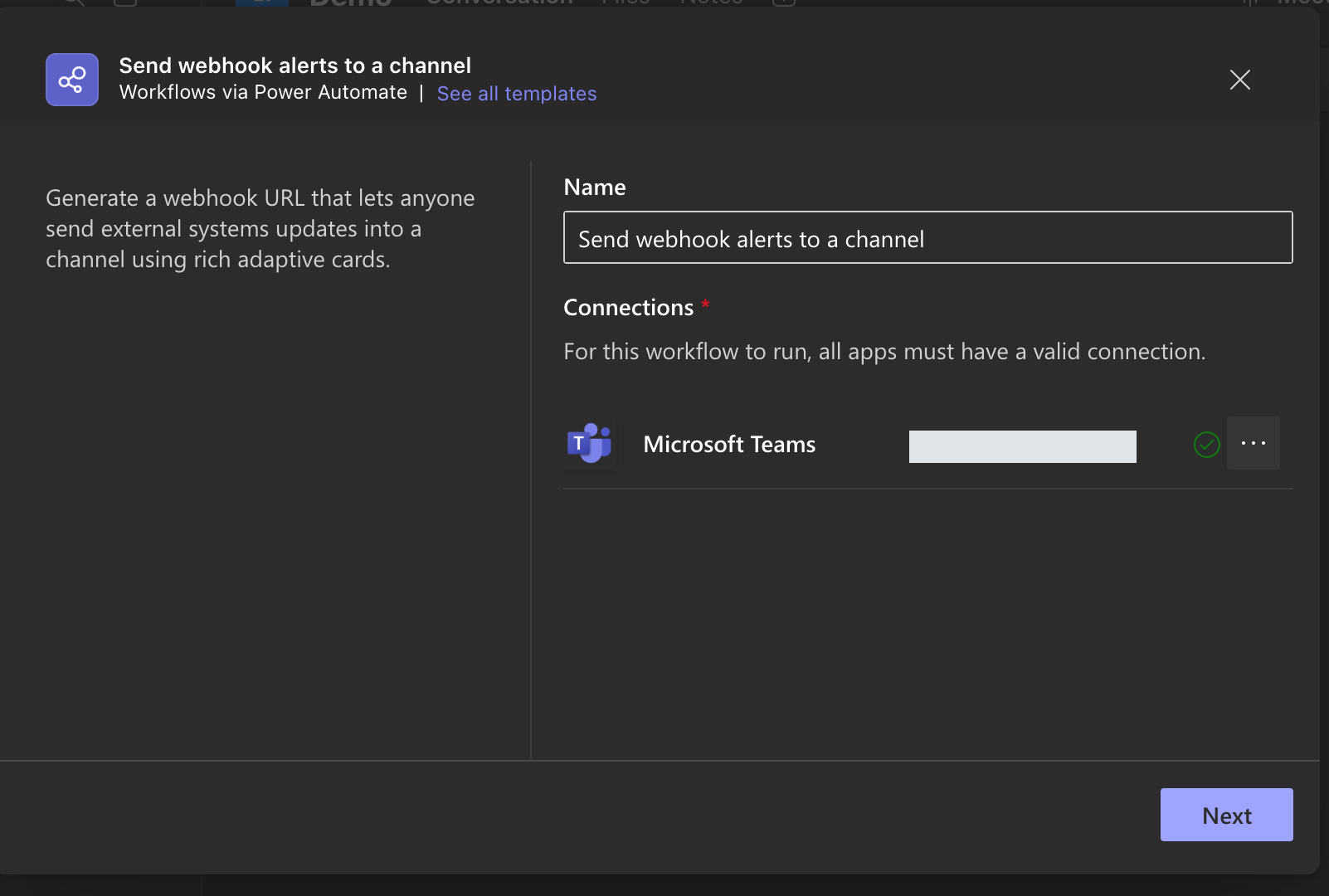
Select the teams and channel that you want to add workflow to:
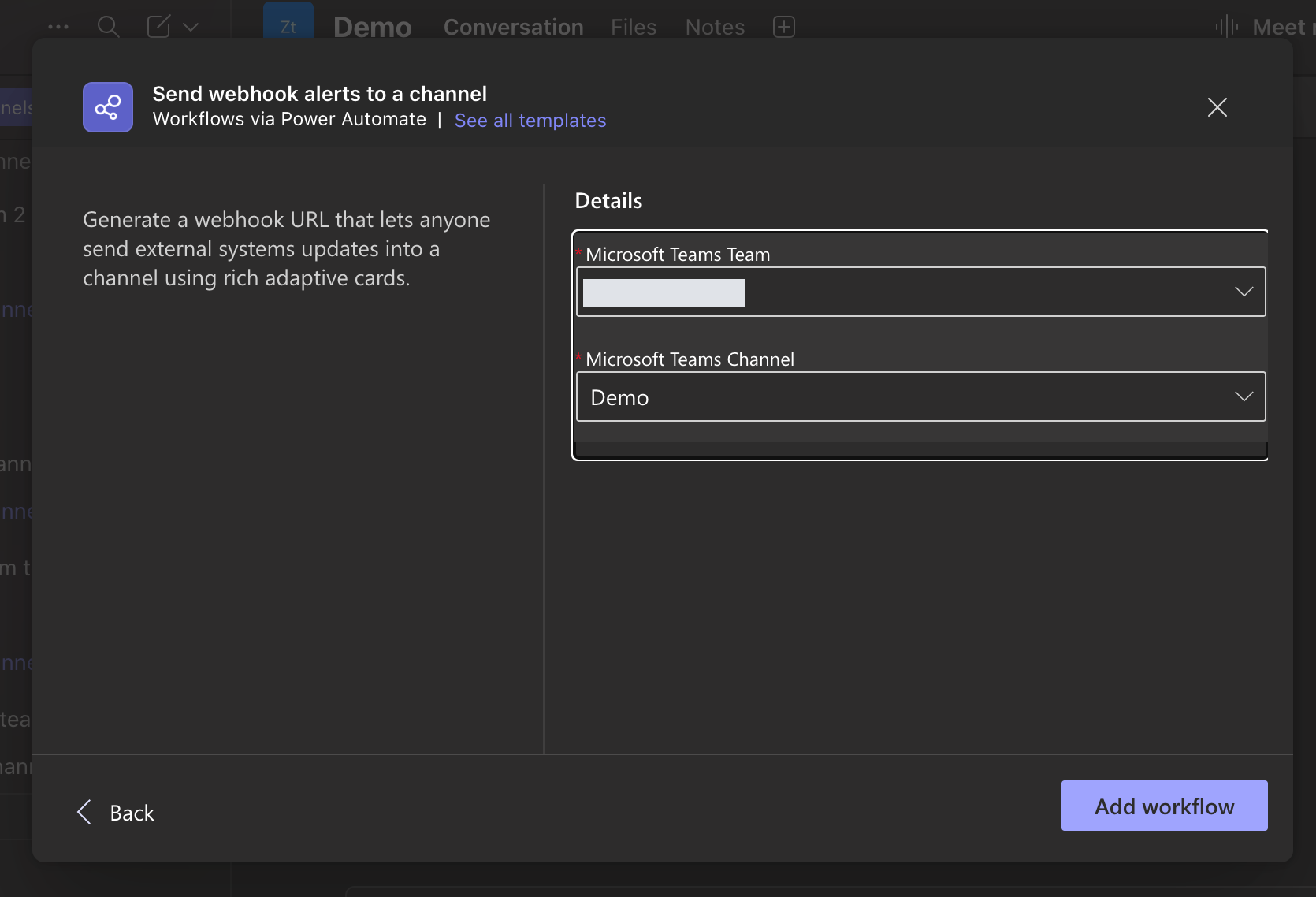
Once you click Add Workflow, you should be getting a workflow url which you will shared with Hoopla Support.
(Alternative )How to set up a workflow from Microsoft PowerAutomate using a template
Section titled “(Alternative )How to set up a workflow from Microsoft PowerAutomate using a template”Login to your Power Automate account. Click + New flow
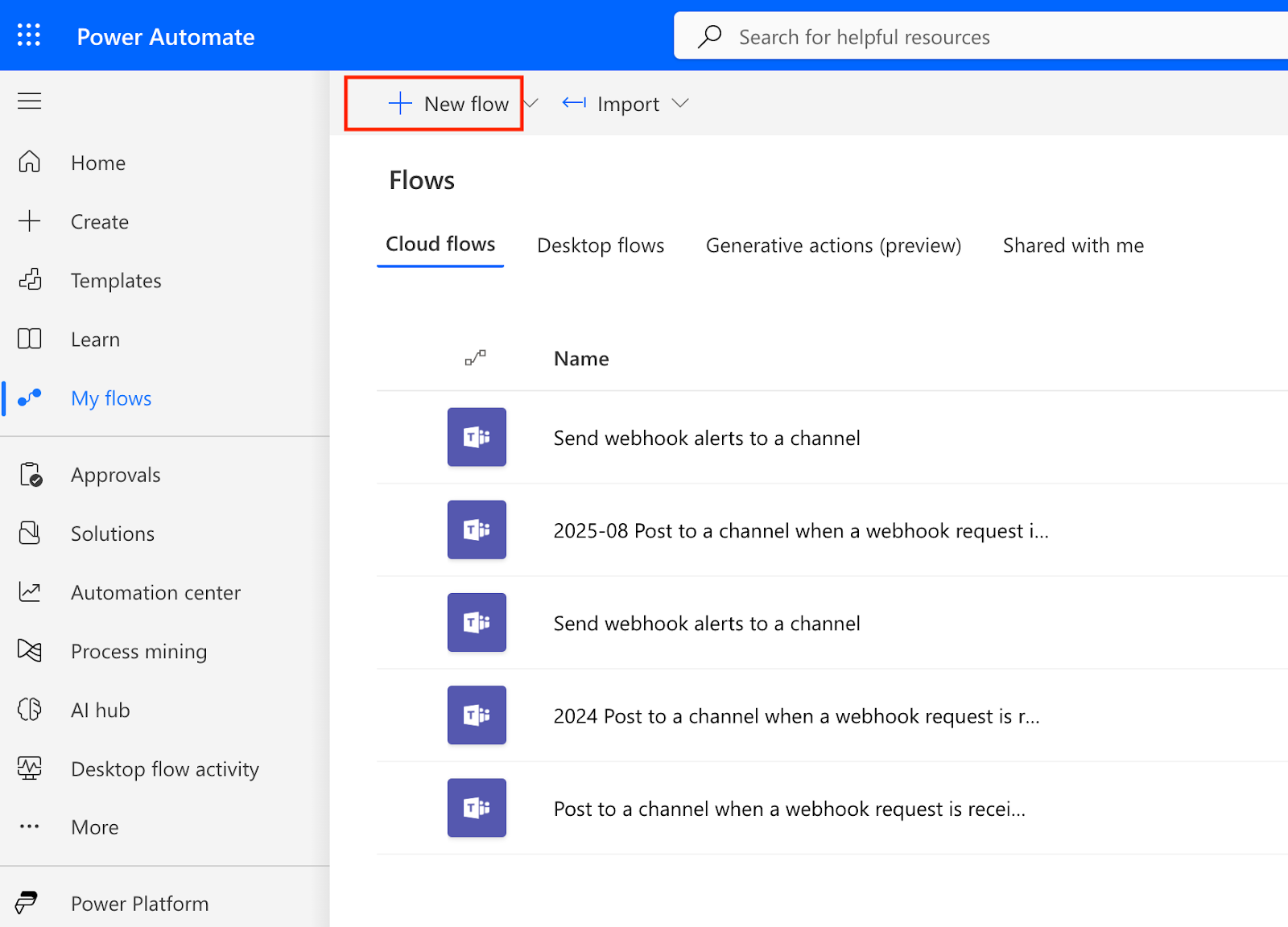
Select the first option from the dropdown, select template, then search for “Send webhook alerts to a channel”.
You should see the following screen
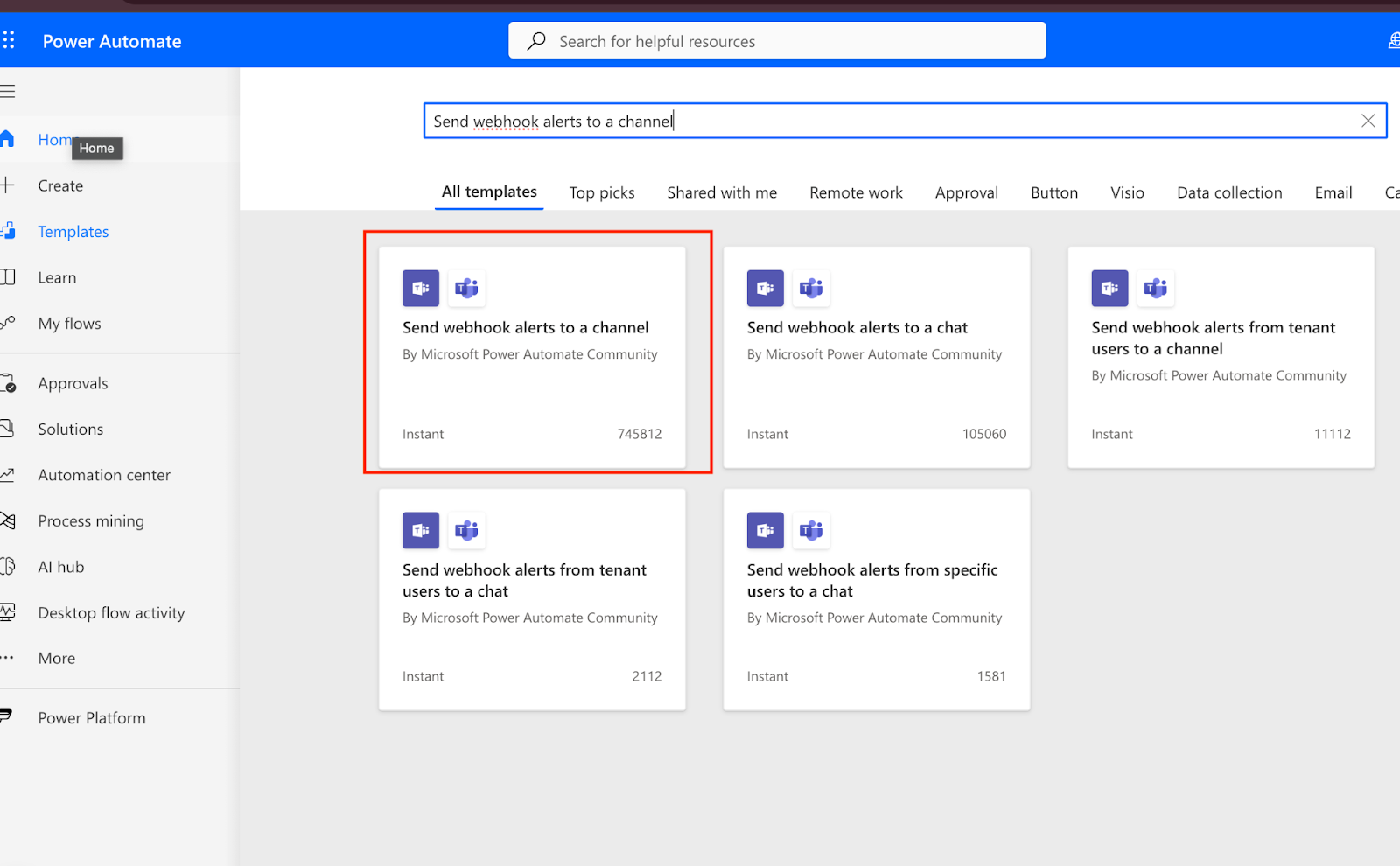
Hit continue and then select edit in advanced mode
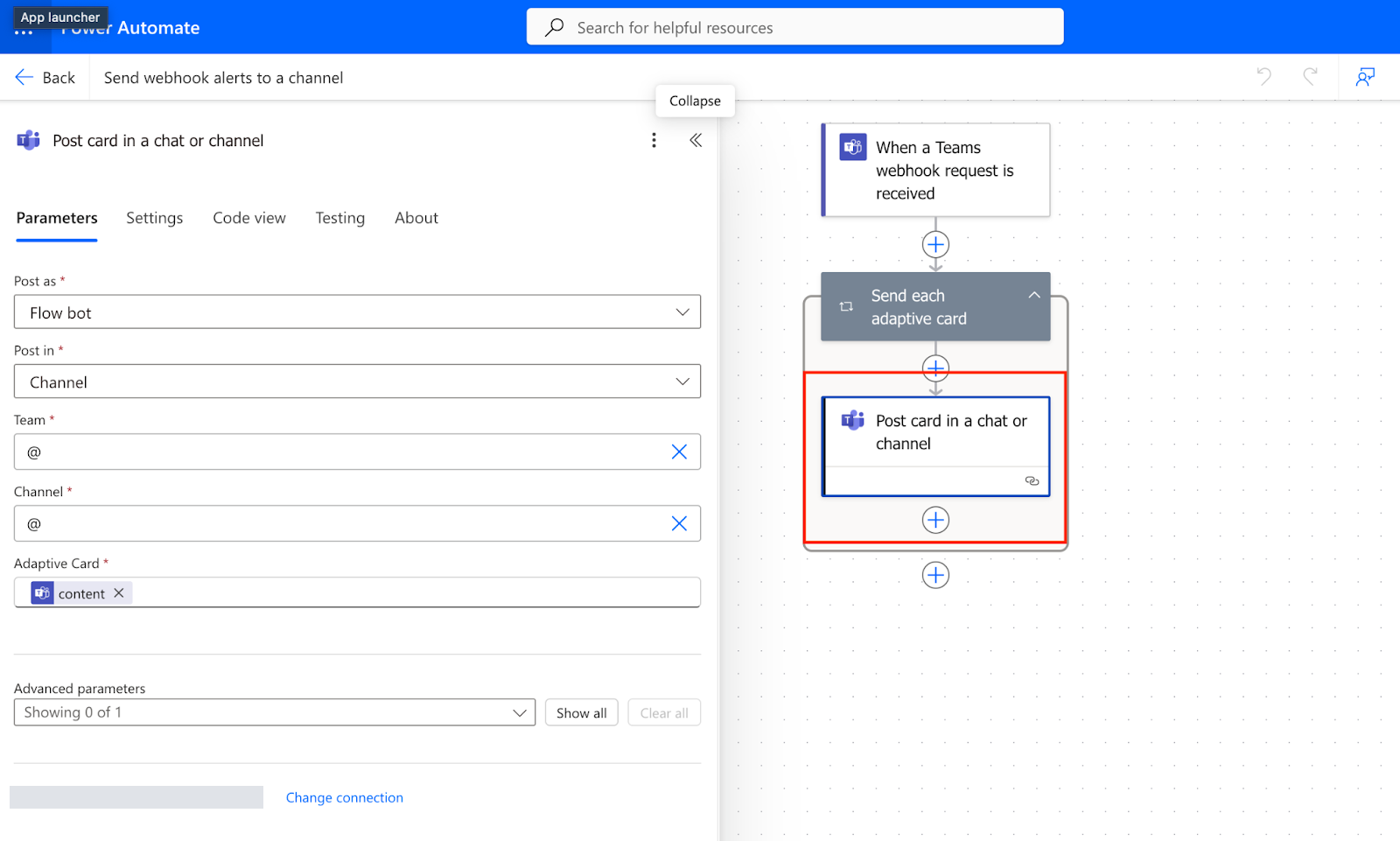
Select your team and choose which channel you want to push messages to.
The last step is to select the top container where it says “When a Teams webhook request is received.” Save the current flow, and you should get a workflow URL like this:
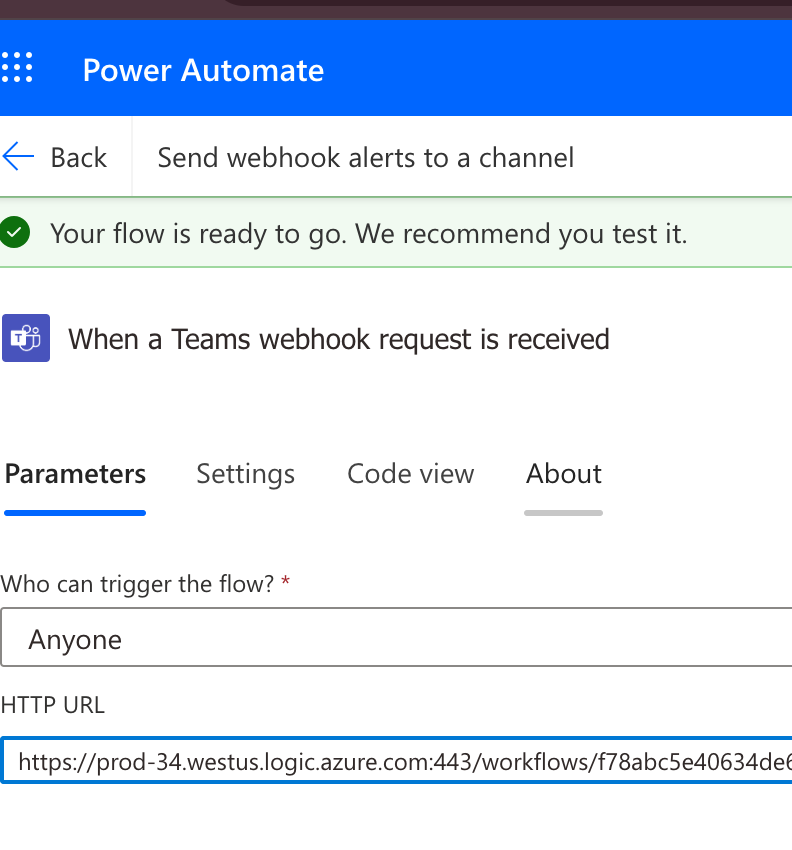
At this point, you are fully set up with workflow and you need to send this workflow URL to Hoopla customer support so that Hoopla can use it on pushing Hoopla messages to your designated Teams channel.
Microsoft Teams Workflows APIs
Section titled “Microsoft Teams Workflows APIs”Hoopla will post messages to your Teams channel when you provide a Teams Workflows URL. Use the Workflows setup described here instead of the legacy connector setup.
For more information on how to set up workflows:
Add Your Preferences in the Channels Area
Section titled “Add Your Preferences in the Channels Area”Within Hoopla, navigate to your Channels page (Configure>Channels & TV>Channels).
-
Select the Channel you wish to send notifications from.
-
Under the Notifications section, check the box next to Microsoft Teams.
-
A popup box will appear, prompting you to set up Microsoft Teams notifications. You will see any previously added workflows and their names along with the option to add more. Click Add Teams Channel and add your Workflow information that you created in MS Teams. (Name and URL).
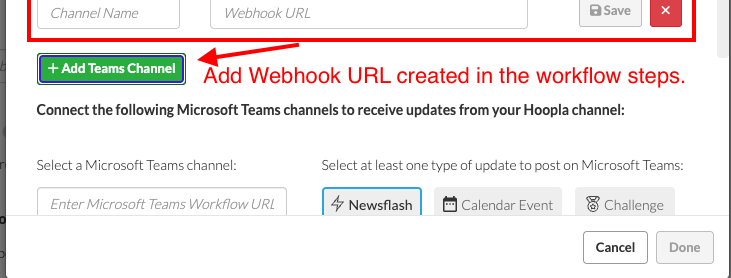
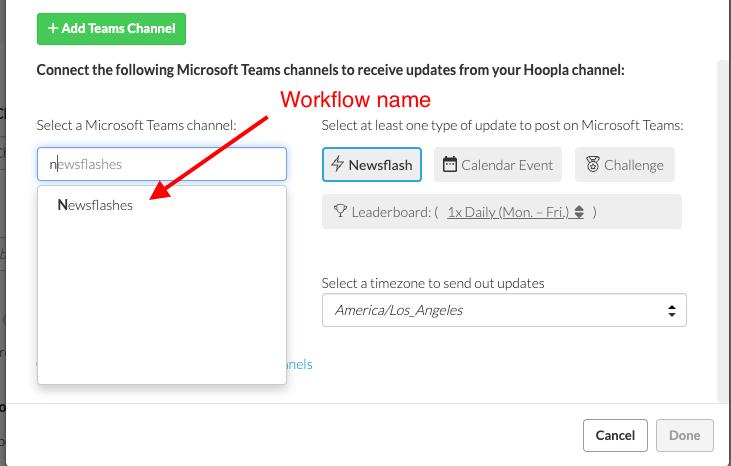
- Start typing the name of the workflow in the Microsoft Teams Channel box and you will see any matching workflows. Select the workflow.
-
Select which type of notifications you wish to send, Newsflashes, Challenges, Calendar Events, Leaderboards or all of the above.
-
You may configure notifications for multiple Microsoft Teams channels. To do so, click the plus button next to “Enable additional Microsoft Teams channels.”
-
Once you’ve configured your Microsoft Teams notifications, click the Done button at the bottom of the box.
-
Finally, click Save at the top right-hand side of the Channel details page.
Related articles
Section titled “Related articles”- Add a Hoopla channel to a Microsoft Teams tab Add a Hoopla channel to Microsoft Teams as a website tab so your team can view it without switching apps.
- Set up Slack notifications in Hoopla Push Hoopla newsflashes, challenges, calendar events, and leaderboard updates into public or private Slack channels.
Still having trouble?
Email our support team.