


How-to · Hoopla
Scheduled backgrounds
Schedule backgrounds by date and tag to keep your channels current.
Add a Scheduled Background
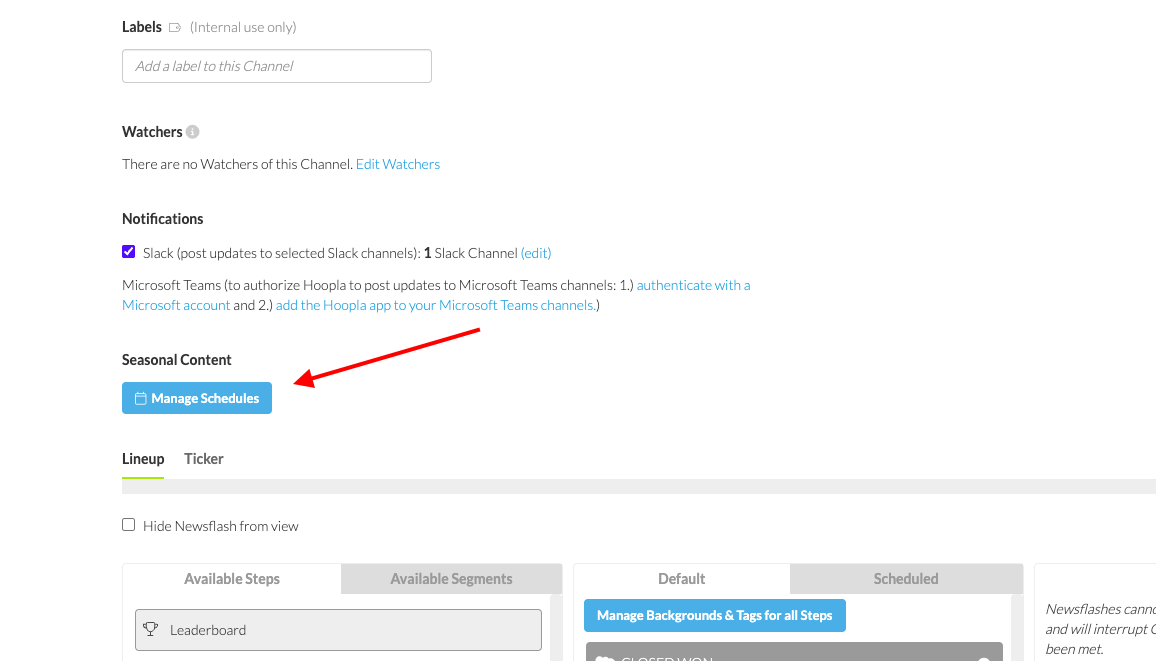
Section titled “Add a Scheduled Background”Navigate to the channel you would like to add the background to and click “Manage Schedules”:
Choose “Add Schedule”, Select the tag you would like to add and choose the dates for the tag to run:
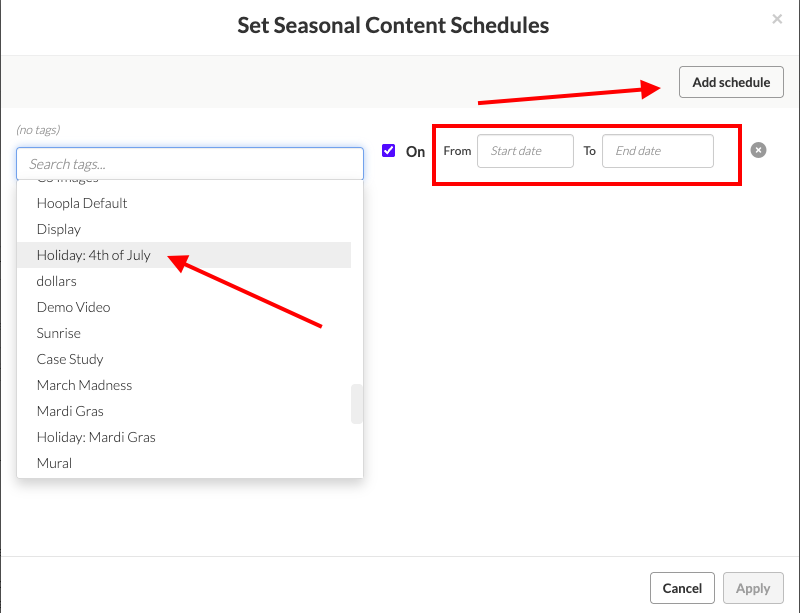
The system will switch all items in the channel with a background to the selected tag.
Once the End Date occurs, the items will revert to default assets. To avoid this, set another schedule for your preferred background to start on the after the end date of the scheduled item.
To learn how to set up tags, check out this article.
Still having trouble?
Email our support team.