


How-to · Hoopla
Resolve the Salesforce OAuth error
Review Salesforce connected-app restrictions and work with your administrator to authorize Hoopla.
Starting in early September 2025, Salesforce will restrict the use of uninstalled connected apps. This usage restriction will block end users from using uninstalled connected apps. This change is part of Salesforce’s commitment to making our products and services secure-by-default.
Read the full Salesforce articlehere.
Every organization’s security posture is unique, and you should apply the approach that best fits your governance, compliance, and risk requirements. We have shared how our company handled the new restrictions internally below. Our notes are shared for informational purposes only and do not constitute legal advice. If you have questions about how these changes relate to your environment, please consult your Salesforce admin for guidance on available options.
Suggested course without granting the permission
Section titled “Suggested course without granting the permission”Instead of granting permission, take this approach:
-
Remove the
Approve Uninstalled Connected Apppermission set from users -
Go to setup -> Connected Apps OAuth Usage -> Find Hoopla, hit Install button
-
Then, still on Connected Apps OAuth Usage, find Hoopla and click
Manage app policies -
Click
Edit policiesand set permitted users =All users may self-authorize
How to add the permission at the user level using Permission Sets
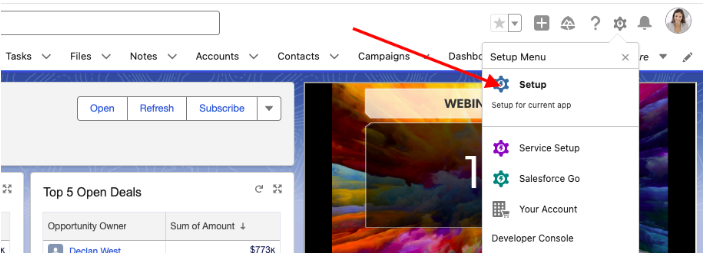
Section titled “How to add the permission at the user level using Permission Sets”Create a permission set by clicking on the cog in the top right of Salesforce to get to settings:
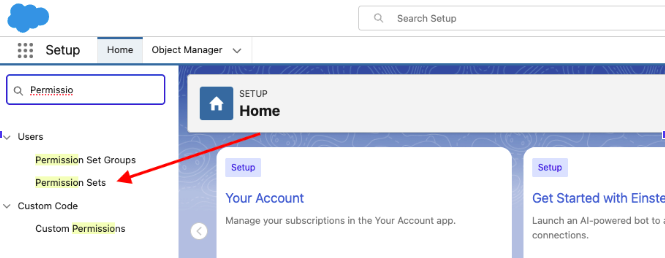
Locate the Permission Sets using the Quick Find field:
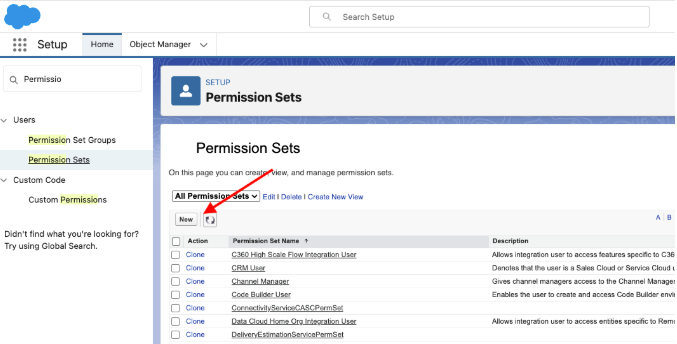
Create a New Permission Set:
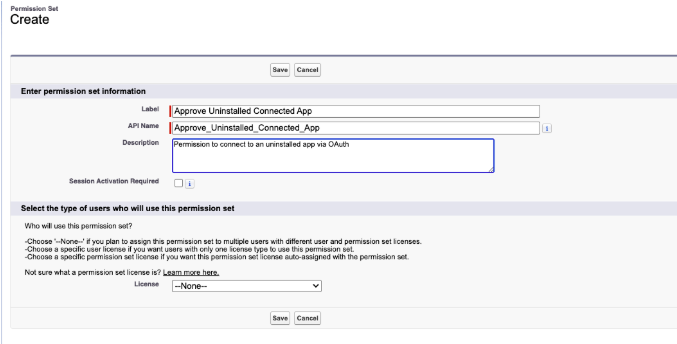
Name your permission set (we used “Approve Uninstalled Connected App”) leave the Session Activation and License fields blank and Save:
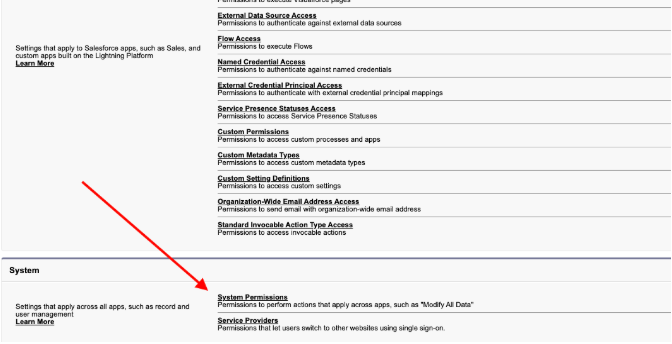
Select the System Permissions in the newly created permission set:
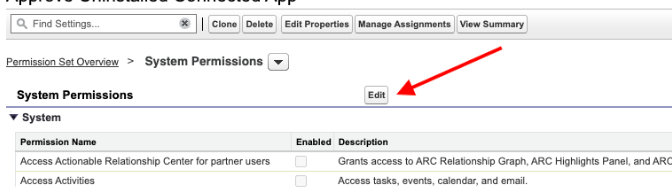
Select Edit:
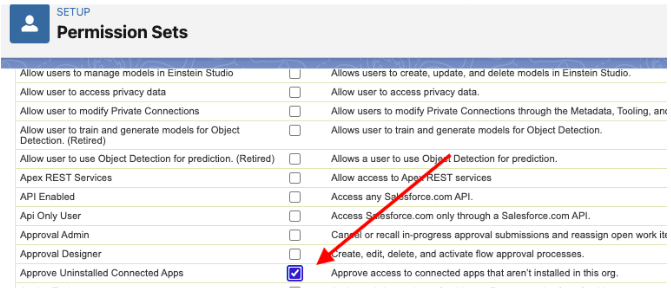
Locate “Approve Uninstalled Connected Apps” and check the box for only that permission.
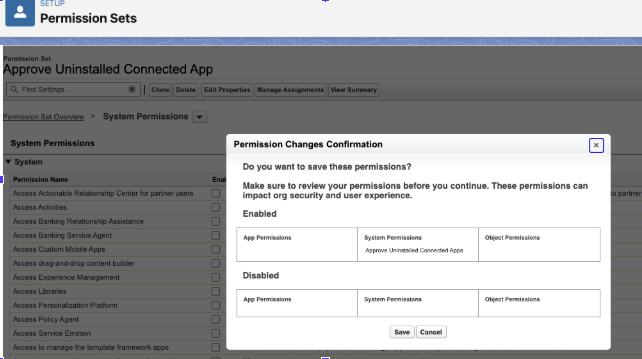
Scroll back to the top and click Save. A popup will appear. Save on the popup as well:
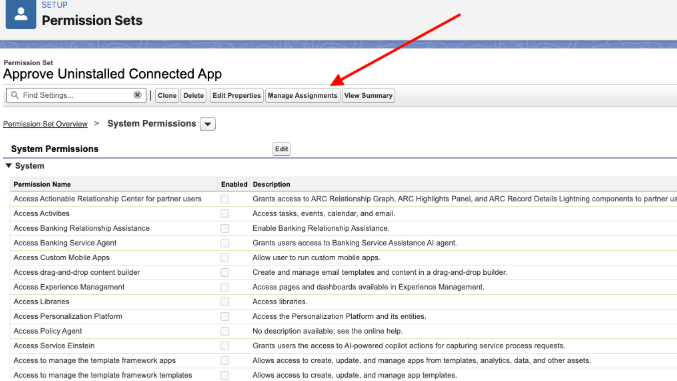
In the Permission Set screen, select “Manage Assignments”:
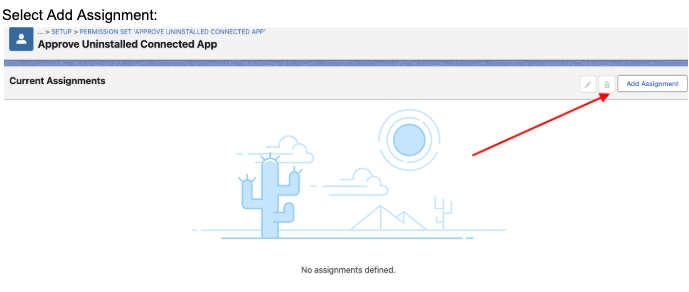
Select Add Assignment:
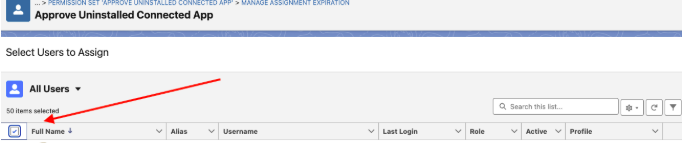
Assign to all the users who need the permission:
How to apply the Permission at the Profile Level
Section titled “How to apply the Permission at the Profile Level”In the Setup Quick Find field, look for Profiles:
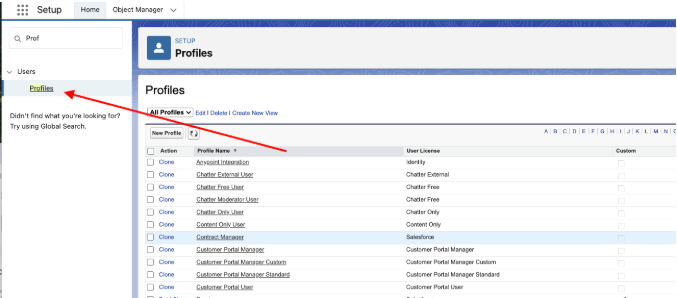
Click on the profile that you want to have the permission:
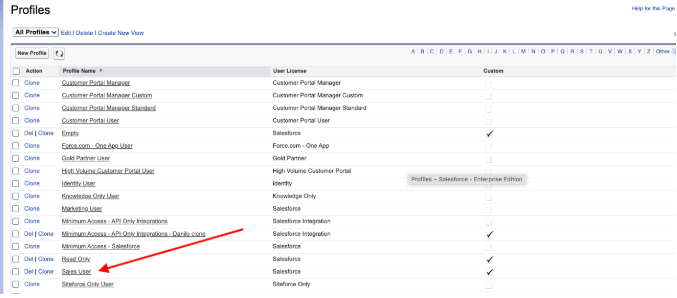
Navigate to System Permissions and Click Edit. From here you can select the permission:
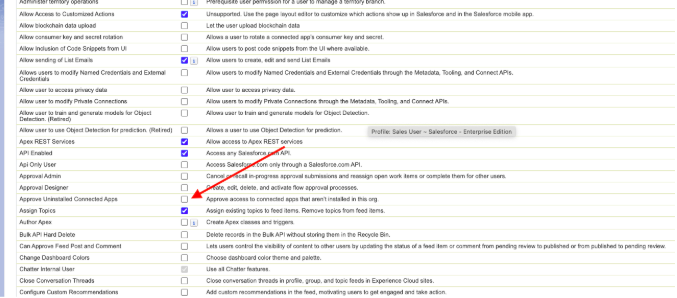
Save your changes.
Still having trouble?
Email our support team.