


How-to · Displai
What are enterprise features?
See how Displai Enterprise lets you invite team members, assign user roles and share screens and content across a domain.
Displai Enterprise is allows large organizations to manage hundreds of screens across dozens of users with different sets of permissions. If your organization has dozens of locations, and you want location managers and headquarters to share responsibility for the content on your screens, Enterprise is built for you!
There are three core functions in our enterprise features:
-
Multiple users
-
User roles granting detailed permissions
-
A shared domain
Multiple Users: How to add users to your enterprise domain.
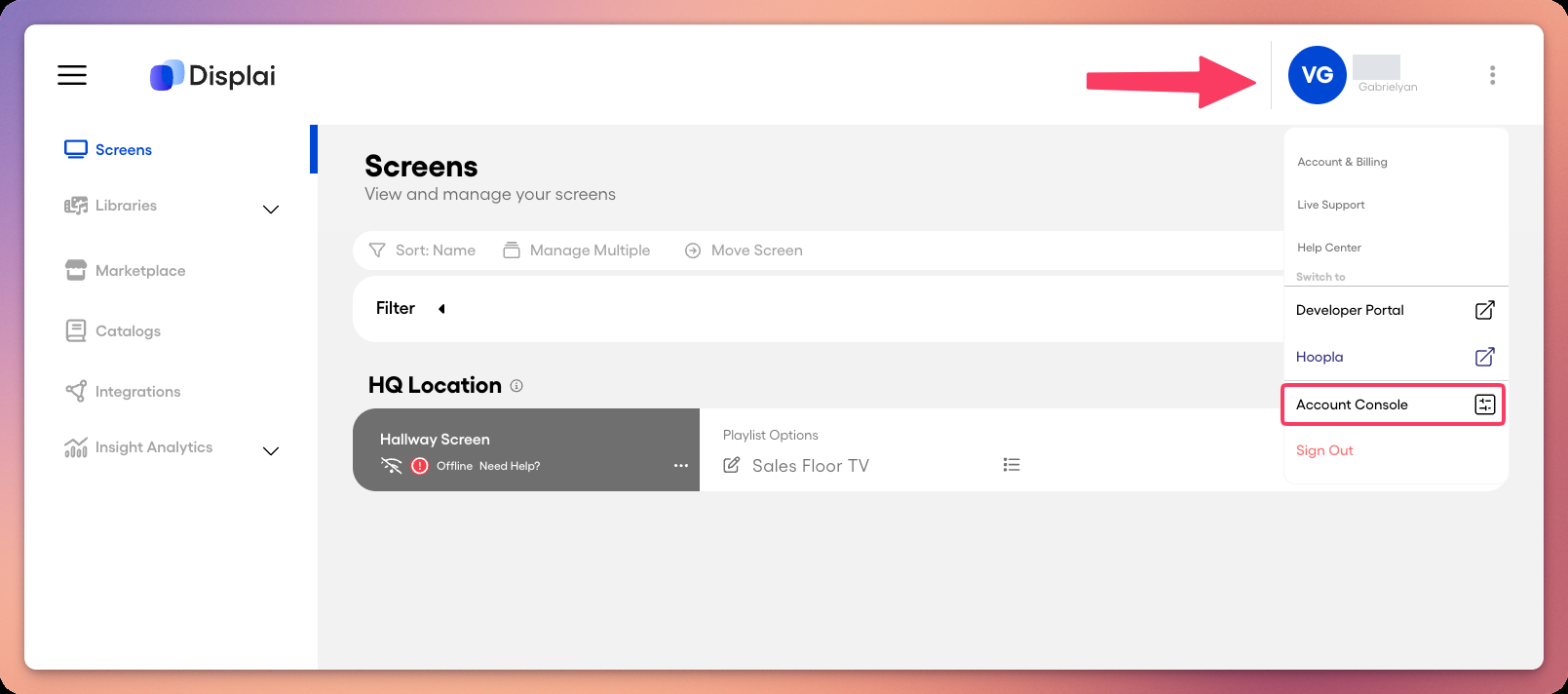
Section titled “Multiple Users: How to add users to your enterprise domain.”Within your account console, click on the team tab in the left hand navigation bar. The account console can be found by clicking on your name in the top right hand corner of your dashboard.
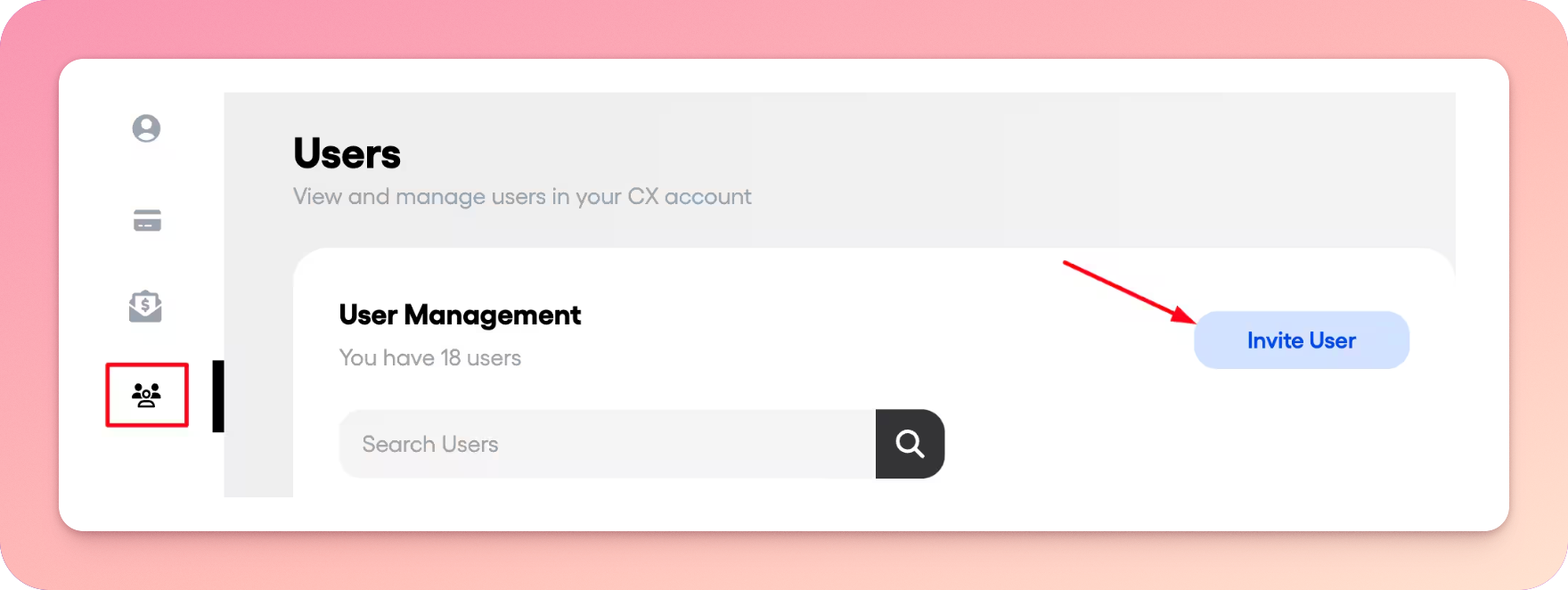
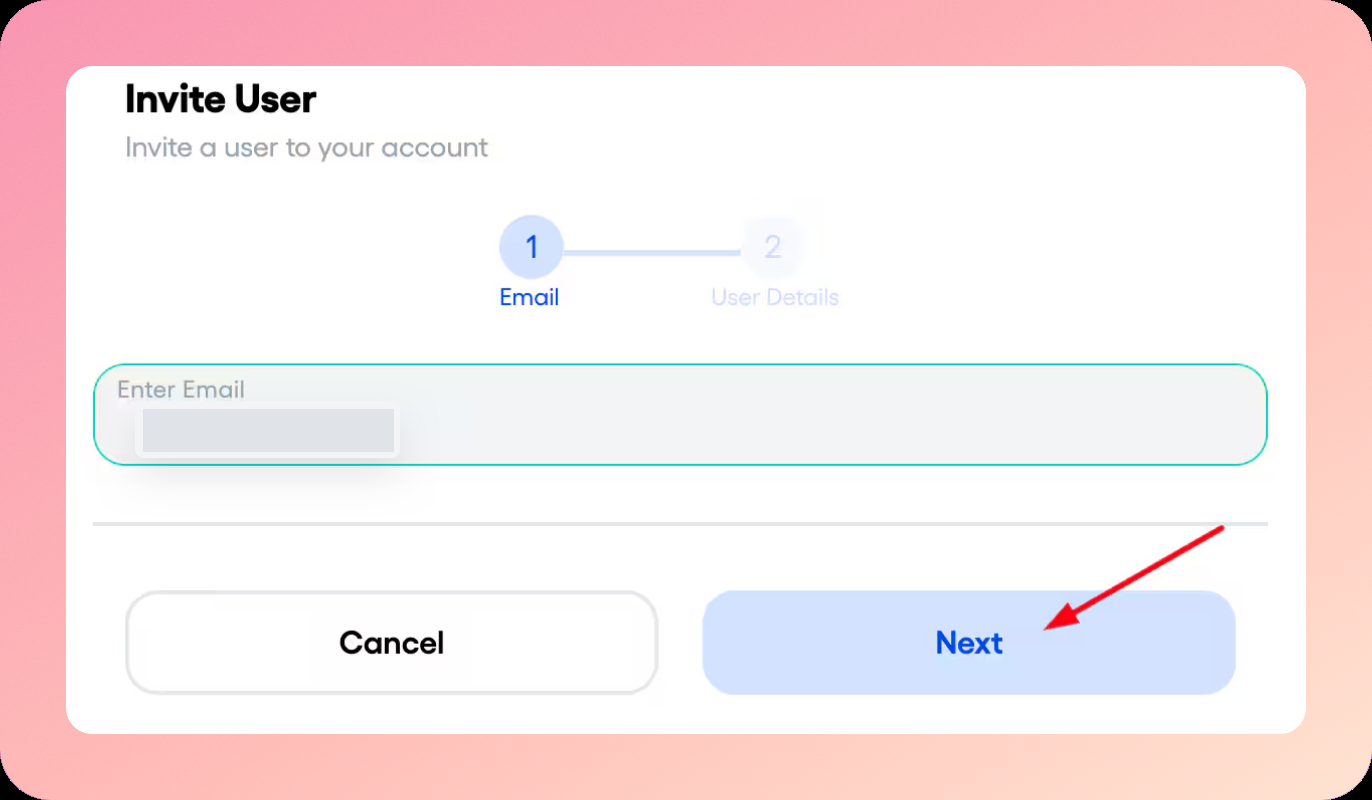
Enter the user’s email address and press “Next”.
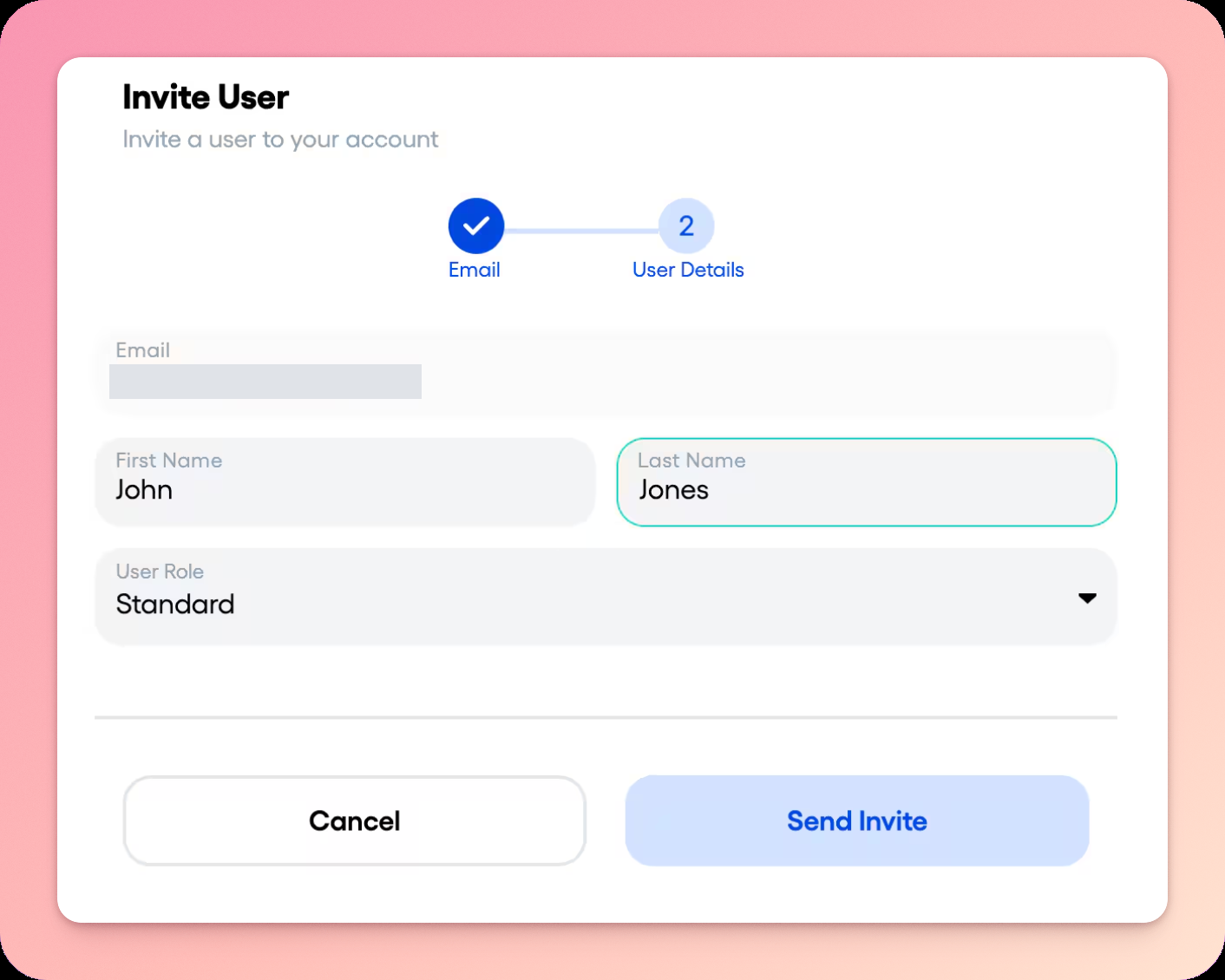
Enter the user’s First Name, Last Name and select a role. Click “Send Invite”.
The newly invited user will receive an invitation via email, asking them to join your Domain. Once they accept that invitation, the process will be complete.
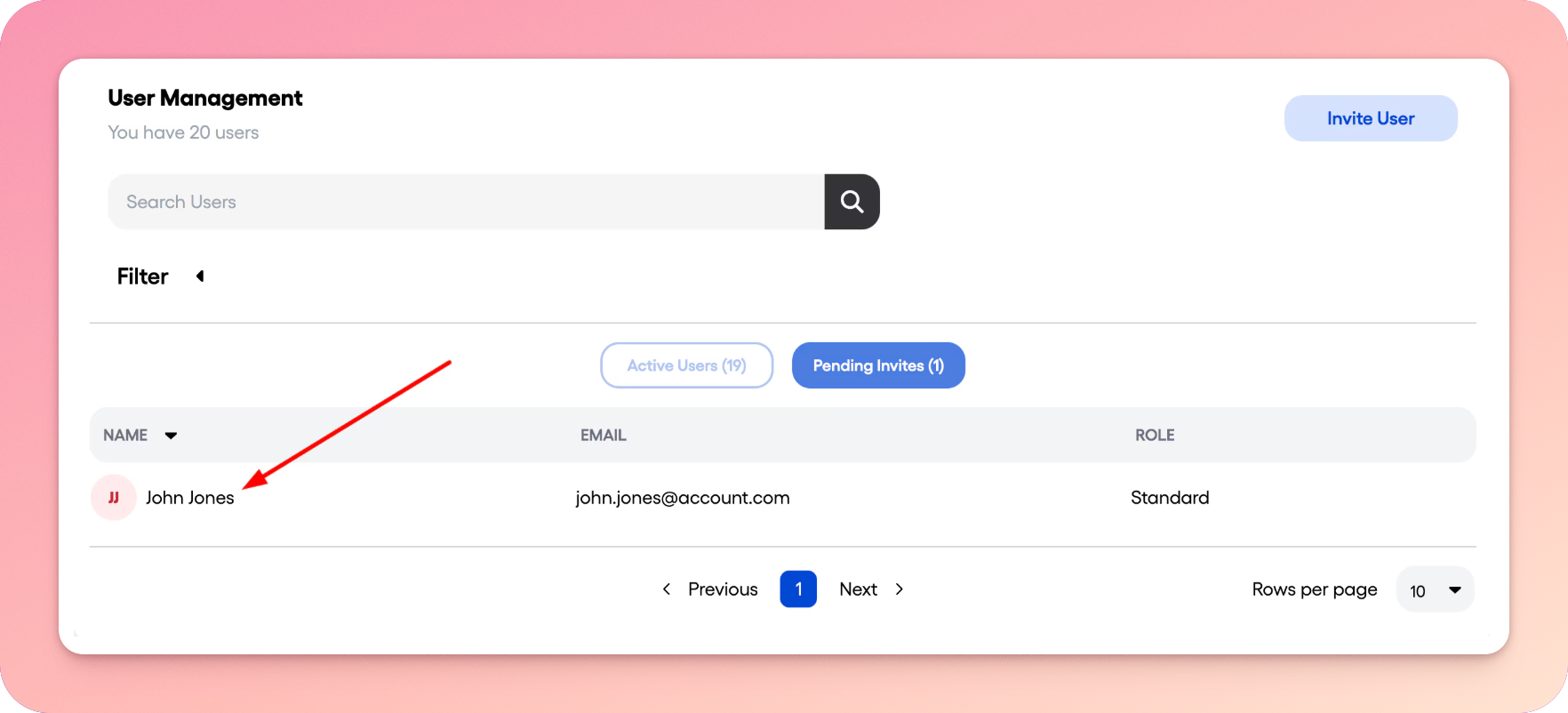
If you would like to delete a pending invite or resend the invitation, go to “Pending Invites” and click on the user:
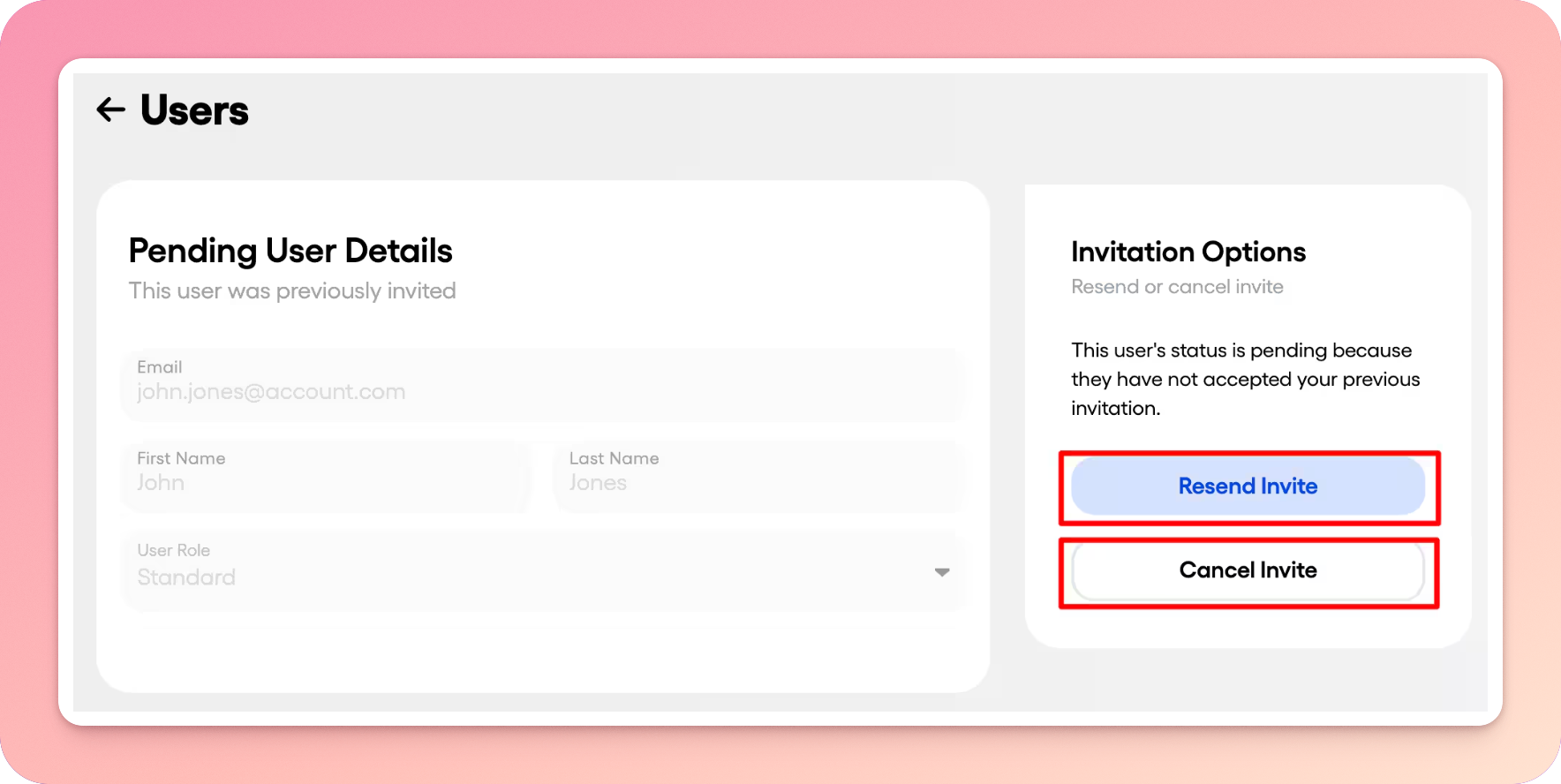
Here you will see an option to “Resend Invite” or “Cancel Invite”:
User Roles
Section titled “User Roles”Once your new users have been added, the Superadmin can adjust their permissions.
Superadmins
-
Can view, edit, and delete their own screens, content and playlists (collectively known as resources).
-
Can view, edit, and delete the resources owned by any other user in the domain.
-
Can invite other users to join the domain and assign roles to any user.
Admins:
-
Can view, edit and delete their own resources.
-
Can view and edit resources owned by any user in the domain
Unlike Superadmins, admins cannotdelete resources owned by other users.
- Can invite other users to join the domain and assign roles to any user.
Any users below Admin level will not be able to invite other users to join the domain and assign roles.
Standard Users:
-
Can view, edit, and delete their own resources, but
-
Can only view the content and screens belonging to other users in the domain. Users
-
Can also view and edit (but not delete) resources that have been explicitly shared with them by any other user.
Restricted users:
-
Can view, edit, and delete their own resources.
-
Can see the screens that have been explicitly shared with them, but cannot view or edit any other user’s content.
-
If a Super Administrator, Administrator, or Standard User adds a presentation to a playlist owned by a Restricted user, the Restricted user cannot remove that presentation from the playlist.
A Shared Domain
Section titled “A Shared Domain”Once users have been invited to the domain and had roles assigned, they will be able to view each other’s screens and collaborate on creating and assigning playlists with all the desired content. On the Dashboard Screens page, you will be able to view all screens associated with the domain, listed by the owner. This makes it easy, for example, for a user to create a playlist and add local content, then have an Admin review the playlist and add universal content. Voilà—all of your required content with that local touch!
Managing location access
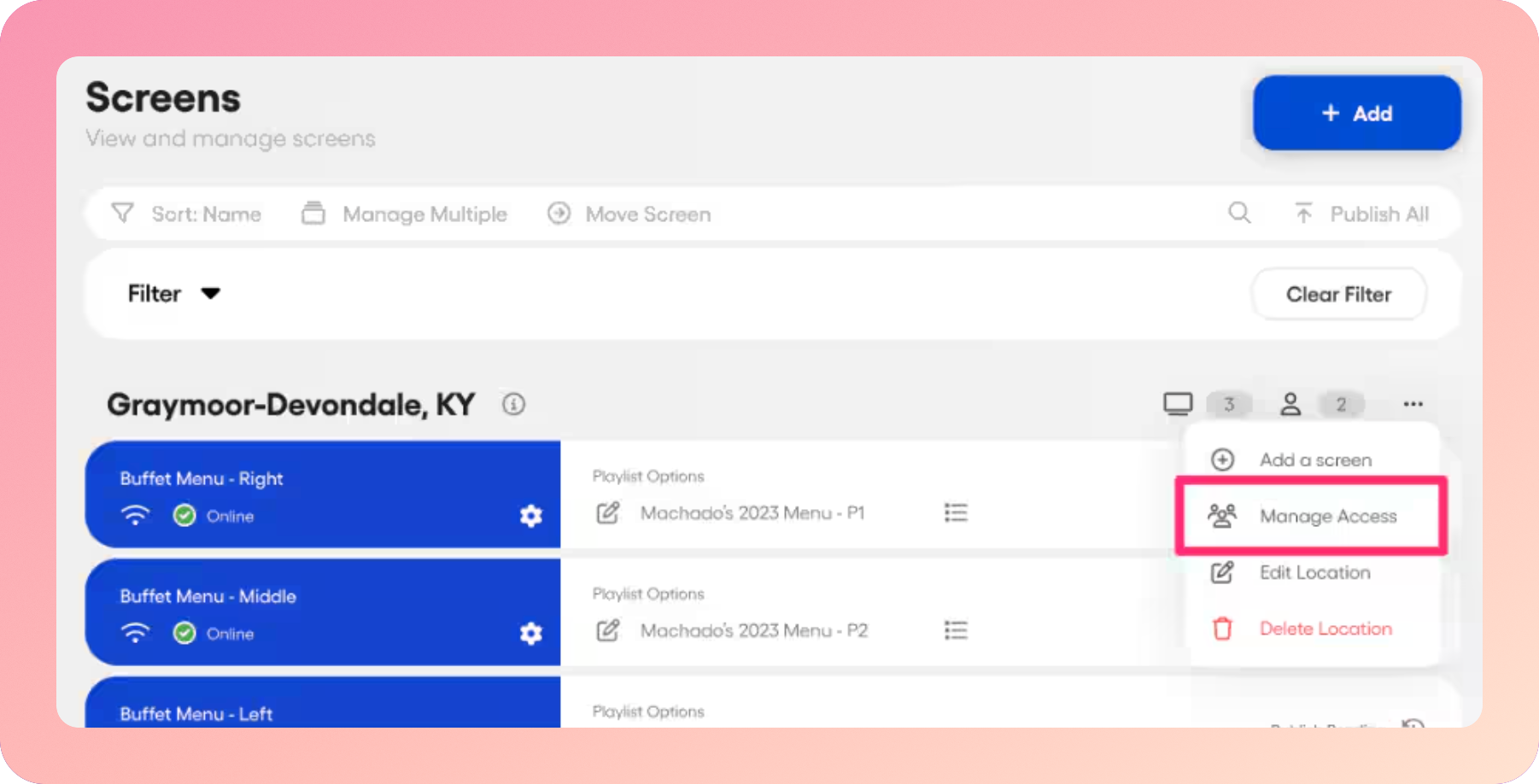
Section titled “Managing location access”Users can be added to and removed from locations using the “Manage Access” button from a location’s three-dot dropdown menu.
Deleting users from your domain
Section titled “Deleting users from your domain”If you’re looking to remove an inactive user from your enterprise domain, text us at (877)755-2332, and our support team will take care of everything for you.
Related articles
Section titled “Related articles”- Automatic user provisioning with SAML & custom attributes Automatically add users to your Displai domain and assign roles and locations based on SAML attributes from your identity provider.
- Content sharing and collaboration Share presentations, playlists and folders with users in your domain and choose the access role each person gets.
- Locations. How to organize your screens Group your screens by location so you can assign user permissions and make edits across many screens at once.
- Manage multiple screens at once with batch management Update playlists, orientation and tags across many screens at once with the Enterprise Manage Multiple tool.
Still having trouble?
Text the 24/7 line or email support.