


How-to · Hoopla
Share Hoopla channels via link
Turn on sharing for a channel and copy its link so people without Hoopla accounts can view it on their phone or desktop.
Channel links can be used to keep everyone informed and engaged
Section titled “Channel links can be used to keep everyone informed and engaged”We’ve enabled URL links for your Hoopla Channels so you can send them toall employees, not just Hoopla users. Take advantage of these links by creating custom channels to broadcast information to your whole company or utilize already existing channels.
Watch our “How To” video or follow the steps below:
Steps and Best Practices for Using Channel Links:
Section titled “Steps and Best Practices for Using Channel Links:”Step 1 (optional): Create a new channel specific for company updates -click here for instructions
Section titled “Step 1 (optional): Create a new channel specific for company updates -click here for instructions”**Best Practice:**Create a new channel to broadcast updates focused on company-wide information. You can use this custom channel link during this time and then once everyone is back in the office, either delete or disable the link to the channel.
**Hoopla Pro Tip:**Your channel can include company announcements, messages from the CEO (Video step or Web Page step from a YouTube video), main Leaderboards, and Twitter hashtags that employees can tweet into so they can see what everyone is doing.
Step 2: Copy the link
Section titled “Step 2: Copy the link”-
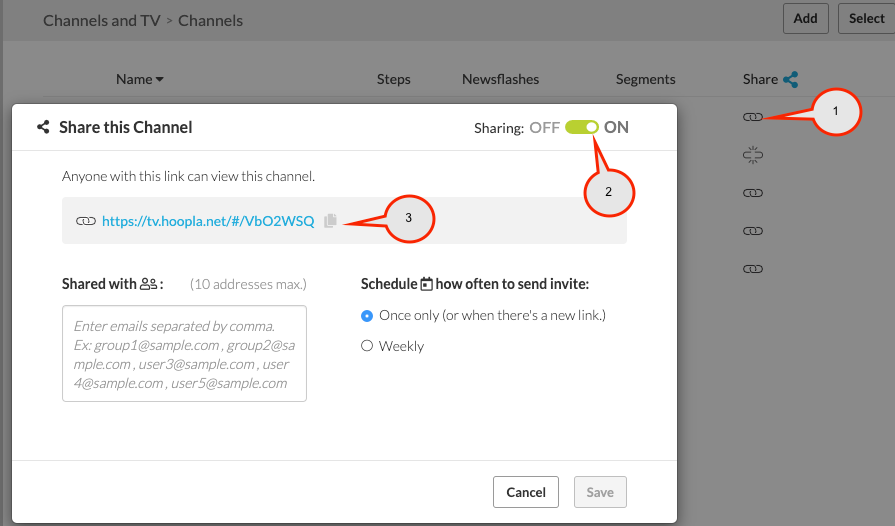
Go to the channel you created and click on the link icon
-
Make sure Sharing is ON
-
Copy the channel URL
Step 3: Share the link
Section titled “Step 3: Share the link”The link can be sent out via email, Slack, Teams, and other communication tools for anyone to watch from their phone or desktop. When viewing the channel, they can fast-forward and watch at their own speed.
You can also share the link on a scheduled basis using the weekly option and selecting the date you would like to end sending the link. If using this method, it is best to use a distribution email such as sales@company.com so that many people are included with just one email address. Alternatively, you can list each person.
**Best Practice:**As you update the channel, it will automatically update the information in the link. All you need to do is send out a weekly reminder to see what’s new.
Disabling the Channel Link
Section titled “Disabling the Channel Link”For security reasons, when you are done using a specific channel, you should turn off the link. Turning off the link will disable and delete the current link. If you turn back on the link, it creates a new unique URL.
To Disable a Link:
-
Click on the Link icon of the Channel you want to disable
-
Move the the On/ Off toggle button to Off
-
Click Done
Related articles
Section titled “Related articles”- Share your Hoopla channel via email Share a channel by email with up to 10 addresses, once or weekly, so people can view it even without a Hoopla account.
- Create a channel Create a channel, add steps such as metrics, posts and leaderboards, then assign it to teams and publish it to your TV displays.
Still having trouble?
Email our support team.