


How-to · Hoopla
Access content management in Hoopla
Open Content Management to create tags and upload or copy the media assets that display on your screens.
Welcome to the newly designed Content Management section of Hoopla. We’ve redesigned this with the intent of easier use and application of assets in the system to the screens.
To Access Content Management
Section titled “To Access Content Management”Navigate to the Content Management Section in Channels and TV.
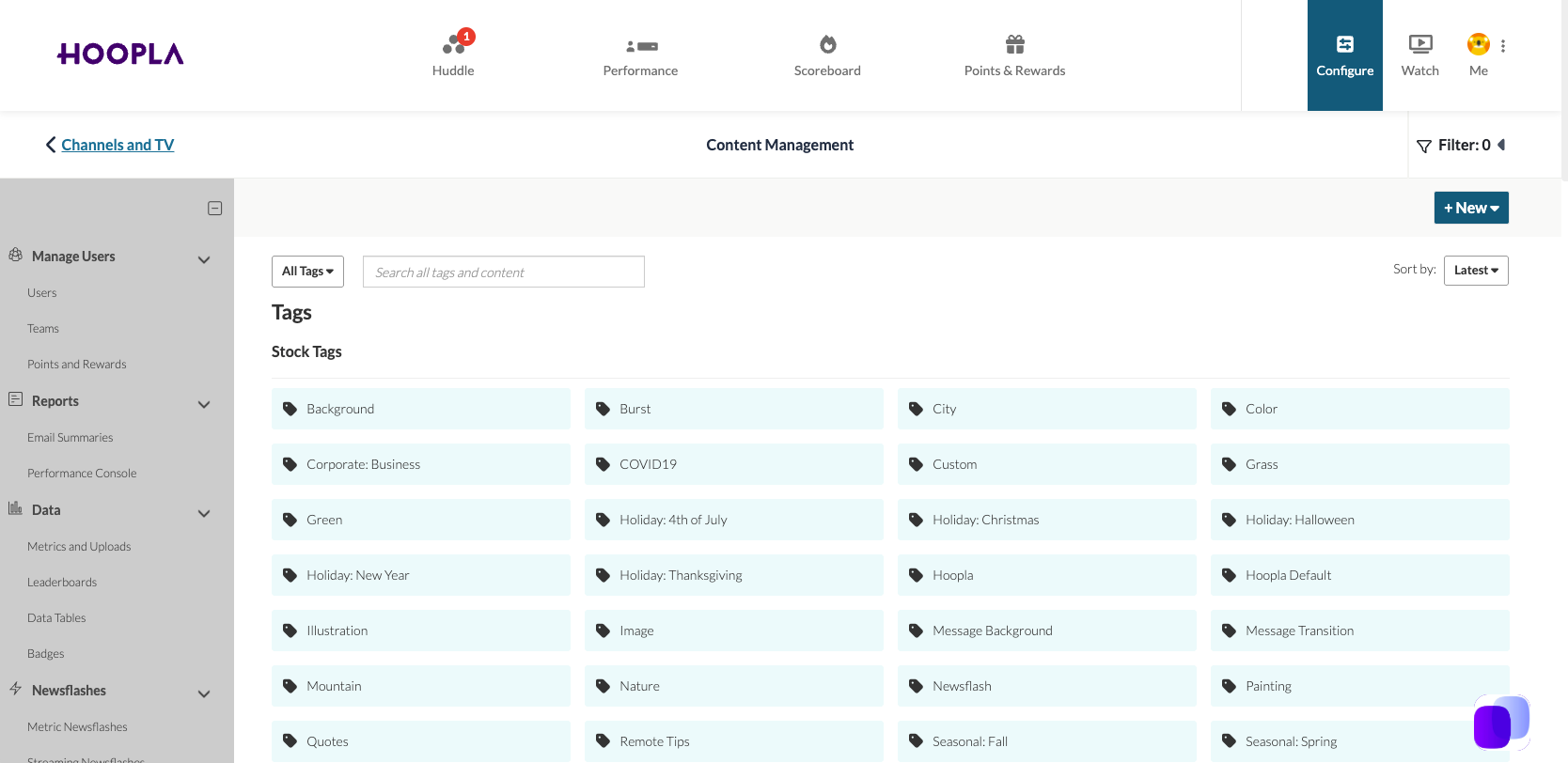
We are now using Folders to organize assets. Each folder is named with a “Tag”. You will see all of the included tags along with any custom tags you have already created.
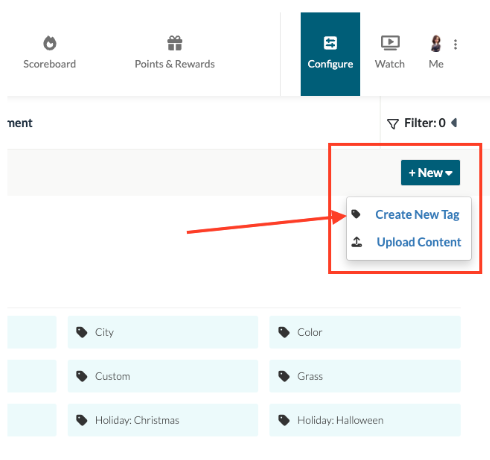
To add a new tag, click New and then Create New Tag:
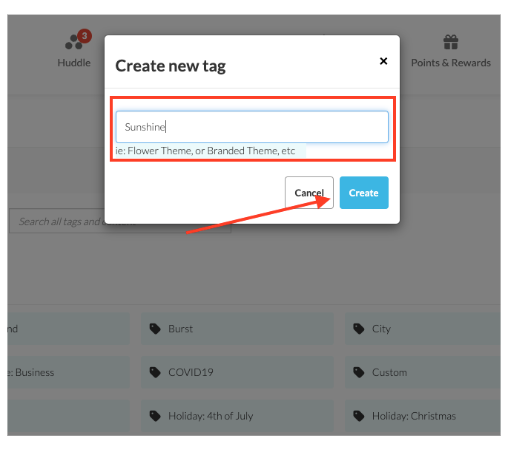
Enter a name for your new tag and then click Create:
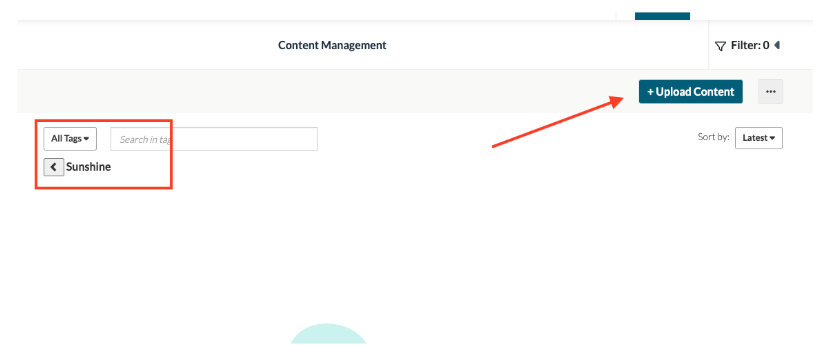
You can then either upload new assets or go back to move assets from another tag into the new tag.
ProTip: If you are planning to add assets from another tag, refresh the screen after you have created the tag so that it appears in the available tags.
To add assets from one tag to another, go to the tag you would like to copy assets from and select the items you would like to add. The chosen items will have a box around them. Choose as many as you would like.
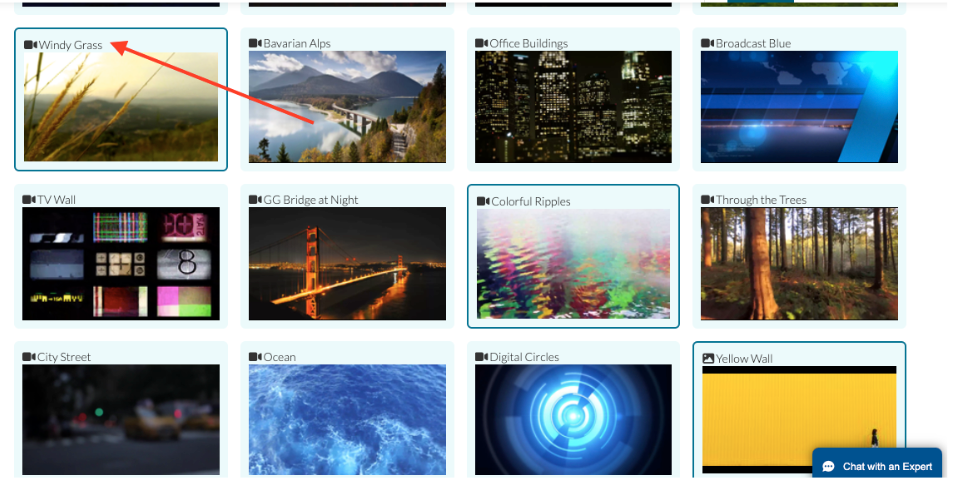
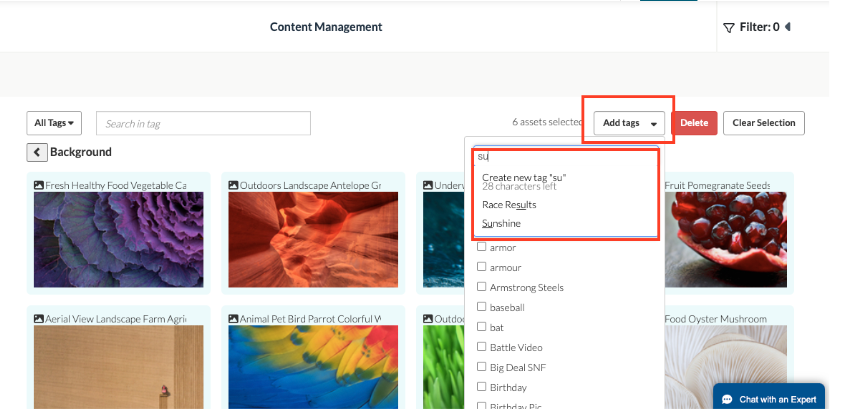
Choose to “Add Tag”. You can either search for the tag you would like or check the box in the list and then Apply:
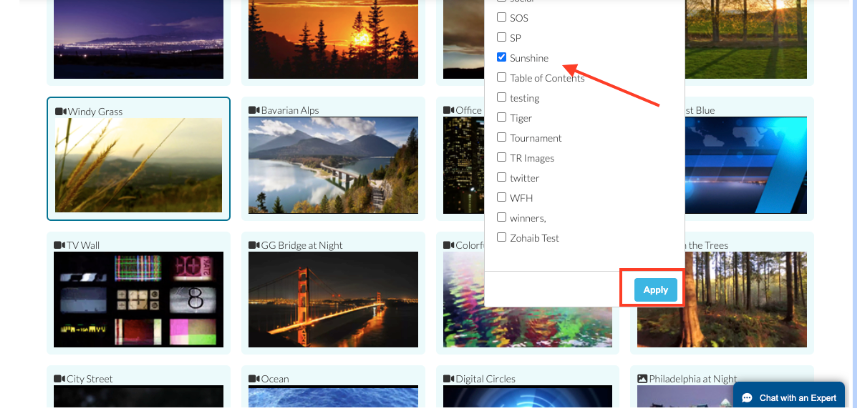
Your items will then be included in the tag:
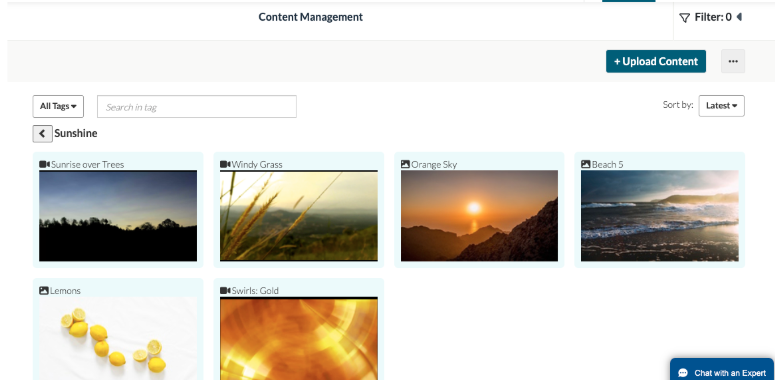
You can then apply your new theme to any channel or segment. For information on applying themes, please refer to our How to Use Tags article.
Have questions on Content? Check out our Custom Content Article.
Related articles
Section titled “Related articles”- Manage assets and tags in Hoopla Use Content Management to bulk-delete or tag your custom images and videos, and to rename, create or delete tags.
- Apply tags to channels and segments in Hoopla Apply one background tag to all compatible steps in a channel or segment for consistent branding, and see which step types it doesn’t affect.
- Add custom content to your Hoopla TV channel Upload your own images and videos as custom backgrounds, transitions or content, and tag them so you can find and reuse them.
- Use content tags and shuffle in Hoopla Tag your custom images and videos so you can filter them quickly, and use shuffle to rotate content each time your channel cycles.
Still having trouble?
Email our support team.