


How-to · Hoopla
Map data into Hoopla metrics
Map a data set to a Hoopla metric, with a sync interval, time range and criteria, so its data shows on leaderboards and dashboards.
After you create a Data Set , the next step is to map your Data Sets into Hoopla Metrics.
-
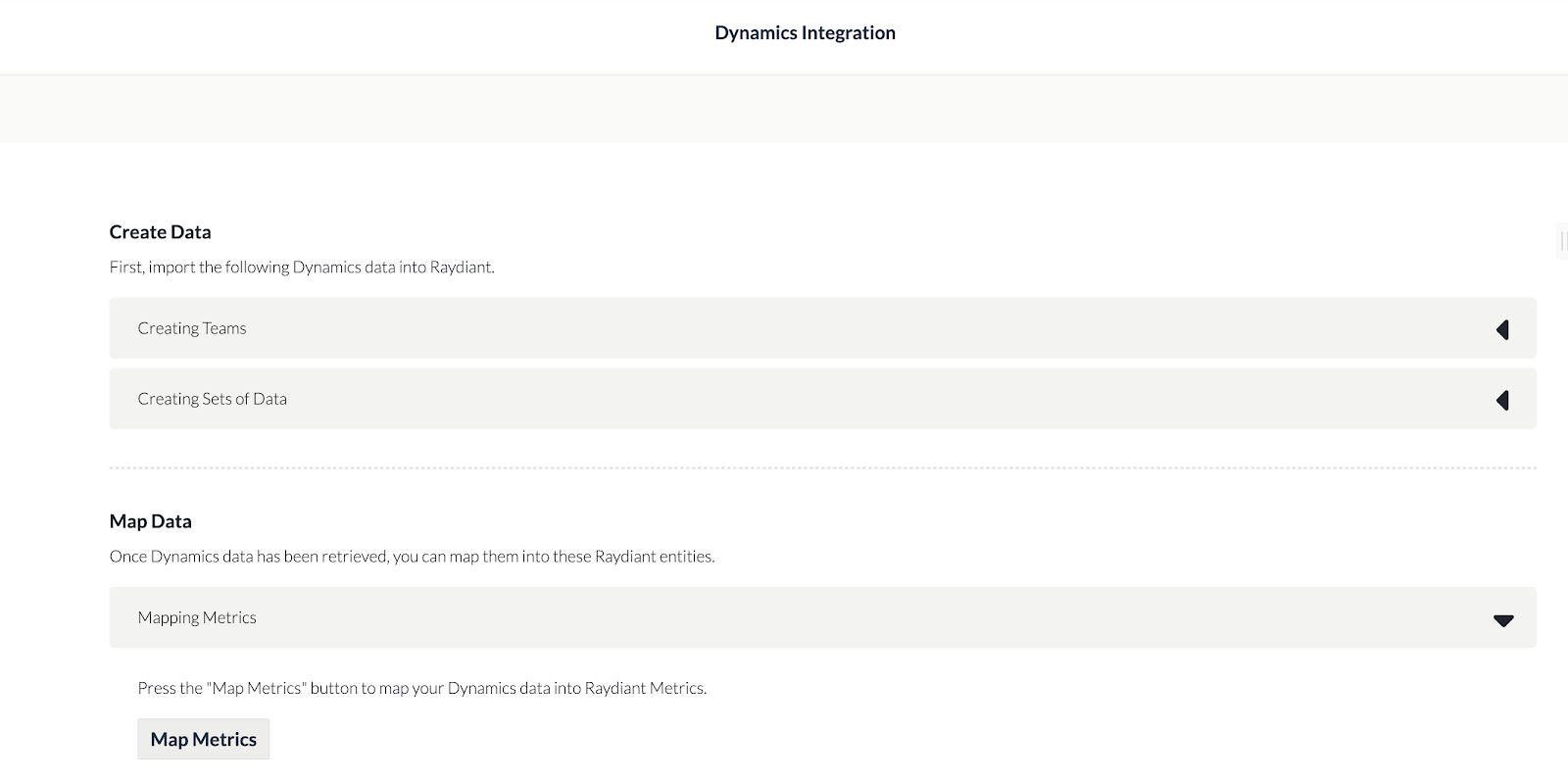
Click on the “Map Metrics” button.
-
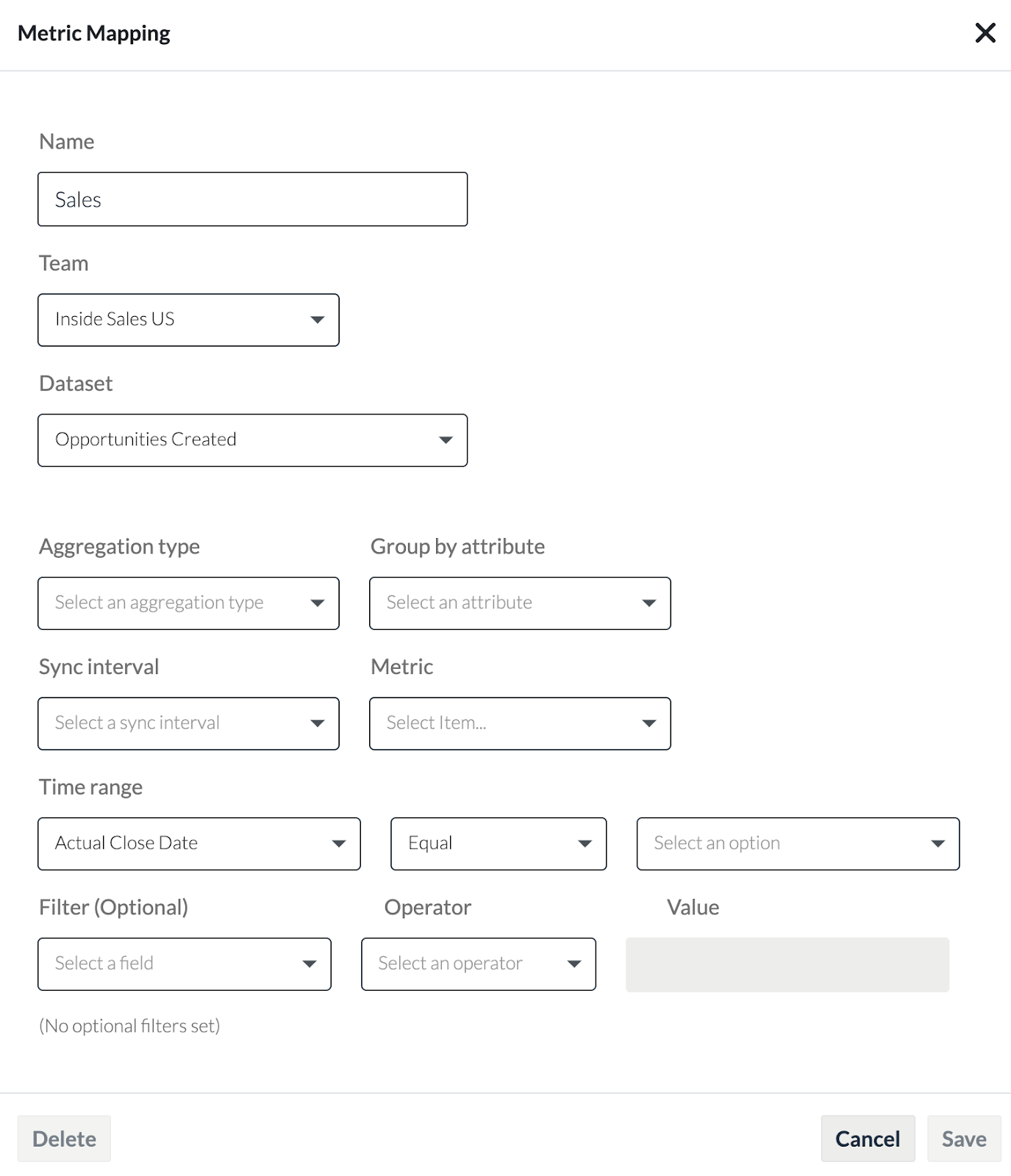
In the pop up window, first give your mapping a name (this is for internal use only, so give your metric mapping a name that helps you easily identify it).
-
Select the sync interval, how often you want Hoopla to retrieve data from your Dynamics account.
-
Select a time range (this is the time period from which we will retrieve your data).
-
Next, select a Data Set to retrieve data from.
-
Define the criteria for pulling data.
-
Finally, define the Metric Mapping criteria.
-
Once you’ve completed all these steps, click Save.
Related articles
Section titled “Related articles”- Create data sets in Hoopla Create data sets that filter your CRM records, such as leads or opportunities, so you can use them in Hoopla metrics and newsflashes.
Still having trouble?
Email our support team.