


How-to · Hoopla
Add or change user aliases in Hoopla
Show a nickname or other alias in place of a user's real name on TV channels, dashboards, rankings, and activity feeds.
If you would like to display something other than a User’s name on your TV channels, you may opt to use a User Alias. The Alias allows you to anonymize your Users on public screens, add geographic or team related data to a User name or simply display a person’s nickname.
How to add a User Alias?
Section titled “How to add a User Alias?”-
Navigate to the Users section of Configure, and select a User who you want to add an Alias to.
-
Within the User’s details, find the User Alias section.
-
Type in the User Alias into the text field, and check the box that says Display User Alias.
-
Finally, click Save.
- To mass apply a set of User Aliases, go to the User List view > click the Select button > select your Users (all or specified set) > click Select again > choose the “Use Alias” option. If no Alias is set for a User, we will display their User Name.
Where are Aliases Displayed?
Section titled “Where are Aliases Displayed?”When an Alias is turned on for a User, Hoopla will display the User Alias instead of User Name anywhere that User appears on the TV, Activity Feed, Dashboard & Rankings. Admins and Team Admins will see the User Name whenever working within the Configure tab.
How to disable the ability to use an Alias
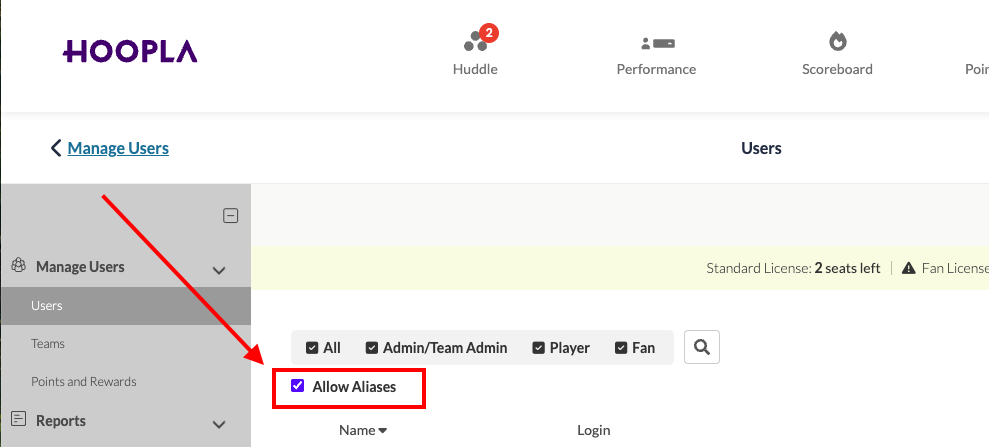
Section titled “How to disable the ability to use an Alias”You can disable the use of aliases in the main user page by unchecking the “Allow Aliases” box.
Related articles
Section titled “Related articles”- Types of user roles Compare the Admin, Team Admin, Player, and Fan roles in Hoopla.
Still having trouble?
Email our support team.