


How-to · Hoopla
Audio troubleshooting
Fix Hoopla TV audio that won't play or sounds distorted by checking connections, Chrome sound settings and channel sound settings.
When to use this
Section titled “When to use this”If you are noticing some issues with the sound on your Hoopla TV Channel, here are a couple of tips for troubleshooting any audio problems you may be experiencing.
Test the Audio on your Device
Section titled “Test the Audio on your Device”-
Open a new Chrome tab or browser window, and navigate to a webpage where you can test out the audio on a video (we recommend Youtube or something similar).
-
If you do not hear anything on this new page, your audio issues are likely device-related. Make sure the volume on your device is not muted and try turning up the volume until you are able to hear the test video.
-
If you hear audio on the test video but you don’t hear anything on Hoopla, contact our support department for further help.
Chrome Autoplay Mute Issues
Section titled “Chrome Autoplay Mute Issues”Due to some updates to the latest version of Chrome, videos that are set to auto-play may be muted. If you see a banner pop up on your TV that says, “Uh oh! Due to your browser autoplay policies, we are unable to play audio on this video. Click here to unmute. To permanently unmute, follow the instructions in our help doc or contact our support team.”
If you see this message, you can enable audio on videos that are set to automatically play.
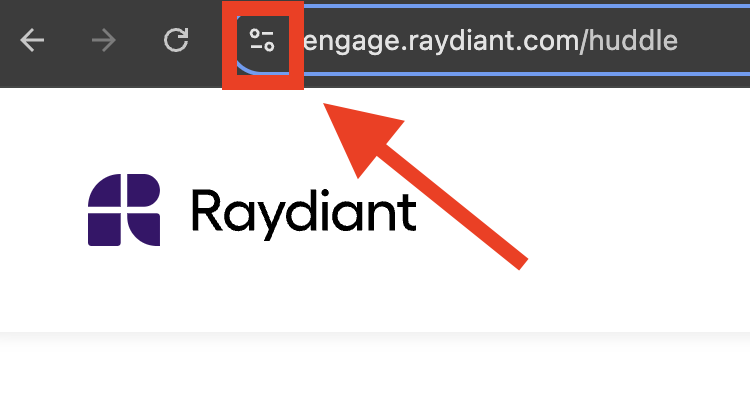
- First, in the Chrome browser, click on the toggle icon in the URL address bar.
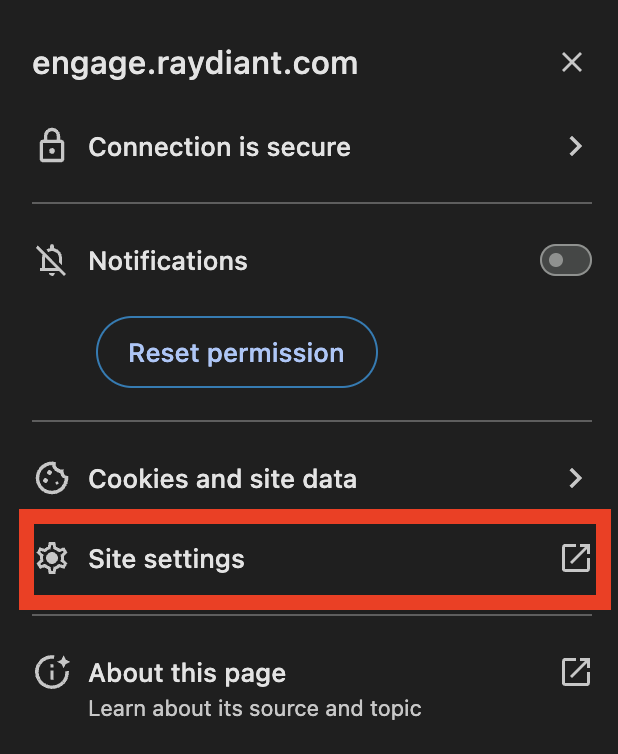
- Go to the site settings.
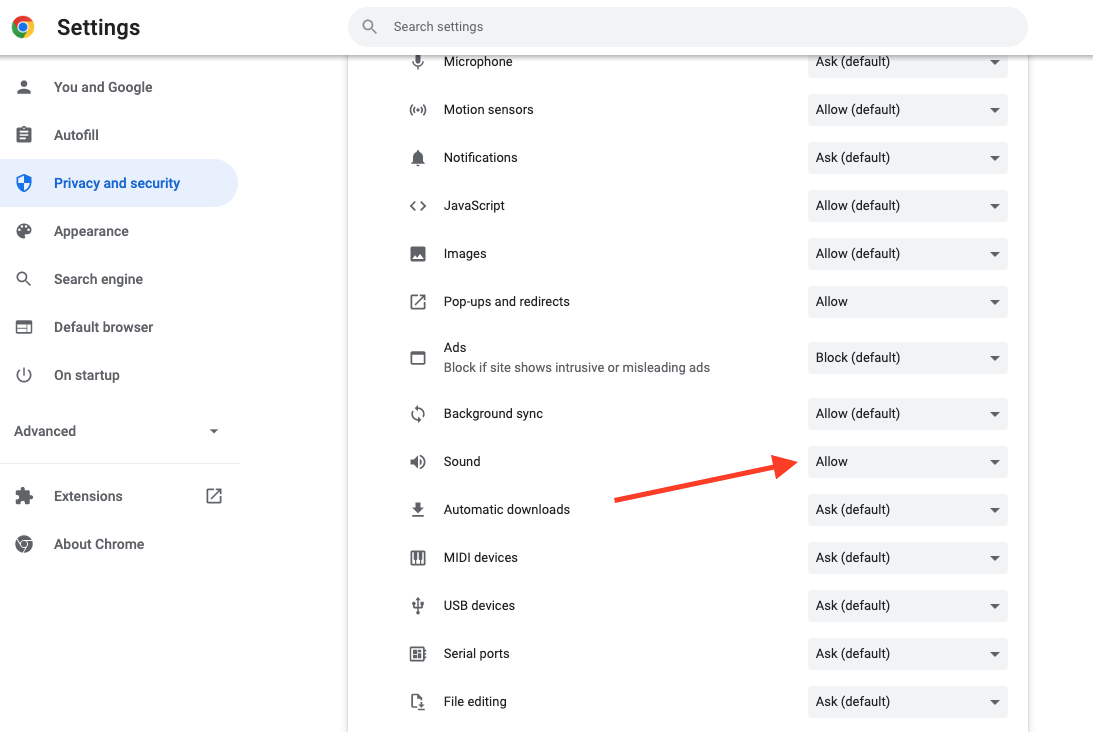
- Scroll down settings until you locate “Sound” and change the dropdown to “Allow”.
Verify
Section titled “Verify”Play a test video and then check the Hoopla channel. Confirm that you can hear the expected audio.
If it doesn’t work
Section titled “If it doesn’t work”If the test video is also silent, check the device’s volume and mute controls. If the test video has sound but Hoopla does not, contact support with the results of these checks.
Related articles
Section titled “Related articles”- Supported hardware devices Check which devices and computer specs you can use to show Hoopla channels on your TVs, and why smart TV browsers won’t work.
- Activate TV devices within Hoopla Pair a TV device with Hoopla using an activation code, assign it a channel, and check its display status.
Still having trouble?
Email our support team.