


How-to · Displai
Poster My Wall & Displai
Publish designs from Poster My Wall to your Displai Library, with recommended sizes and tips on download quality and video looping.
Poster My Wall is an easy to use design tool that is used to design engaging content which can then be broadcasted to your Displai screens. Wether you’re looking to create something from a blank canvas, or want to leverage the thousands of pre-designed templates, Poster My Wall has you covered. In the video below we show you how to leverage PosterMyWall’s templates, created new designs from scratch, and then publish them to your Displai screens. Note: for best results you should select 1920 x 1080, or 1080 x 1920 for vertical images when creating designs.
If you’re more of a reader than a viewer, below are the steps covered in the video above.
Section titled “If you’re more of a reader than a viewer, below are the steps covered in the video above.”Step 1: Build and save your design on PosterMyWall
When designing, make use 16:9 aspect ratio or 1920x1080 resolution (or 9:16 and 1080x1920 for vertical screens), as this is the correct size for digital screens.
Step 2: Click Publish on PosterMyWall.
Step 3: Choose “Digital Signage”, then “Displai”, and click the CONTINUE button.
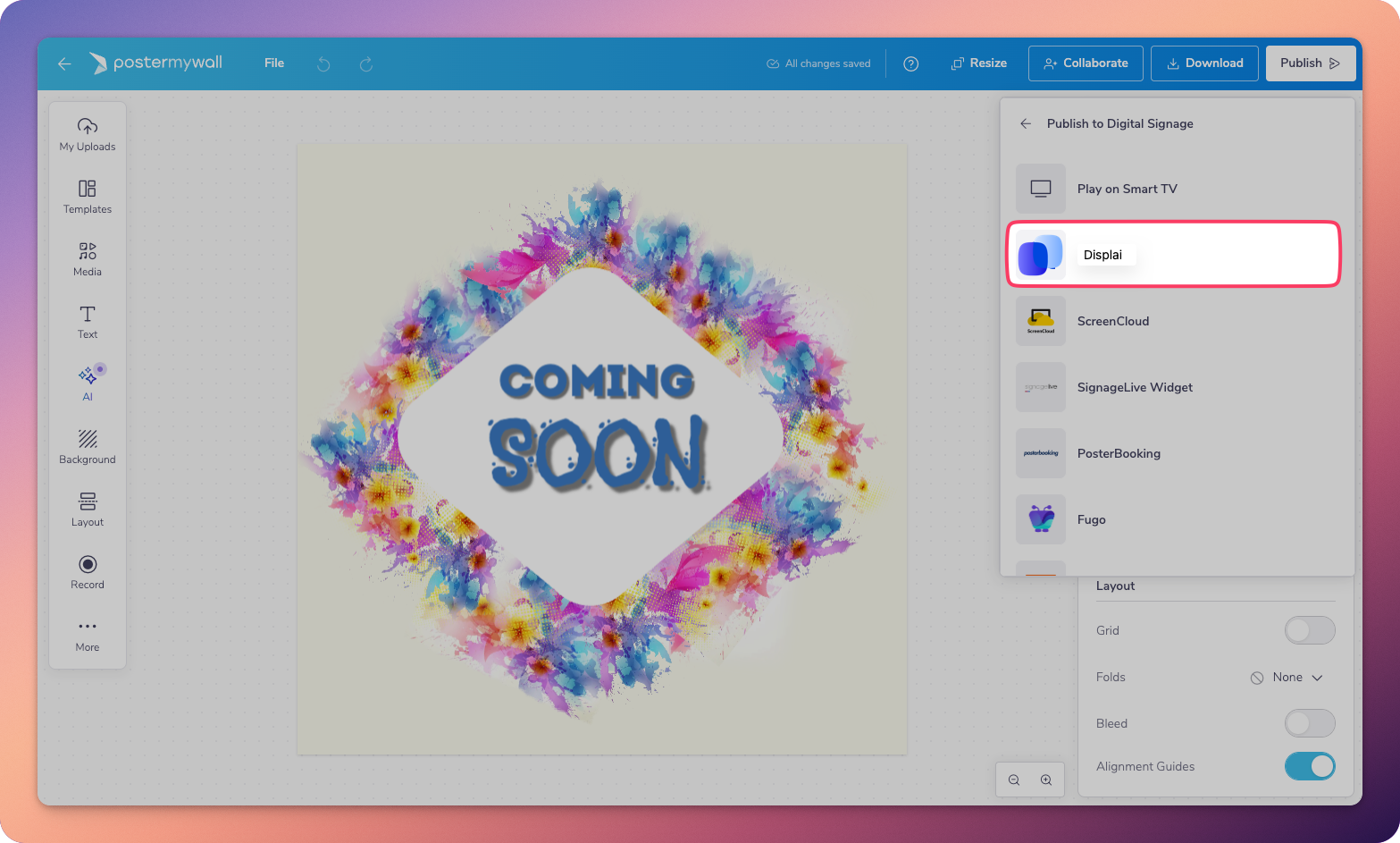
Step 4: Once your design is ready, click “CONNECT WITH DISPLAI”. You will be taken to the Displai Dashboard.
Step 5: Click “Connect to PosterMyWall” to link your Displai and PosterMyWall accounts.
Step 6: Make sure your new design is selected from the dropdown menu, set a name and duration, and hit “Done” to add your new design to your Displai Library.
Best Practices
Section titled “Best Practices”-
Only designs you’ve requested to download from PosterMyWall in HD quality will appear in the dropdown menu. This includes designs you’ve downloaded as images or videos in the past, as well as any designs you request to download going forward. (Note: PosterMyWall designs downloaded at “free” or “basic” quality will not appear in Displai.)
-
Since Displai players output 1920x1080 video to your screens, we recommend using PosterMyWall’s “high resolution” download option instead of the “4K” option for video downloads. 4K video downloads produce much larger file sizes and may result in playback issues on slower networks.
-
If you want a PosterMyWall video design to play for a set period of time instead of playing once and moving on to your next presentation, just toggle the “If Video, plays once” button off and set how long you want the video to play for under Duration.
Related articles
Section titled “Related articles”- Display PosterMyWall designs on your screens Publish posters and videos you design in PosterMyWall to your Displai screens, and fix designs that don’t appear or show black bars.
- Canva & Displai Show your Canva designs on your screens with the Canva app or a public link in the Webpages app, and work around known limits.
- Create and publish playlists to screens Create a playlist in your Library, add and order presentations, then assign and publish it to your screens.
Still having trouble?
Text the 24/7 line or email support.