


How-to · Hoopla
Set targets and color indicators on leaderboards
Add a target to a leaderboard's primary metric, plus optional red, yellow, and green indicators that show performance against it.
With Hoopla’s new Targets and Color Indicator feature, your players can know whether they are hitting company expectations even when they are at the top of the board.
Here are some examples of what the feature looks like in each Display Type:
Multiboard
Section titled “Multiboard”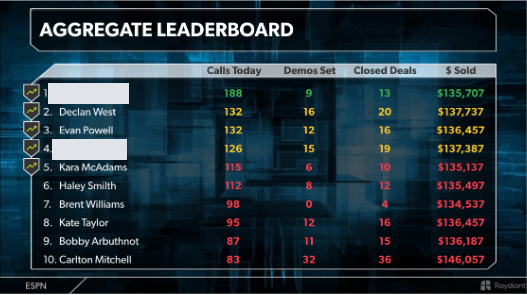
Classic
Section titled “Classic”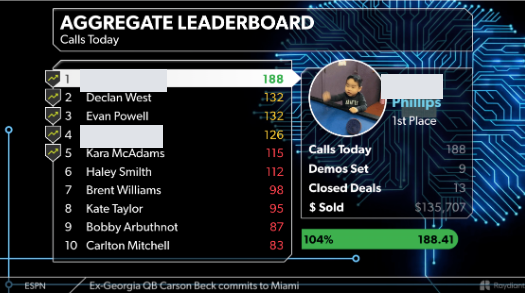
Bar Graph
Section titled “Bar Graph”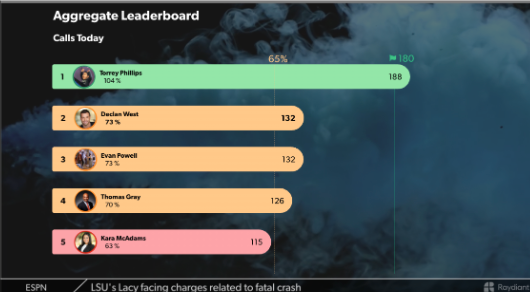
To add a target
Section titled “To add a target”Navigate to the Leaderboard section and choose the board you would like to add the target to. Once in the Leaderboard setup page, check the “Set a Goal for Metric” box.
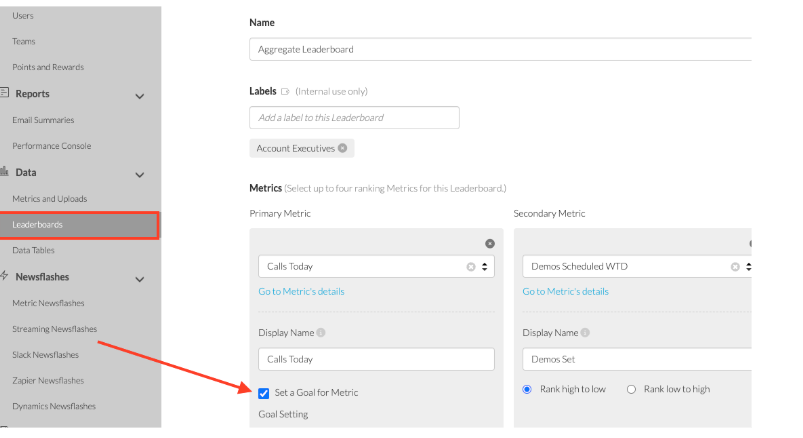
**Note: This is only applicable to the primary metric of the board.
Enter the numeric goal you would like to have for the metric in the field and then save the change.
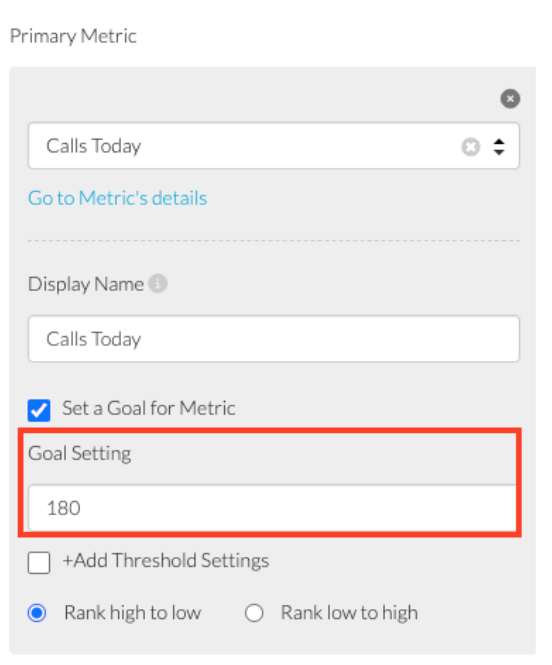
The leaderboard will immediately reflect the goal.
Adding the Red/Yellow/Green Indicators
Section titled “Adding the Red/Yellow/Green Indicators”To add the indicators, select the “+Add Threshold Settings” checkbox after you have added a Goal amount.
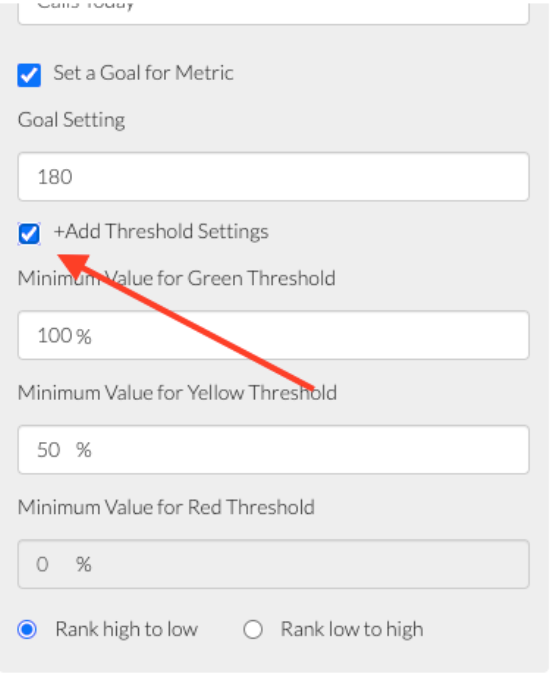
The system will default to 100% attainment for green and 50% for yellow, but you can adjust those as needed. Save and the feature will be reflected on the Leaderboard if it is in the channel.
Related articles
Section titled “Related articles”- Player leaderboards Create a leaderboard for individuals, select metrics and participants, choose watchers, and save it.
- Team leaderboards Create a leaderboard for teams, select metrics and participants, choose watchers, and save it.
Still having trouble?
Email our support team.