


How-to · Hoopla
Install the Salesforce widget
Install the Hoopla Salesforce widget and make it available to your users.
If you have already set up Hoopla, it is important to note that the installation of this package will create a new “Hoopla Reports” folder and new Master User Report.
Download the package:
Section titled “Download the package:”Either add from the AppExchange or use the link below:
https://login.salesforce.com/packaging/installPackage.apexp?p0=04tKa000002t8ve
-
Once the installation is complete you will Install for Admins Only.
-
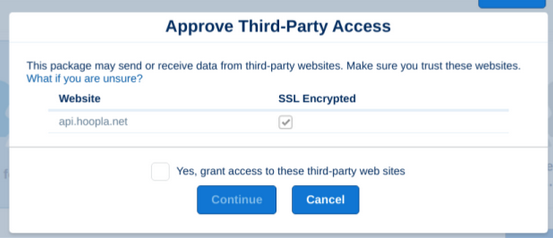
Click on Yes, grant access to these third-party web sites checkboxes when a popup appears
-
Click the Continue button. It will install the package
UPDATE THE USER REPORT/FOLDER:
Section titled “UPDATE THE USER REPORT/FOLDER:”Make sure the Hoopla account has been connected to Salesforce in the Salesforce Integration area.
If you are a new Hoopla Customer
Section titled “If you are a new Hoopla Customer”Navigate to the Hoopla Reports folder that has been created by the App.
Click on the “Users for Hoopla” report and edit down to the users you would like to be included in Hoopla along with the SALESFORCE ADMIN who is installing the widget. They must be on the user report and an Admin in Hoopla.
If you are an existing Hoopla Customer
Section titled “If you are an existing Hoopla Customer”Locate the new Hoopla reports folder that has been created and DELETE.
***Note: You will also need to delete the report in the folder.
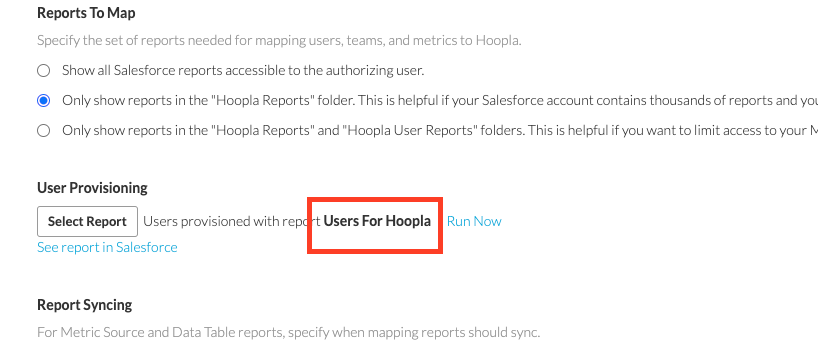
Before proceeding: Your master user report will need to be renamed to “Users For Hoopla”. The Salesforce Administrator installing the widget will also need to be on the user report and an Admin in Hoopla.
Make sure the Users for Hoopla report is showing as the master report in the User Provisioning area of the Salesforce integration:.
Enable Channel Links
Section titled “Enable Channel Links”On the channels page, make sure that the URL links are enabled for the channel you would like to display in Salesforce. See this document for information: Channel Links.
Application Settings
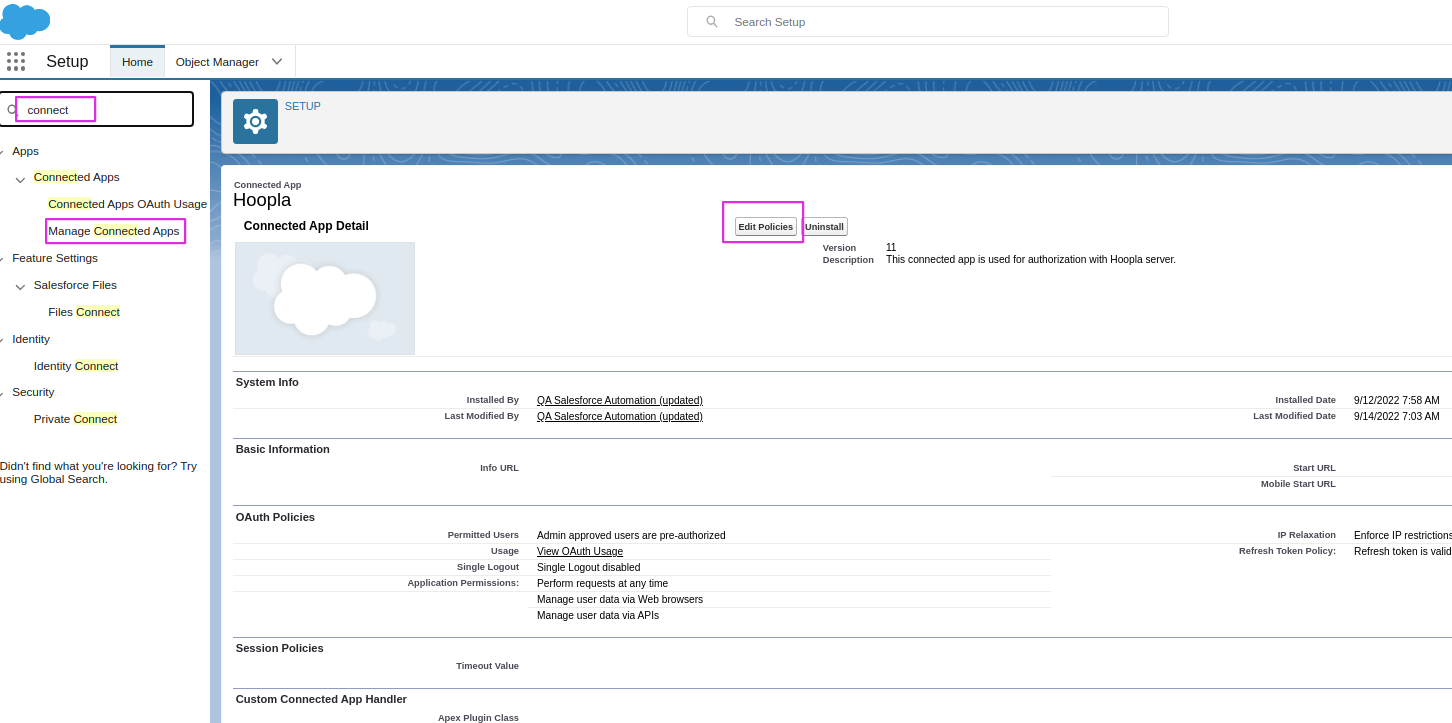
Section titled “Application Settings”Navigate to Setup>Connected Apps:
Locate Hoopla in the list and click View Policies:
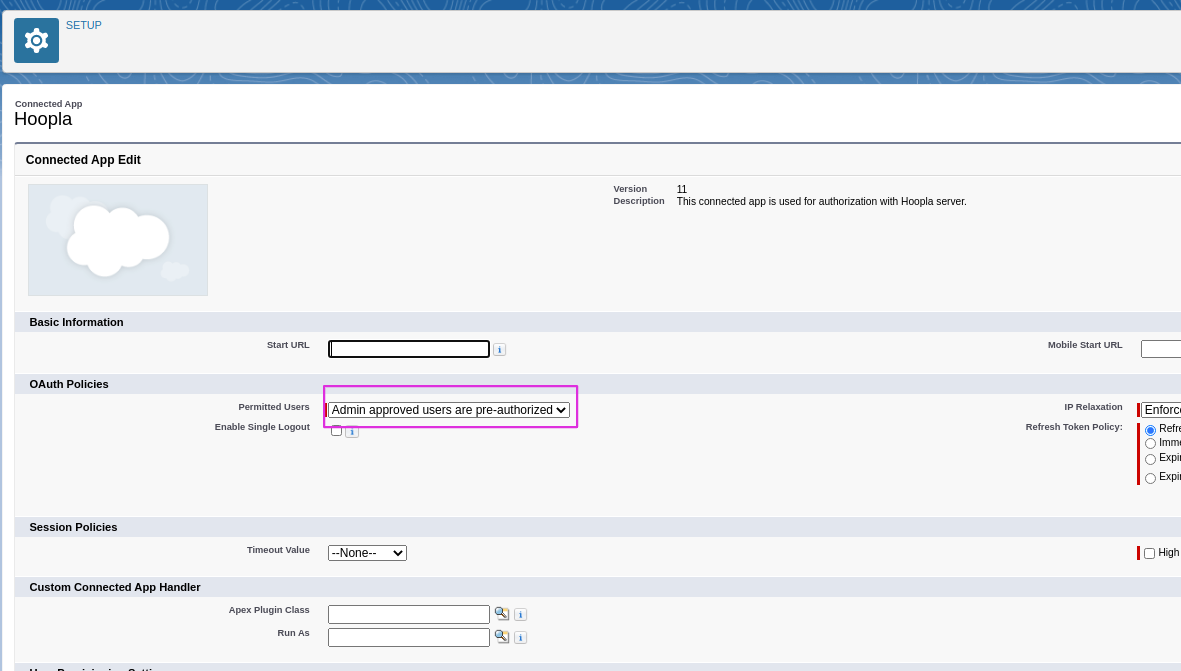
Select Admin Approved users are pre-authorized
Navigate to manage profiles
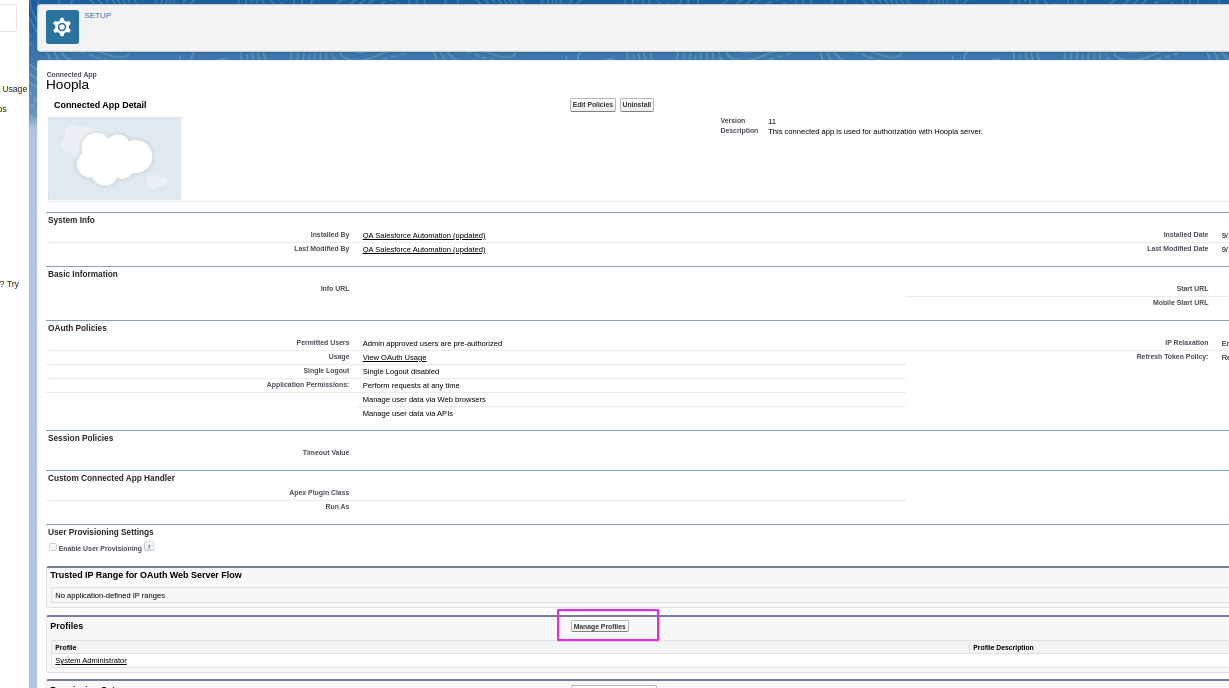
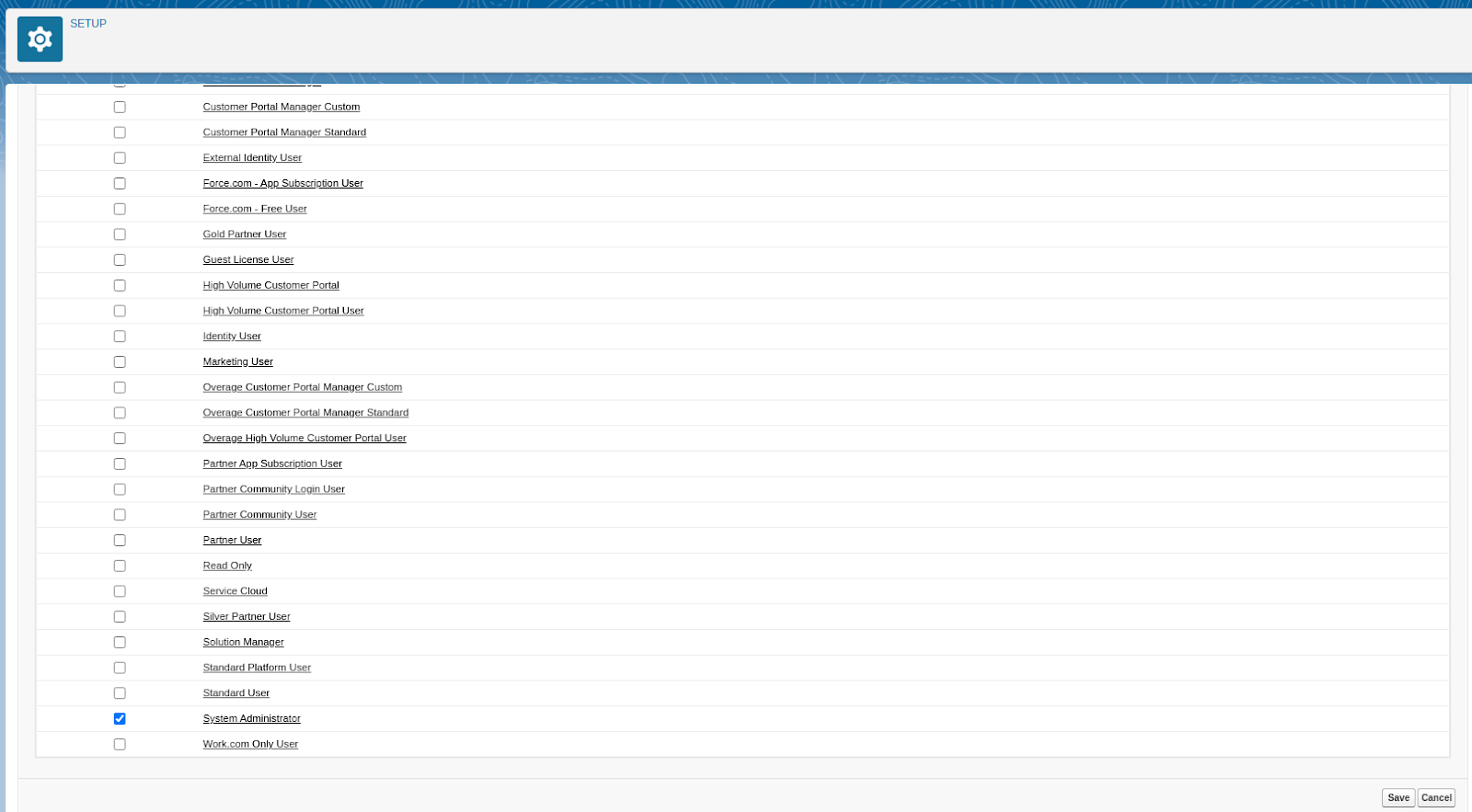
Select profiles. This needs to be the profile of the Admin installing:
Assign Permissions
Section titled “Assign Permissions”***This can be done in the connected apps portion, but any user you would like to be able to see the widget, needs to have the permission.
Step 1 :- Go to the setup from the gear icon.
Step 2 :- Search for permission set in the quick find box and select Permission Sets.
Step 3 :- Click on Hoopla Permission
Step 4 :- Click on manage assignment button on the top
Step 5 :- Click on the Addassignment button and select the user on the next page and click the assign button and then click done. Now your user has access to the Hoopla Channel component.
Synchronize Package
Section titled “Synchronize Package”- Click on the 9 dots square at the top left corner > Write Hoopla at the search field > Click on it
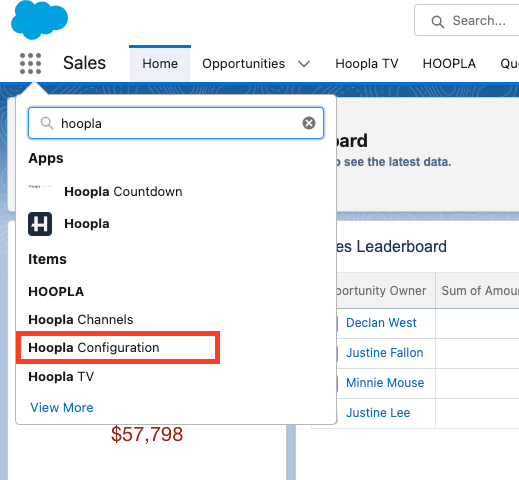
-
Select the Hoopla Configuration tab
-
Click the Sync Now button
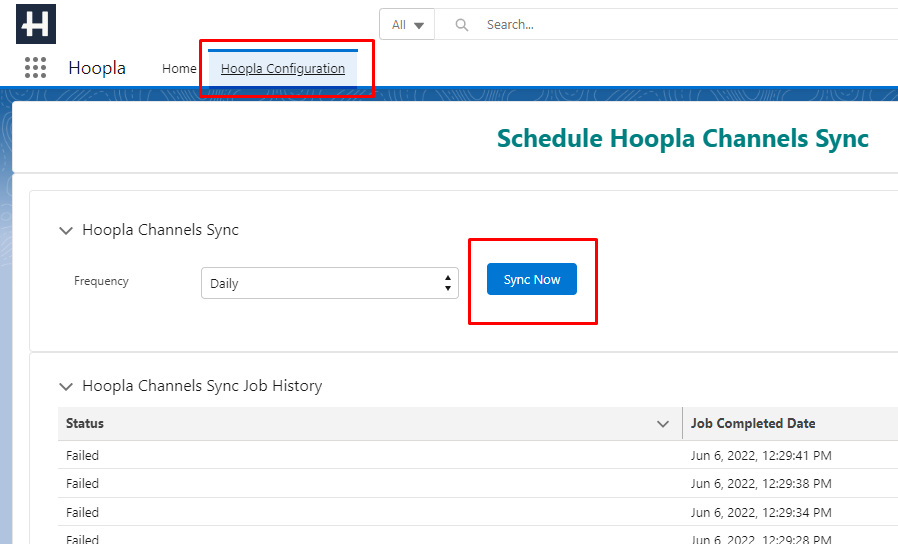
ADD to a PAGE
Section titled “ADD to a PAGE”-
Find the page you would like to add Hoopla to.
-
Click on the gear at the top right corner > Click on Edit Page
-
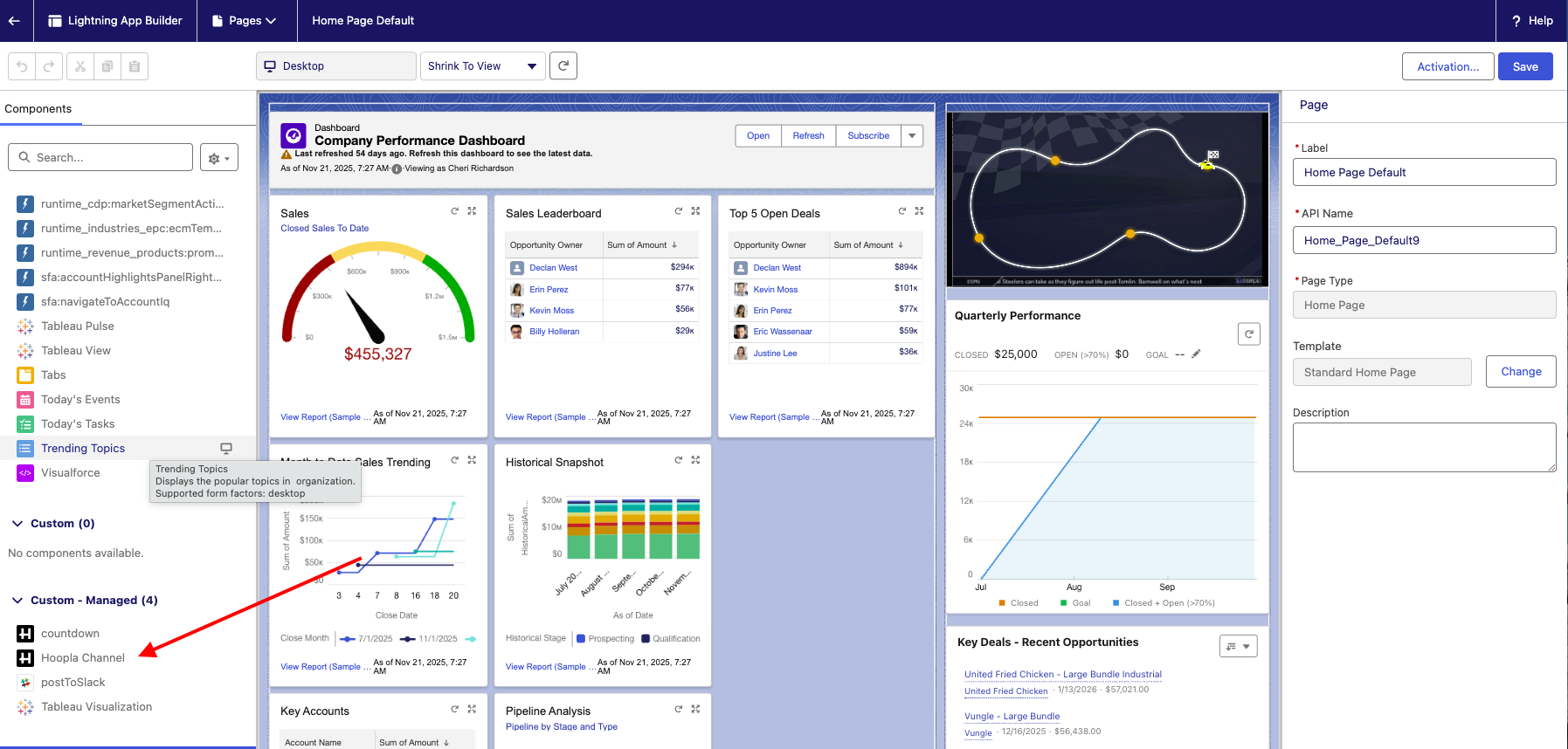
At the bottom of the left side panel, you should see the Hoopla logo “Hoopla Channel” > Click on the icon and drag it to the board. → NOTE: It should be dropped on a space already used with another widget and the widget should turn green. The selected space should be occupied by the Hoopla channel.
-
The user will be able to choose which channel to reproduce by selecting from the “Select Channel” drop-down list on the right side panel.
-
The user will be able to:
a. Choose the height (Edit Height field)
b. Mute (checkbox)
c. Responsive (checkbox)
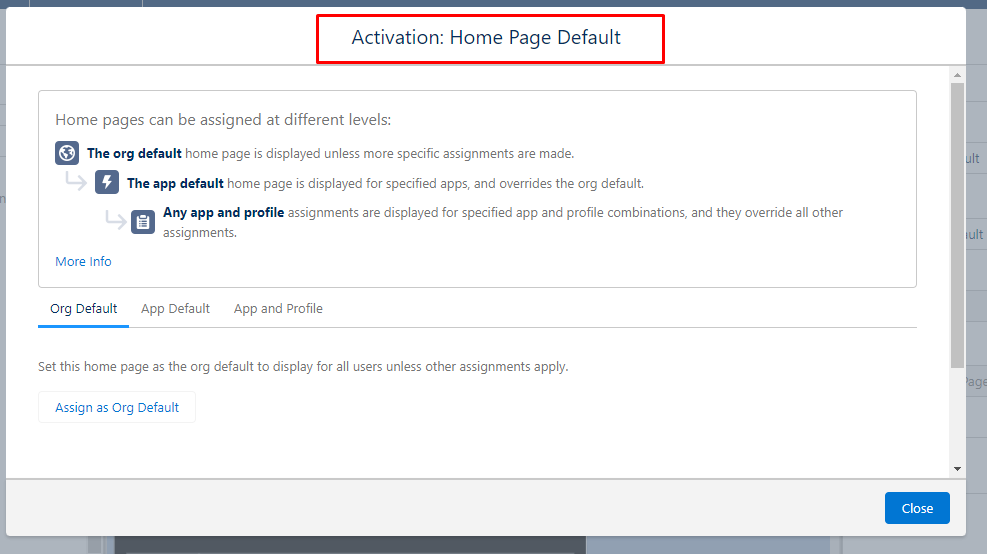
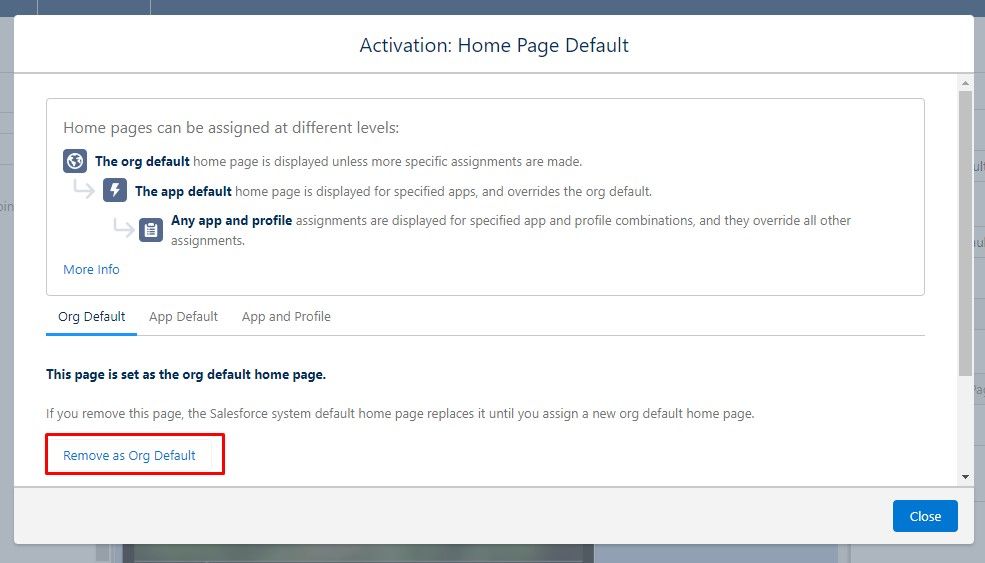
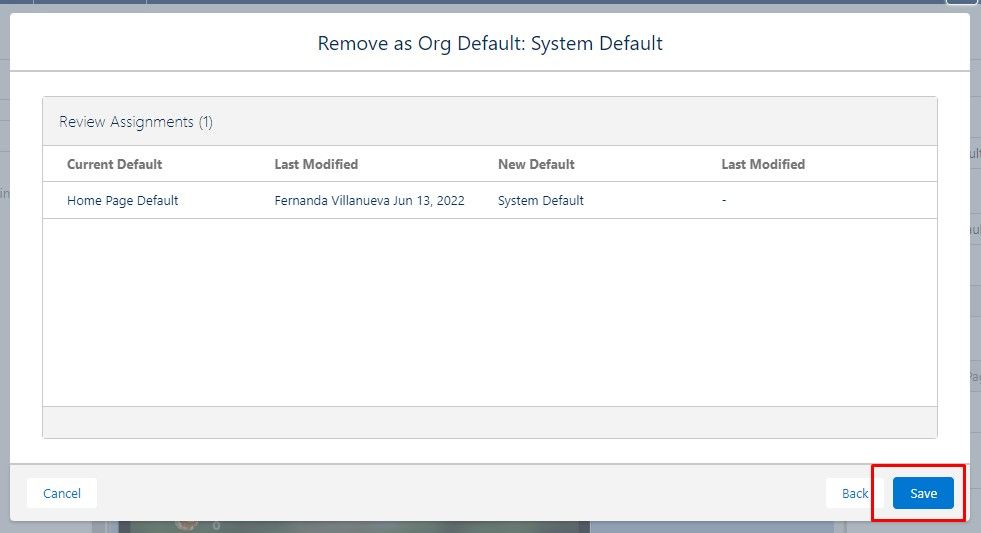
- Click on SAVE button → NOTE: If it is the first time, the user will have to activate the channel: Page Saved > Click on Activate > Activation Home Page default > Org Default > Click on the “Remove as Org Default” button > SAVE (Pop up should emerge “Activation Successfully”)
Click the arrow at the top left corner to go back to Hoopla Home page
Only actual Salesforce Users can see the widget in the dashboard. If they are a different type of user, for example, “Platform Users”, they will not have visibility.
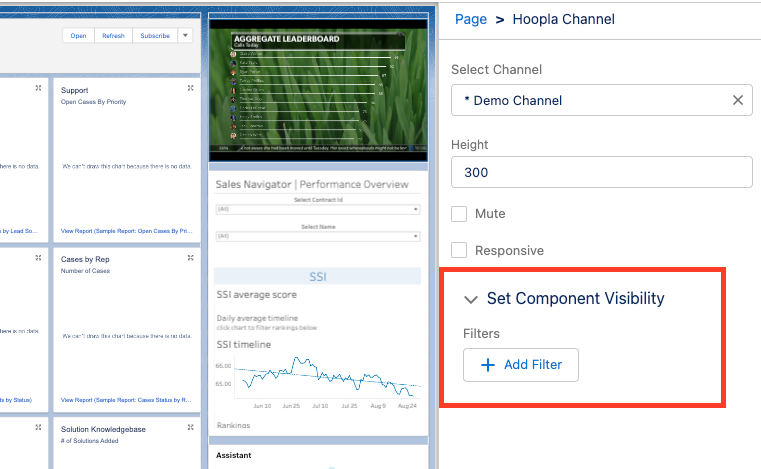
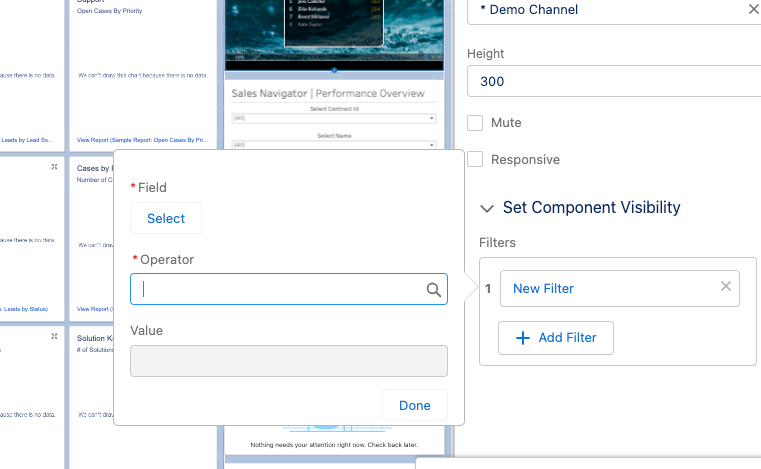
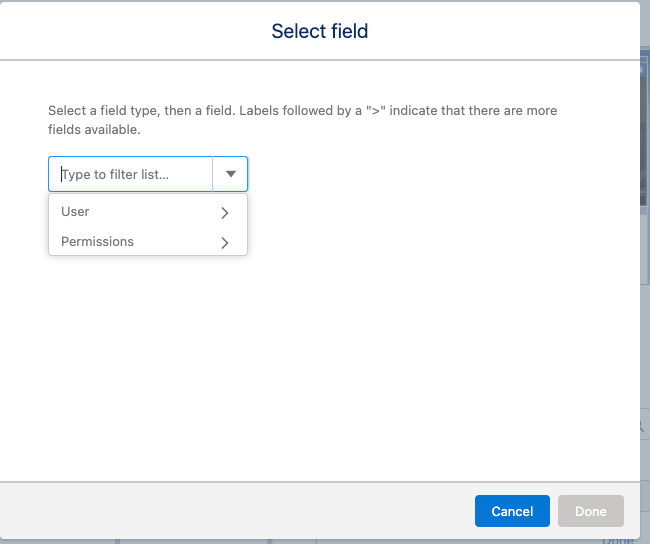
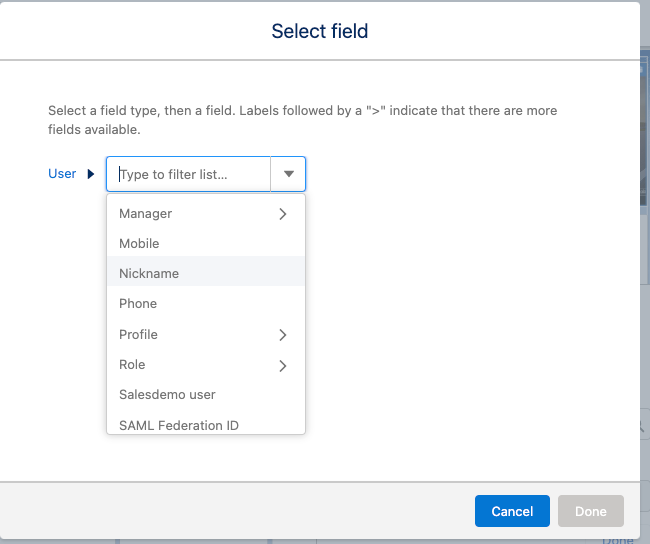
To adjust visibility in the component:
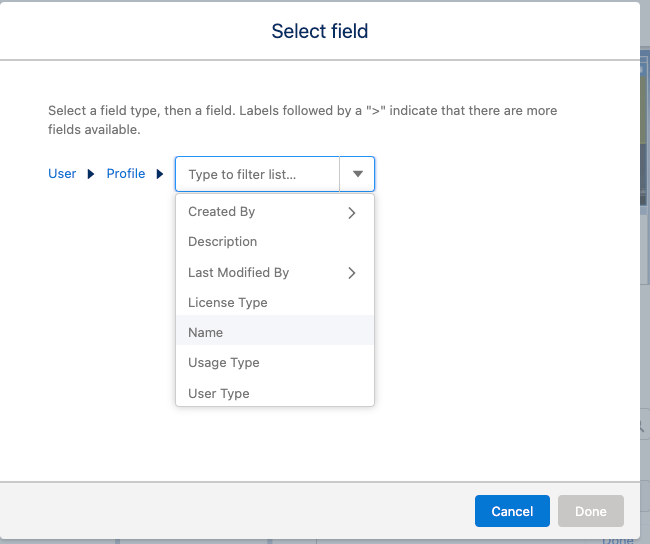
Section titled “To adjust visibility in the component:”On the page in edit mode, click on the Hoopla component. On the sidebar, you will choose filter options:
Post-Installation Cleanup (Recommended for Admins)
Section titled “Post-Installation Cleanup (Recommended for Admins)”Why this matters
Section titled “Why this matters”After installation, Salesforce may expose the Hoopla App in the App Launcher. This app does not contain end-user functionality and can create confusion.Expected behavior
-
Non-admin users → app is hidden automatically
-
Admin users → app may still be visible
Recommended action (for Admins only)
-
Go to Setup → App Manager
-
Find Hoopla Lightning App
-
Click Edit
-
Navigate to User Profiles
-
Remove System Administrator from Selected Profiles
Outcome
-
Removes unused app from launcher
-
Reduces UI noise
Still having trouble?
Email our support team.