


How-to · Hoopla
Apply tags to channels and segments in Hoopla
Apply one background tag to all compatible steps in a channel or segment for consistent branding, and see which step types it doesn't affect.
You can now apply a tag to an entire channel or segment. To create a tag please refer to this document: Content Management.
To apply your tag navigate to Channels and TV and choose the channel or segment you would like to apply the tag to.
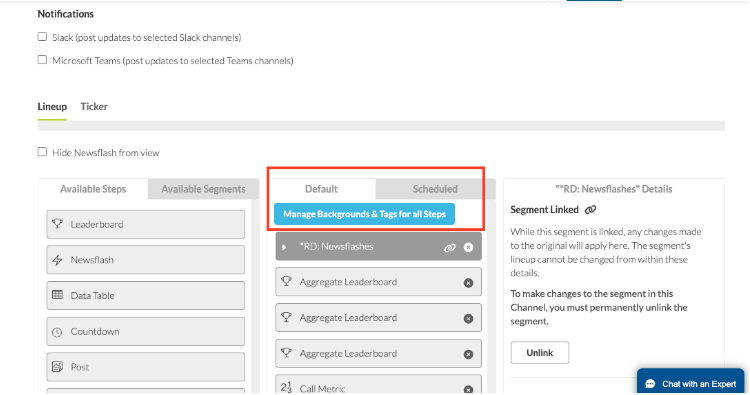
Once on the channel or segment page choose Manage Backgrounds and Tags for all Steps:
Search for the tag you would like to use, Choose “Shuffle all” and then Apply to all Steps.
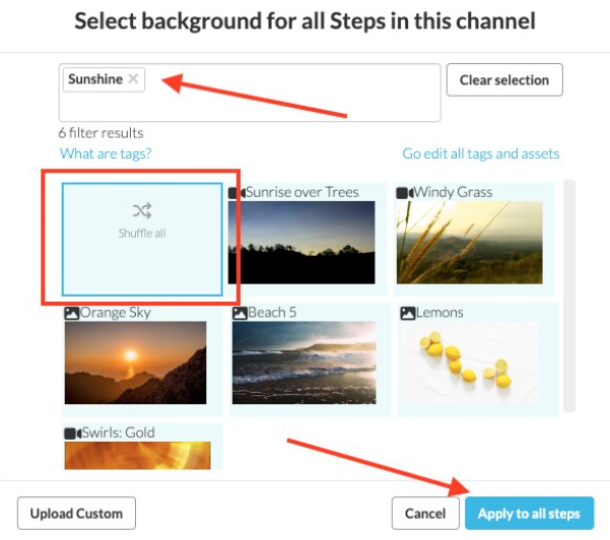
This will apply the backgrounds to these steps when they are native in the channel.
-
Leaderboards
-
Data Tables
-
Countdown Step
-
Metric Step
-
Activity Recap
Segments will not be affected and need to be set up separately through the same process.
Other items where the backgrounds are not affected are:
-
Scheduled Items
-
Newsflashes
-
Post Step
-
Motivational Quotes Step
-
Calendar Event Step
-
Video Step
-
Web Page Step
-
Tips and Tricks Step
Related articles
Section titled “Related articles”- Access content management in Hoopla Open Content Management to create tags and upload or copy the media assets that display on your screens.
- Manage assets and tags in Hoopla Use Content Management to bulk-delete or tag your custom images and videos, and to rename, create or delete tags.
- Use content tags and shuffle in Hoopla Tag your custom images and videos so you can filter them quickly, and use shuffle to rotate content each time your channel cycles.
Still having trouble?
Email our support team.