


How-to · Hoopla
Repost a newsflash in Huddle
Find a newsflash in Huddle and repost it to one or more channels.
When to use this
Section titled “When to use this”Missed a big moment or want to bring an important update back into view? Reposting a Newsflash through Huddle takes just a few clicks.
1. Navigate to Huddle
Section titled “1. Navigate to Huddle”Head to the Huddle section in Hoopla.net.
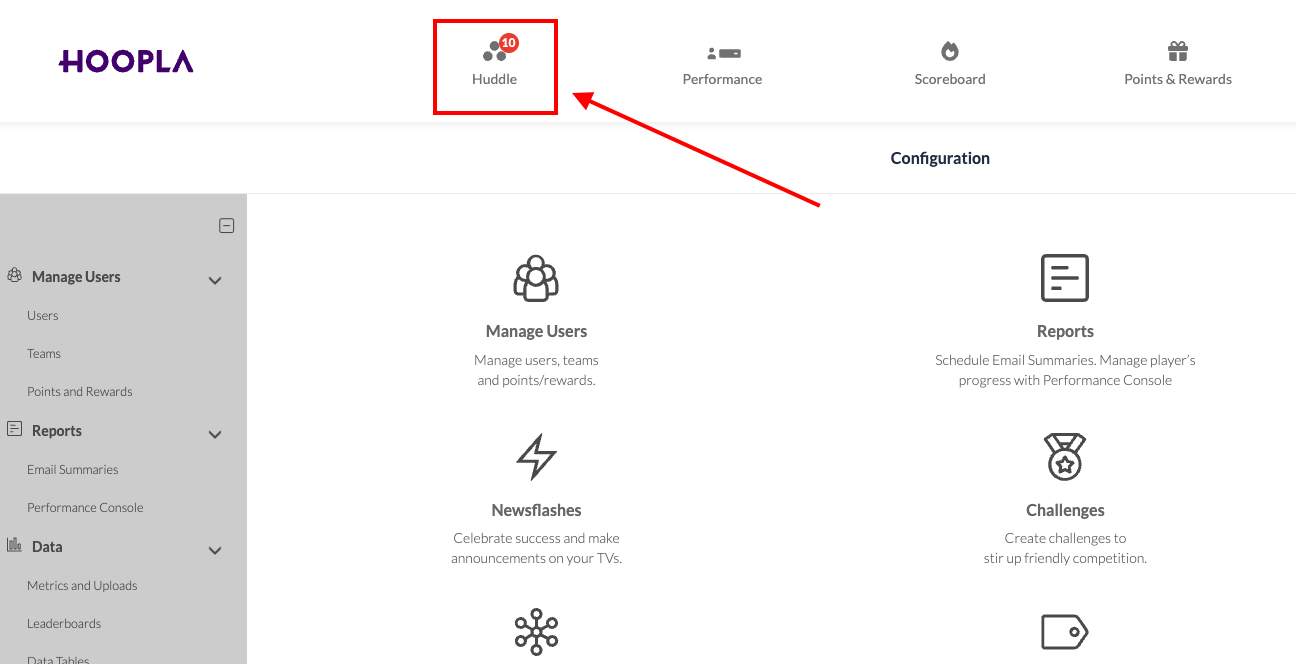
2. Open the Newsflashes Bar
Section titled “2. Open the Newsflashes Bar”Click on the Newsflashes bar to view your team’s recent Newsflashes.
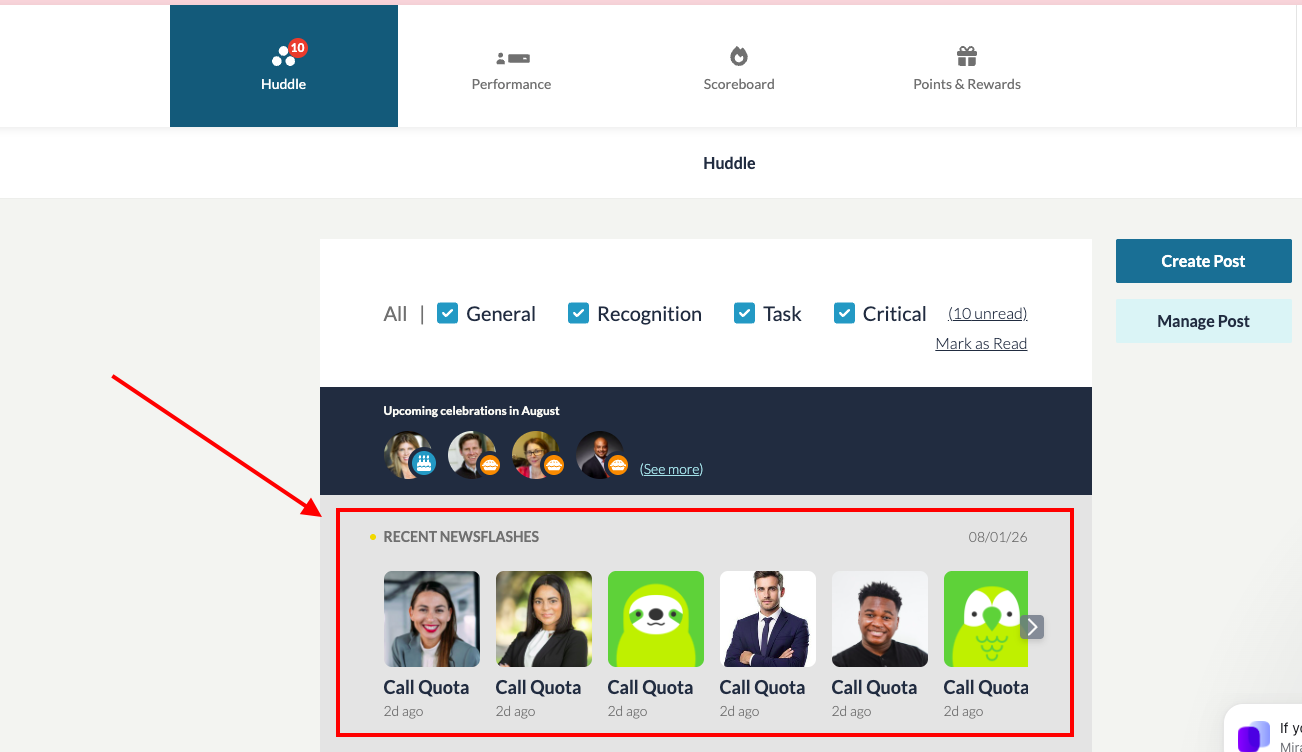
3. Find Your Newsflash
Section titled “3. Find Your Newsflash”Scroll through the list to locate the Newsflash you want to retrigger, or use the search function to find it quickly.
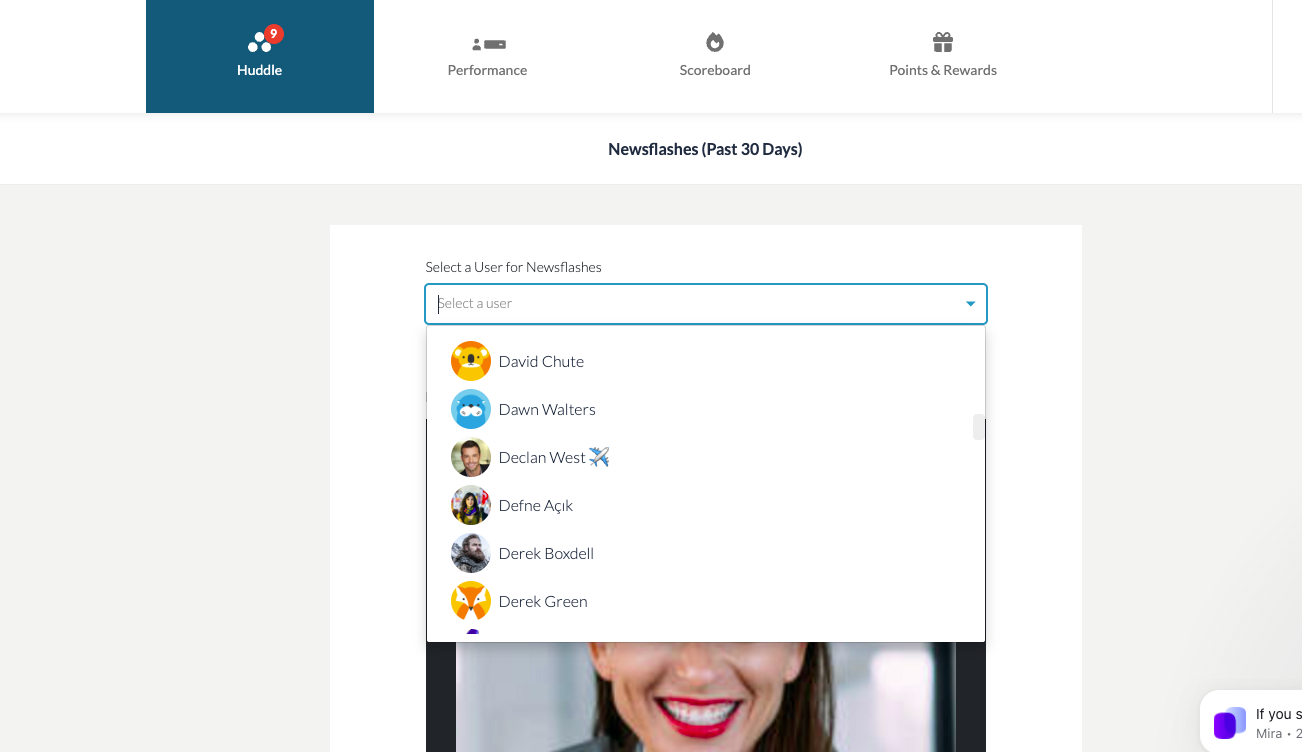
4. Open the Options Menu
Section titled “4. Open the Options Menu”Above the comments section, click the three dots to open the options menu.
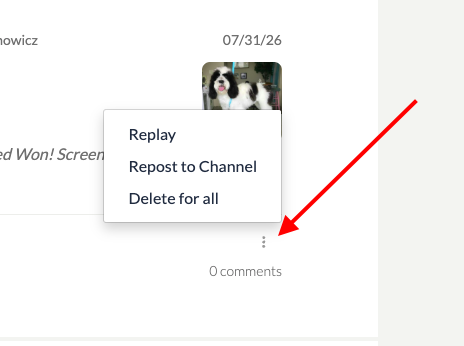
5. Choose Your Action
Section titled “5. Choose Your Action”You’ll see three options:
-
Repost to Channel – Shares the Newsflash again to any channel it’s already part of, giving it fresh visibility.
-
Replay – Plays the Newsflash on your browser only (just for you — it won’t repost to the team).
-
Delete – Removes the Newsflash.
Select Repost to Channel to bring the moment back into your team’s feed.
Verify
Section titled “Verify”Check the channel that already carries the Newsflash to confirm that it has appeared again. Replay opens a preview for you only; it does not repost the Newsflash to the channel.
If it doesn’t work
Section titled “If it doesn’t work”Confirm that you selected Repost to Channel and that the Newsflash belongs to the channel you are checking. If the repost option is missing, ask your Hoopla admin to check your permissions. Contact support if you still cannot repost it.
Related articles
Section titled “Related articles”- View recent activities in Hoopla Filter your Hoopla Activity feed, like and comment on items, and repost or replay newsflashes.
- Introducing Huddle messaging center Find your way around the Huddle tab’s Calendar Events, Newsflash and Messages sections, and view, filter or delete your messages.
Still having trouble?
Email our support team.