


How-to · Displai
Automatic user provisioning with SAML & custom attributes
Automatically add users to your Displai domain and assign roles and locations based on SAML attributes from your identity provider.
When to use this
Section titled “When to use this”This enterprise feature enables automatic user provisioning for location and screen access and user roles through SSO setup. Instead of manually assigning locations and roles to each user, you can now configure your company’s SAML identity provider - as you would with other software your team uses - to handle this automatically.
How it works
Section titled “How it works”When users sign in through SSO, Displai automatically syncs the locations and roles based on custom attributes defined in your SAML configuration. This eliminates manual user management and ensures users always have the correct access permissions.
Benefits
Section titled “Benefits”-
Streamlined onboarding: New users get proper access immediately upon first login
-
Automatic updates: Your identity provider automatically syncs role and location changes.
-
Reduced admin overhead: No need to manually manage user permissions in Displai
-
Consistent access control: Users maintain appropriate permissions based on your organization’s directory
Before you start
Section titled “Before you start”-
Enterprise subscription
-
Active SSO/SAML integration
-
Feature must be enabled by customer support
1. Enable the Feature
Section titled “1. Enable the Feature”Contact our customer support team to activate automatic user provisioning for your organization.
2. Configure SAML Custom Attributes
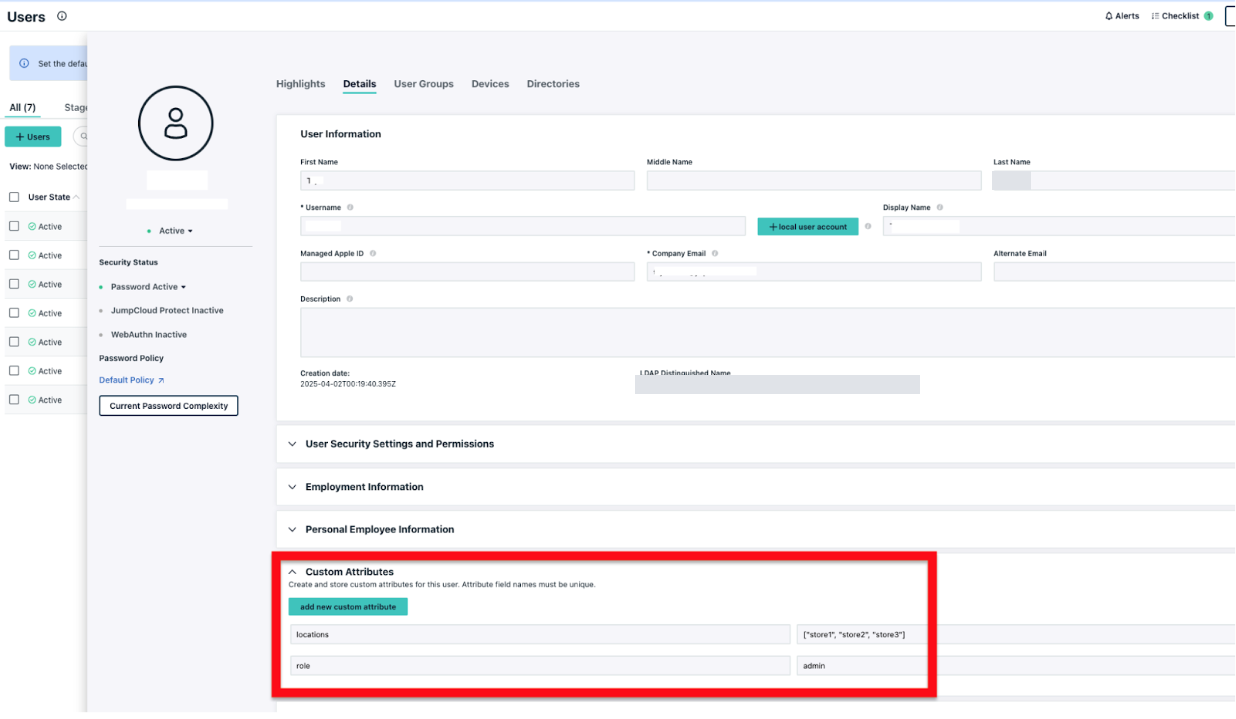
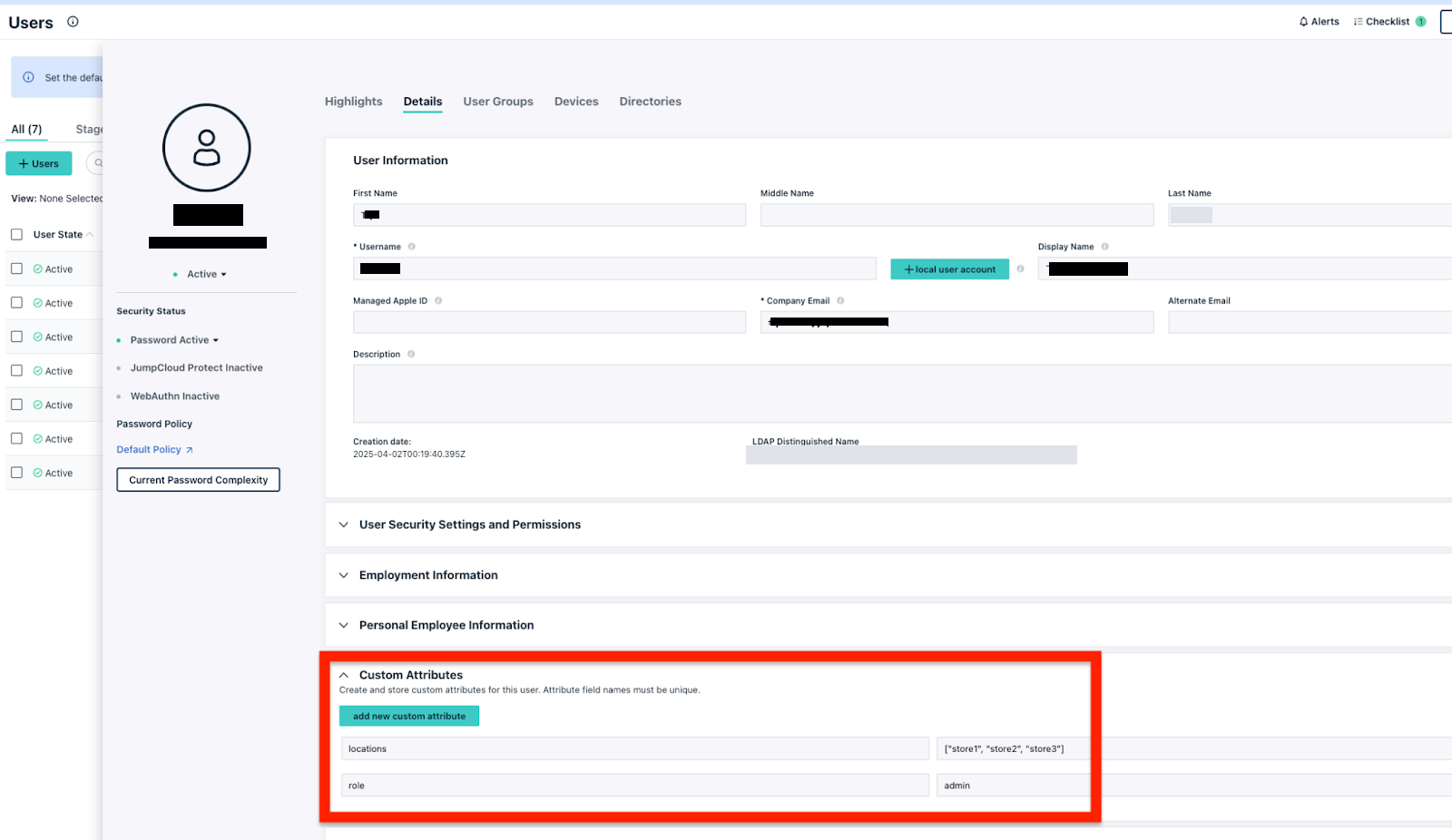
Section titled “2. Configure SAML Custom Attributes”In your SAML identity provider, map the following custom attributes:
locations - Array of location identifiers the user should access:
locations => [“store1”, “store2”, “store3”]
role - User’s role within Displai (must use exact values):
-
superadmin - Full system access and management
-
admin - Location and user management capabilities. Cannot delete resources owned by other users.
-
restricted - A restricted user role. Review the Enterprise user role descriptions and confirm the required shared-resource access with your account administrator before assigning this value. Do not assume it grants permission to edit or delete another user’s resources.
role => admin
Example configuration:
Verify
Section titled “Verify”After configuration, users will automatically receive their assigned locations and roles upon their next login.
If it doesn’t work
Section titled “If it doesn’t work”Contact our support team to enable this feature and assist with SAML configuration.
Related articles
Section titled “Related articles”- What are enterprise features? See how Displai Enterprise lets you invite team members, assign user roles and share screens and content across a domain.
- 2-Step verification Turn on 2-step verification to require an SMS security code at sign-in, for yourself or, as an Enterprise admin, your domain.
Still having trouble?
Text the 24/7 line or email support.