


How-to · Hoopla
Trace a Hoopla leaderboard back to its data source
Find which integration or upload feeds a leaderboard by following it to its metric details and data source link.
Following the data trail back to its source
Section titled “Following the data trail back to its source”Where does the data on a Leaderboard generate from?
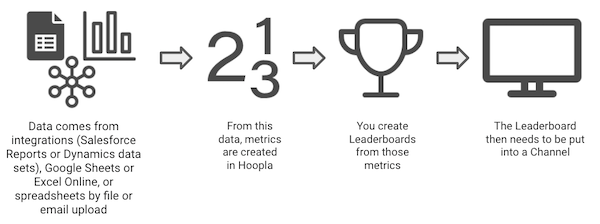
In general, the data for a Leaderboard will generate through this flow:
How do I find the data source?
Section titled “How do I find the data source?”To find a particular data source, you can follow the data back from a Channel or you can start directly in the Leaderboard area if you know which Leaderboard you are looking for. Here is the process:
From the Channel:
-
Under Channels and TV area.
-
Click on Channels.
-
In the Channel lineup, locate the Leaderboard you would like to find the information source for (a Leaderboard is denoted with a Winners Cup icon). The name of the Leaderboard will be listed next to the Winners Cup icon.

From the Leaderboards area:
-
Navigate to Leaderboards under the Data section on the left-hand side.
-
Locate the Leaderboard you want to find the data source for and click on the name to see the details.
-
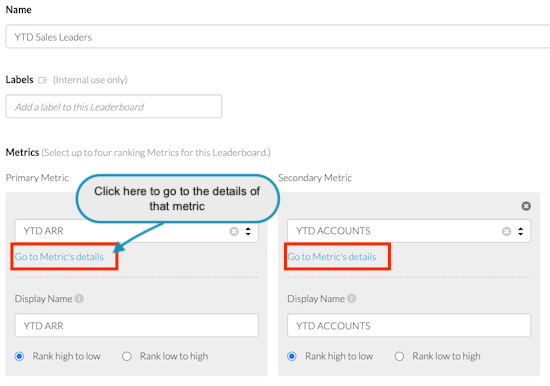
This screen will show what Metric(s) are being used for the Leaderboard. There will also be a clickable link to the Metric’s details. Note: Further down, you can see where this Leaderboard is used in Hoopla along with links to those details.
-
Click on “Go to Metric’s details” under the Metric Name.
Metrics:
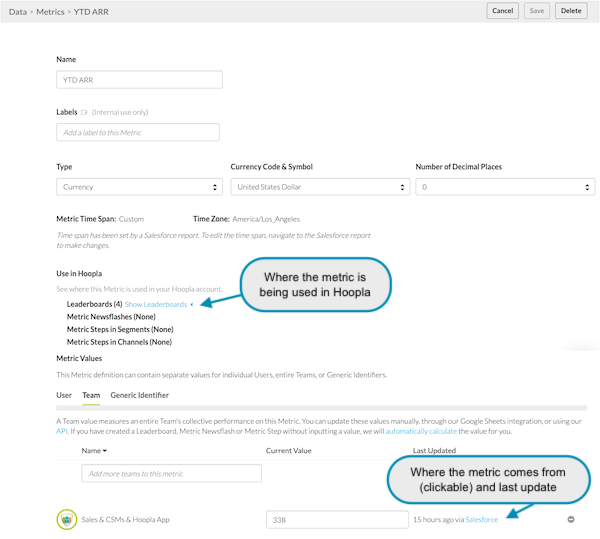
Clicking on the “Go to Metric’s details” (above) or going to “Metrics and Uploads”, will take you to the metric and provide the following:
-
Type of metric
-
Where this metric is used in Hoopla
-
If the data is used for users, teams, generic identifiers
-
Current values
-
Where the values are pulling from and when they were last updated. If the values are pulling from a data source that is active, the word will show as a clickable link. Click this link and you be taken to the data source from where this metric is coming from.
Data Source:
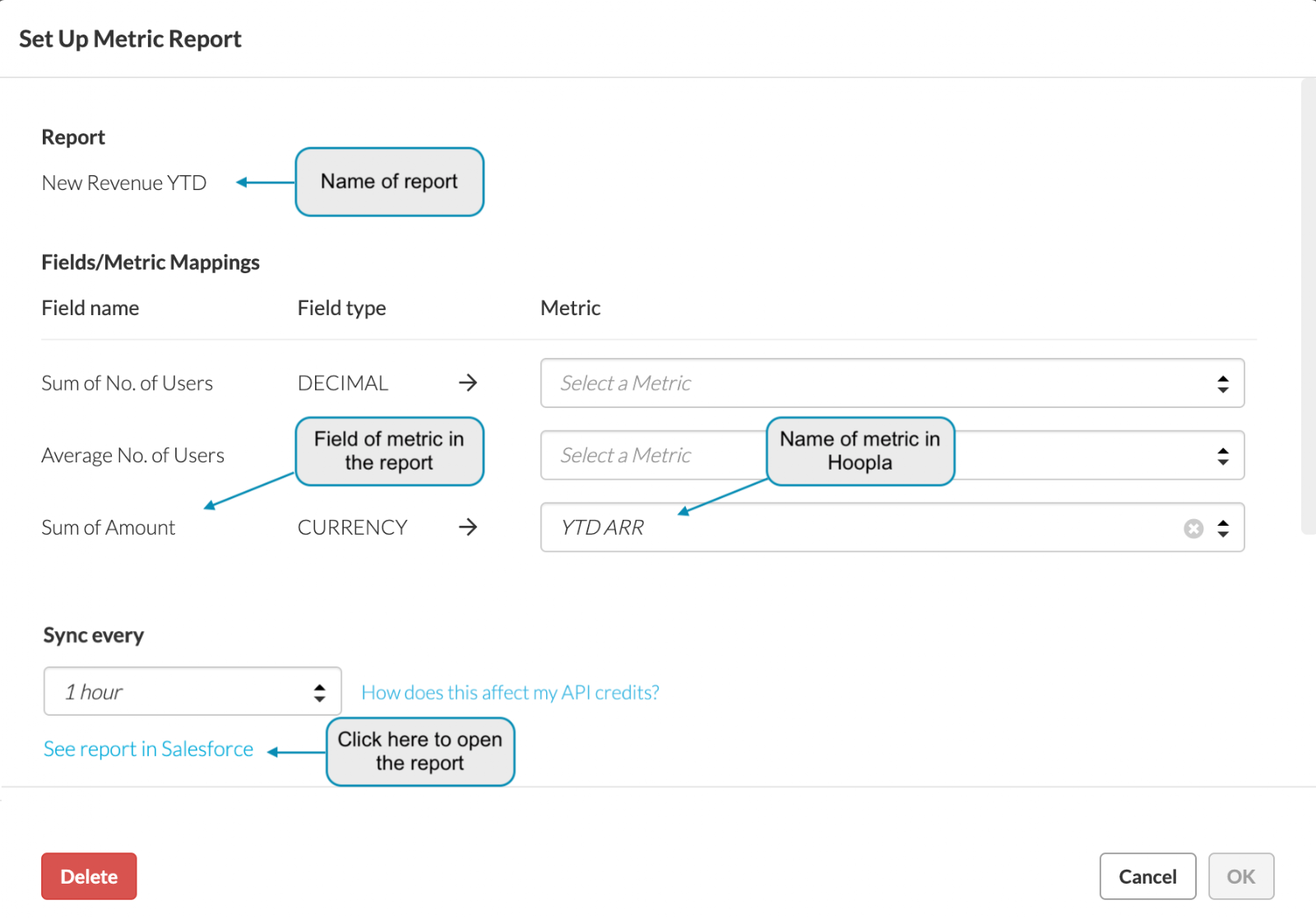
The data source can be Salesforce, Microsoft Dynamics, Google Sheets, Excel Online, or uploaded by file or email. In the example above, the data source was from Salesforce. For Salesforce, Dynamics, Google and Excel, you are able to click on the blue link to see additional details of where that metric is coming from.
Example of a metric from Salesforce:
Related articles
Section titled “Related articles”- Define your metrics Create metrics that track your key performance indicators, choose a data source and update frequency, and set goals for them.
- Types of metric updates Compare the ways to keep Hoopla metrics current, from manual updates to Salesforce, spreadsheets, email or CSV uploads, the API, and Zapier.
- Connect Salesforce to Hoopla Connect your Salesforce org to Hoopla, see which permissions it requests, and fix common authorization and data sync problems.
Still having trouble?
Email our support team.