


How-to · Hoopla
Set up a Performance Console for your team
Create a Performance Console that tracks your team's progress on a primary metric, with player rankings and optional projections.
How do I set up a Performance Console for my Users?
Section titled “How do I set up a Performance Console for my Users?”Welcome to the Performance Console, formerly known as the Dashboard! This tool tracks your players’ progress on metrics that matter most to your team. You’ll gain insights into their performance, provide helpful feedback, see rankings, and monitor their contributions to the team. Setting up a Performance Console for your team is quick and easy—just follow these steps.
Fiscal Year is not supported on the Performance Console.
Set-up
Section titled “Set-up”- Log into Hoopla and navigate to Configure>Reports>Performance Console.
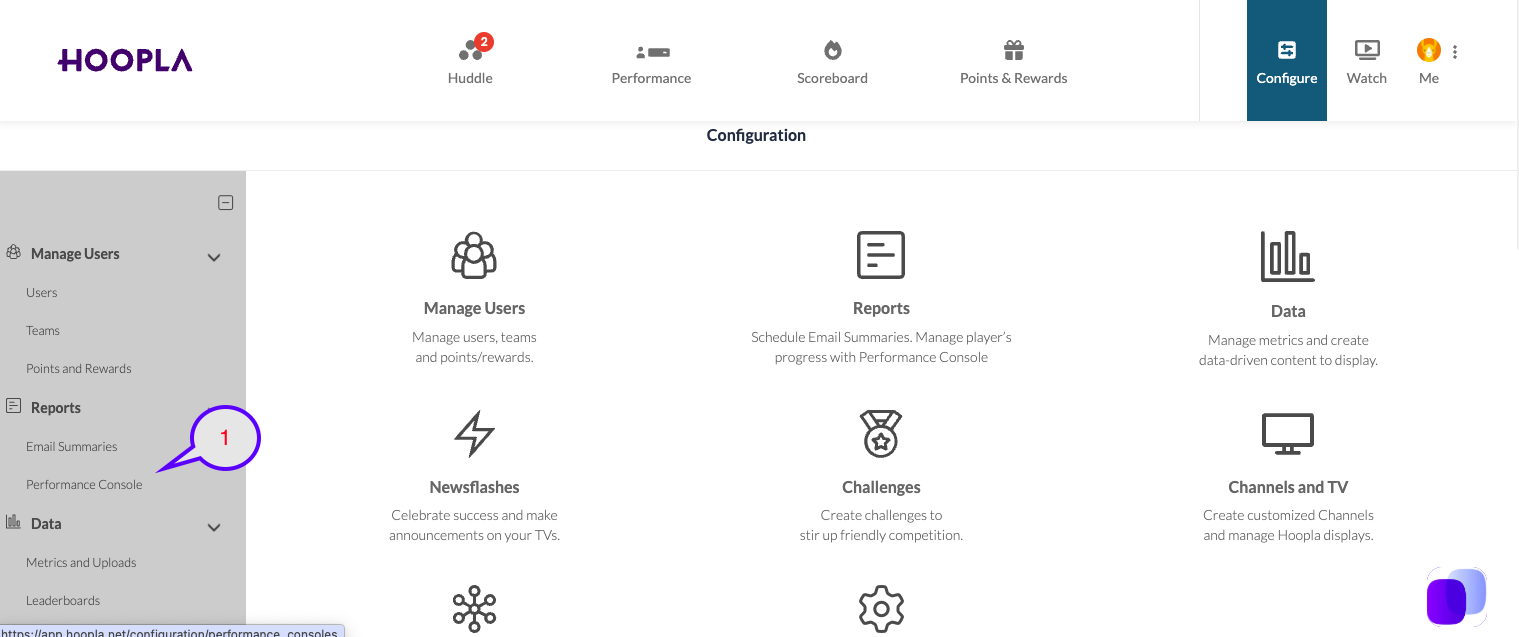
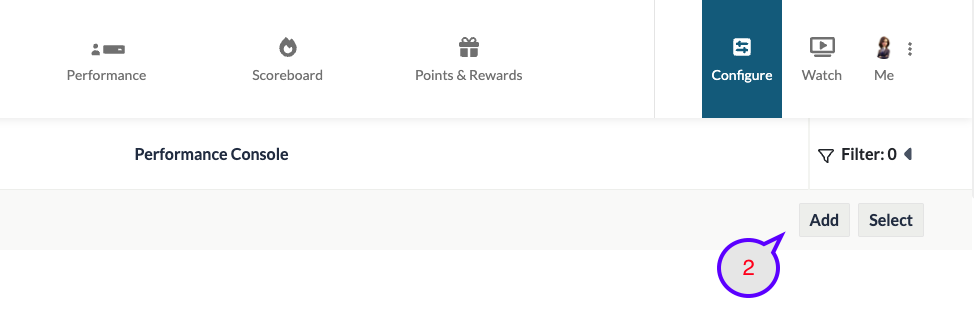
- Click the “Add” button in the top right corner of the screen.
-
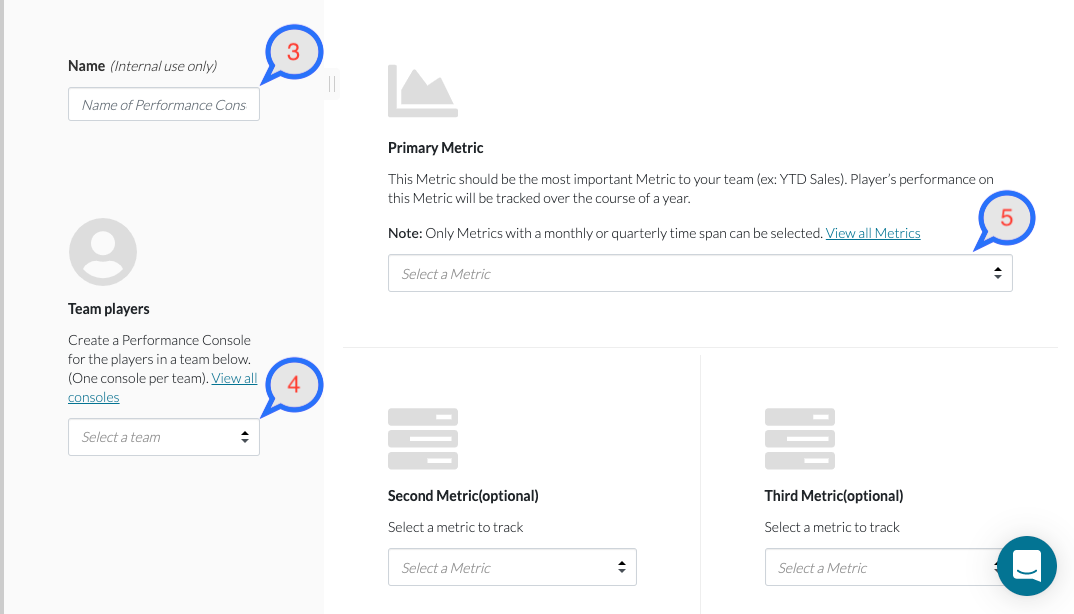
Name your Performance Console (this is for internal organization only, so choose any name that makes sense to you).
-
Select the Team for whom you’re building this Performance Console (e.g. Sales Team, East Coast AEs, etc.). Note: you can only build one Performance Console per Team.
-
Select a primary Metric—this should be the most important metric for your team (e.g. YTD Sales). Players’ performance on this metric will be tracked throughout the year.
Note: Only monthly or quarterly Metrics can be selected as the primary Metric.
-
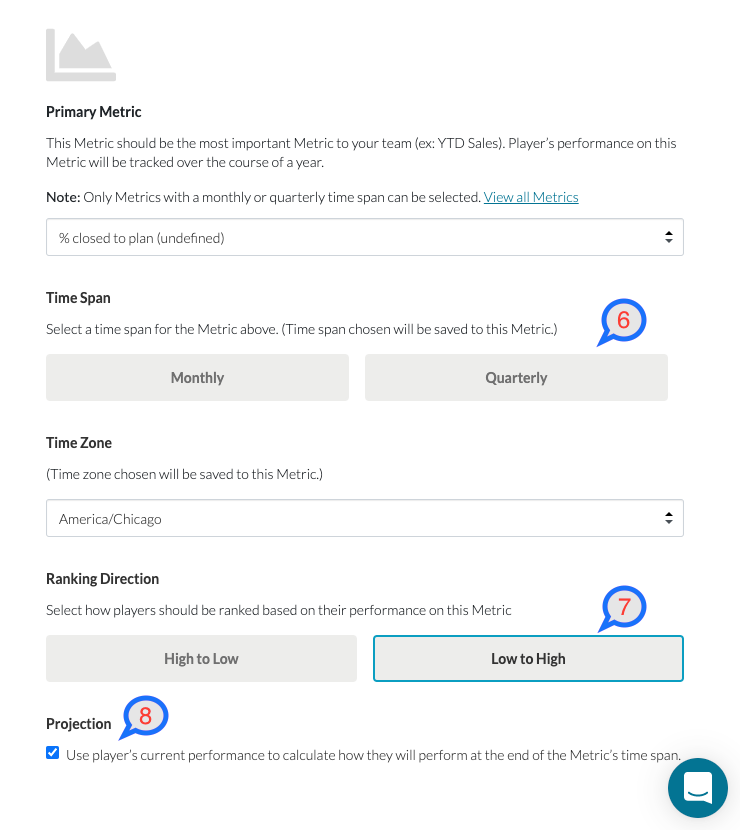
If your metric has an undefined time span, assign one and select a time zone.
-
Choose a Ranking Direction to determine how players should be ranked (Low to High or High to Low).
-
Check the box under projection if you want to use players’ current performance to calculate projected end-of-period results.
-
You can optionally add a secondary or tertiary Metric to display on the console.
-
To add additional metrics, select a Metric; these must have an associated time span, but can be any time period.
-
If the time span is undefined, assign one and select a time zone.
-
Choose a Ranking Direction to determine how players should be ranked on this additional metric (Low to High or High to Low).
-
Check the projection box if you want to calculate projected end-of-period performance based on current results.
-
Click Save!
-
To edit an existing Performance Console, simply click on any Performance Console from the list view.
Add a Team Performance Console to your Channel
Section titled “Add a Team Performance Console to your Channel”Once you have your Performance Console Setup, you can then add the Team view to your Channel. To do this:
-
Navigate to the channel.
-
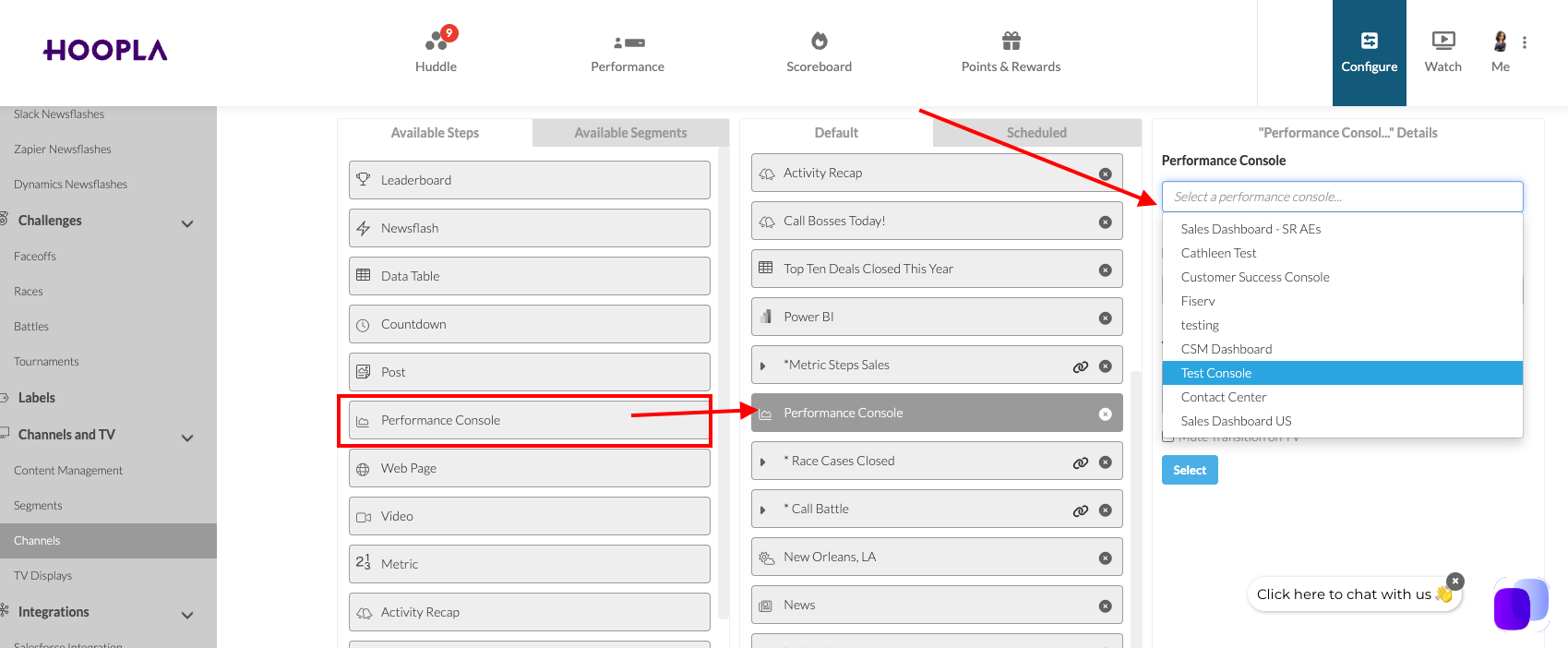
Once in the channel scroll down to the Performance Console in the Available Steps and drag a step over to the Lineup. Choose the Performance console to display.
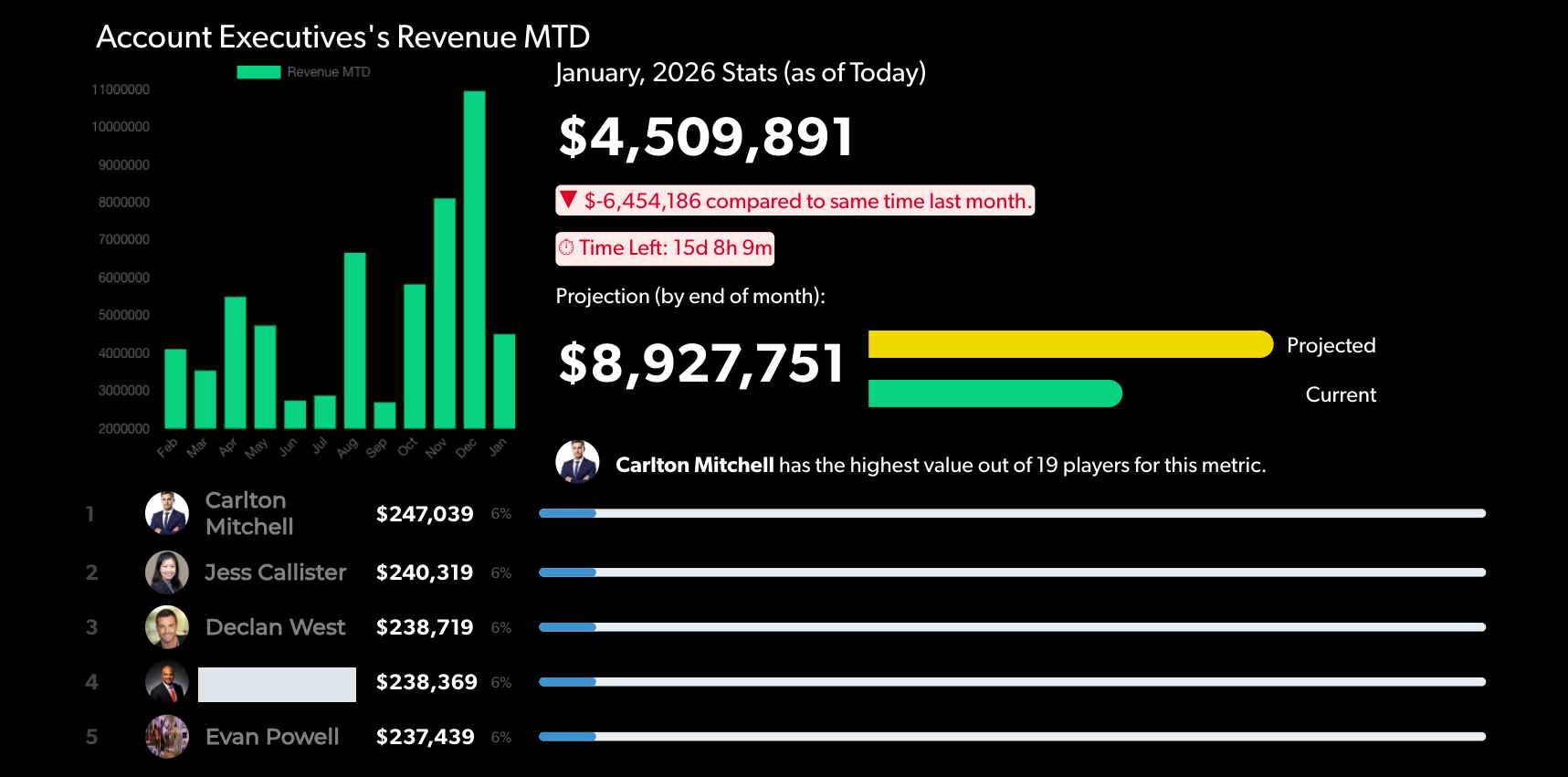
- You can then preview the step if desired.
- Save.
Related articles
Section titled “Related articles”- View and customize your Hoopla dashboard Understand your dashboard’s leaderboard and metric cards, star or pin the cards you care about, and view another player’s dashboard as an admin.
- Set up priority cards for a dashboard Choose up to seven metrics and leaderboards to show first on your players’ dashboards, set their order, and preview before publishing.
- Define your metrics Create metrics that track your key performance indicators, choose a data source and update frequency, and set goals for them.
- Create teams Create, edit and delete teams, or sync them from Salesforce reports, so you can run team leaderboards and competitions.
Still having trouble?
Email our support team.