


How-to · Hoopla
Send Hoopla email summaries to your team
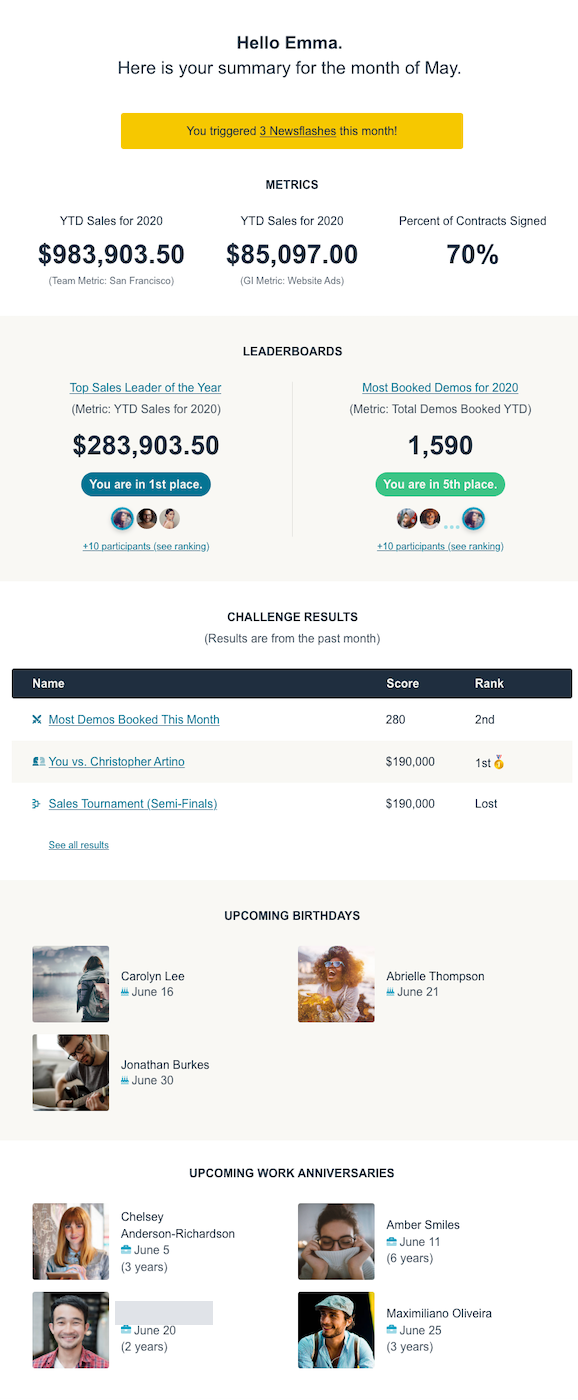
Set up automated daily, weekly, or monthly email summaries that send a team its key metrics, leaderboards, birthdays, and work anniversaries.
Send summaries of Players’ progress.
Section titled “Send summaries of Players’ progress.”Email summaries are a great way to engage your users wherever they are. Send daily, weekly or monthly emails that summarize key metrics, highlight important leaderboards, and more to keep your remote employees motivated and engaged.
How to set up an email summary
Section titled “How to set up an email summary”-
Within the Configure tab, navigate to Reports and click on the Email Summaries icon.
-
Start by clicking the “Add” button in the top right corner.
-
Email summary set up is divided into two sections: Settings and Content.
Settings
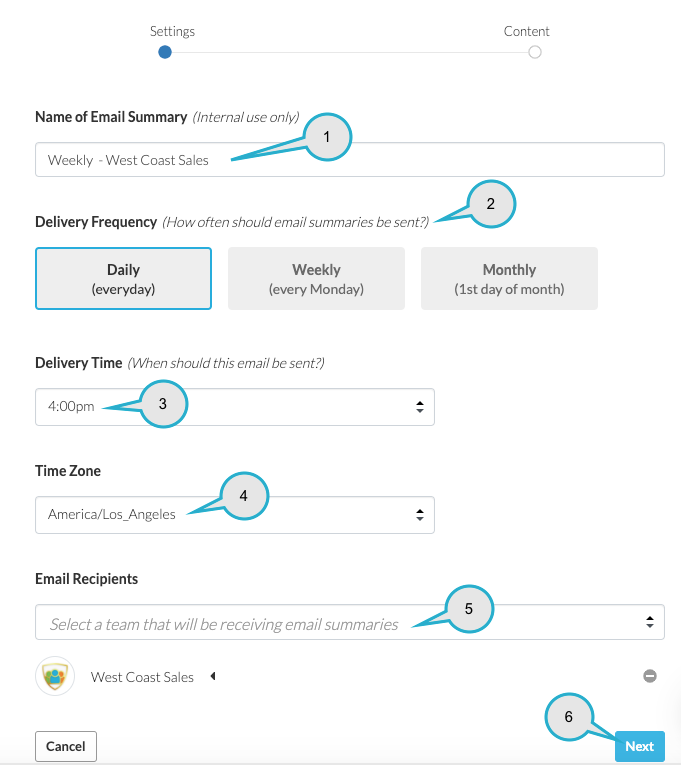
Section titled “Settings”Define the criteria for who receives the email summary and how often.
-
Start by giving your email summary a name - this is for internal purposes only and will not appear in the body of the email summary itself.
-
Define the delivery frequency: Daily, Weekly or Monthly. The email will contain data from the prior period. For example, if you select Weekly, it will show data from the week prior.
-
Select a delivery time.
-
Select a time zone.
-
Finally, select a team that this email summary will be sent you. You must select a team, rather than individually select users, and can only set up email summaries for one team at a time.
-
Click Next to be taken to the Content section.
Content
Section titled “Content”Select what information goes into the email summary.
First, select any combination of up to five (5) Metrics and/or Leaderboards to be included in your email summary.
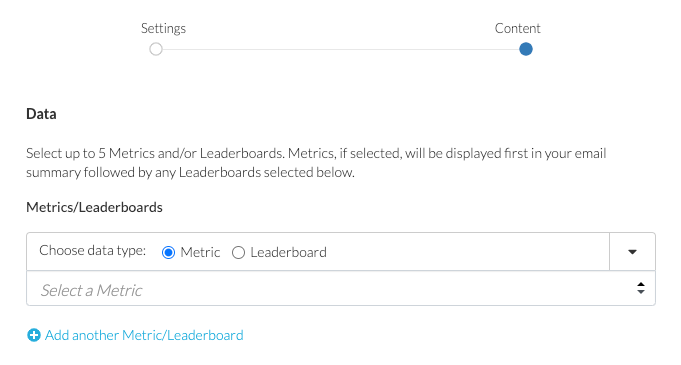
Metrics can be displayed as:
-
Individual metrics - the individual email recipient will see their own metric data
-
Team metrics - the team value displayed is defined by you, the admin, during configuration
-
Generic identifier - also defined by you, the admin, during configuration
***Pro Tip:***Select metrics that align well with your email frequency. For example, on Monthly email summaries, avoid selecting daily or weekly metrics since the data might not be as informative as that of a monthly or quarterly metric.
Leaderboard- you can select from Player or Team leaderboards
The following toggles allow you to choose the specifics of what you want to display/share:
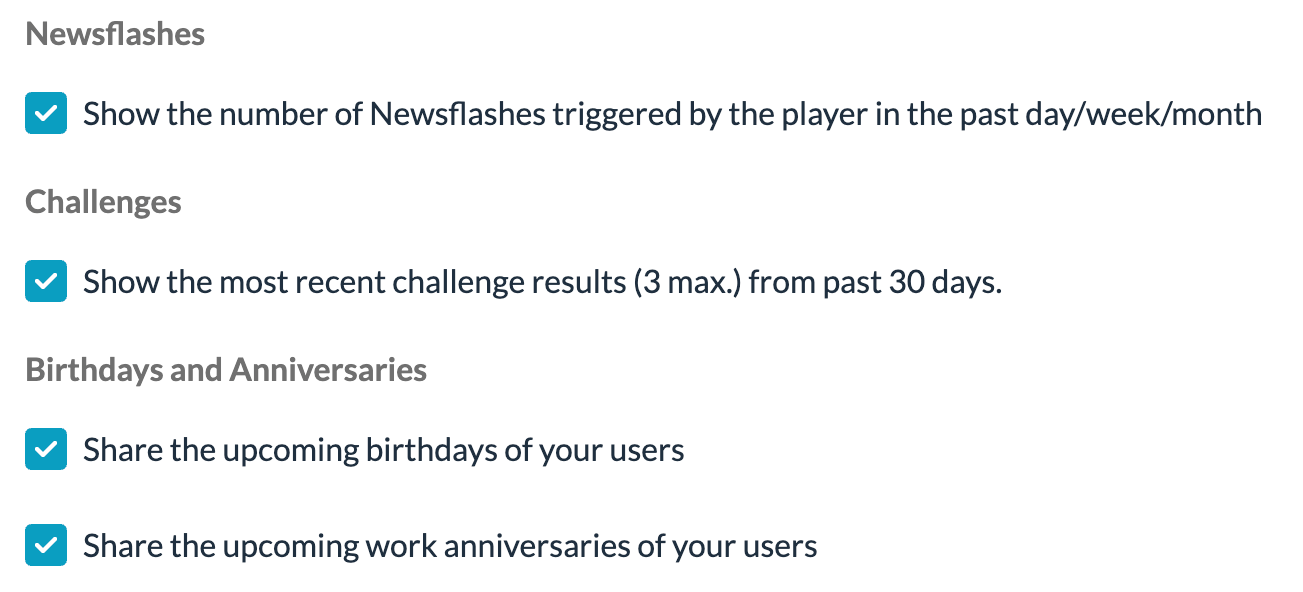
The displayed will correspond to the email frequency and will be displayed as upcoming events. Daily emails will see the next day’s birthdays/anniversaries, weekly emails will see birthdays/anniversaries occurring that week, and monthly emails will show the following month’s events (e.g. May’s email summary will show June birthdays/anniversaries).
Finally, we recommend sending yourself a test email. First, click **Save Only (Not Scheduled)**and then go back into the email summary and click on **Send Test Email.**Sending yourself a test email allows you to preview the data your recipients will see in their email summary.
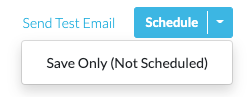
If everything looks good, click Schedule and your email summary will be sent out at the next defined frequency.
-
You may edit any existing Email Summary by clicking into it from the list view. You can also disable sending the email by going to the Content page and clicking the Schedule drop-down arrow and selecting Save Only (Not Scheduled).
-
Selecting the Save Only, simply pauses the delivery of that email summary, while maintaining all of your defined settings. This might be useful if you want to pause email summaries on specific days, such as holidays.
-
Note: If your account is still in setup mode, emails will not go out. To check, go to the settings area and scroll down to see if setup mode is still enabled.
Questions? Check out ourFAQ Article.
Sample Email Summary
Related articles
Section titled “Related articles”- Email summary frequency and settings in Hoopla Understand when daily, weekly, and monthly email summaries are sent, who receives them, and what each one shows.
- Turn setup mode on or off in Hoopla Configure Hoopla without sending invitation emails, invite selected users early, and turn setup mode off once you’re ready.
Still having trouble?
Email our support team.