


How-to · Hoopla
Connect Salesforce to Hoopla
Connect your Salesforce org to Hoopla, see which permissions it requests, and fix common authorization and data sync problems.
Learn the steps to begin sending Salesforce data to Hoopla
Section titled “Learn the steps to begin sending Salesforce data to Hoopla”Integrating Salesforce with Hoopla is an easy way to automate management of Users and Teams, as well as updates to Metrics, all by leveraging data from your Salesforce reports. Additionally, you can trigger real time newsflash events whenever a field changes in Salesforce, such as closing an opportunity to trigger a virtual sales gong or breaking news alerts.
Here’s how to configure the Salesforce connector:
Go to the Integrations section on the home admin panel or on the left navigation bar and click the Add Integrationmenu and select Salesforce.
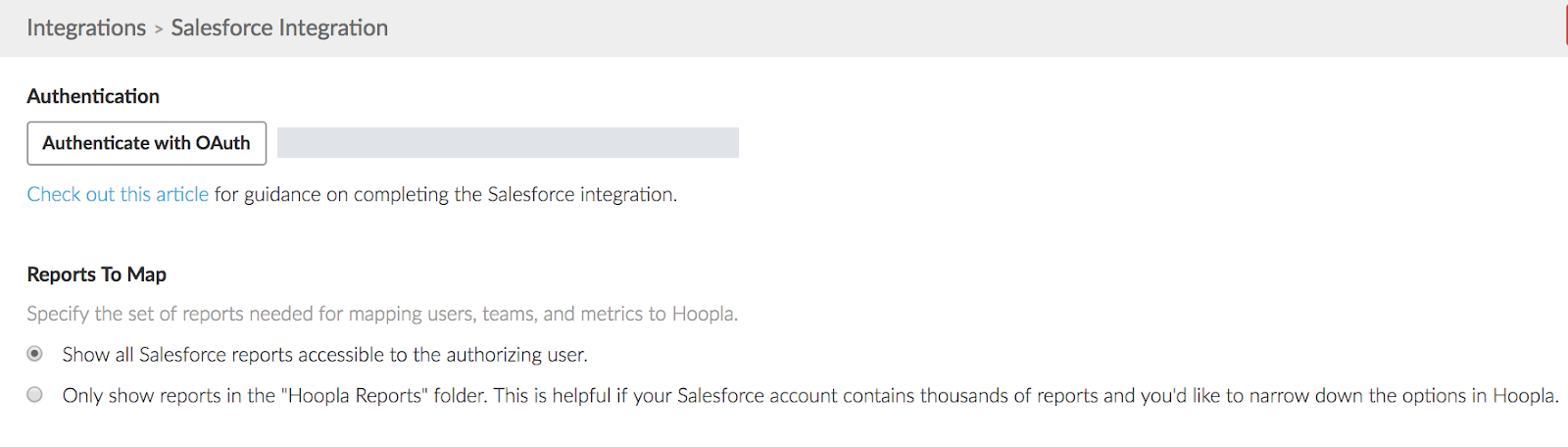
Step 1: Authenticate
Section titled “Step 1: Authenticate”The first step in establishing a connection between Salesforce and Hoopla is to authenticate the connection with a dedicated user in your Salesforce org. Check out this article to learn more about what settings and permissions are required for that user. Once you’ve determined which user to use, click “Authenticate with OAuth” button and login using that user’s Salesforce credentials.
Authentication user must be a User License within Salesforce API users do not have all the capabilities needed.
Step 2: Set the Report folder
Section titled “Step 2: Set the Report folder”If you have a lot of reports in your Salesforce org, you may want to focus which reports Hoopla sees to just the Hoopla Reports folder. Note: you must create the Hoopla Reports folder in Salesforce and create or move the user and data reports here.
Step 3: Set the Report Synching Window
Section titled “Step 3: Set the Report Synching Window”If you are concerned with limiting the number of API credits Hoopla uses to update data, you can limit the times of day that Hoopla syncs with Salesforce. To learn more about API credits, check out this article.
Be sure and click “Save” in the upper right hand corner of the Salesforce integration page. Your Salesforce connection should now be established and you can move on to connecting the reports to feed data to Hoopla.
Related articles
Section titled “Related articles”- Setup guide - Hoopla with the Salesforce integration Connect Hoopla to Salesforce, then build reports, metrics, teams, leaderboards, and channels from your Salesforce data.
- Create Salesforce metric reports for Hoopla Build Summary reports in Salesforce, grouped by a user lookup field, that feed live metrics into Hoopla.
- Sync teams from Salesforce reports Keep Hoopla team membership up to date automatically by mapping a tabular Salesforce User report to each team.
- Create a leaderboard from a Salesforce report in Hoopla Build a leaderboard from a Salesforce Summary report, map up to four report columns to metrics and choose the players or teams to rank.
Still having trouble?
Email our support team.