


How-to · Hoopla
Upload calendar events in Hoopla
Add employee birthdays and work anniversaries to Hoopla profiles with a spreadsheet upload or a Salesforce user report.
The Calendar Event Step is a great way to give your employees extra recognition on their birthdays, work anniversaries or even when new hires start! Before pulling this step into your lineup, you’ll need to populate these dates into each of your users’ profiles. You can either mass upload the dates into Hoopla via spreadsheet, have your team go into their profile and add the dates themselves or import Birthdays/Anniversaries from a Salesforce User report.
Format Your Spreadsheet for Hoopla
Section titled “Format Your Spreadsheet for Hoopla”-
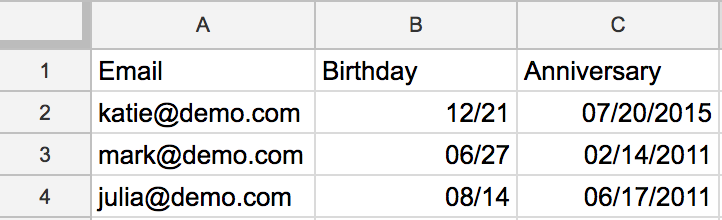
You must have a column called Email, populated with your Hoopla users’ email addresses.
-
The remaining columns should contain the appropriate labels: Birthday and Anniversary.
-
For Birthdays, the date must be listed by month and then date, e.g. 12/19 for December 19th. No need to provide a year as we will not use or display a year.
-
For Anniversaries, the date must be listed by month, then date, then year, e.g. 5/1/2013 for May 1st, 2013. The year is necessary in this case because we will display the number of years each employee is celebrating.
Upload your Birthdays & Anniversaries
Section titled “Upload your Birthdays & Anniversaries”-
Navigate to Users & Teams tile.
-
In the upper right hand corner, click on the Add button and select Birthdays & Anniversaries.
-
Drag and drop your spreadsheet to the page, or click Choose a File.
-
If you’re missing any dates, not to worry! We will upload only the information that is listed. Once the upload is complete, each User listed in your spreadsheet will see their birthday and/or work anniversary populated into their Profile.
Add Birthdays & Anniversaries from a Salesforce User Report
Section titled “Add Birthdays & Anniversaries from a Salesforce User Report”-
Within Salesforce, you will need to create a custom field for each type of calendar event: Birthdate & Anniversary
-
Go to App Setup> Customize User Fields and select Add a Custom Field to Users.
-
Scroll down to the bottom and click the “New” button in the section called “User Custom Fields.”
-
Select Date for Field Type. This will allow you or your User to select a date from a drop down menu. Unlike File Upload or Manual Entry, the Birthdate field in Salesforce must contain a year. However, we will not display the year in Hoopla or on the TV. If you do not know the year, or do not want to input the actual year in Salesforce, you may select the current year.
-
For Field Name and Field Label, you must label the field either Birthdate or Anniversary (make sure the label for these fields are spelled correctly as this is what we look for in the User Report) and complete the steps for setting up your custom user fields.
-
Next, go into your Master User Report in Salesforce and drag these custom fields into that report.
-
Click Save.
-
The next time Hoopla runs the report, it imports the Birthdate and Anniversary values from those fields into the corresponding Hoopla user profiles.
- If your users are Salesforce users, they will not be able to manually update Birthdays and Anniversaries in their Profile. Birthdays and Anniversaries can still be updated via file upload.
Related articles
Section titled “Related articles”- Configure calendar events in Hoopla Add a Calendar Event step to celebrate birthdays, anniversaries or new hires on your screens for today, this week or this month.
- Connect Salesforce to Hoopla Connect your Salesforce org to Hoopla, see which permissions it requests, and fix common authorization and data sync problems.
- Add users with file upload Bulk add users to Hoopla from a CSV file, including how to format it and what happens when some rows fail.
Still having trouble?
Email our support team.