


How-to · Hoopla
Send Post messages in Hoopla
Send General, Recognition, Critical, or Task posts from Huddle to individuals, teams, or channels on your displays.
The Post messaging feature is replacing the old Quickfire Newsflashes. The new Post will allow for more flexibility for enabling users and messaging.
How Do I Find It?
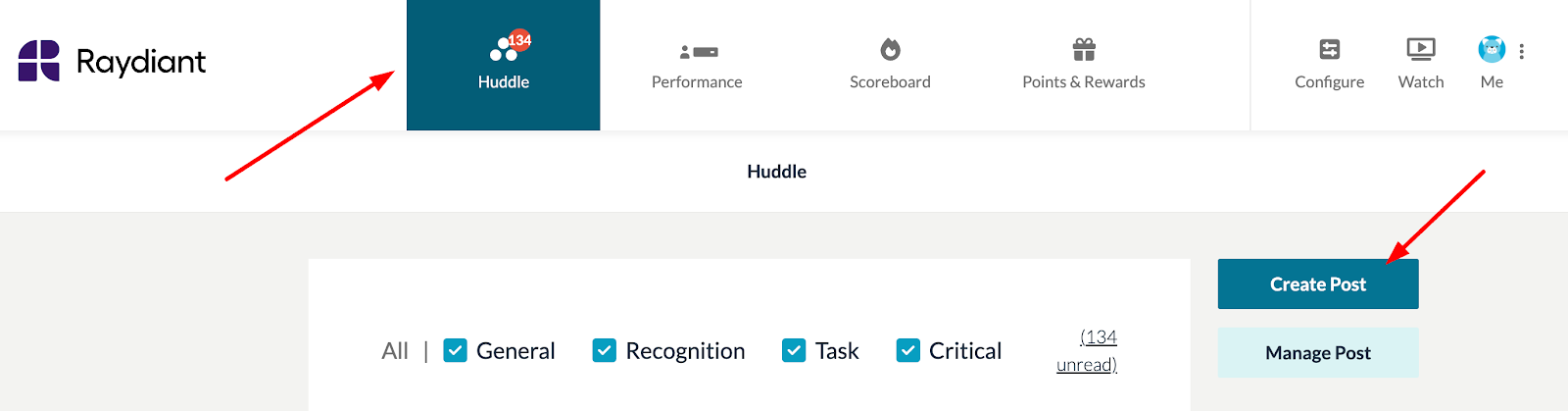
Section titled “How Do I Find It?”Click on “Huddle” and then click on “Create Post”.
What Does It Do?
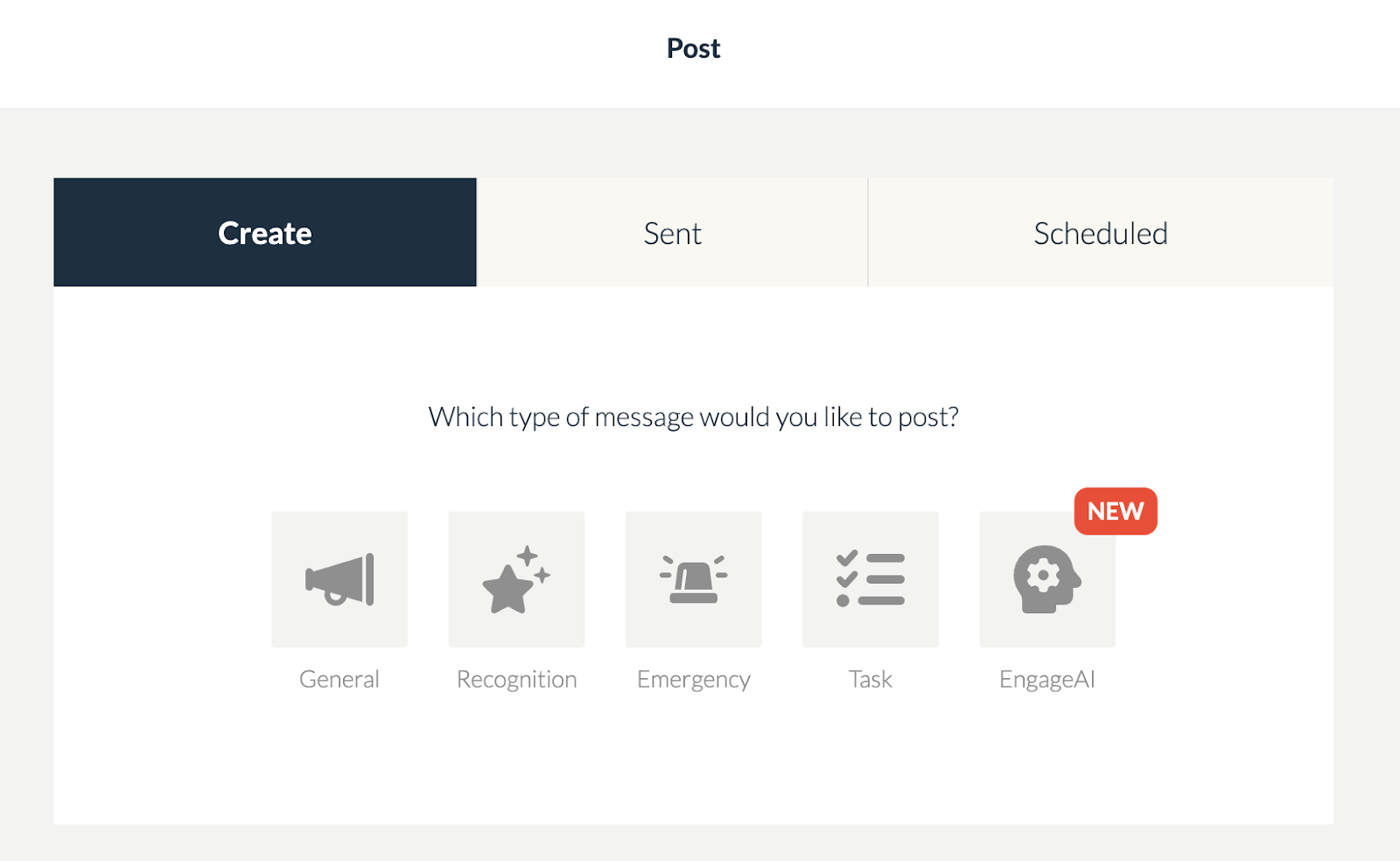
Section titled “What Does It Do?”Post will allow you to send general, recognition, critical, and task messages to individuals or teams. It will also allow you to send general, recognition, and critical messages to channels in Hoopla.
How Do I Get/Give Permission to Use Post?
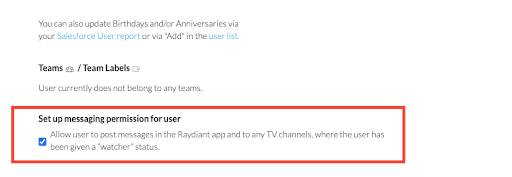
Section titled “How Do I Get/Give Permission to Use Post?”There are two components to being able to use Post. First, the user needs to have the permission checked in their Hoopla profile. It does not matter if the user is a player, team admin, or admin. Anyone given permissions to post can use the messaging platform.
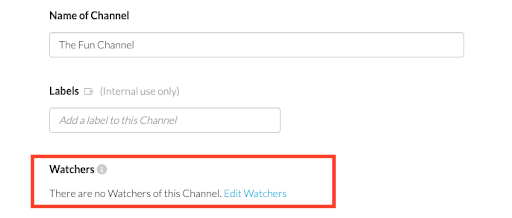
If the poster needs to be able to send messages to a channel, they also need to be a watcher of the channel they would like to send messages to.
To add someone as a watcher, navigate to the channel and add them in the watchers section:
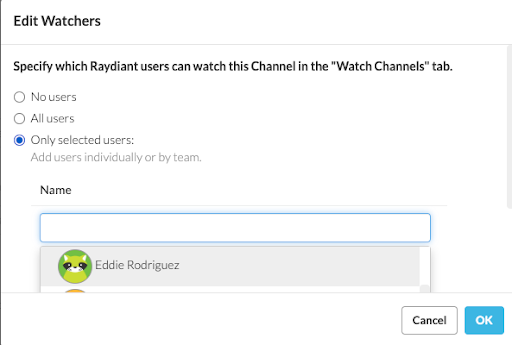
The user is now ready to send messages. From the post interface, choose the type of message you would like to send: General, Recognition, Critical, or Task.
Fill in the appropriate message options based on the type of message (each type has different options). Below is a General format with options.
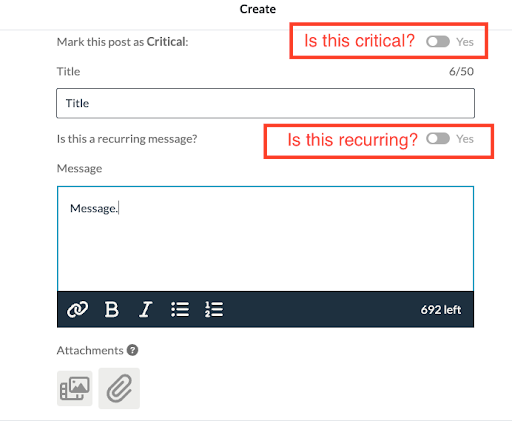
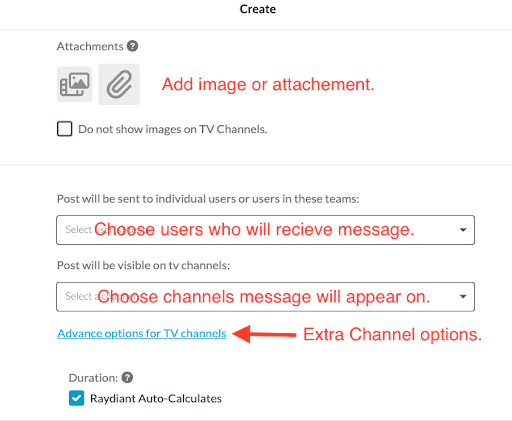
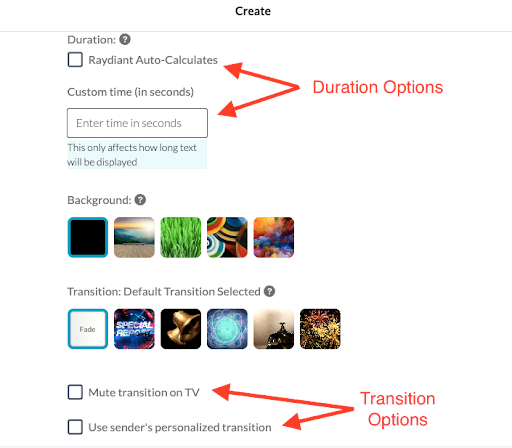
Once the options are selected, click “Send” and your message will go to both users and TVs.
If users are using the mobile app and have notifications turned on in both the app and settings, they will receive a notification. If they have desktop notifications turned on, they will receive those, and anything you send to the channel will play where the channel is playing.
For more information on the mobile app, click here.
For information on sending tasks, click here.
For a video walk-through of messaging, click here.
Related articles
Section titled “Related articles”- Introducing Huddle messaging center Find your way around the Huddle tab’s Calendar Events, Newsflash and Messages sections, and view, filter or delete your messages.
- Send a task message in Hoopla Assign action items to users and teams with a task message from the Post tab, with optional due dates, recurrence, and attachments.
- Set up channel watchers in Hoopla Let users or teams view a channel from the Watch Channels tab without assigning them a TV display.
Still having trouble?
Email our support team.