


How-to · Hoopla
Add content to your Hoopla lineup
Add steps to a channel or reusable segment, from leaderboards and newsflashes to videos, web pages and countdowns, and configure each type.
Available steps for your Channel
Section titled “Available steps for your Channel”With all the different step types available to you, your Hoopla TV Channel can be as unique and fantastic as your team!
When designing your Lineup (either your Reusable Segment or Channel), there are several different Step types to select from:
-
Leaderboard
-
Newsflash
-
Countdown
-
Web Page
-
Video
-
Activity Recap
-
Tips & Tricks
-
Motivational Quotes
Leaderboard
Section titled “Leaderboard”When you drag a Leaderboard to your Lineup, you can customize its display so it appears in one of these four formats:
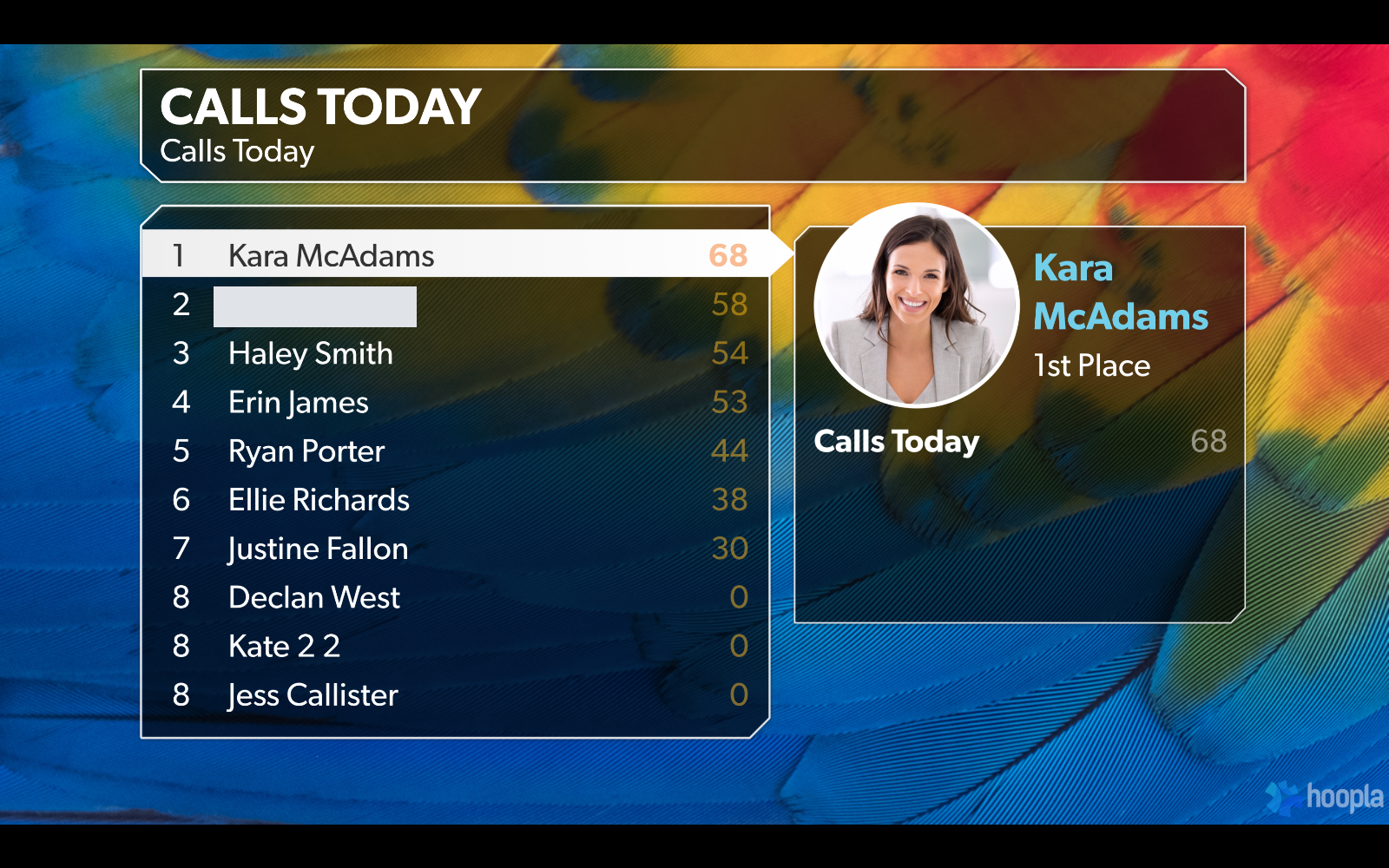
Classic - displays up to 250 players (10 per page), highlighting the top 3 players. The highlight shows the other Metric values, if present on that Leaderboard.
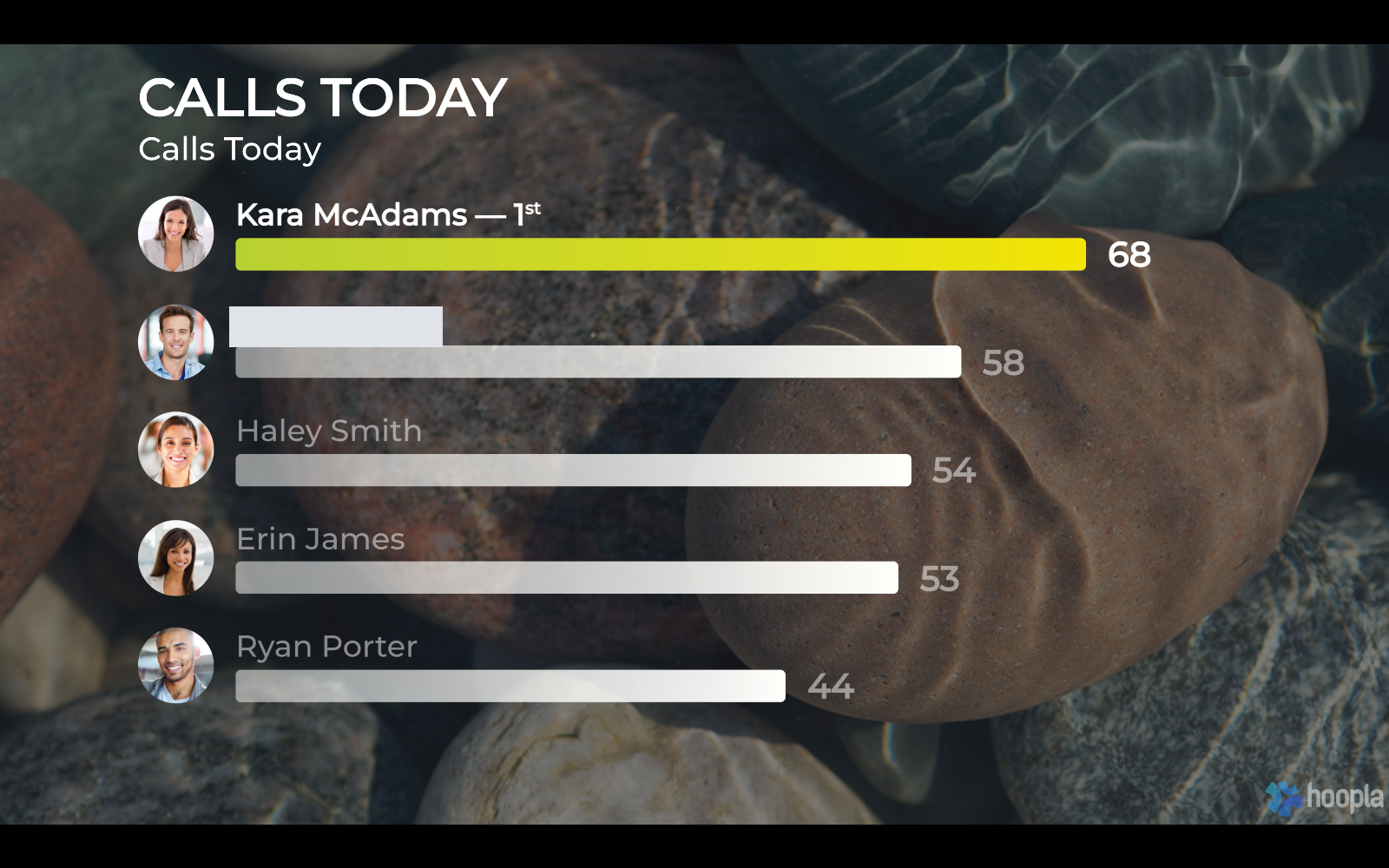
Bar Graph - displays the top 5-50 players (select between 5 or 10 per page), with a horizontal bar graph representing their metric values.
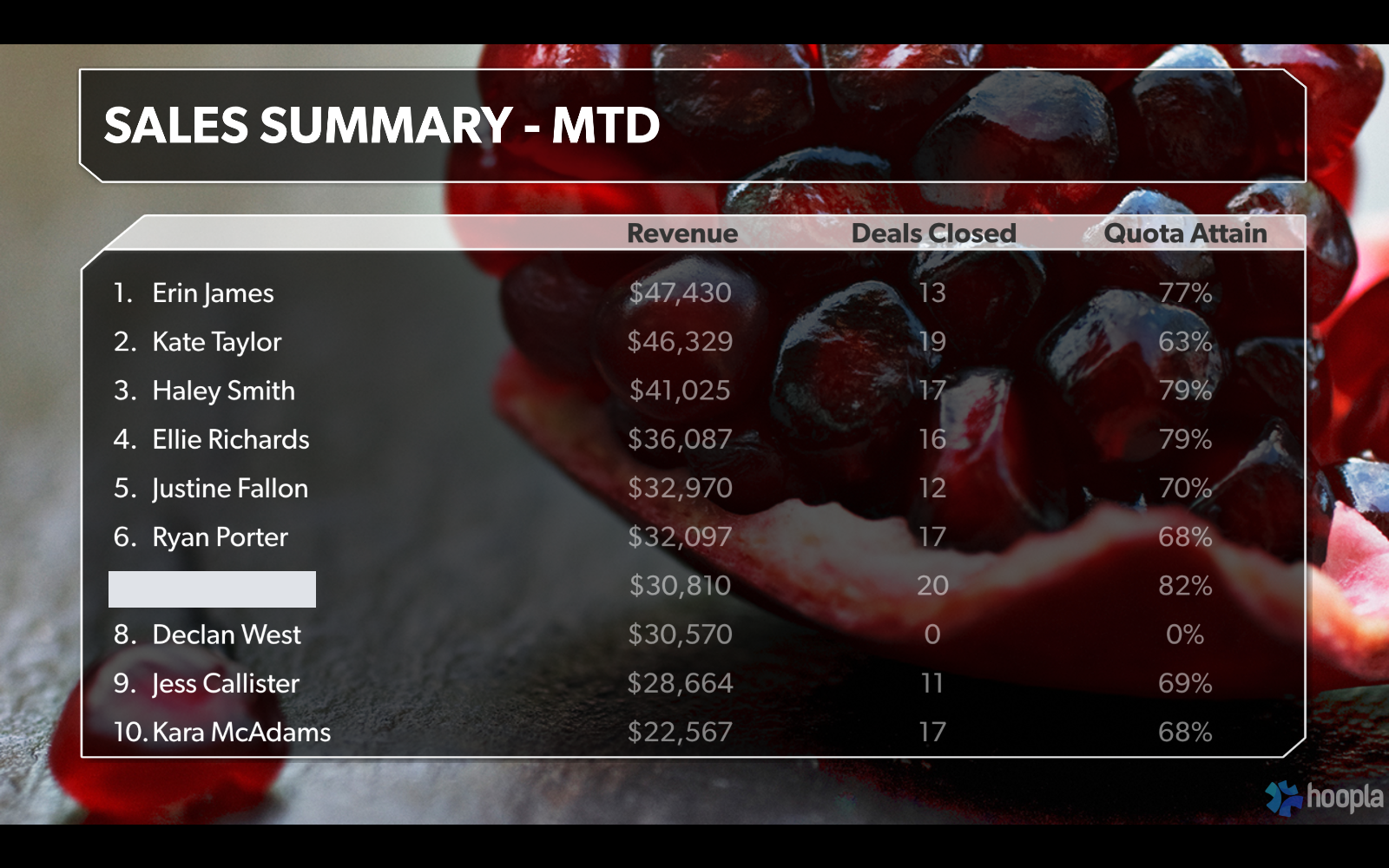
Multiboard - displays up to 250 (10 per page) players, up to 4 metrics at once.
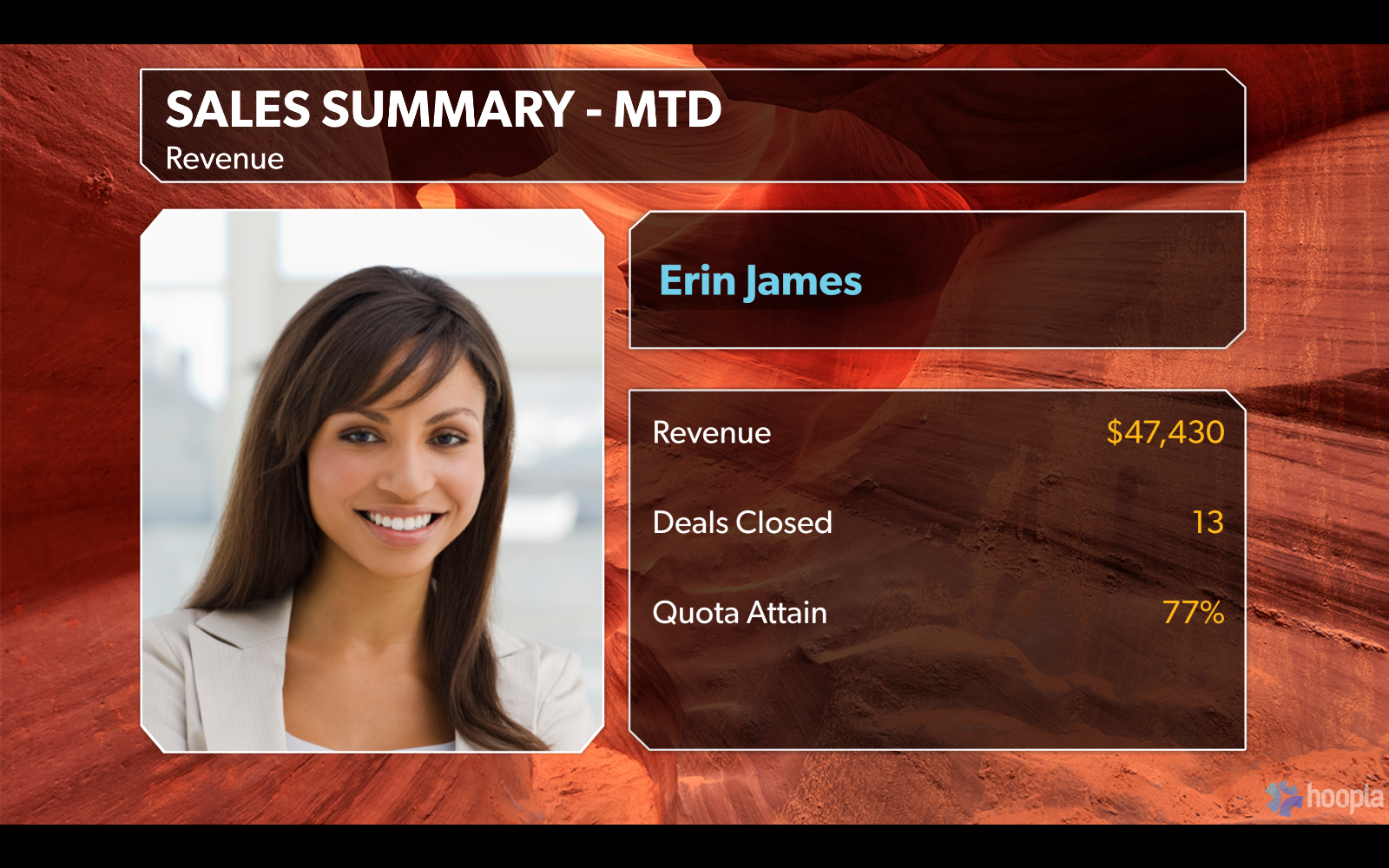
Profile - recognizes individual players on that Leaderboard - photo on the left, all Leaderboard Metrics on the right. Select fromTop Player, All Players or Custom(1-100). Selecting more than one player will display each player’s profile sequentially by rank.
Under “Advanced Settings” for Leaderboards, you have the option of hiding Insights or Challenge updates on the Leaderboard. (This applies to Classic and Multiboard only.)
Newsflash
Section titled “Newsflash”Newsflashes help you celebrate important employee achievements as they happen or make on-the-fly announcements on your TV Channels. Take a look here for our supported newsflashes and how to configure them.
When you drag a Newsflash to your Lineup, you will select which of your configured newsflashes to display in the channel. Note that a Newsflash always gets added to the top of your lineup as they have no particular order since they interrupt a Channel immediately.
You can choose to use a player’s personalized transition if they have one in their profile. Under “Advanced Settings”, you can also select whether to use a player’s song from their profile, or choose a song yourself.
We’ve merged the Message and Image Steps into one. Use one of the four different Post step templates.
To display an image, drag the step into your lineup, select the Image template and choose an image to use on the channel. For example, you could add a screen created by the Marketing Team or a photo from a recent trade show. Optionally add a caption and click save.
To display a Message, drag the step in to your lineup and select one of the message templates. Use the text field to communicate important updates, birthdays, new employees, or reminders through the TVs in the office. You can specify a title, then type your message and click save.
Data Table
Section titled “Data Table”You can add a data table to show lists of information that are not related to users. You can specify the width and alignment of your table columns.
Countdown
Section titled “Countdown”Make sure everyone is aware of deadlines, company events, and even happy hour! Use Countdown clocks to remind viewers how much time is remaining. Choose from the following types:
-
End of Month - counts down to the end of the last day of this month
-
End of Quarter - counts down to the end of the last day of this calendar quarter
-
End of Year - counts down to the end of the last day of this year
-
Today - counts down to a specific time today. (Great for counting down to the end of a call blitz within a scheduled segment!)
-
Custom - counts down to a specific time on a specific date you specify
Web Step
Section titled “Web Step”Use this Step to show a live web page or play YouTube videos. To do so, you must enter the full web address in the URL box (i.e. https://www…). Please note, there are some restrictions to using the Web Step:
-
Certain websites will not allow us to display their content (such as Yahoo, CNN, and Google)
-
We do not recommend using websites that require regular logins (such as Salesforce).
-
If your web page URL begins with http://, when you play the Hoopla Channel, you’ll need to click the small shield icon in the address bar, then click “Load unsafe scripts”. This is your browser trying to block insecure content.
Add a video to your lineup. This is an easy way to show a promo video or commercial! (mp4 files only).
Adding Video files to Custom Content
Section titled “Adding Video files to Custom Content”Only MP4 video files can be uploaded to the content management system. You should make sure that the aspect ratio is set to 16x9 in order to fill the screen. 1280x720 resolution works well. There is also a size limit of 200 MB.
Displaying Videos directly from YouTube
Section titled “Displaying Videos directly from YouTube”Hoopla now supports YouTube videos when using a Web Step in the channel. Simply paste the YouTube URL and change start, stop, and play times.
Activity Recap
Section titled “Activity Recap”Use this Step to highlight the last several Newsflashes posted by players. This is basically a highlight reel, showcasing the achievements of players for a specific Newsflash. Add an age filter to only view activities that have occurred this month, this week or today.
Tips & Tricks
Section titled “Tips & Tricks”This step type gives you an easy way to foster productivity in your office. Add it to your Channel and we’ll shuffle videos containing tips and tricks from industry experts!
Ticker
Section titled “Ticker”Don’t forget to add RSS Feeds to your Ticker as well. There are many feeds available for free and you can add as many as you would like to rotate through.
Motivational Quotes
Section titled “Motivational Quotes”Use the Motivational Quotes step type to add some easy inspiration to your Channel. Once added to your Lineup, the Motivational Quotes step will shuffle different quotes each Channel cycle, and we’ll curate the content for you!
Weather
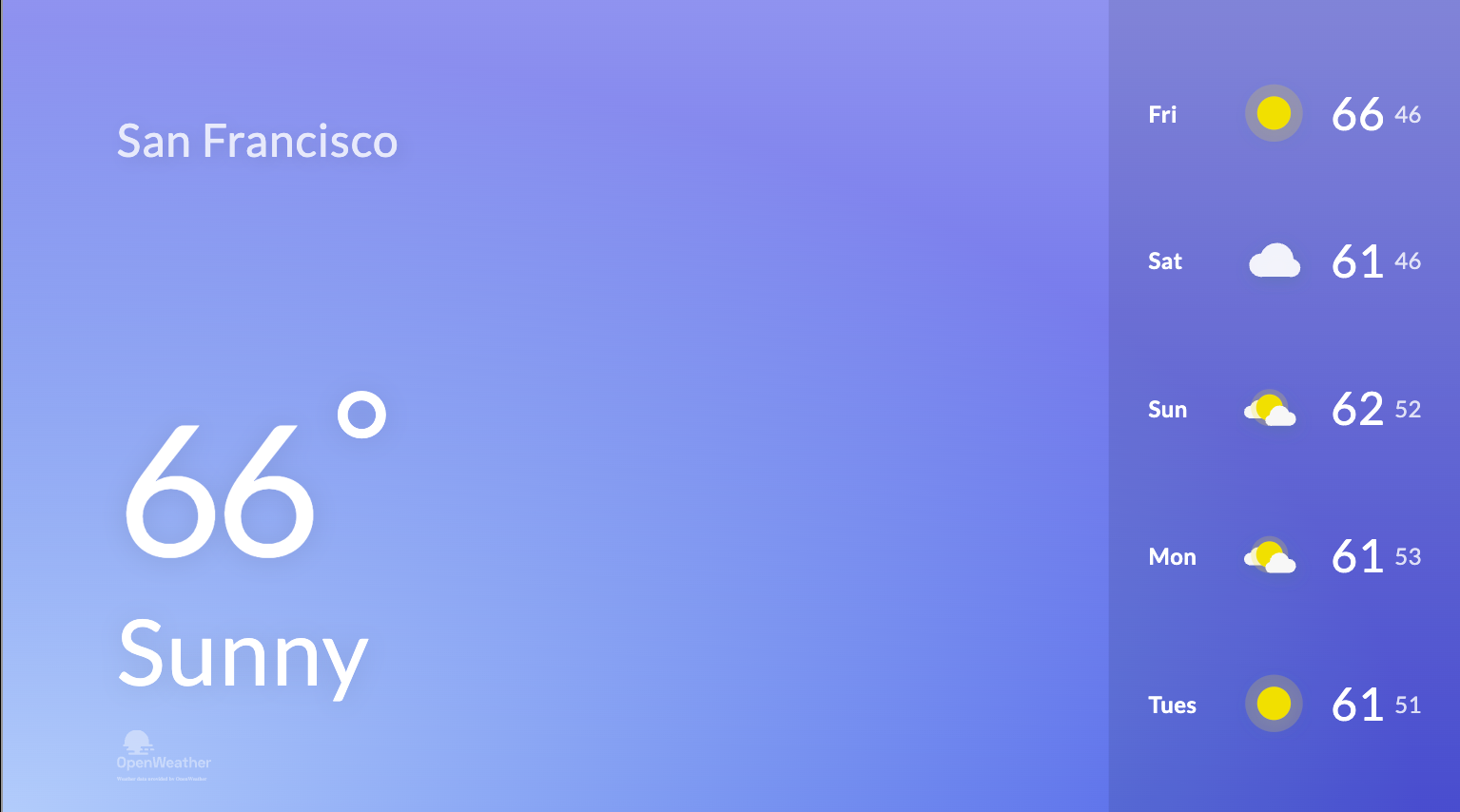
Section titled “Weather”Let people know what the weather is. Simply drag over the weather step, fill in the location and chose Celsius or Fahrenheit.
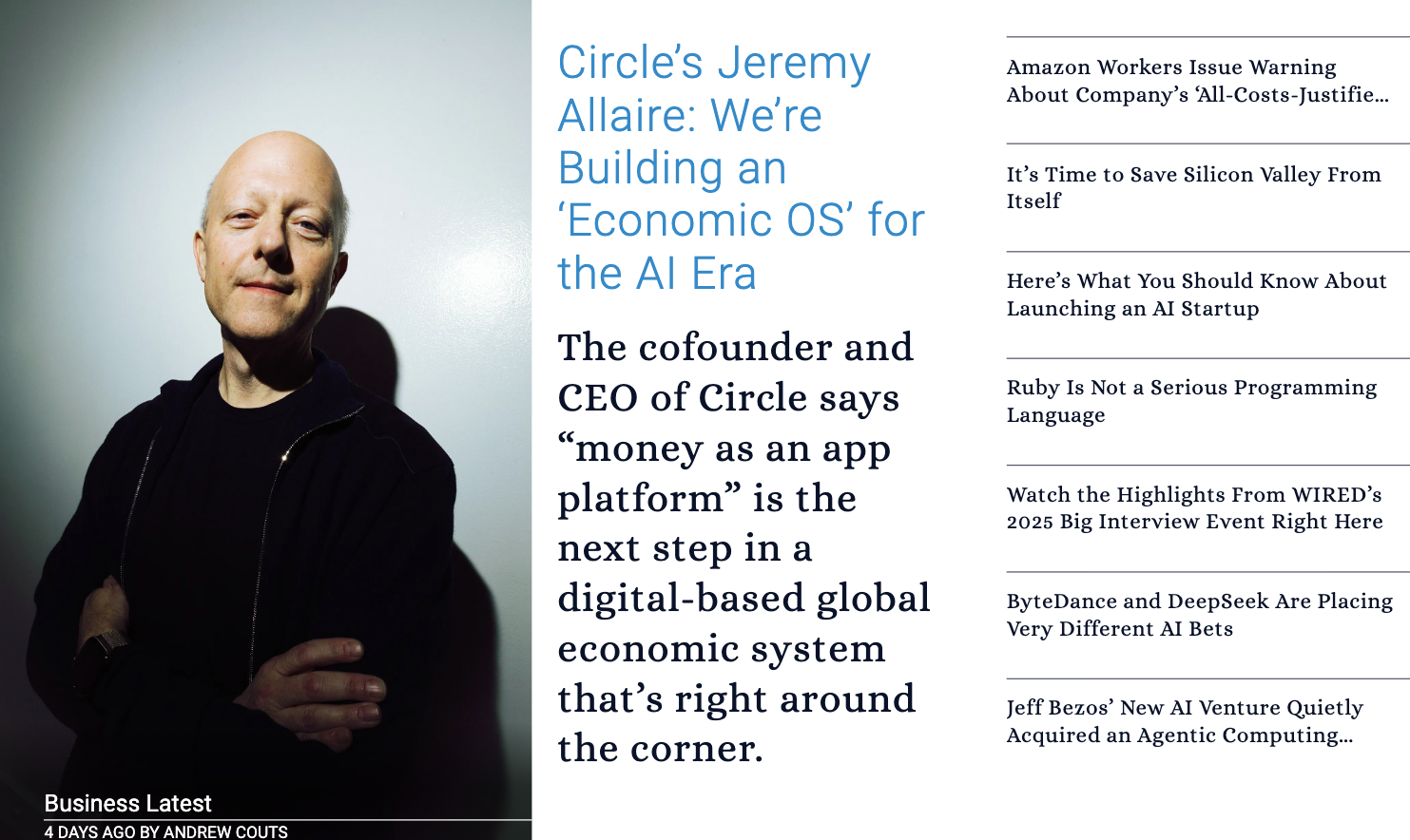
You can now add news into your channel from pre-loaded sources. Just drag over the news step, choose the source and whether you would like a single item or multiple!
Performance Console
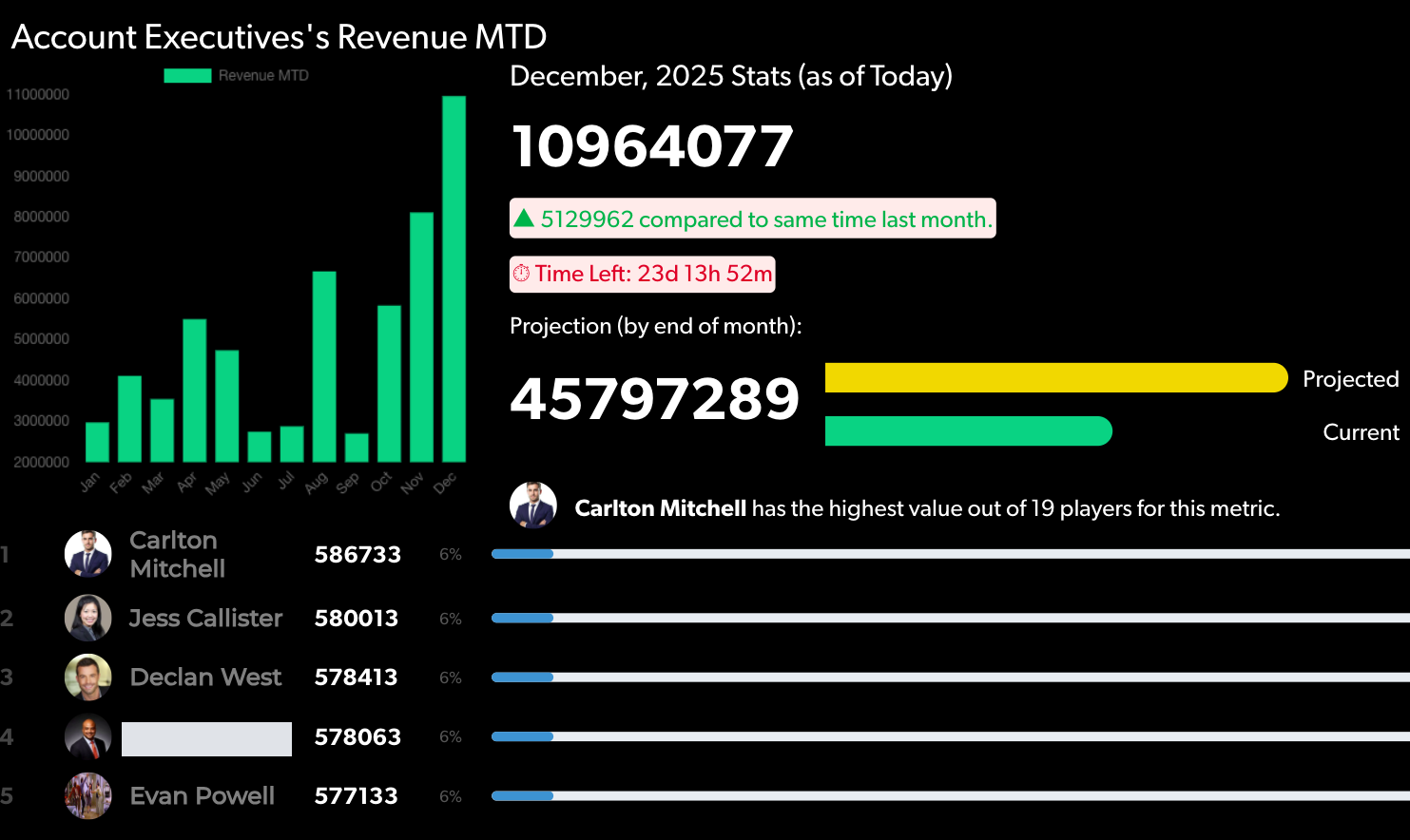
Section titled “Performance Console”Highlight your team’s performance by adding the Performance Console directly to the channel.
Related articles
Section titled “Related articles”- Create a channel Create a channel, add steps such as metrics, posts and leaderboards, then assign it to teams and publish it to your TV displays.
- Configure reusable segments in Hoopla Create a segment of steps once and reuse it in the default or scheduled lineup of as many channels as you need.
- Play YouTube videos in Hoopla Show a YouTube video, including live broadcasts, on your channel or segment using a Web Page step with start time, mute, and duration.
- Add Twitter to your Hoopla channel Connect Twitter with OAuth and show tweets from an account, mentions or a hashtag as a channel step or in your ticker.
Still having trouble?
Email our support team.