


How-to · Hoopla
Send a task message in Hoopla
Assign action items to users and teams with a task message from the Post tab, with optional due dates, recurrence, and attachments.
Task messages are our newest Huddle message type. If you are interested in using this feature, please reach out to support to enable the feature in your account.
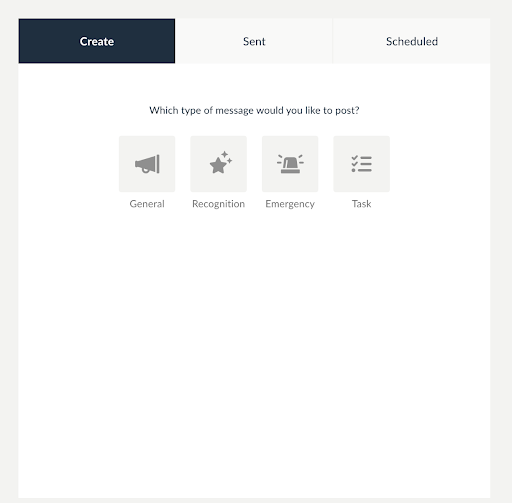
Task messages are a great way to assign tasks to your team members. To get started, navigate to the Post tab in your Hoopla app.
Steps:
Section titled “Steps:”-
Within Post, select the Task template tile.
-
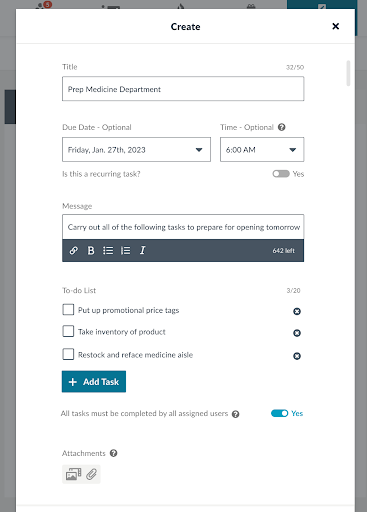
Give your Task message a title.
-
Optionally, give your task a due date & time.
-
If you want to schedule your task to recur on a regular basis, toggle the recurring tab on (see this article about recurring tasks).
-
Fill out the message field (this is a good place to add any instructional information about your tasks).
-
Next, add up to 20 tasks.
-
Select whether tasks need to be completed by ALL recipients or at least ONE recipient.
-
Optionally add any relevant attachments (images, videos or PDF documents).
-
Finally, select who in your organization should receive the task message - you may select any combination of users and/or teams. Anyone with an Hoopla license, can receive a task assignment/message (Fans, Users, Team Admins and Amins).
-
Click Save - message will be sent immediately.
Related articles
Section titled “Related articles”- View task completion status in Hoopla Check the completion percentage of a task message you sent and see which recipients still have tasks outstanding.
- Schedule a recurring task in Hoopla Send the same task to your team on a daily, weekly, or monthly schedule, with an optional end date.
- Complete tasks in Hoopla Huddle Check off the tasks in a Huddle task message, track your completion percentage and filter your feed to show task messages.
Still having trouble?
Email our support team.