


How-to · Hoopla
Schedule segments for Hoopla channels
Schedule a segment to play on a channel at a set date and time, and choose whether it reappears during the day or repeats daily or weekly.
Within Channel configuration you may want to create content intended to be broadcasted at a specific date & time. This could include content intended to be displayed at a specific date and time (like a contest), or maybe you want to prep content on your channel for the month (“set it and forget it!”), like birthday or anniversary announcements. The Scheduled Lineup, available within each Channel configuration page, will allow you to configure any time-specific content for that particular Channel.
Configuring a Scheduled Lineup for your Channel
Section titled “Configuring a Scheduled Lineup for your Channel”-
In the Configure tab, click Channels under Channels and TV in the left nav. Alternatively, click the Channels and TV tile and then Channels tile.
-
Select a Channel where you would like to schedule steps.
-
In the middle column, select the “Scheduled” sub-tab. “Default” is your non-scheduled lineup.
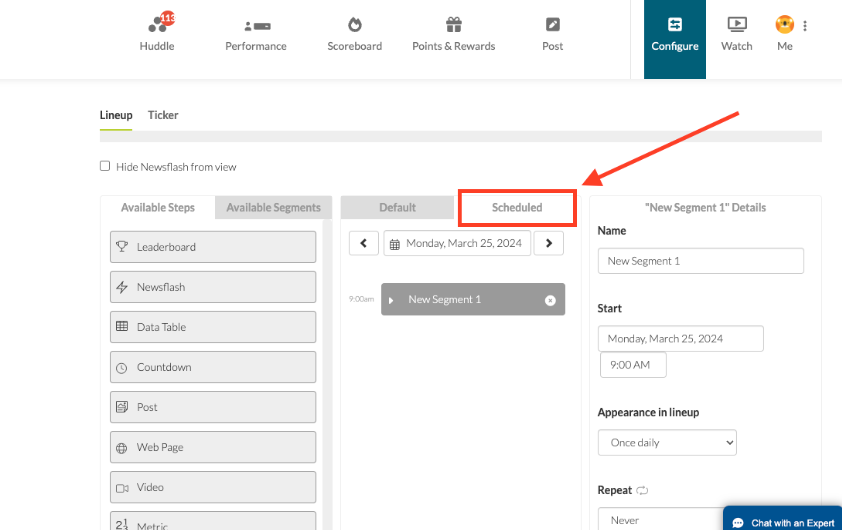
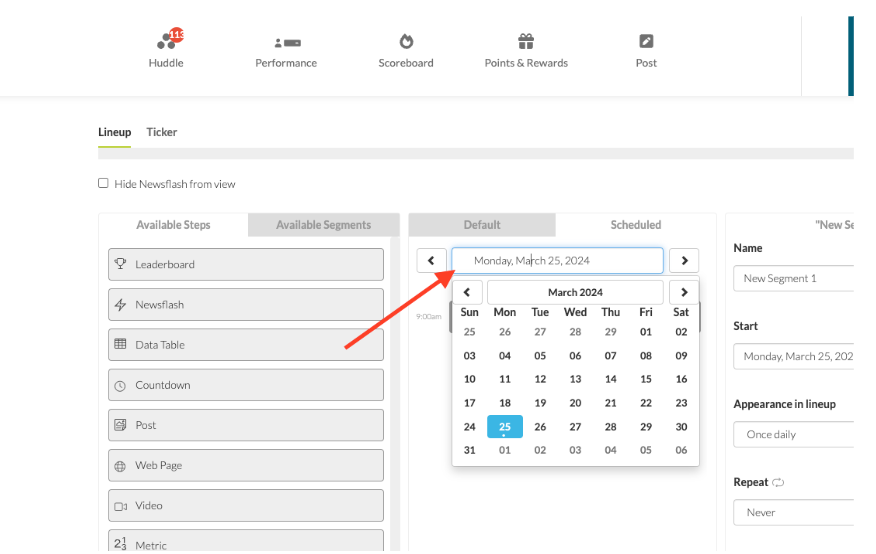
- The Scheduled lineup will default to your current date, but you may click into the calendar picker to select any date in the future on which you would like to schedule new segments or steps.
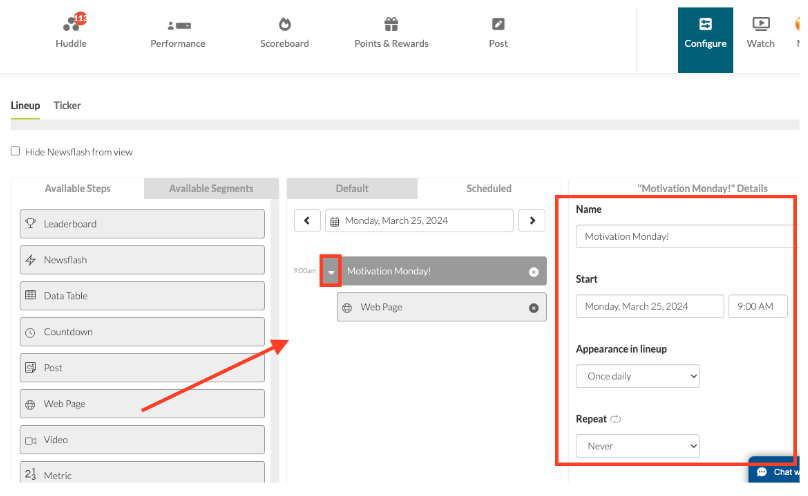
- The Scheduled lineup is grouped together in Segments, which are defined as one or more steps. To start a new Segment, drag any step type over into your Scheduled Lineup from Available Steps, or drag any reusable segment over into your Scheduled lineup from Available Segments.
-
Configure the scheduled segment details, such as scheduled time. See the section below.
-
Add additional steps to your scheduled segment, if needed, and configure the step details in the right column. You can reorder the steps within a segment.
-
Finally, don’t forget to click Save.
Configure Scheduled Segment Details
Section titled “Configure Scheduled Segment Details”Once you’ve created a new segment in the Scheduled lineup by dragging over a step from Available Steps or a segment from Available Segments, you can configure the details of the segment itself in the right-hand column.
- Give your new segment a Name, i.e. Power Hour or Call Blitz, if you dragged over a step. If you dragged over a reusable segment, we will use the existing segment name.
-
Set the Start date and time for the segment, which must be in the future. The start time is independent of timezone. This means if it’s configured at 8am, it will display at 8:00am PST in your west coast office and 8:00am EST in your east coast office.
-
Select how frequently you want your scheduled segment to appear on your TV channel. You can select Once Daily or Reappear during the day. For the latter, the segment will display at the scheduled start time and then re-display at the end of each loop of your Default lineup, until the specified End time.
-
Select how often you want your scheduled segment to repeat. You can select Never, Daily, and Weekly (pick which days of the week). The segment will repeat until an optional Repeat End time.
Delete a Segment from Scheduled Lineup
Section titled “Delete a Segment from Scheduled Lineup”If you want to delete a Segment, click the X next to the Segment name and click Save.
- Note: Deleting a Segment set to repeat will delete all instances of the repetition.
Related articles
Section titled “Related articles”- View and reuse scheduled segments in Hoopla Browse past and upcoming scheduled segments in your channel’s calendar, and reuse a segment that already aired by moving it to a future date.
- Configure reusable segments in Hoopla Create a segment of steps once and reuse it in the default or scheduled lineup of as many channels as you need.
- Add a segment to a channel’s default lineup Add a reusable segment to a channel’s default lineup so it plays whenever no scheduled content is active.
Still having trouble?
Email our support team.