


How-to · Hoopla
Connect Square to Hoopla for sales data sync
Connect Square POS to Hoopla to import employees from selected locations and sync sales metrics for leaderboards and challenges.
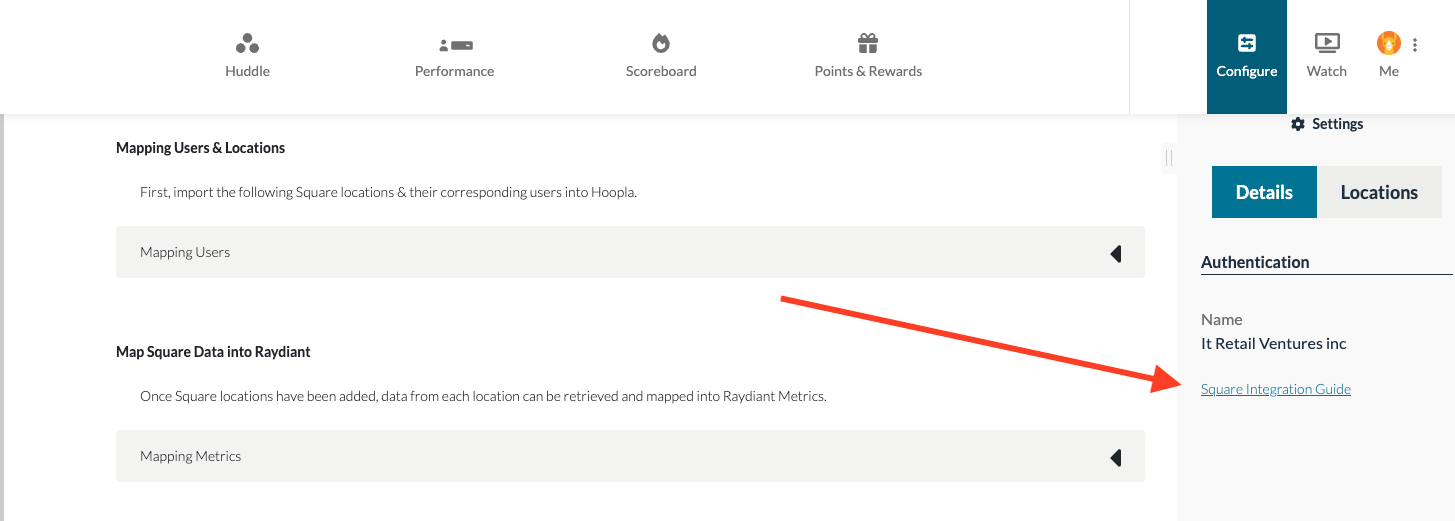
Square Integration Guide
Overview
Section titled “Overview”The Square integration allows Hoopla customers to seamlessly pull sales data from Square POS into Hoopla. This data can be used for leaderboards, challenges, and performance tracking. Admin users can authenticate, manage users, and map key sales metrics to be displayed in Hoopla.
Setting Up the Integration
Section titled “Setting Up the Integration”Accessing the Square Integration
Section titled “Accessing the Square Integration”-
Log in to Hoopla as an Admin.
-
Navigate to Configuration > Integrations:Hoopla Integrations.
-
In the list of available integrations, select Square.
-
Click Authenticate with Square to start the authorization process.
Authenticating with Square
Section titled “Authenticating with Square”-
A pop-up window will prompt you to log in to your Square account.
-
Enter your Square credentials and grant Hoopla permission to access your Square data.
-
Once authentication is successful, you will be redirected back to Hoopla, and the integration status will update accordingly.
Managing Users from Square
Section titled “Managing Users from Square”Mapping Users
Section titled “Mapping Users”Admins can link Square users to Hoopla, ensuring sales and performance data are correctly assigned.
-
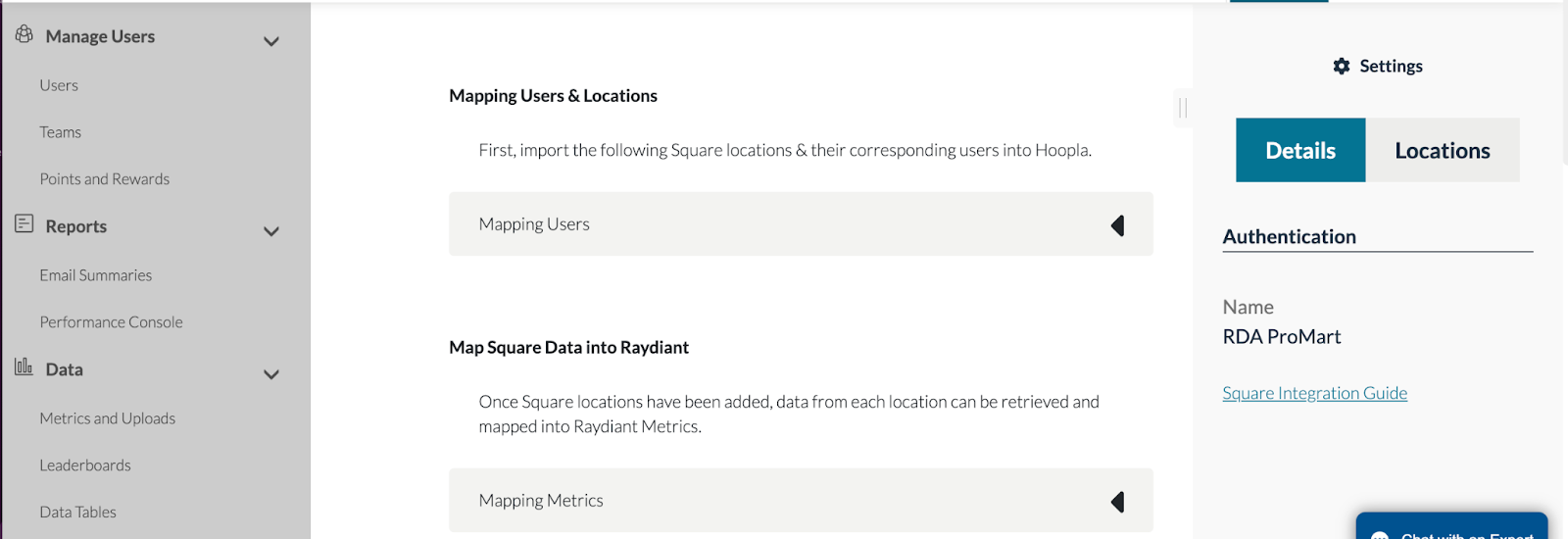
Navigate to Mapping Users & Locations:Square User Mapping.
-
Click “Mapping Users”.
-
Press “Select a Location” and choose the Square locations to sync with Hoopla.
-
Once a location is mapped, all corresponding Square users will be imported into Hoopla.
-
You can find all mapped users inUser Management, with Identity Provider set to Square.
-
Assign users their corresponding roles in Hoopla (e.g., Players, Admins, Team Admins).
Handling Inactive Users
Section titled “Handling Inactive Users”-
If a user is marked INACTIVE in Square, they will be automatically removed from Hoopla.
-
Admins must ensure they have enough available seats before mapping users.
Metric Mapping & Sales Data Sync
Section titled “Metric Mapping & Sales Data Sync”Once Square locations are added, data from each location can be retrieved and mapped into Hoopla Metrics.
-
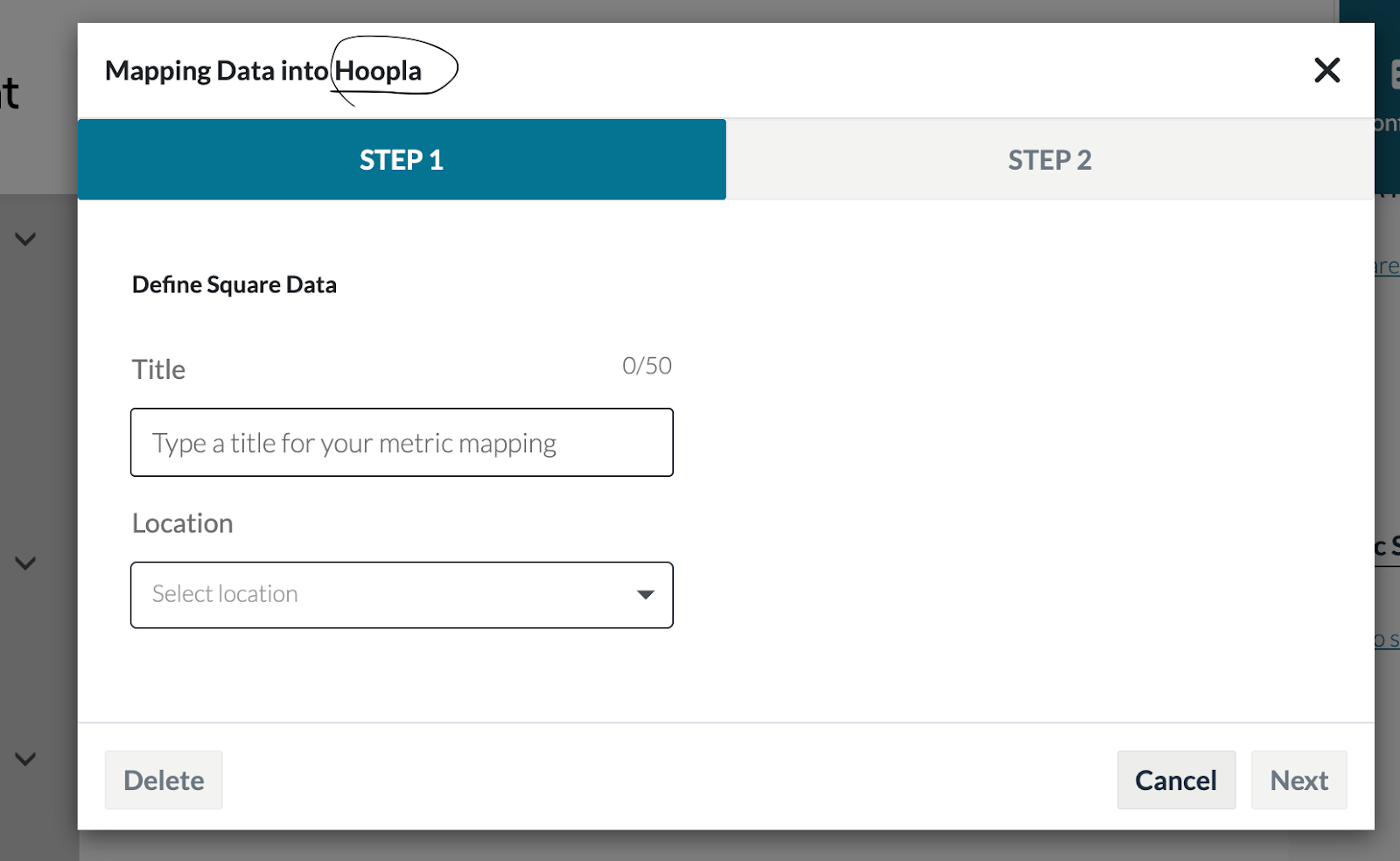
Click on “Mapping Metrics” to define Square data that will be tracked in Hoopla.
Step 1: Define Square Data
Section titled “Step 1: Define Square Data”-
Enter a Title for the metric.
-
Select a Location from Square.
-
Map Square data into Hoopla metrics.
Step 2: Available Metrics
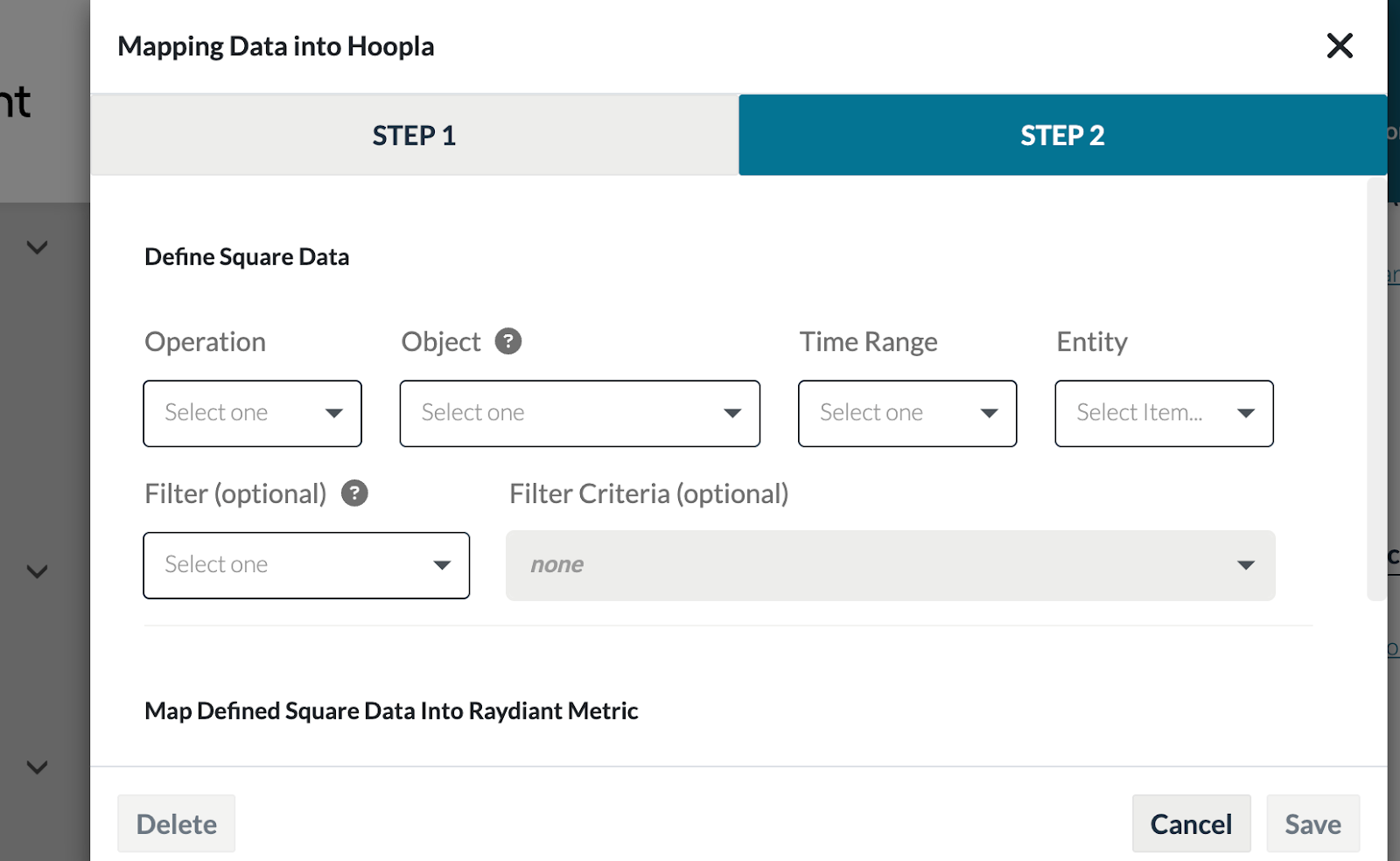
Section titled “Step 2: Available Metrics”Admins can track key sales metrics within Hoopla:
- Operations:
Sum of
Average
- Objects:
Sales: Amount of invoice total (post-discount, before tax and tips).
Number of Orders: Total count of orders placed at the location.
- Filtering Options:
Time Range: Yesterday, Today, This Week, Last Week, This Month, Last Month, etc.
Entity: Employee, Team/Location.
Filter by Items & Discounts (e.g., only track a specific product or discount).
- Creating New Metrics:
Number-based Metrics
Currency-based Metrics
Percentage-based Metrics
Time-based Metrics
Setting Up Sync Intervals
Section titled “Setting Up Sync Intervals”Admins can choose how often Hoopla syncs with Square to fetch new sales data.
Sync Frequency Options: Every 5 to 30 minutes.
Using Square Data in Hoopla
Leaderboards & Challenges
Section titled “Leaderboards & Challenges”Square sales data can be used for gamification features in Hoopla, such as:
-
Top Salesperson Leaderboard
-
Sales Challenges (e.g., “First to Sell 10 Units Wins”)
-
Real-time Performance Alerts & Newsflashes
Re-authenticating Square Integration
Section titled “Re-authenticating Square Integration”If the integration loses connection, an error notification will appear.
To manually re-authenticate:
-
Go to Configure > Integrations > Square.
-
Click “Reauthenticate”:Error Status.
Need Help?
Section titled “Need Help?”For further assistance, please contact Displai Support or visit our Help Center.
Related articles
Section titled “Related articles”- Add user or TV display licenses in Hoopla Buy more user seats or TV display licenses from Settings, if your self-service subscription plan supports it.
- Types of user roles Compare the Admin, Team Admin, Player, and Fan roles in Hoopla.
- Player leaderboards Create a leaderboard for individuals, select metrics and participants, choose watchers, and save it.
Still having trouble?
Email our support team.