


How-to · Hoopla
Add a Hoopla channel to a Microsoft Teams tab
Add a Hoopla channel to Microsoft Teams as a website tab so your team can view it without switching apps.
Start using Microsoft Teams to view your Hoopla Channel(s). It’s easy to do, simply add a new tab in Teams. Watch the video or follow the steps below:
Steps to Add a Hoopla Channel Tab
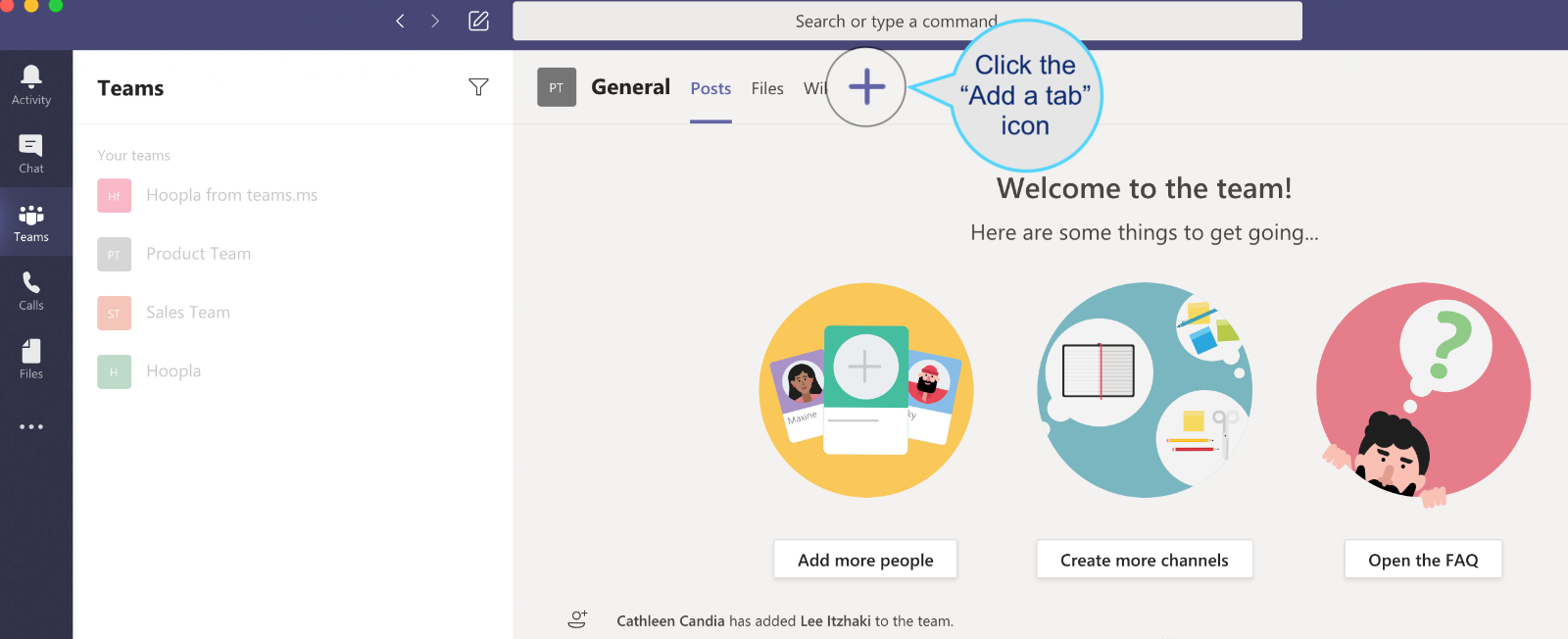
Section titled “Steps to Add a Hoopla Channel Tab”Click within the Team you want to view the Hoopla Channel and click the plus (+) icon to Add a Tab.
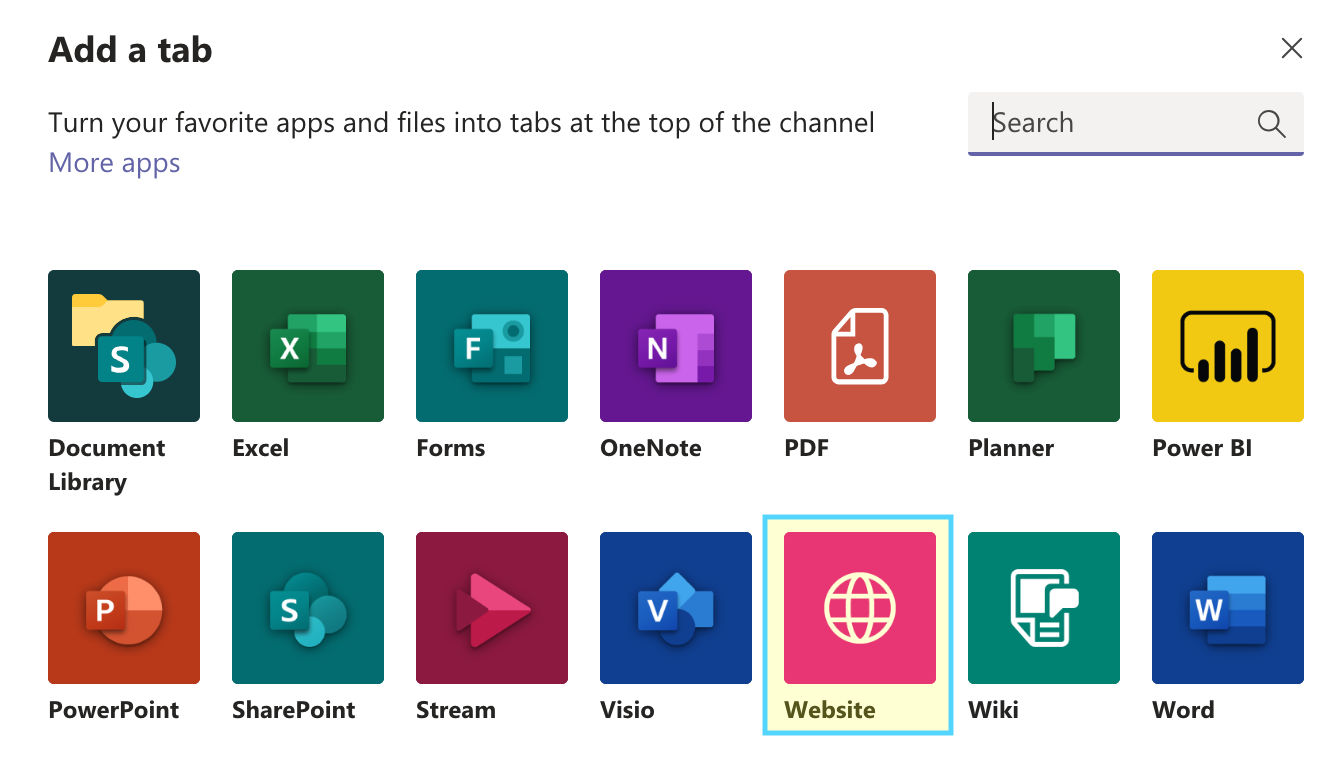
Click on the Website tab
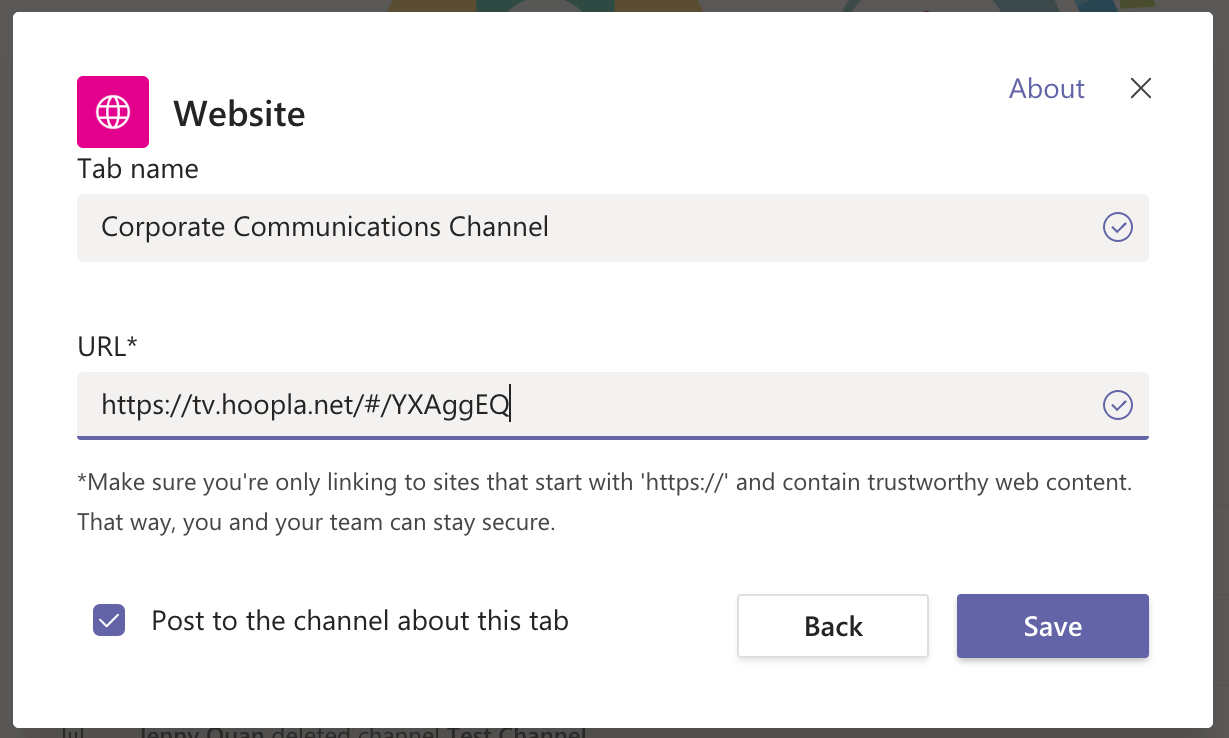
Name the new tab (e.g. Hoopla or Corporate Communication) and paste the HooplaChannel URL. Make sure the “Post to the channel about this tab”* is checked and click Save.
- Note: Checking “Post to the channel…” will let others on that team know the new tab has been created.
Frequently Asked Questions
Section titled “Frequently Asked Questions”If I’m not on that tab, will I still be able to hear notifications?
No, if sounds are enabled in your Channel, you will only hear it when you are viewing the Hoopla tab.
Will it notify the Team’s users if there is a new notification, such as a Newsflash or Challenge?
Depending on the notifications set, the user’s will get a sound notification and the channel will bold.
Is everyone viewing the same Channel information, at the same time, within the Team tab?
No, the channel starts once you click on the tab. The same Channel information is included, but it may be on a different view than someone else who opened the tab at a different time.
Can I view the Hoopla Channel in the web version of Teams?
Unfortunately, the web version will not display the Channel. You can get to the Channel by clicking the “Go to website” icon located on the right. It will open the Hoopla Channel in a new browser.
Related articles
Section titled “Related articles”- Share Hoopla channels via link Turn on sharing for a channel and copy its link so people without Hoopla accounts can view it on their phone or desktop.
- Set up Microsoft Teams notifications in Hoopla Send Hoopla newsflashes, challenges, calendar events, and leaderboards to your Microsoft Teams channels.
- Watch channels on your computer View your team’s TV channels in your browser from the Watch Channels tab when you are away from the office.
Still having trouble?
Email our support team.