


How-to · Hoopla
Using Hoopla with Slack: player and fan guide
See and interact with Hoopla newsflashes, challenges, leaderboards, and calendar events in Slack, and post a newsflash with /hoopla.
Guide to using Hoopla with Slack
Section titled “Guide to using Hoopla with Slack”Are you a Slacker and want to stay engaged and informed? You’ve come to the right place. Here’s everything you need to know about using Slack and Hoopla.
Hoopla to Slack Newsflashes
Section titled “Hoopla to Slack Newsflashes”Once your Hoopla Admin has enabled notifications in Slack channel(s), you will be able to see Newsflashes within the specified Slack channel(s). You can interact with them the same way you do with all other Slack posts - we recommend commenting with words of encouragement and reacting with fun emojis 🥳 👍 . Here’s some Newsflash examples:
**Metric & Streaming Newsflash -**Metric and Streaming Newsflashes are very similar as they trigger when a specific goal has been met by a player, team, or even the whole company:
Hoopla to Slack Challenges
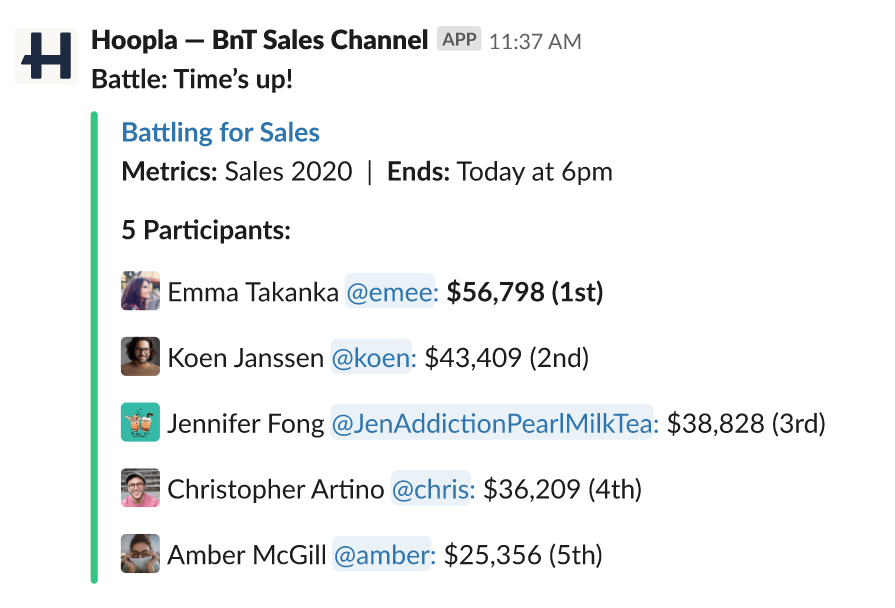
Section titled “Hoopla to Slack Challenges”If you or your team have been put into a Challenge (e.g. Faceoff, Battle, Race or Tournament), you will see the challenge details and who’s involved. Once the challenge has finished, another Slack message will trigger with who won and their results.
**Pro Tip:**We highly encourage some healthy, competitive smack talk once a challenge starts!
Here’s an example of a Battle that has ended:
Hoopla to Slack Leaderboards
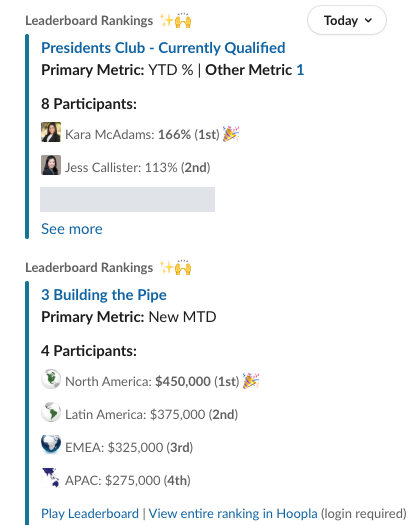
Section titled “Hoopla to Slack Leaderboards”Your Admin can schedule Leaderboards to populate into Slack either once a day, three times a day, or weekly. These Leaderboards are based upon either individual or team metrics set up by your Hoopla Admin. Click “See more” to view the rest of the list, play the Leaderboard in a separate browser window or view the entire ranking by logging into Hoopla.
**Pro tip:**We recommend comments of encouragement or congratulations.
Hoopla to Slack Calendar Events
Section titled “Hoopla to Slack Calendar Events”Your Hoopla Admin can choose to have birthday/anniversaries to push to Slack. We recommend making sure your birthday and work anniversary date is up-to-date in your profile. If you are enabled to log in, here’s a guide on how you can update your birthday/anniversary, as well as your picture and walk-up song.
Posting a Slack Newsflash
Section titled “Posting a Slack Newsflash”If enabled, you can trigger a Newsflash in Slack to appear on a Hoopla TV and/or Slack Channel. It’s super easy, just type the “/hoopla” command in the specified Slack channel(s) with a message. Once you hit “enter”, your message will appear in the Hoopla channel(s) associated with this Slack Newsfflash.
**Pro Tip:**This is a great way to give kudos to a coworker or to use for company-wide updates!

Related articles
Section titled “Related articles”- Slack notifications in Hoopla See which newsflashes, leaderboard snapshots, birthdays, anniversaries and challenge updates Hoopla can post to your Slack channels.
- Set up Slack notifications in Hoopla Push Hoopla newsflashes, challenges, calendar events, and leaderboard updates into public or private Slack channels.
- Update your profile - players Edit your profile details and photo, change your password, and choose which notifications you receive in Hoopla.
Still having trouble?
Email our support team.