


How-to · Hoopla
Set or reset a challenge to include previous scores
Choose whether a challenge includes previous scores and reset it when needed.
We now have the ability to include all of the score from the leaderboard. If you’re trying to reset a challenge or start a challenge half way through the month, you can easily do it!
When you want to include the entire score that is already on the leaderboard, simply toggle this option on in the setup:
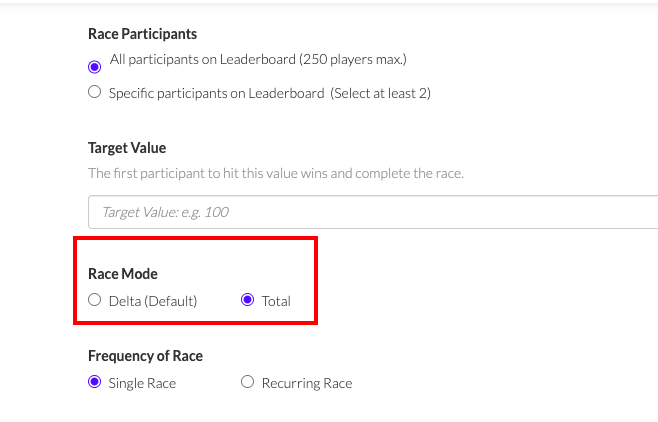
Delta(Default) only scores from the start of the challenge.
Total will include any score that is already on the Leaderboard as part of the challenge score.
Resetting a challenge that does not include the whole Leaderboard score
Section titled “Resetting a challenge that does not include the whole Leaderboard score”To include existing numbers from Hoopla in a Challenge or to reset challenges with incorrect scores, follow these steps:
Warning: Resetting a metric changes its values for every leaderboard or challenge that uses it. Check Where this metric is used in the metric details before changing its values or sync schedule. Continue only if the metric is dedicated to the challenge you intend to reset. If it is shared or you are unsure, contact your administrator or support before proceeding.
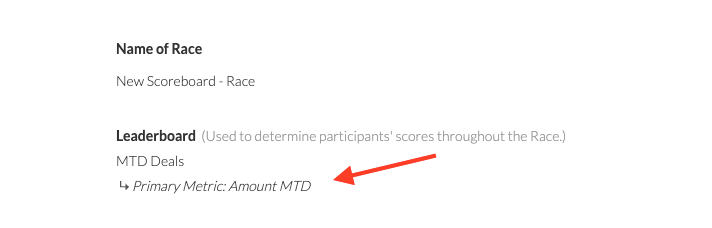
- Identify the scoring metric for the challenge. You can find this by viewing the challenge, which will display the Leaderboard and Metric names.
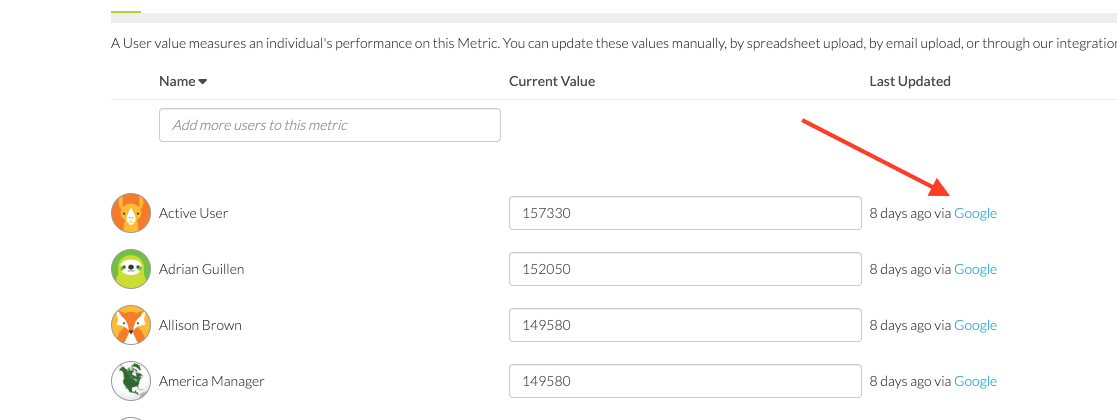
- Locate the data source for this metric. You can typically do this by clicking on the metric and following the link to its source. For more details, see the document on data flow: Data Flow
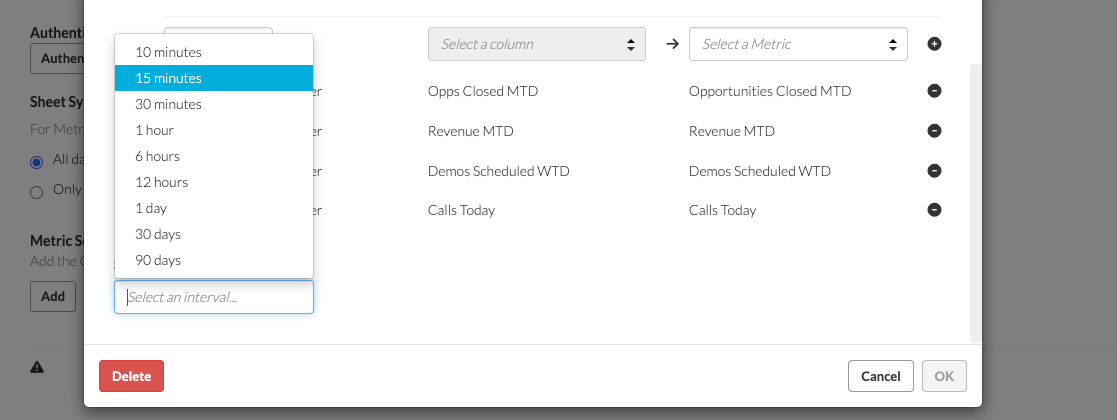
- Change the sync time for the metric source to at least 1 hour and save.
-
Wait one minute for the save to take effect.
-
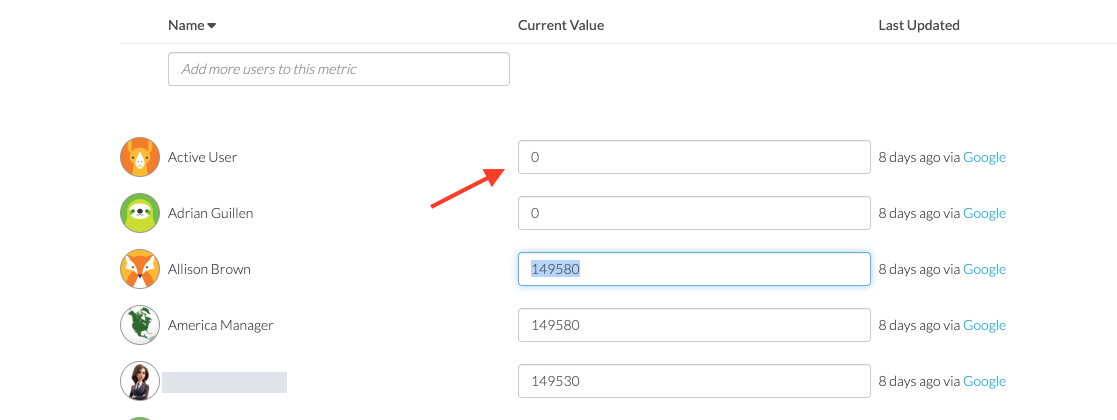
Go to the dedicated metric confirmed above and reset its values to 0, then save.
-
Verify all challenge metrics are now 0. You can now set up your challenge again.
-
When configuring the challenge, set the start time to the closest 5-minute interval from the current time. While you cannot back-date, setting all metrics to 0 effectively achieves the same result.
-
Optional: Double-check that your metrics remain at 0. If you set them before the last sync ran, your values may have been overwritten.
-
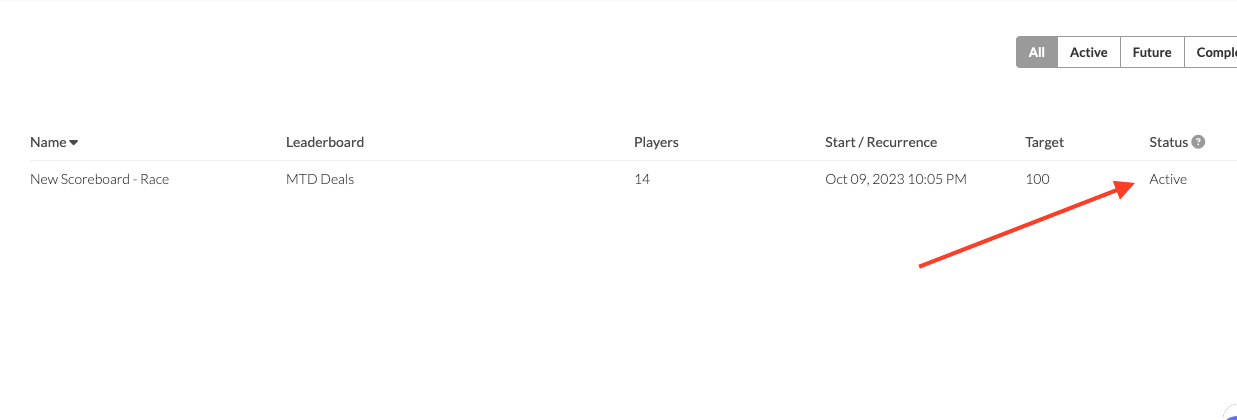
Wait for the challenge to become “Active” (at the next 5-minute interval you selected).
-
Once you’ve confirmed the challenge is active, return to the data source and restore the sync time to its previous setting (5, 10, or 15 minutes) and save.
-
This will allow the metrics to update and be counted toward the challenge score, as the challenge is now live and tracking metric changes.
You have now successfully reset your challenge.
Still having trouble?
Email our support team.