


How-to · Hoopla
Displai and Hoopla connection
Understand how Displai and Hoopla work together, and how to set up Hoopla on your Displai devices and activate channels on your TVs.
To connect your device to your Displai account for the first time, refer to this process .
Set up your Hoopla Channel in the App
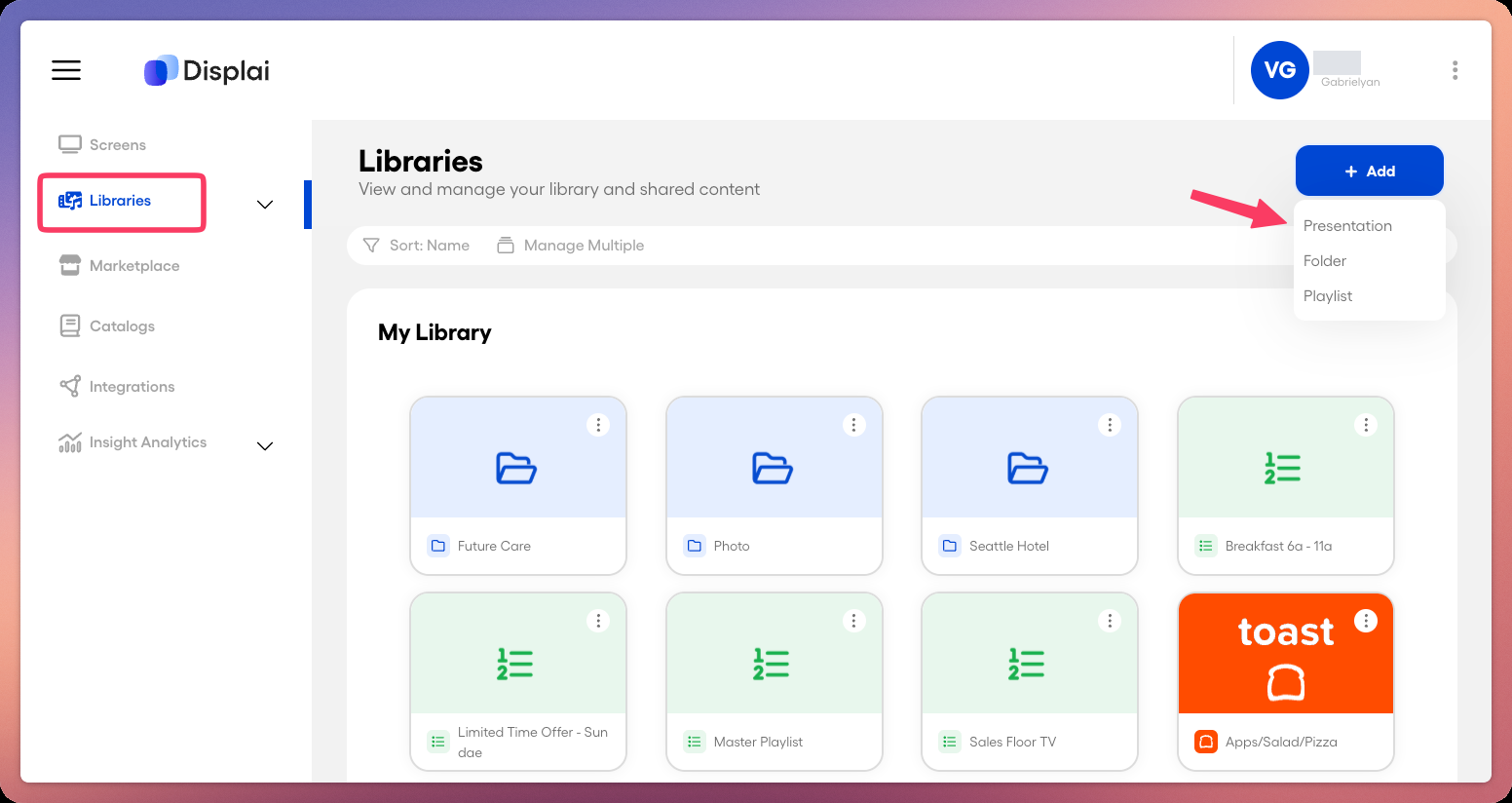
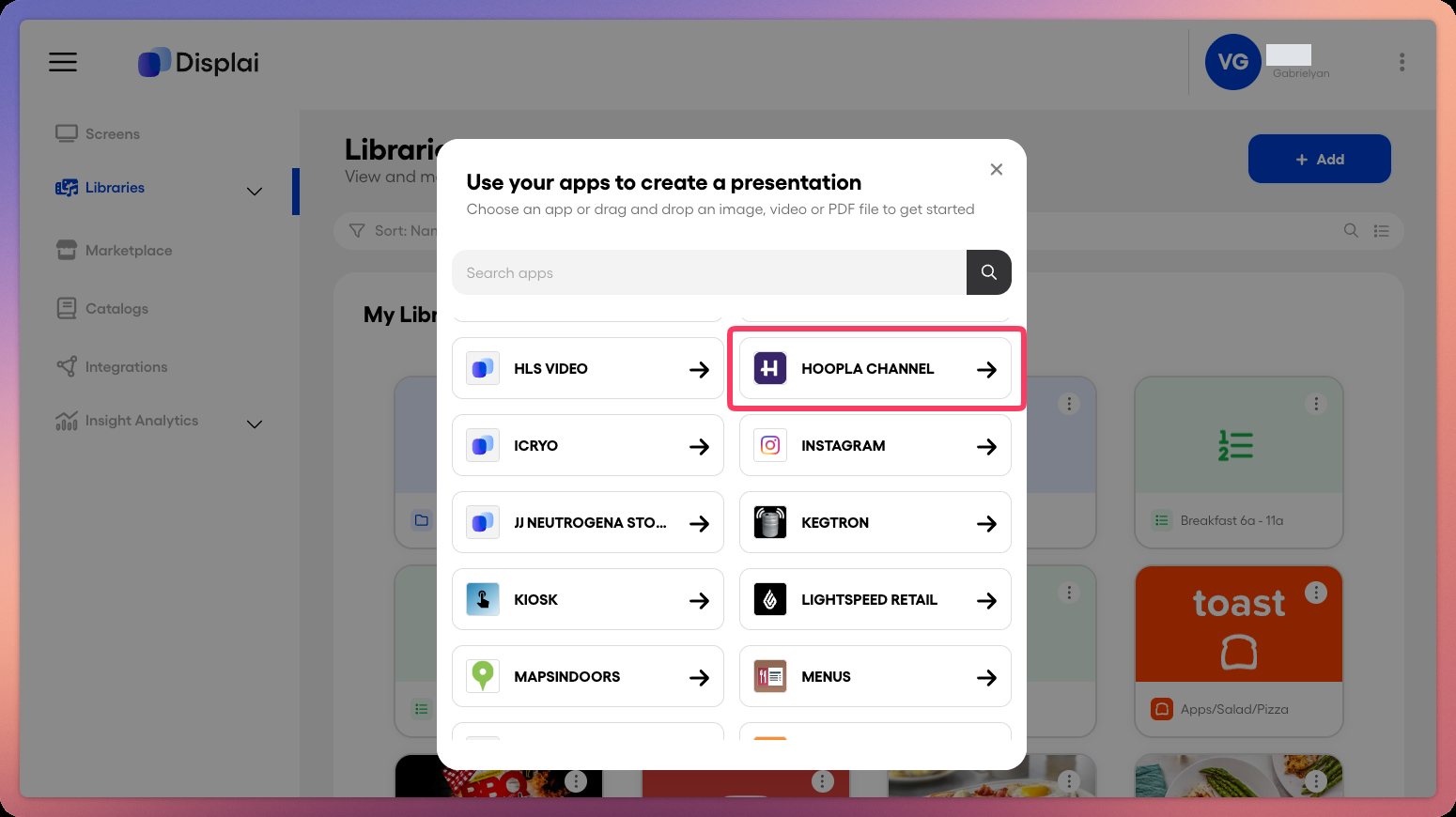
Section titled “Set up your Hoopla Channel in the App”- Navigate to the Library tab and click the create button. Choose “Hoopla channel”.
-
Name the channel and click the connect to Hoopla button.
-
Authorize the connection.
-
Once back on the Displai screen, choose the channel you would like to show.
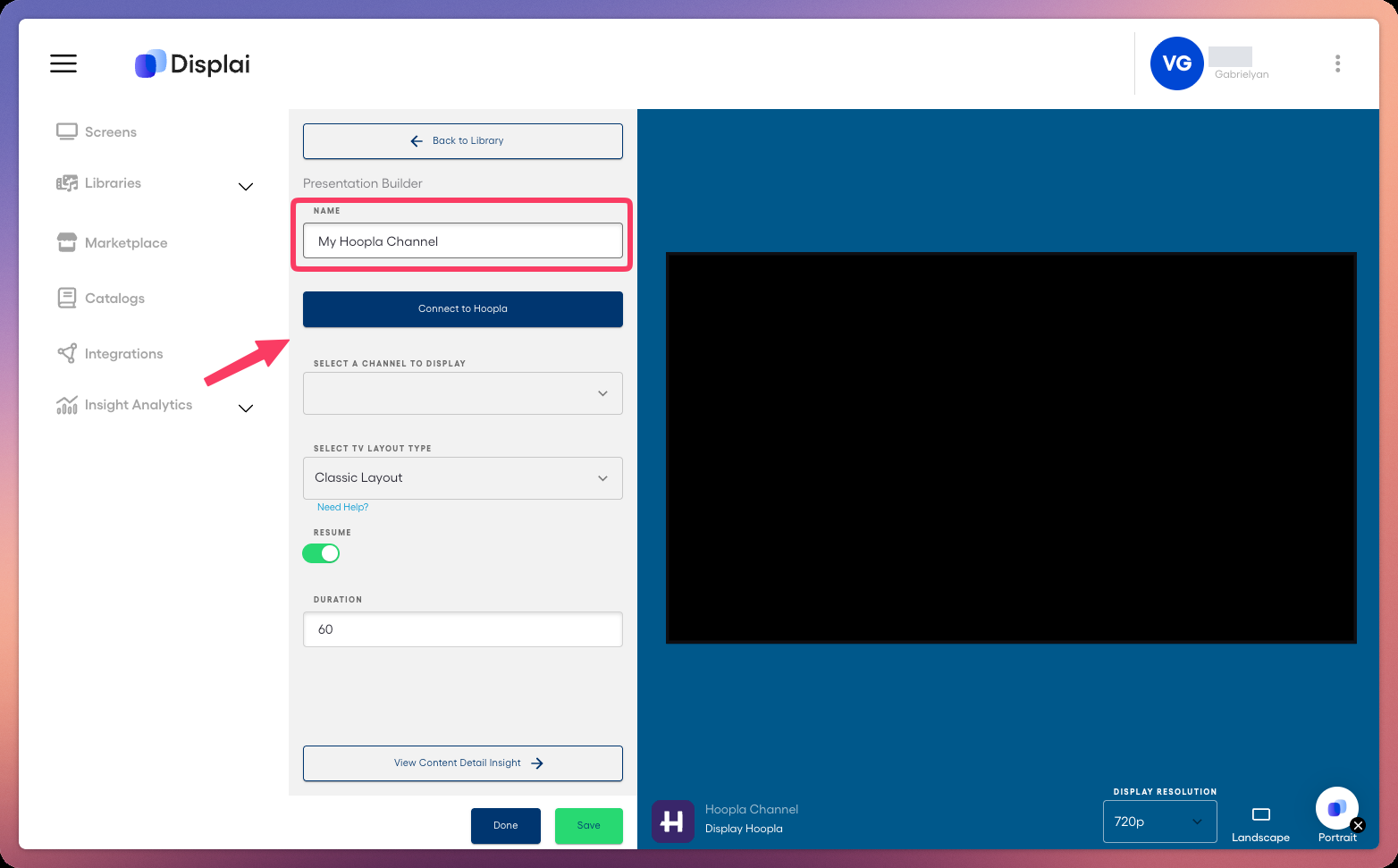
- Next, select a layout.
For Classic Layout, we will display Hoopla in the Classic landscape view.
For Responsive Layout, your channel will be displayed according to your window orientation (portrait or landscape) - Note: Responsive Layout will only display a limited number of channel steps (Leaderboards, Posts and Newsflashes).
- Click Save and then Done.
Create a Playlist
Section titled “Create a Playlist”-
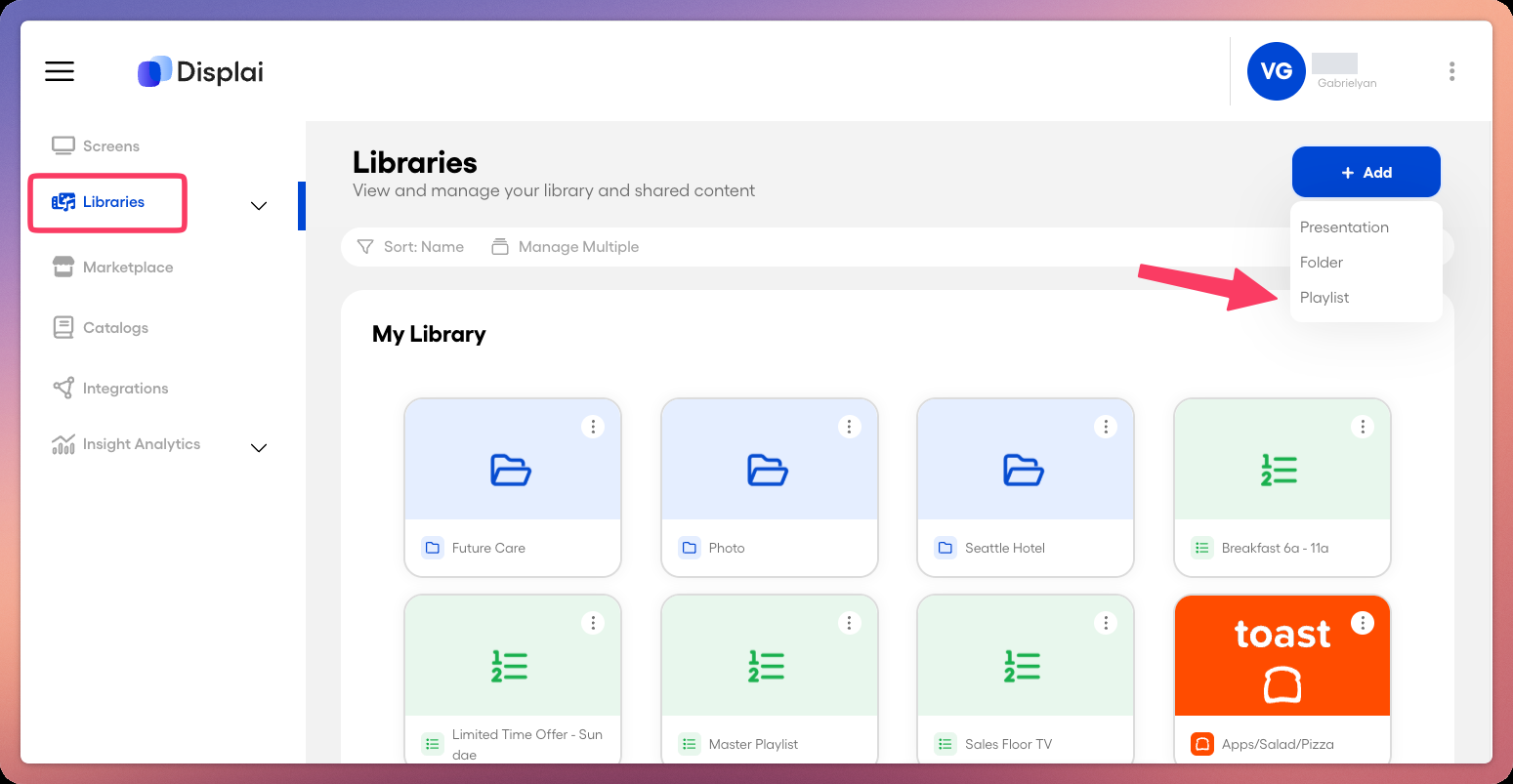
On the Library tab click the create button.
-
Choose “Create a Playlist”.
-
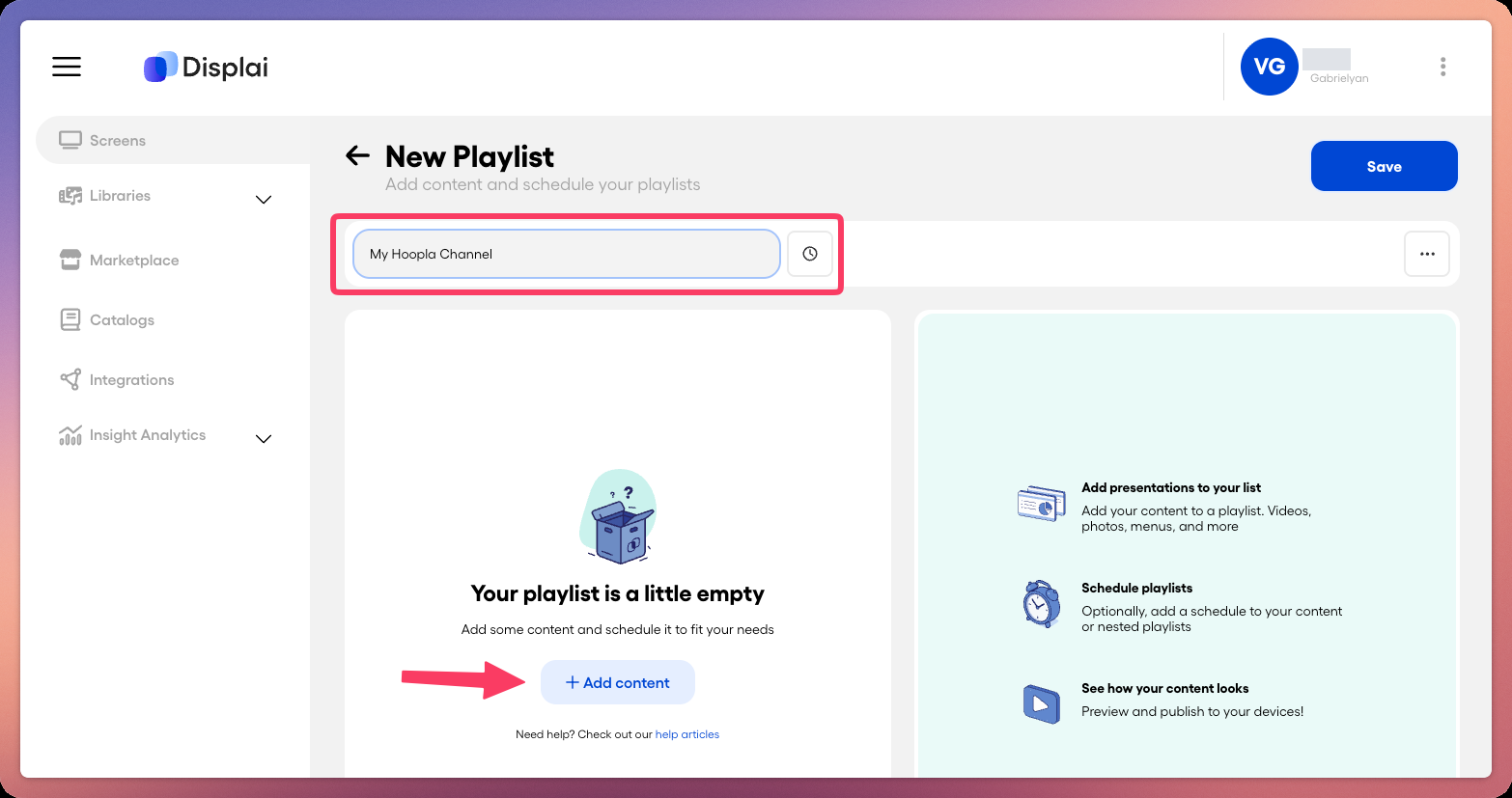
Name the Playlist
-
Click the Add Content Button and select the Hoopla channel you just added to the content.
-
Add any additional content you would like.
-
Click Save and then Done.
Assign the Playlist to your screen
Section titled “Assign the Playlist to your screen”-
Navigate to the Screens tab.
-
On the screen you would like to show your Hoopla Playlists on, click the playlist icon.
-
Choose your Playlist and Assign it.
-
Click Publish.
The Hoopla channel should start streaming on your screen if the screen is active.
Section titled “The Hoopla channel should start streaming on your screen if the screen is active.”ProTip: If you add other items to the playlist, Newsflashes will not currently go off while the Playlist is playing the items other than Hoopla.
Related articles
Section titled “Related articles”- Display your Hoopla channel on Displai screens Add your Hoopla channel to a Displai screen by pasting its channel URL into a new Hoopla presentation and assigning it to screens.
- Connect a Hoopla channel to a Raydiant screen Add a Hoopla channel to your Displai library, put it in a playlist and assign that playlist to a screen.
- Activate TV devices within Hoopla Pair a TV device with Hoopla using an activation code, assign it a channel, and check its display status.
- Supported hardware devices Check which devices and computer specs you can use to show Hoopla channels on your TVs, and why smart TV browsers won’t work.
Still having trouble?
Email our support team.