


How-to · Hoopla
Assign the Team Admin role in Hoopla
Give a team member the Team Admin role so they can manage team data and channels without full Admin access.
If you are an Admin within Hoopla, you have the option to assign the Team Admin role to any of your Users. A Team Admin can manage their team’s data and channel configurations, just like an Admin, but are prevented from authorizing integrations, adding or deleting users, and adding licenses.
How do I assign the Team Admin Role?
Section titled “How do I assign the Team Admin Role?”-
Navigate to the Users & Teams section within Configure.
-
Select the User to whom you want to assign the Team Admin role.
-
Under the Admin section, check the box that says Allow user to be an Admin, and select the Team Admin button.
-
Click Save.
What functionalities are Available for a Team Admin?
Section titled “What functionalities are Available for a Team Admin?”We’ve introduced User-Level Permission Customization to give Admins more control over what each Team Admin can do inside the Hoopla platform. This ensures that roles are better aligned with responsibilities, improving security and usability.
All Team Admins (new and existing) now have an individual permissions panel.
⚠️ Important:
-
Current Team Admins will have all permissions enabled by default.
-
New Team Admins will follow the updated default configuration (detailed below).
Admins can update these settings per user via their profile.
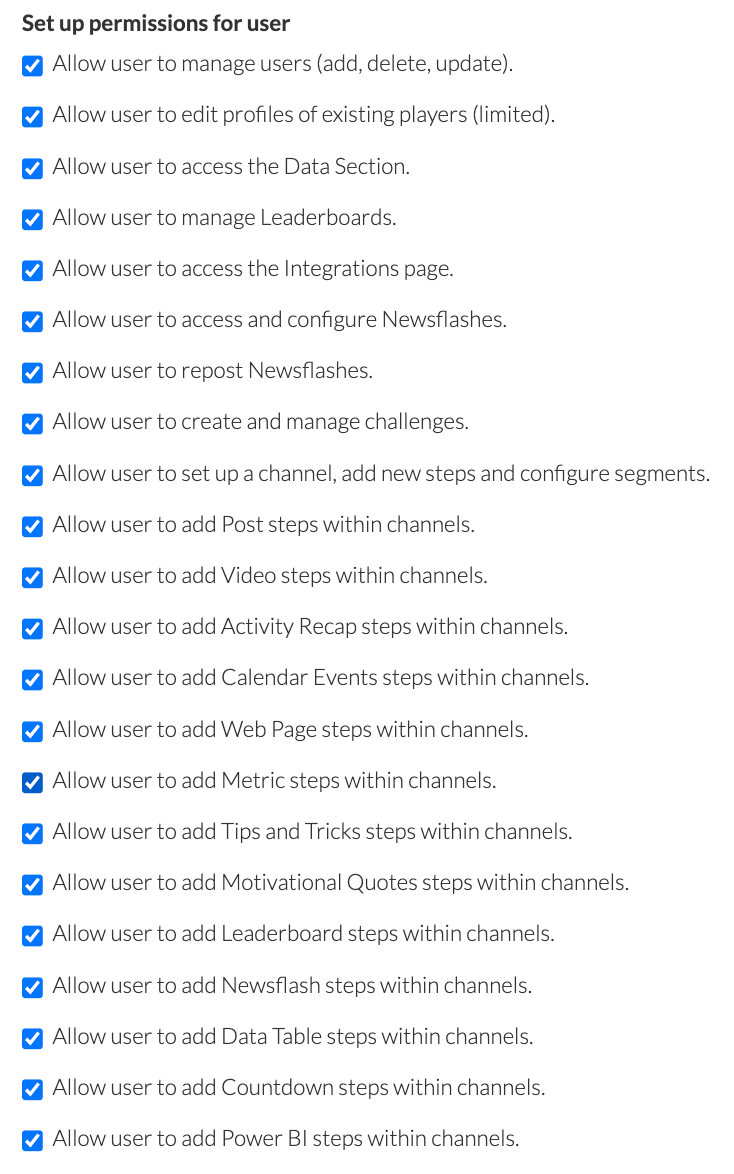
🔧 How to Set Up Permissions
Section titled “🔧 How to Set Up Permissions”-
Go to Configuration → Users.
-
Click on a Team Admin’s profile.
-
Click “Set up permissions for user.”
-
Toggle each permission based on what access this Team Admin should have.
Available Permissions
Section titled “Available Permissions”| Category | Permission | What It Allows |
| User Management | Manage users (add, delete, update) | Grants full user management rights. Disabled by default. |
| Edit profiles of existing players (limited) | Can edit videos and songs in user profiles (not names or personal data). Enabled by default. | |
| Data & Insights | Access Data Section | View and configure data elements. Disabled by default. |
| Manage Leaderboards | View, edit, and delete leaderboards. Disabled by default. | |
| Integrations | Access the Integrations page | Access integrations setup. Disabled by default. |
| Newsflashes | Access & configure Newsflashes | View, create, edit Newsflashes. Disabled by default. |
| Repost Newsflashes | Repost existing content. Enabled by default. | |
| Challenges | Create and manage Challenges | Full access to Challenges section. Enabled by default. |
| Channels & Steps | Set up channels & configure segments | Add/edit channels and segments (not delete). Enabled by default. |
| Add steps in channels: | ||
| • Post | Add post-style content | |
| • Video | Embed or upload videos | |
| • Activity Recap | Show performance or event summaries | |
| • Calendar Events | Schedule visible event reminders | |
| • Web Page | Embed web views | |
| • Metrics | Add performance metrics | |
| • Tips and Tricks | Share helpful guides | |
| • Motivational Quotes | Add quote-based motivation | |
| • Leaderboards | Embed a leaderboard | |
| • Newsflash | Reuse an existing Newsflash | |
| • Data Table | Show tabular data | |
| • Countdown | Add timers for urgency | |
| • Power BI | Add data visualizations from Power BI | |
| Messaging | Post messages to screens and app | No changes – controlled via Watcher role |
Default Permissions
Section titled “Default Permissions”ForNew Team Admins, these are the default permission states:
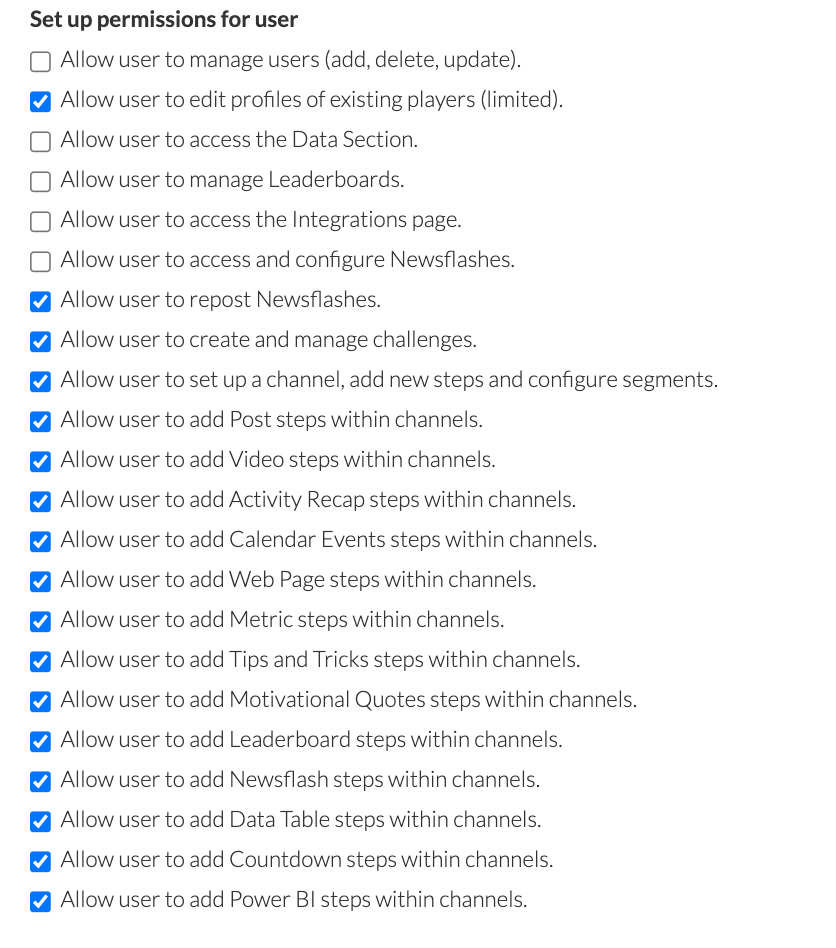
What Happens When Permissions Are Off?
Section titled “What Happens When Permissions Are Off?”-
Hidden buttons (like “Add” or “Repost”) and sections disappear from the UI.
-
Direct URL access shows: “You don’t have access to this page.”
-
Step options in channels are grayed out if permissions are disabled.
Related articles
Section titled “Related articles”- Types of user roles Compare the Admin, Team Admin, Player, and Fan roles in Hoopla.
- Create teams Create, edit and delete teams, or sync them from Salesforce reports, so you can run team leaderboards and competitions.
- Add users manually Add a single user to Hoopla, set their role and team, and see what happens after their invitation email is sent.
- Team Admin permissions Choose which permissions Team Admins have and configure access for individual Team Admin users.
Still having trouble?
Email our support team.