


Tutorial · Displai
Hardware installation & WiFi pairing
Install your ScreenRay, connect it to Wi-Fi or Ethernet, pair it with your dashboard, and check which Wi-Fi networks it can join.
What you’ll build
Section titled “What you’ll build”Connect your ScreenRay to a screen and the internet, then pair it with your Displai dashboard. Follow the four installation steps below, or use the accompanying video.
Before you start
Section titled “Before you start”Have your ScreenRay, its supplied AC adapter, and a screen with an HDMI input ready. Check that your WiFi network meets the requirements below, or use the supported Ethernet option.
Supported WiFi networks
Section titled “Supported WiFi networks”Our Displai devices can connect to the majority of all WiFi networks. As long as your WiFi network meets the following requirements, you’re good to go.
-
Your WiFi network name (SSID) must be visible. You can check this by looking for your WiFi network on a laptop or phone. If your WiFi network shows up in the list of WiFi networks available to join, it meets this requirement. This does not mean you need to remove its password.
-
Broadcast on the 2.4GHz or 5GHz band. Routers matching the IEEE 802.11a/b/g/n/ac WiFi standards broadcast on either the 2.4GHz or 5GHz band. That’s the technical side—but again, if your phone shows the WiFi network you want to connect to, you’re in good shape.
-
Uses WEP (passcode) or WPA Personal (WPA-PSK or WPA2-PSK) security. If you’re not sure what kind of security your network uses, your network administrator should be able to tell you. If you’re setting up your own WiFi network, we recommend using a wireless router that supports WPA2-PSK.
Unsupported WiFi networks
Section titled “Unsupported WiFi networks”-
Hidden networks. You won’t be able to see these in the list of available networks on your phone or laptop, or when setting up your Displai device.
-
WPA-Enterprise or WPA-802.1X networks. These networks are common in enterprise environments.
If the only WiFi network you have available is an unsupported network, we recommend connecting your ScreenRay to the internet via Ethernet using a supported USB-to-Ethernet adapter.
Step 1: Connect the screen
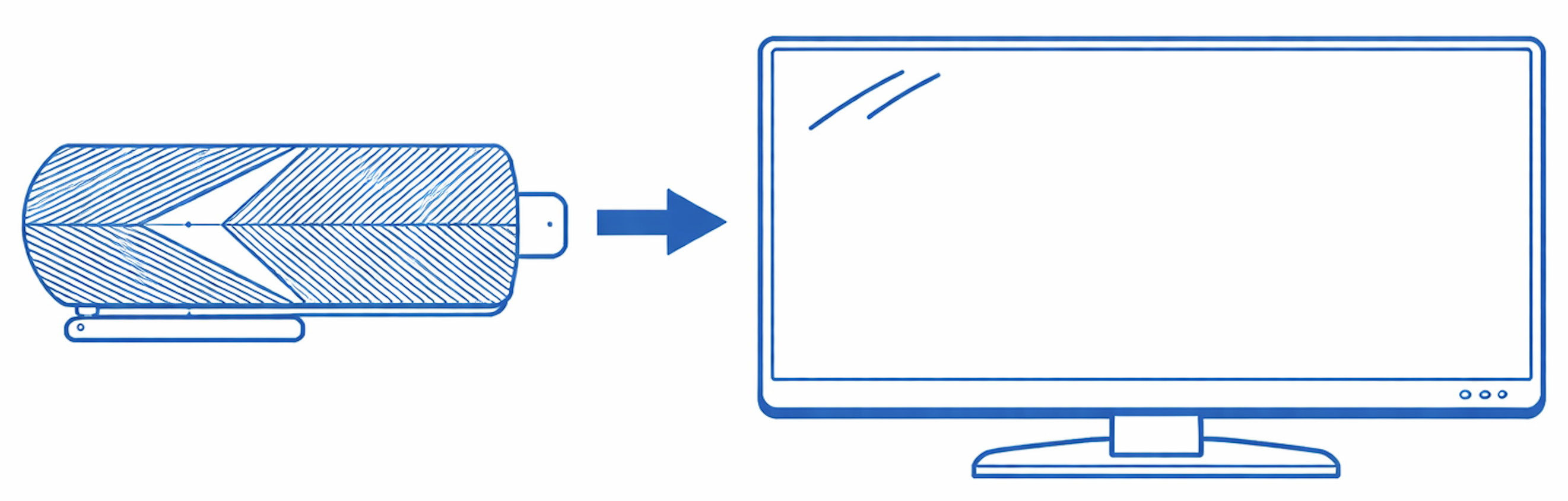
Section titled “Step 1: Connect the screen”Plug the ScreenRay into an HDMI input on your screen. Set the screen’s input to that HDMI channel.
Step 2: Connect power
Section titled “Step 2: Connect power”Connect the ScreenRay to power using the AC adapter supplied with the device. Other adapters will not work.
Step 3: Connect to the internet
Section titled “Step 3: Connect to the internet”Connect the ScreenRay to your location’s Wi-Fi or use an Ethernet cable with a supported USB-to-Ethernet adapter. Follow the instructions on your screen. Your WiFi network must broadcast its name (SSID); hidden networks will not work. A supported password-protected network is fine.
Step 4: Pair your screen
Section titled “Step 4: Pair your screen”Open dash.displai.ai. Use the two-word pairing code displayed on your screen to add the screen to your dashboard.
Verify the end state
Section titled “Verify the end state”Confirm that the screen you paired appears in your Displai dashboard. If pairing fails, check the HDMI input, power, and network requirements above, then follow the troubleshooting checks or contact support.
Where to go next
Section titled “Where to go next”Use the dashboard introduction to get familiar with managing your screens and content.
Related articles
Section titled “Related articles”- WiFi network requirements for ScreenRay devices Check whether your Wi-Fi network will work with a ScreenRay before you connect, and what to use if it’s hidden or WPA-Enterprise.
- Connect your ScreenRay to the internet Connect your ScreenRay over Wi-Fi or Ethernet and set up the MAC, port and domain whitelisting your network may require.
- How to set up a screen Install your ScreenRay in four steps: plug it into HDMI and power, get it online, and add it to your dashboard with its pairing code.
Still having trouble?
Text the 24/7 line or email support.