


How-to · Displai
Content sharing and collaboration
Share presentations, playlists and folders with users in your domain and choose the access role each person gets.
Displai’s new sharing and management suite of tools allows users to control who can view, edit, share, and manage content created in your CX dashboard. The new content sharing features allow you to share content with other users in your domain, and even more importantly, manage access and rights permissions.
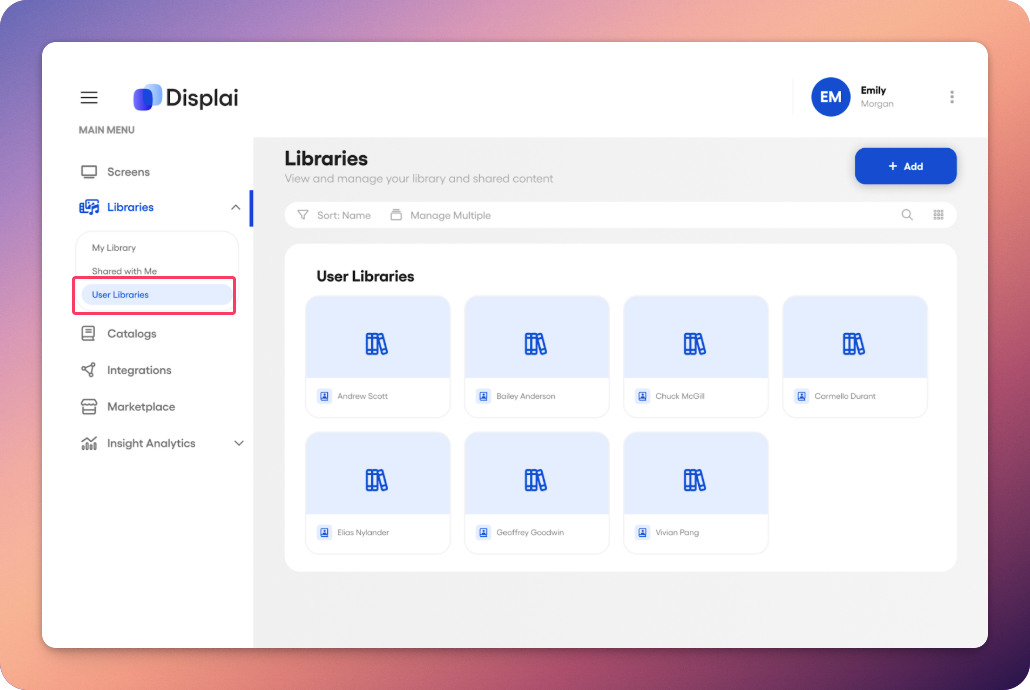
Part of these new features required restructuring the libraries page to include new library sections for more intuitive visibility. For this, we introduced two new sub-pages within your libraries page to help you view and organize content:
-
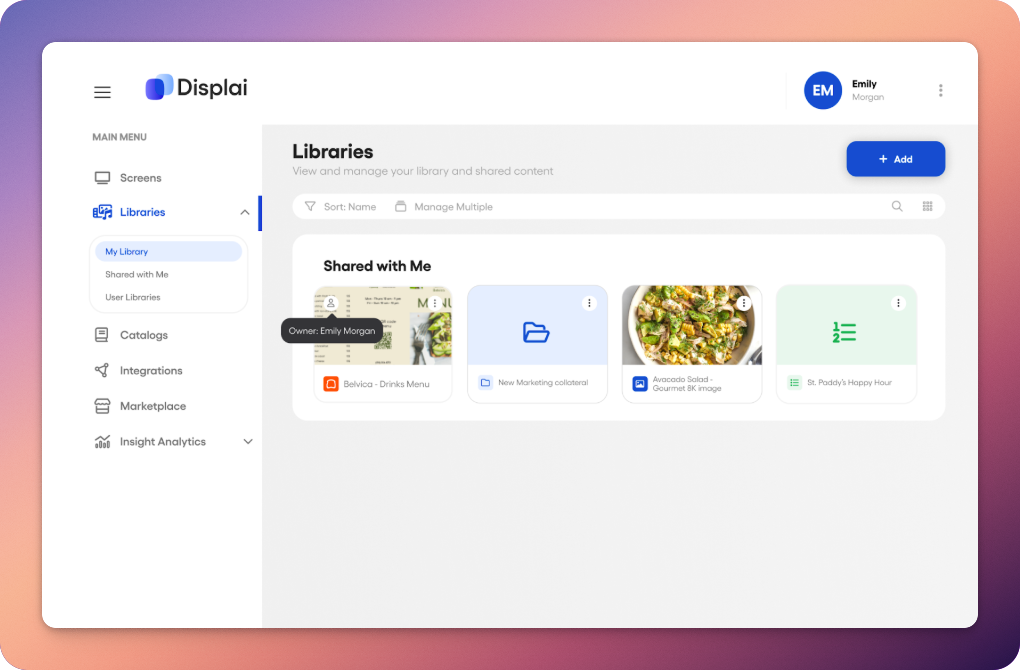
Shared with me a section dedicated to content that other users have shared with you.
-
User libraries This section is exclusive to admin users. If you are an admin or super admin, you can view content from all other users in the user libraries sub-page.
Sharing Content
Section titled “Sharing Content”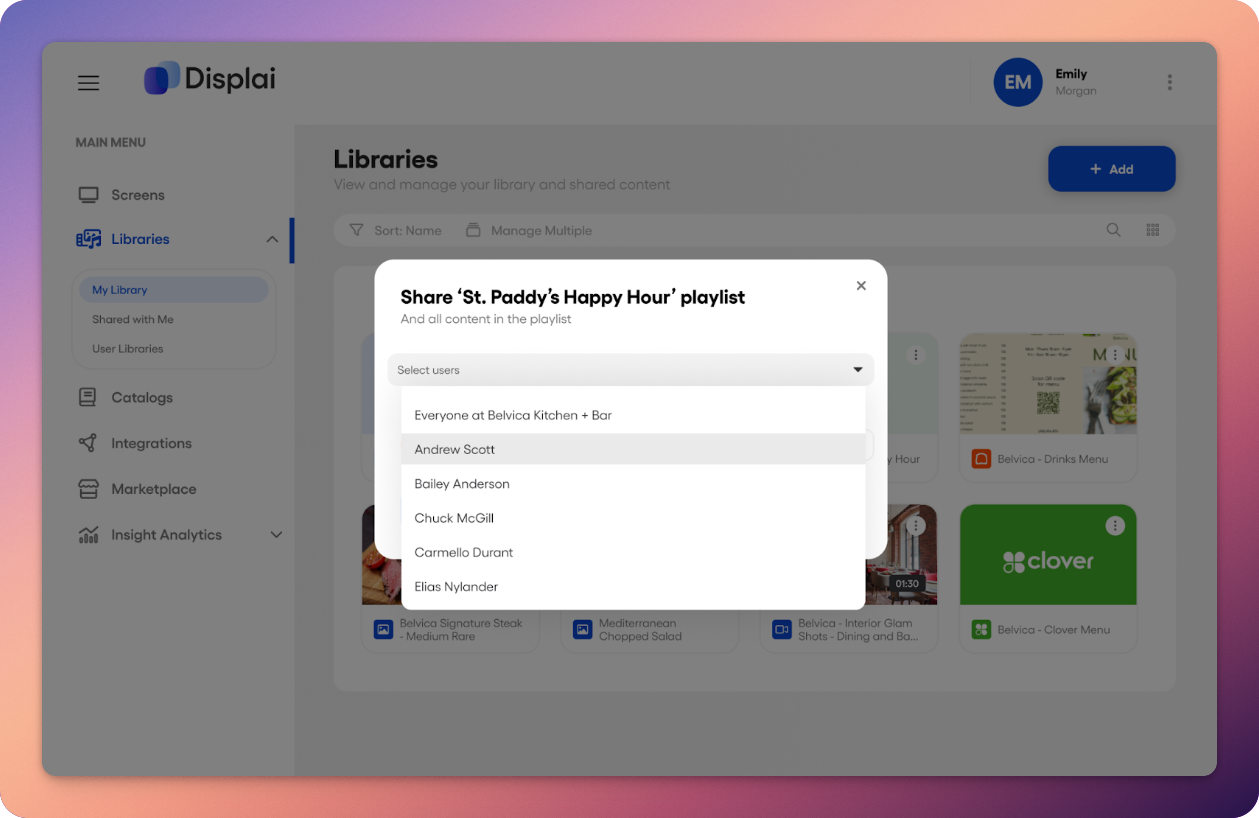
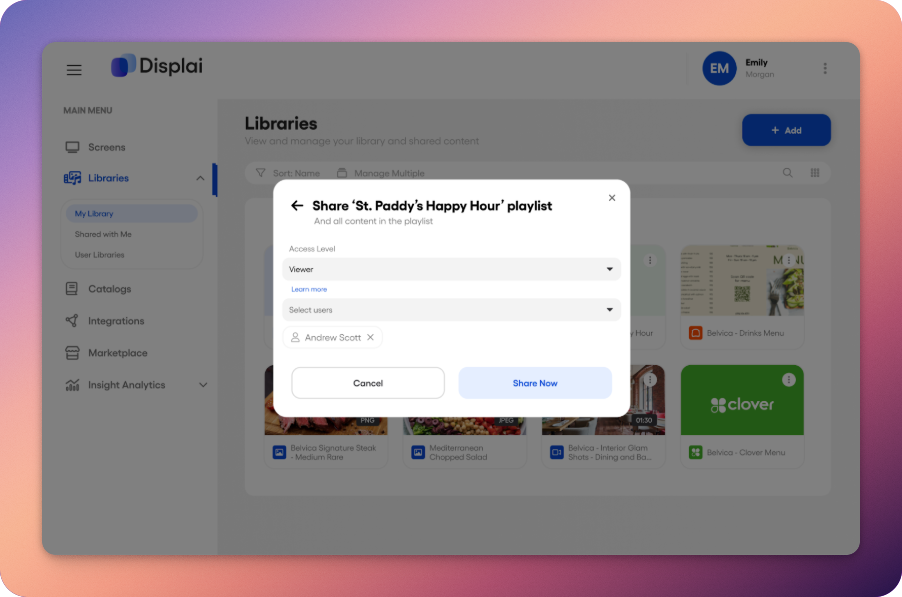
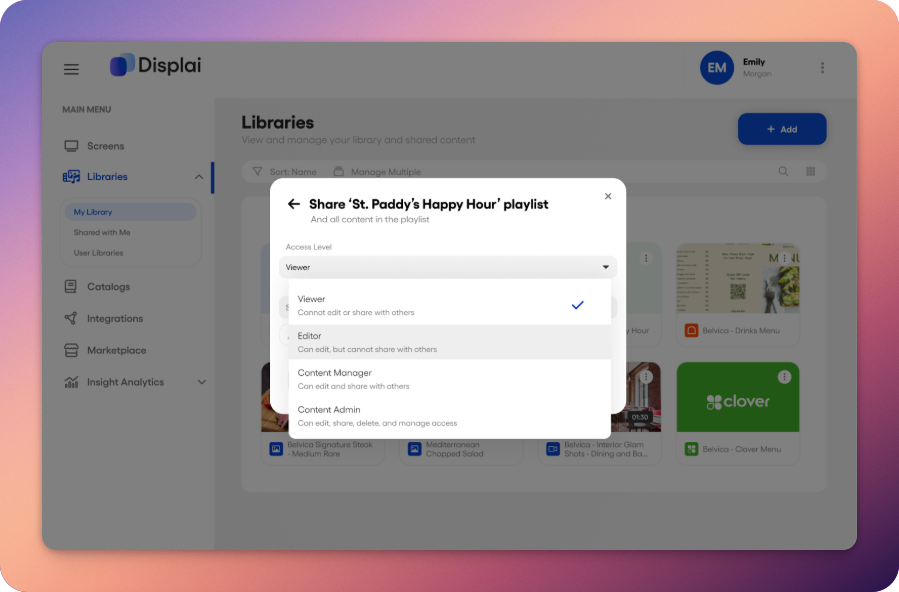
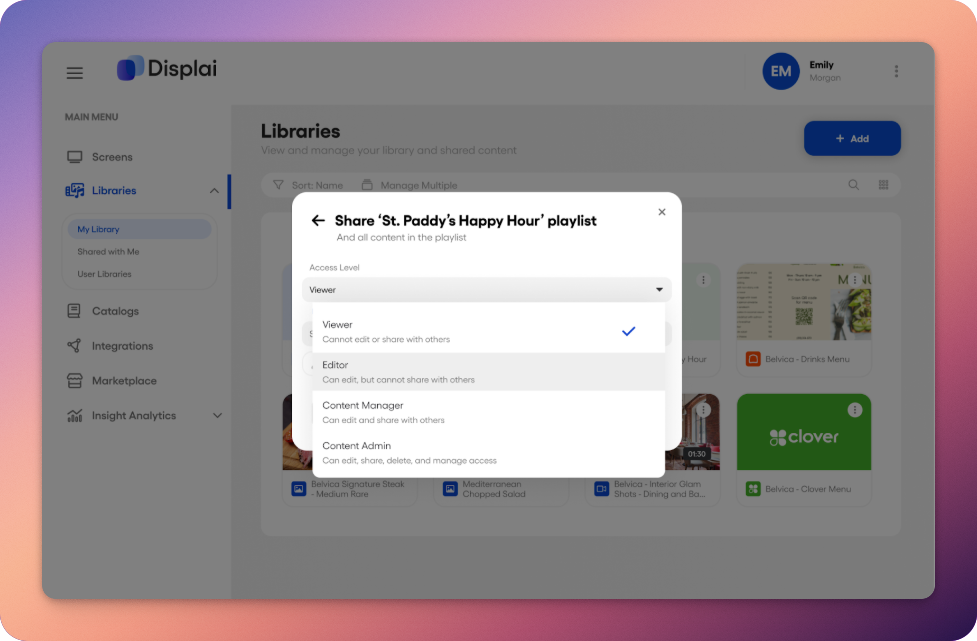
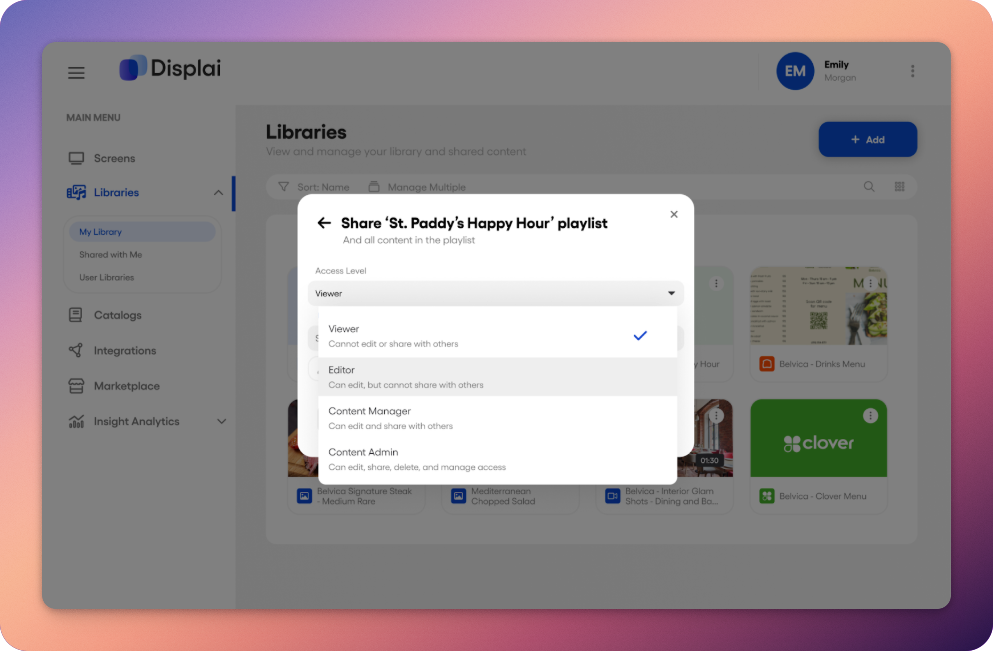
The screenshot above shows the pop-up window when selecting and sharing content with other team members. You can share a playlist, a presentation, or a folder with content inside of it. For any of these types of content, you are able to select from the following roles and permissions:
-
Viewer they can view the content, but cannot edit, delete, or share with other users.
-
Editor they can view and edit the content, but they cannot delete, or share with other users.
-
Access Manager they are able to edit, delete, and share with other users.
-
Content Admin they have full access and management permissions. This means they can edit, delete, and share with others, as well as modify other users’ access and permissions for content.
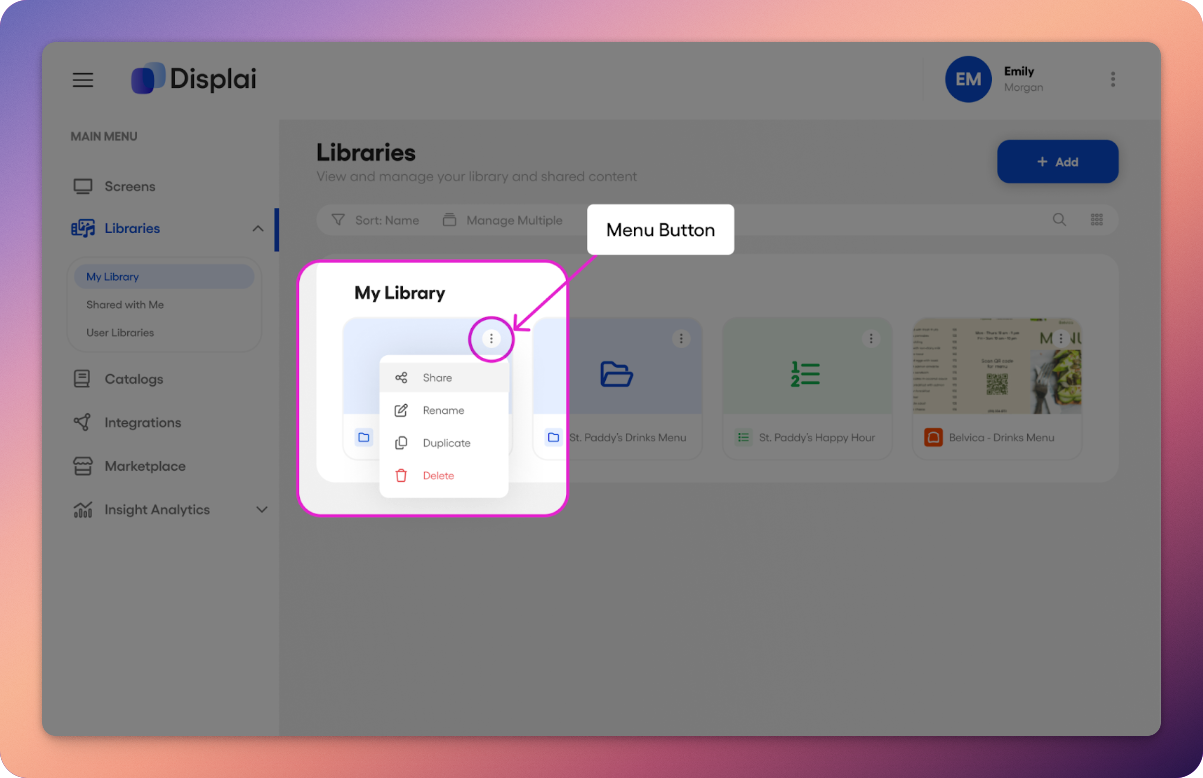
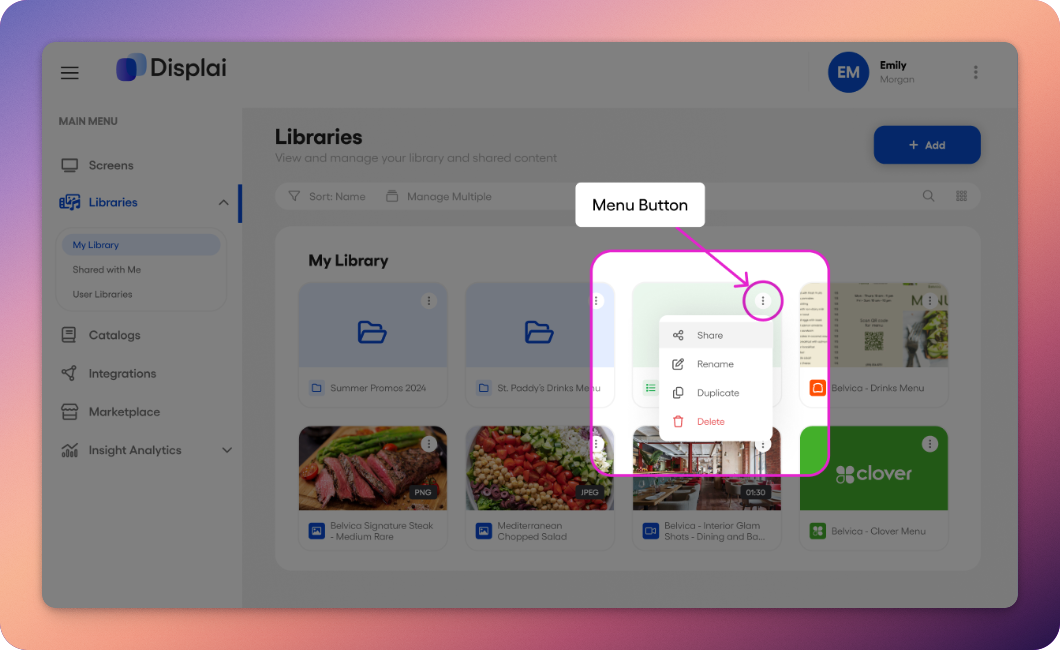
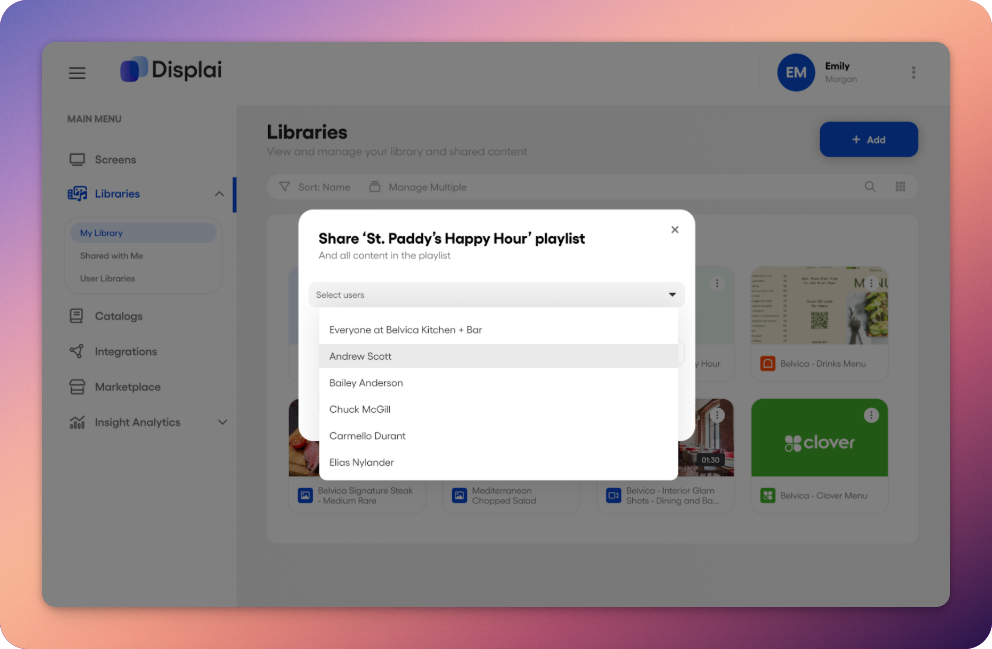
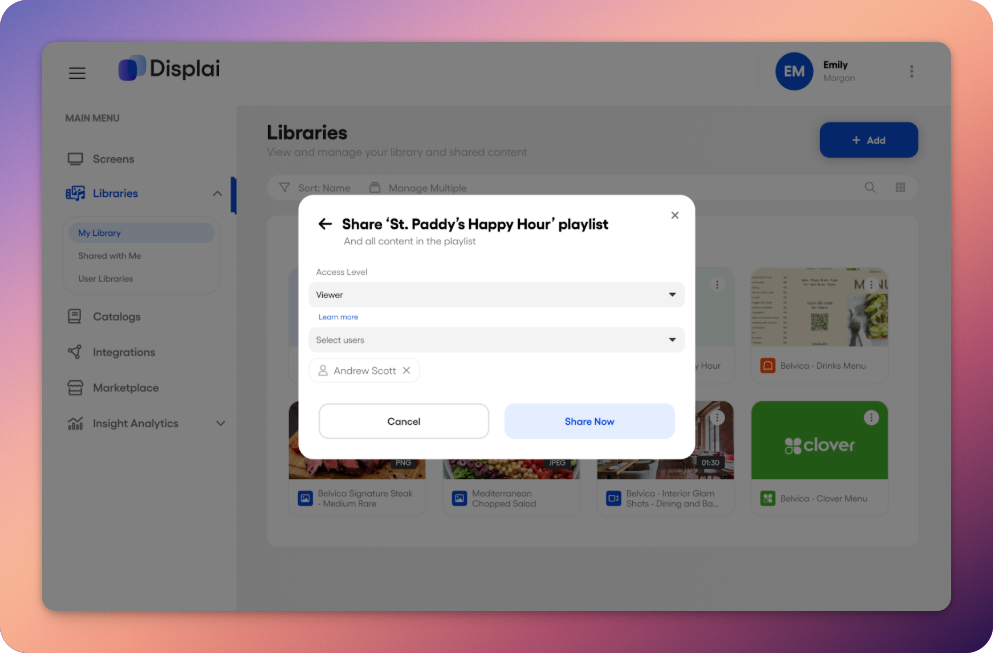
Using the content dropdown menu shown above, you can share a folder, a playlist, or a presentation with any user in your company’s domain. Once you have chosen to share, you will then be presented with options to search and select users, as well as define their role and permissions (shown below).
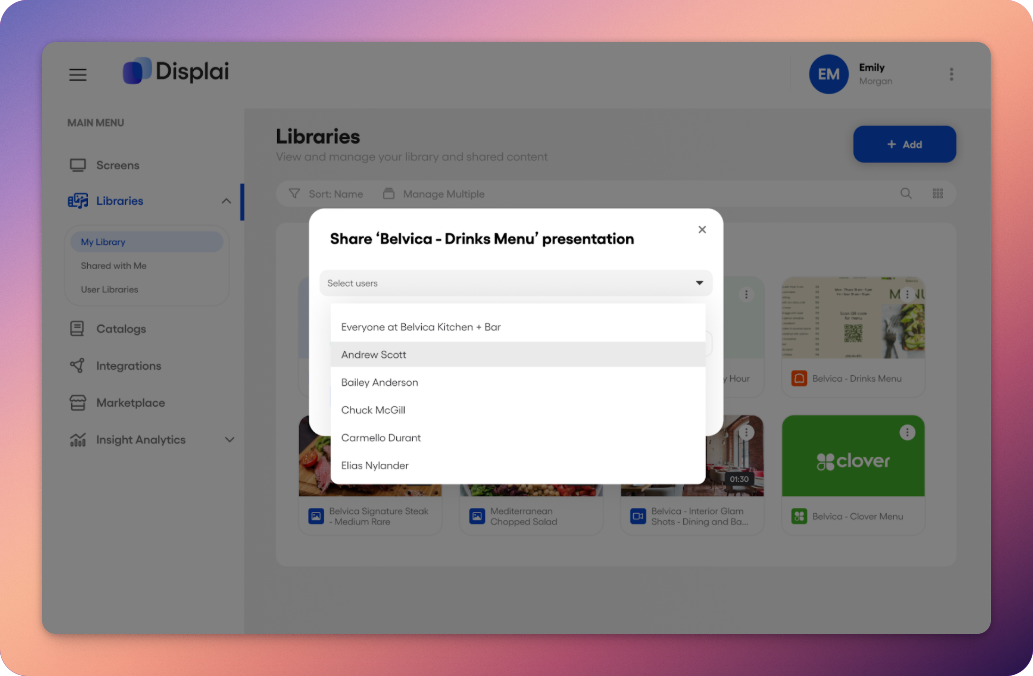
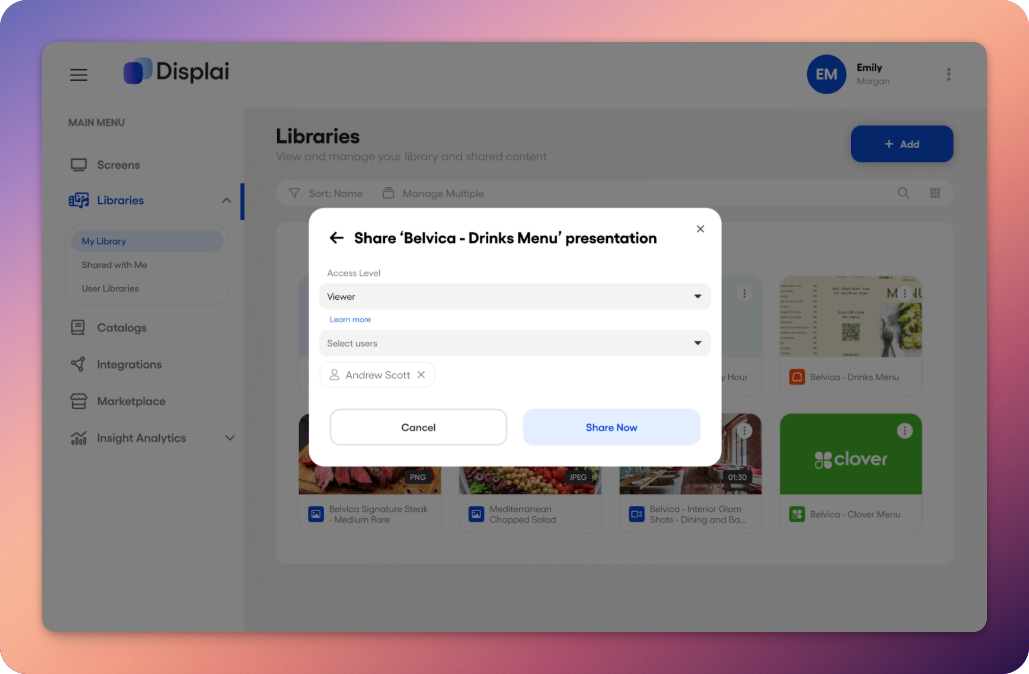
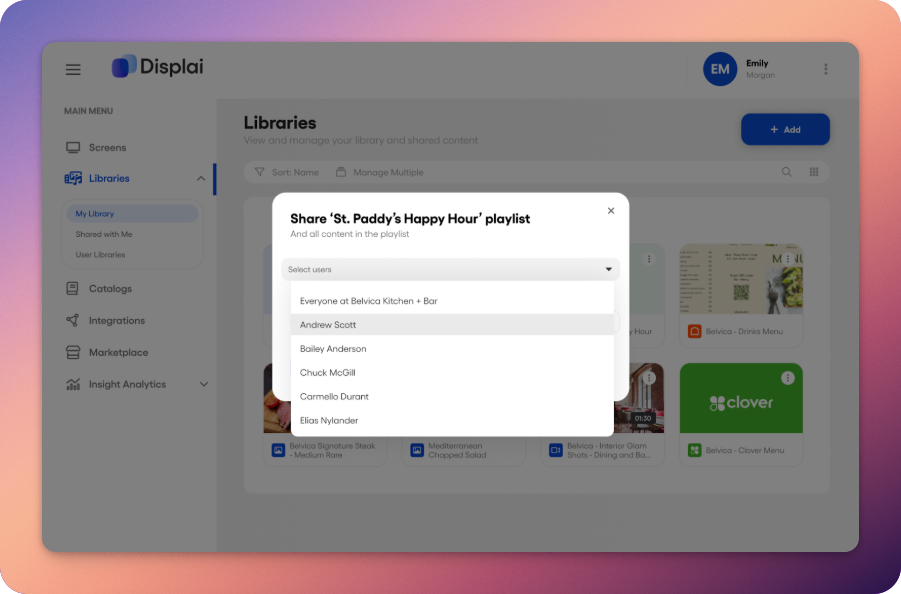
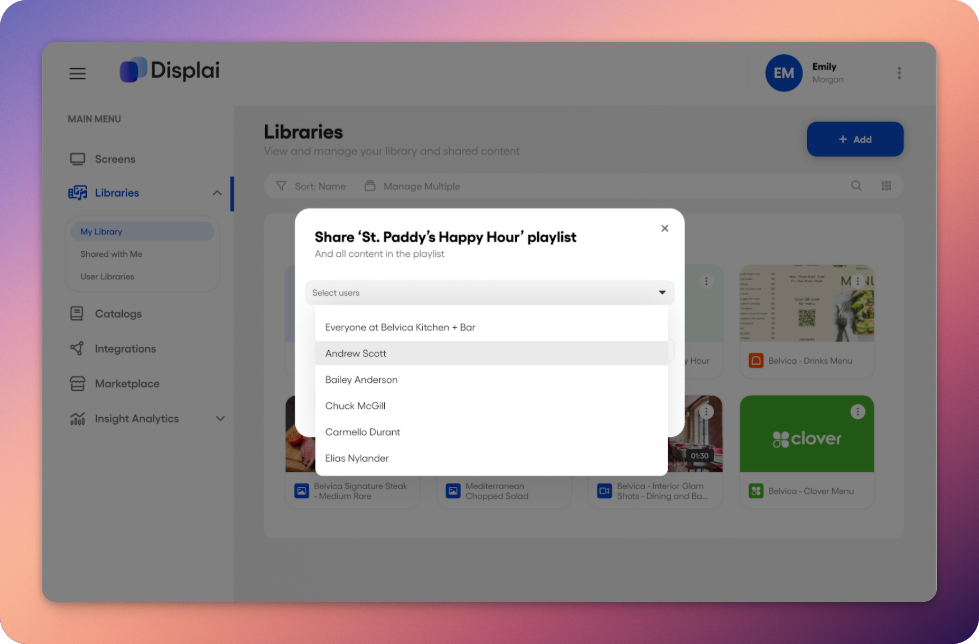
To search, select, and share with users in your domain, you can use the ‘select users’ dropdown. You can add multiple users, everyone in your domain, or an individual user. Once you have selected who to share with, you can then review their access, and modify each user as you see fit. If at any point you would like to modify access, you can simply click back on the ‘share’ button in the content’s dropdown menu and you’re all set.
Below, we walk you through information on sharing different types of content.
Presentations
Section titled “Presentations”With Displai’’s content sharing tools, you can share a single presentation with anyone in your domain. Presentations are identified by the app that is used to create it. In the example below, the presentation uses the Displai images app, and therefore shows an ‘image’ icon in the footer name and the presentation’s uploaded image in the upper thumbnail section.
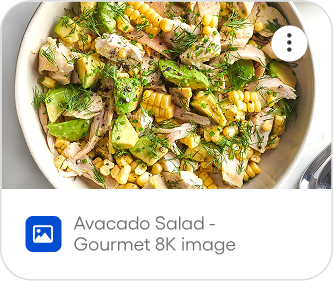
Sharing presentations is useful for collaborating on content creation and content editing, especially for teams operating across multiple locations. The process for sharing a presentation is the same for any other content, you can click the content’s dropdown menu button, and then select ‘share’.
A new window will pop up with options to select who to share with, as well as their access type and permissions for that given piece of content.
Once you have successfully shared the presentation, the user you have shared it with will see it in their ‘shared with me’ page (shown below).
Playlists
Section titled “Playlists”Similar to presentations, you can share a playlist with anyone in your domain. Playlists are used to show a sequence of content on any compatible device located in your screens page. Playlists are shown in green in the libraries page, and identified by a playlist icon shown below.
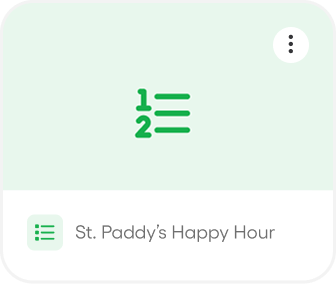
Sharing a playlist is extremely useful for teams looking for dynamic content, but consistent branding. Most importantly, other team members can contribute to - and even manage - a playlist based on the structure set out by the creator. The process for sharing a presentation is the same as any other content, simply click the content’s dropdown menu button, and then select ‘share’.
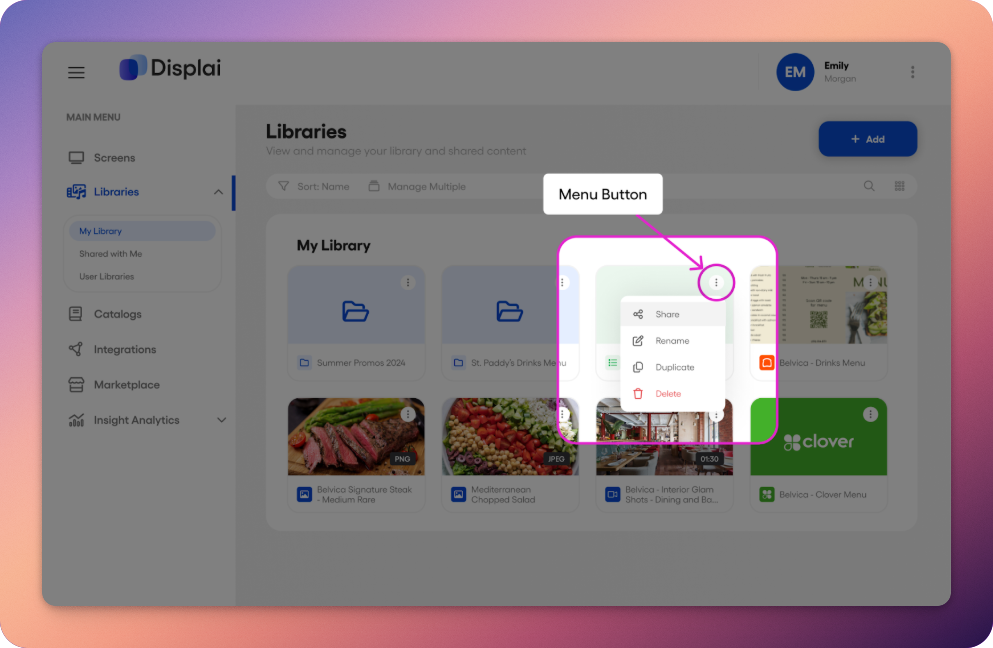
A new window will pop up with options to select who to share with. Once you have selected the users, you can also select their access type and permissions. The access roles and permissions are the same for a playlist as they are for presentations (shown below).
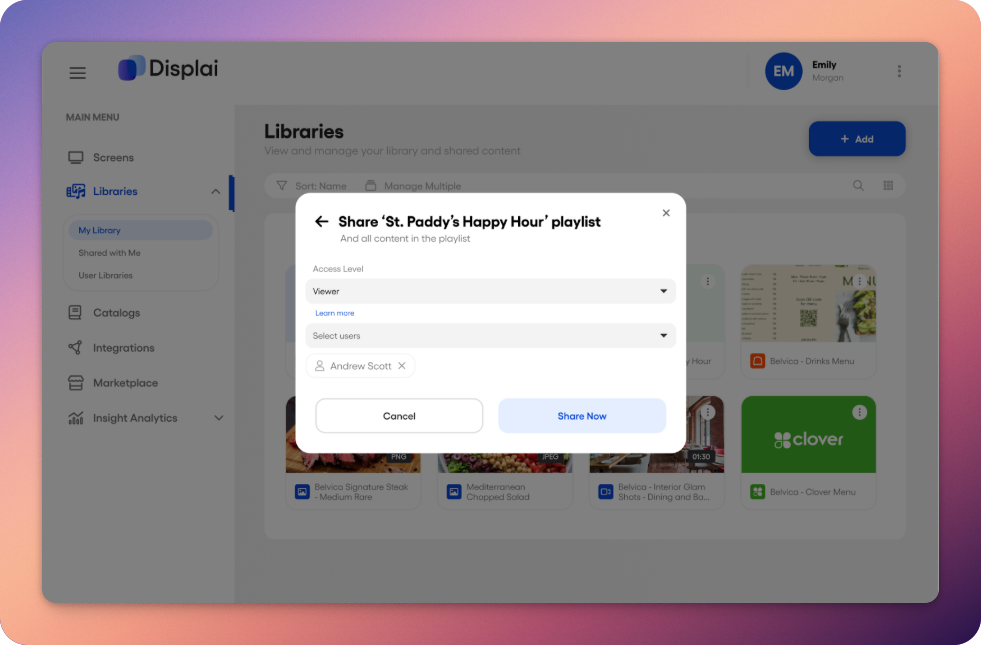
After sharing, you will see a successful notification popup at the base of the screen, and the user will now see the playlist in their ‘shared with me’ page.
Folders
Section titled “Folders”Folders - like presentations, and playlists - can be shared with any user in your domain as well. Folders behave as you would expect, they are a container for contents, and are mainly used for organization. Folders are shown in blue in the libraries page, and identified by a ‘folder’ icon shown below.
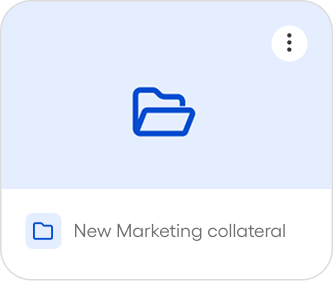
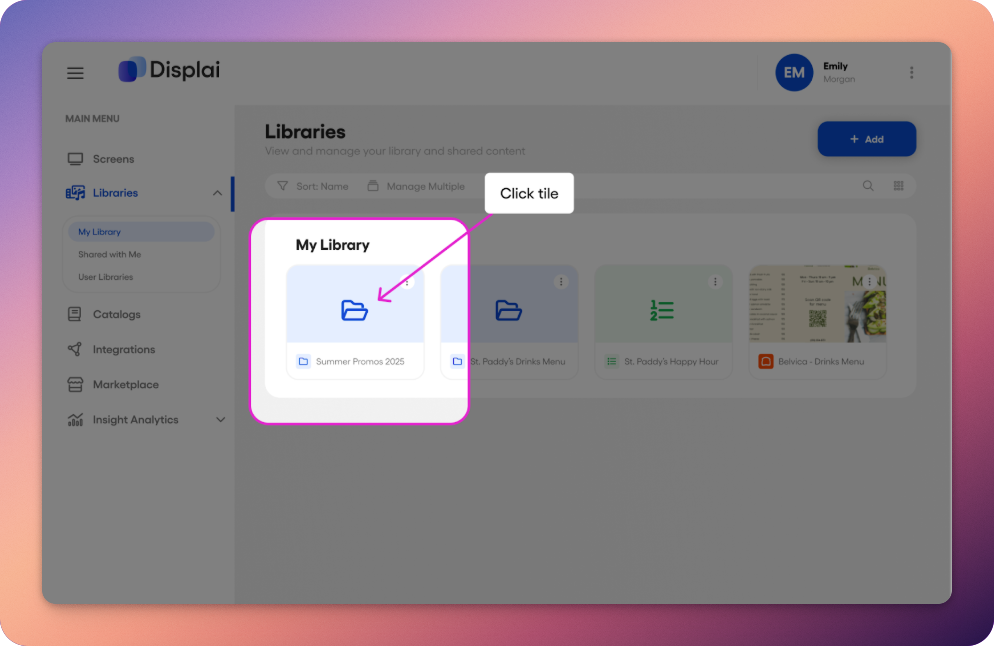
Contents within a folder are shown as their own group, and can be accessed by clicking the folder tile (shown below).
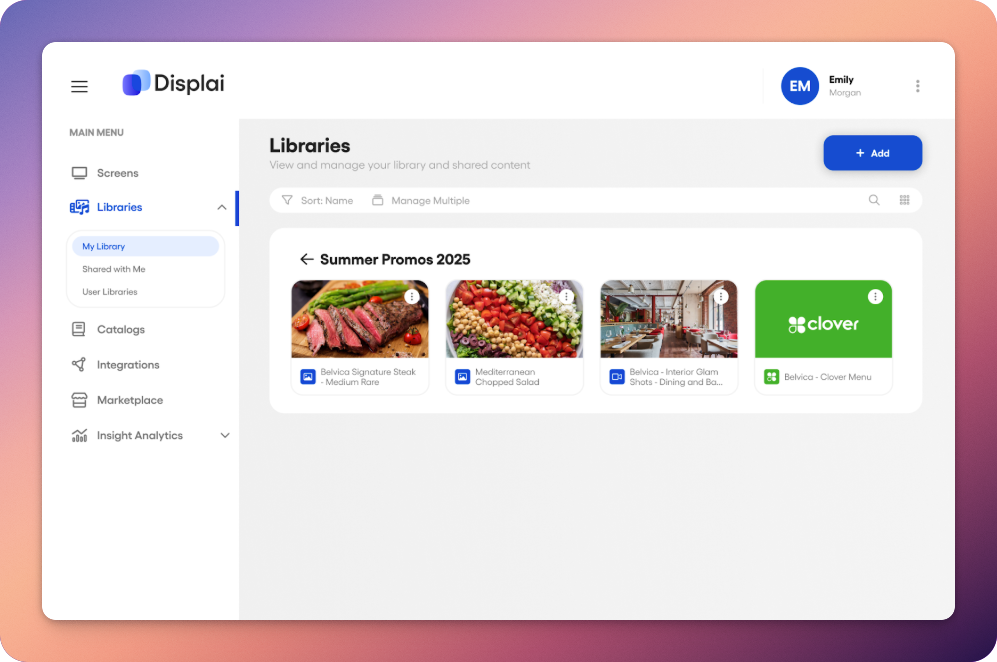
When sharing a folder, it is important to remember you are also sharing all of the content nested within. To share the entire folder and all of its contents, you can use the same menu and dropdown as with presentations and playlists.
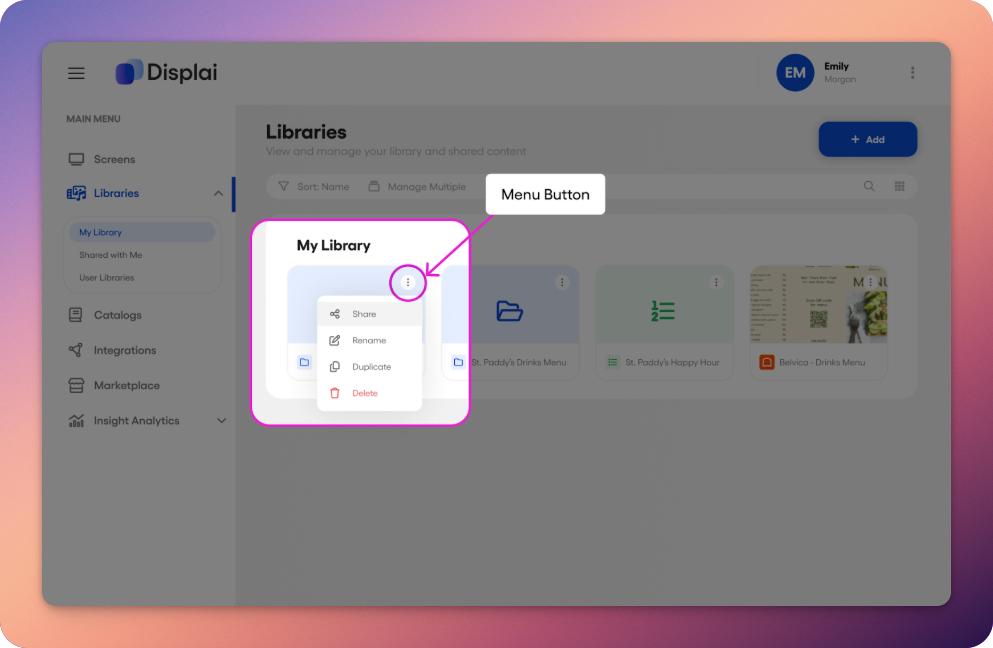
Similar to sharing other content, you are provided options on users and their access type and permissions. The access roles and permissions are the same as for playlists and presentations (shown below).
After sharing, you will see a successful notification popup at the base of the screen, and the user will now see the folder and all of its contents in their ‘shared with me’ page.
User Access and Permissions
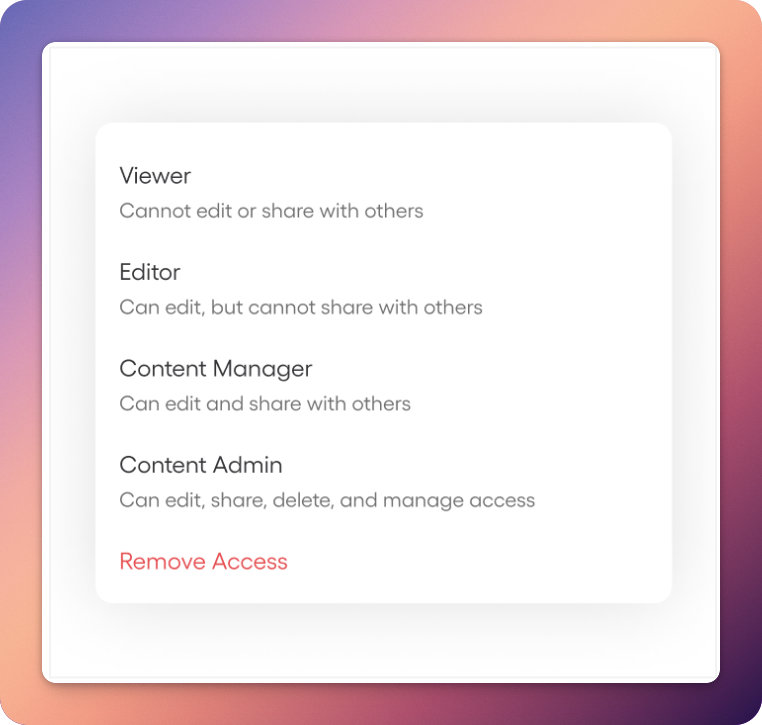
Section titled “User Access and Permissions”User access roles for content sharing is used as a tool for team collaboration, content management, and peer feedback. There are four access roles and permission types, summarized below:
-
Viewer: they can view the content, but cannot edit, delete, or share with other users.
-
Editor: they can view and edit the content, but they cannot delete, or share with other users.
-
Access Manager: they are able to edit, delete, and share with other users.
-
Content Admin: they have full access and management permissions. This means they can edit, delete, and share with others, as well as modify other users’ access and permissions for content.
For more information and support on access roles and permissions, please see our support article on enterprise for more detailed information.
Related articles
Section titled “Related articles”- What are enterprise features? See how Displai Enterprise lets you invite team members, assign user roles and share screens and content across a domain.
- Manage library folders and content Create folders to organize presentations and playlists in your Library, move content between them, and delete items you no longer need.
Still having trouble?
Text the 24/7 line or email support.