


How-to · Hoopla
Fonts for leaderboards
Upload a custom font in Content Management and apply it to a channel’s leaderboards.
Add a font to a Leaderboard to fully brand out the screen.
Upload the Font
Section titled “Upload the Font”Fonts must be licensed for public use.
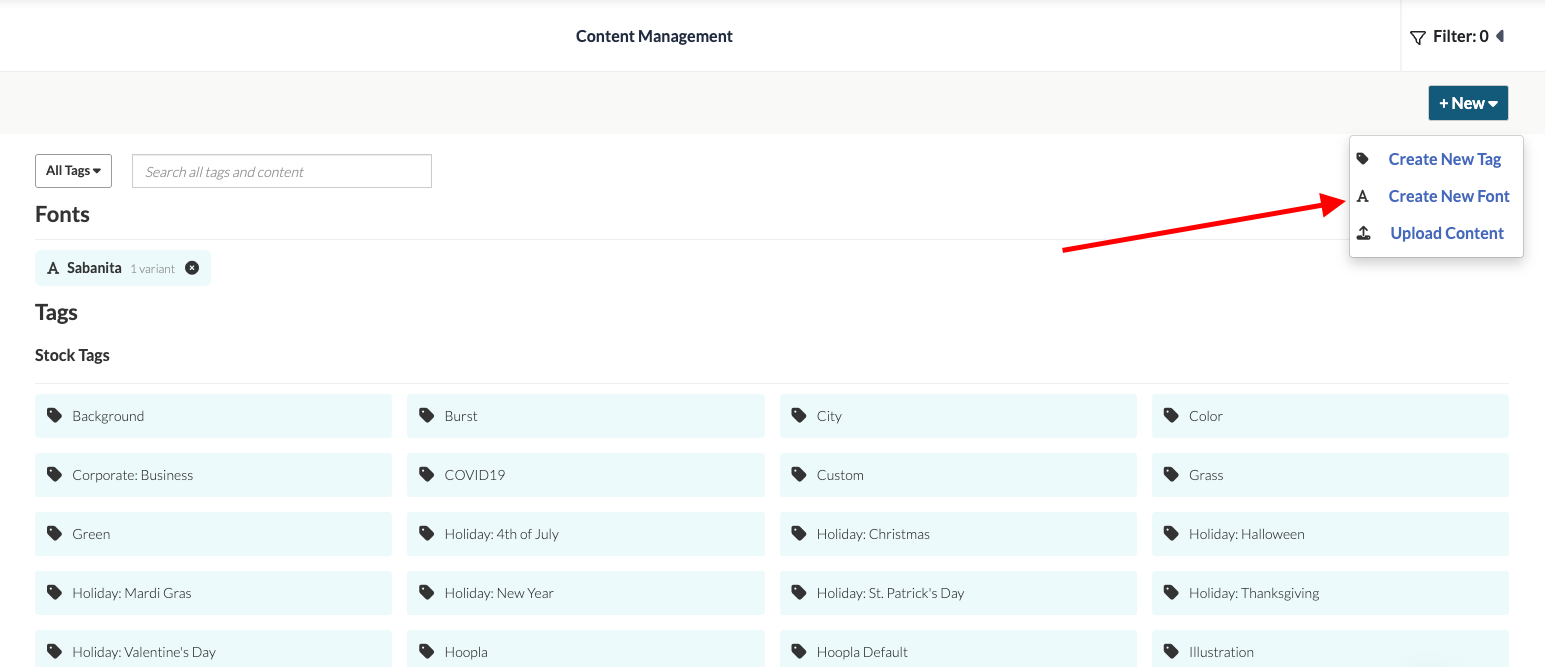
In the content management section select Create New Font from the New options:
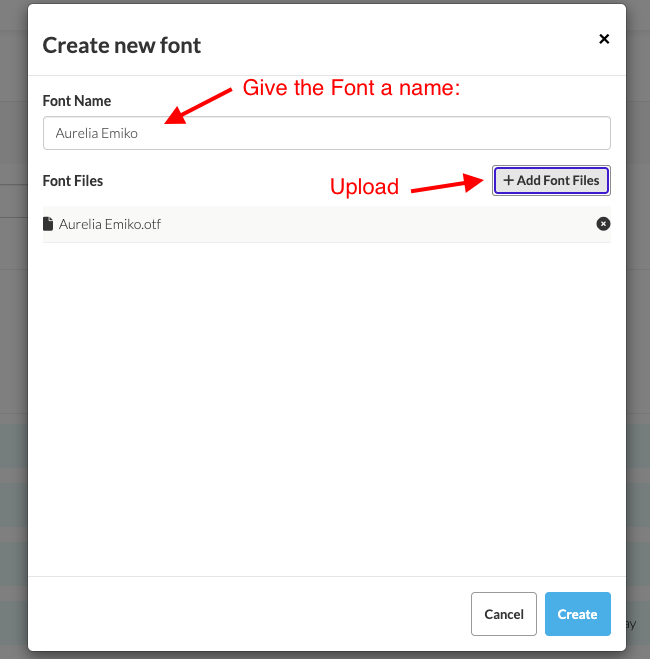
Give the font a name, upload the font and then select Create:
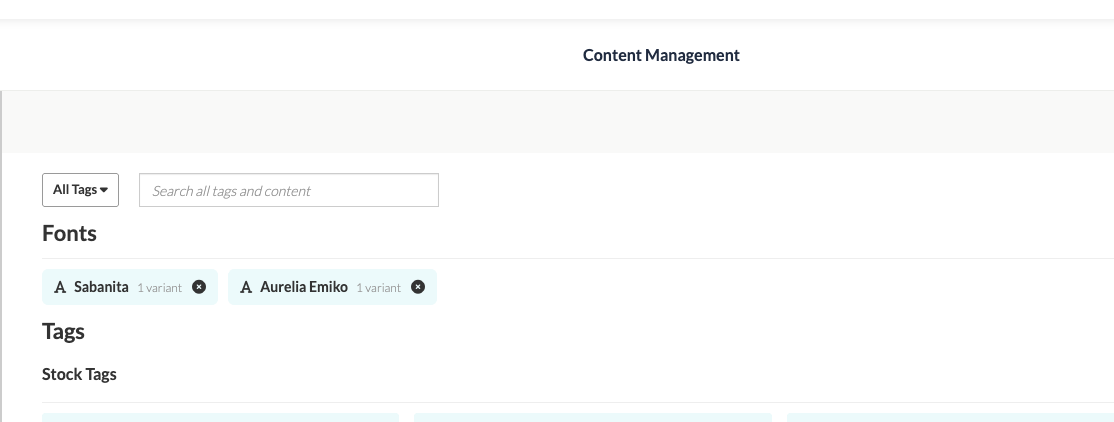
Your font is now ready to use. You will see it in the list of available fonts in Content Management:
Adding a font to your Leaderboard
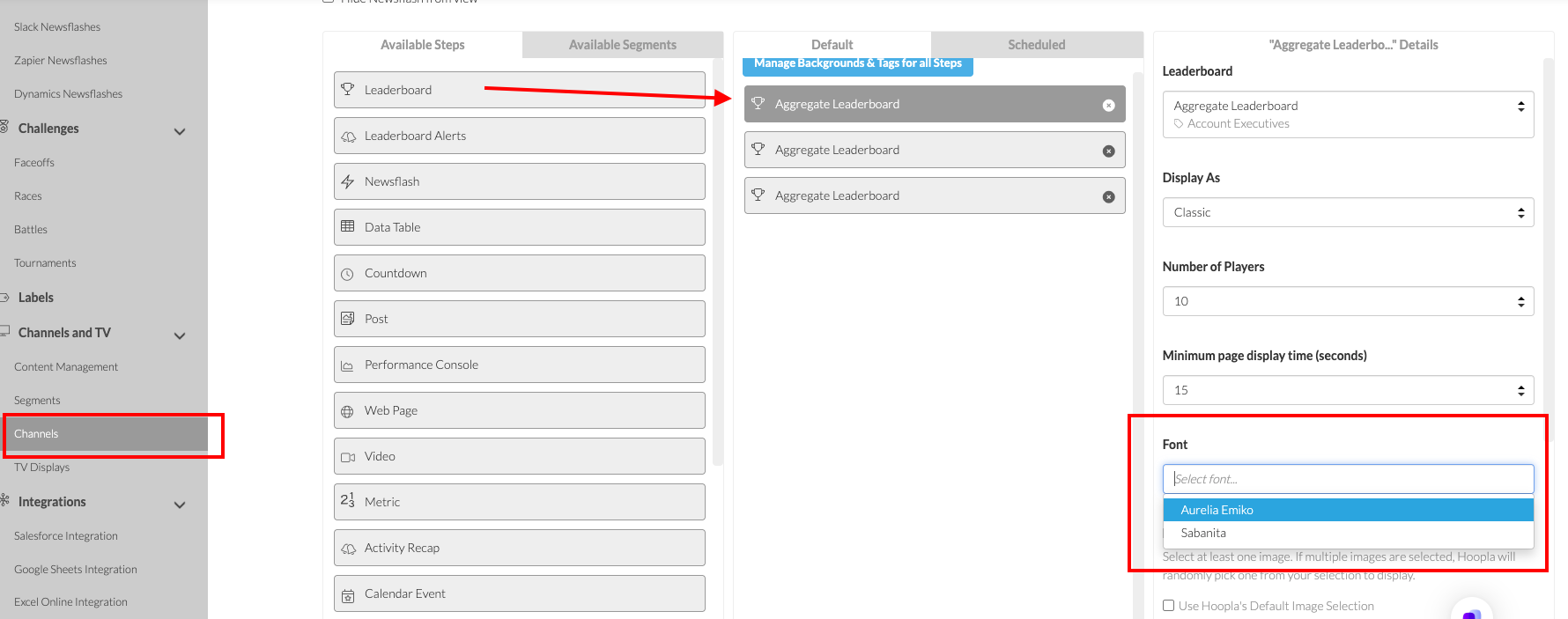
Section titled “Adding a font to your Leaderboard”Navigate to the channel where the leaderboard has been added and select the font for the leaderboard and then save:
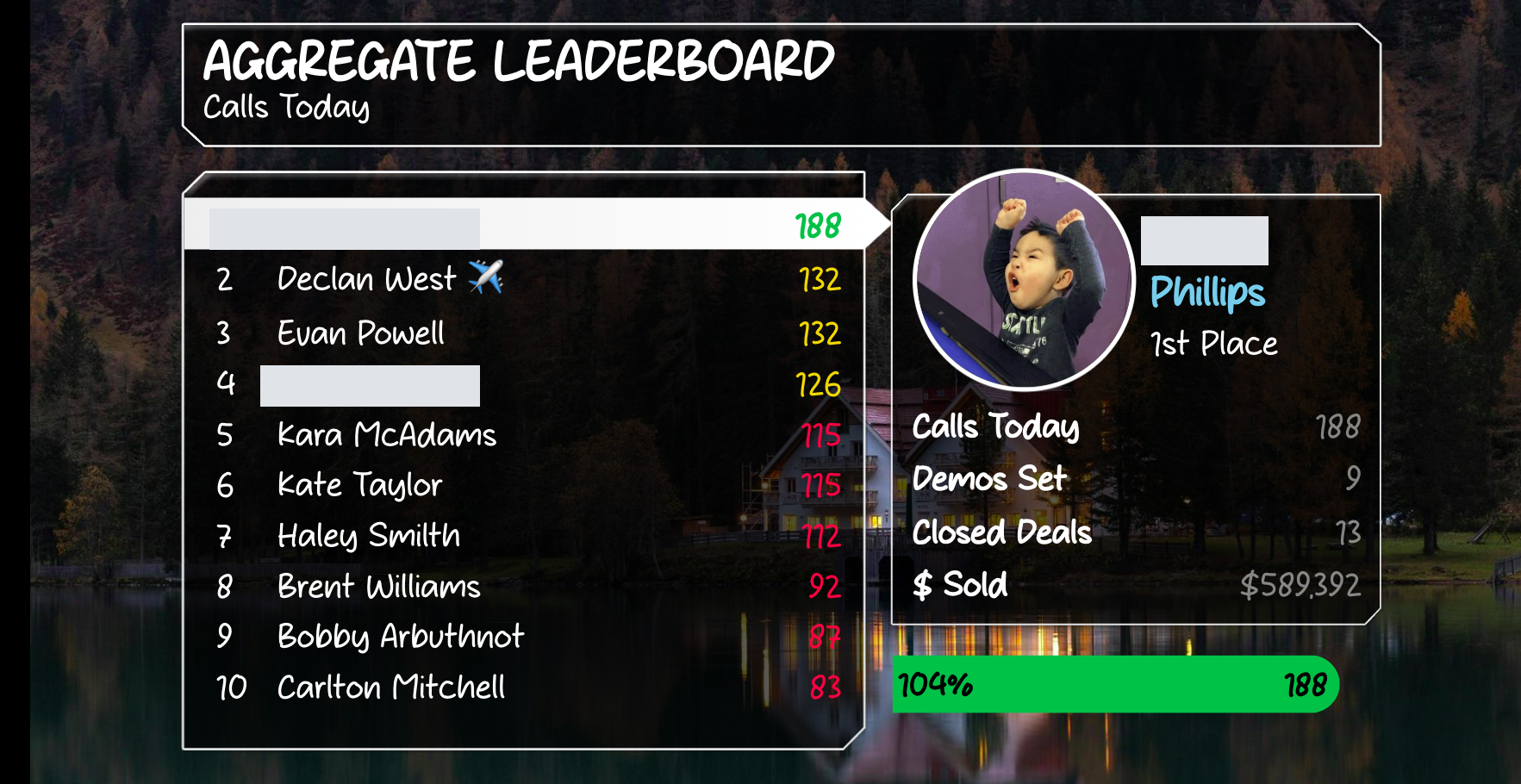
The font is now active in the channel:
Still having trouble?
Email our support team.