


How-to · Hoopla
Map data from Excel Online to Hoopla metrics
Automatically update Hoopla player or team metrics from an Excel Online workbook by mapping sheet columns to metrics on a sync schedule.
When to use this
Section titled “When to use this”Map an Excel Online spreadsheet into Hoopla metrics to update those metrics as the spreadsheet changes.
Each mapped sheet tab must contain an Email column for users, Team Name for teams, or Generic Identifier. User emails and team names must match the corresponding Hoopla records.
- Open Configure > Integrations > Excel Online Integrations.
- Click Add.
- Select the Excel workbook from which Hoopla will read metric data.
- Click Next.
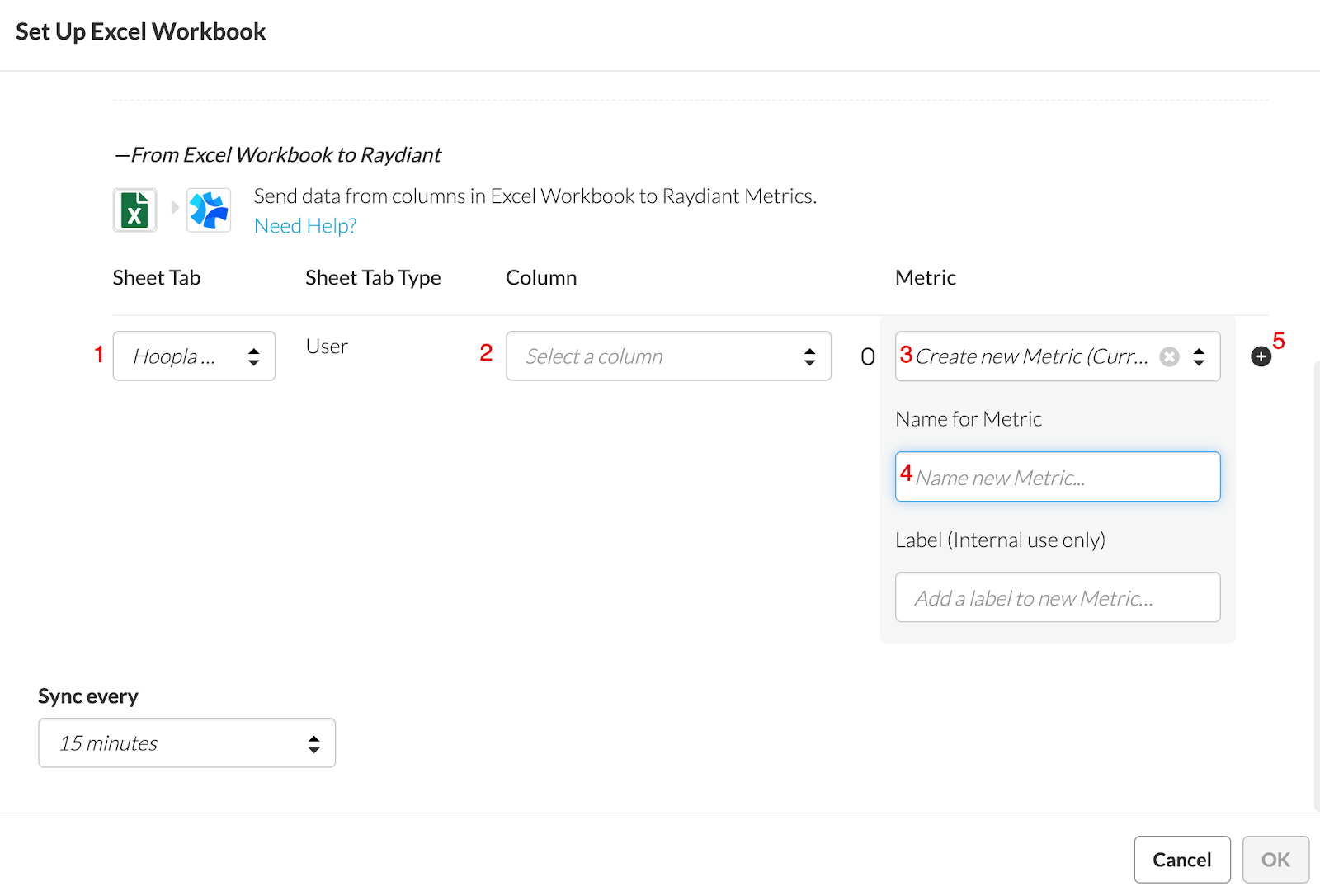
- In the bottom section of the mapping page, select the sheet tab.
- Select the spreadsheet column containing the metric values.
- Choose an existing Hoopla metric or create one. For a new metric, select Number, Currency, or Percent and enter a specific name, such as MTD Revenue for monthly revenue.
- Click + to add the metric. Repeat the mapping steps for additional metrics.
- Set how often Hoopla should sync with the spreadsheet.
- Click OK.
- Click Save.
Format the spreadsheet
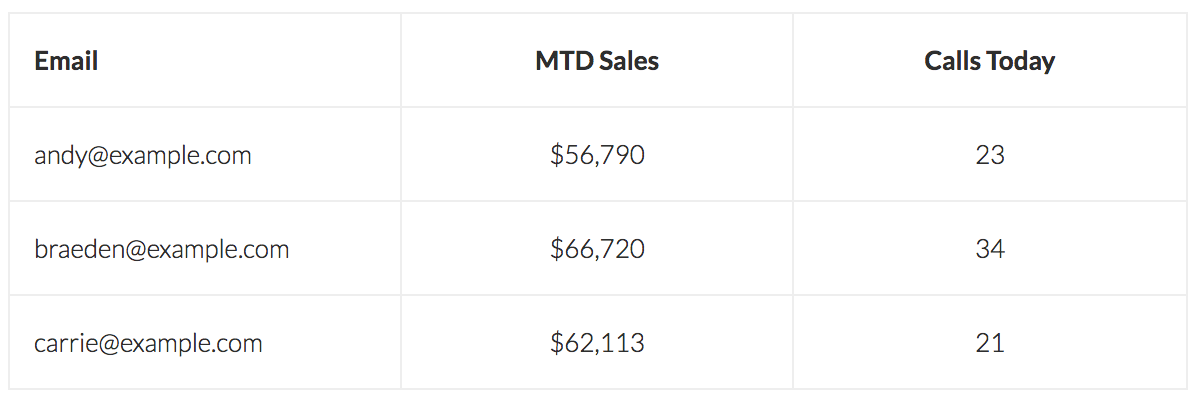
Section titled “Format the spreadsheet”For Player metrics, summarize values by user email. Use Email for that column and put each metric’s values in the remaining columns.
For Team metrics, summarize values by the Hoopla team name. Use Team Name for that column and put each metric’s values in the remaining columns.
| Team Name | Revenue MTD | Revenue YTD |
|---|---|---|
| Team 1 - East | $120,430 | $355,001 |
| Team 2 - Central | $99,098 | $256,198 |
| Team 3 - West | $129,444 | $388,030 |
Mapping rules
Section titled “Mapping rules”- Rows with unrecognized user emails, team names, or generic identifiers are ignored.
- Within one sheet tab, you cannot map multiple columns to one metric.
- Columns from different sheet tabs can map to the same metric.
- One column can map to multiple metrics.
- Column names must be unique within a tab.
- Do not map the same metric and column in both directions; this creates a loop.
Verify
Section titled “Verify”After the configured sync runs, compare the Hoopla metric values with the corresponding spreadsheet values.
If it doesn’t work
Section titled “If it doesn’t work”Check the identifier columns, selected tabs, and mapping rules above. Contact support if valid mapped rows still do not update.
Related articles
Section titled “Related articles”- Connect Hoopla to Excel Online Connect Hoopla to your Business Office 365 account so you can export metric data to Excel Online and import processed data back.
- Map Hoopla data to Excel Online Export Hoopla metric data to the Hoopla Mapped tab of an Excel Online workbook on a schedule for calculations, reporting, or analysis.
- Display data tables from Excel Online in Hoopla Show up to four columns from an Excel Online spreadsheet as a data table on your Hoopla screens, synced on a schedule you set.
Still having trouble?
Email our support team.