


How-to · Hoopla
Update metrics with file upload
Format a spreadsheet with an Email column and upload it to update metric values for many users at once.
You can easily update multiple user Metric values by uploading a spreadsheet to Hoopla. This is a great method for updating Metrics that are not automatically updated through one of our integrations.
Format your spreadsheet for Hoopla
Section titled “Format your spreadsheet for Hoopla”-
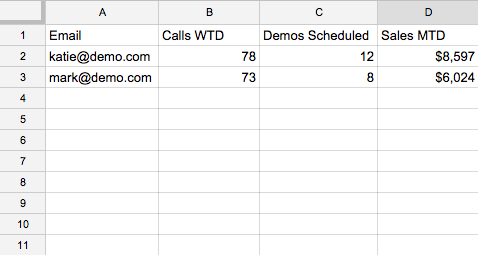
You must have a column called Email, populated with your Hoopla users’ email addresses. If your users were added via Salesforce, use their Username instead. The column will still be labeled Email.
-
The remaining columns should contain aggregated Metric values for each user.
Upload your spreadsheet
Section titled “Upload your spreadsheet”-
In the Configure tab, click Metrics and Uploads underDatain the left nav. Alternatively, click the Data tile and then Metrics and Uploads tile.
-
Click on File Upload sub-tab.
-
Drag and drop your spreadsheet file to the grey drop area, or click Choose a File button.
-
The upload status will appear in the File Upload History section of the page, along with any errors.
ProTip: When bringing in percentages, Hoopla sees the file as a CSV format. It does not read the formatting in the sheet. To show 70%, the number will need to be 70, not .70.
Related articles
Section titled “Related articles”- Update metrics in bulk using email upload Update metrics for many users at once by emailing a spreadsheet to a unique Hoopla upload address.
- Update metric values manually Enter or edit metric values by hand as an admin or player, bulk update several users, and correct recent entries.
- Types of metric updates Compare the ways to keep Hoopla metrics current, from manual updates to Salesforce, spreadsheets, email or CSV uploads, the API, and Zapier.
Still having trouble?
Email our support team.