


How-to · Displai
Connect your Point of Sale menu
Connect your Toast POS account to Displai so menu changes update your digital menus.
Displai has a native integration with several of the market leading POS integrations, making updating your digital menus a breeze.
When using Displai’s POS integrations, any changes in your POS will be updated on your digital menus in real-time. To learn a bit more, take a look at the video below.
The setup instructions below cover Toast. For help connecting another POS provider, contact support.
If you are a Toast user:
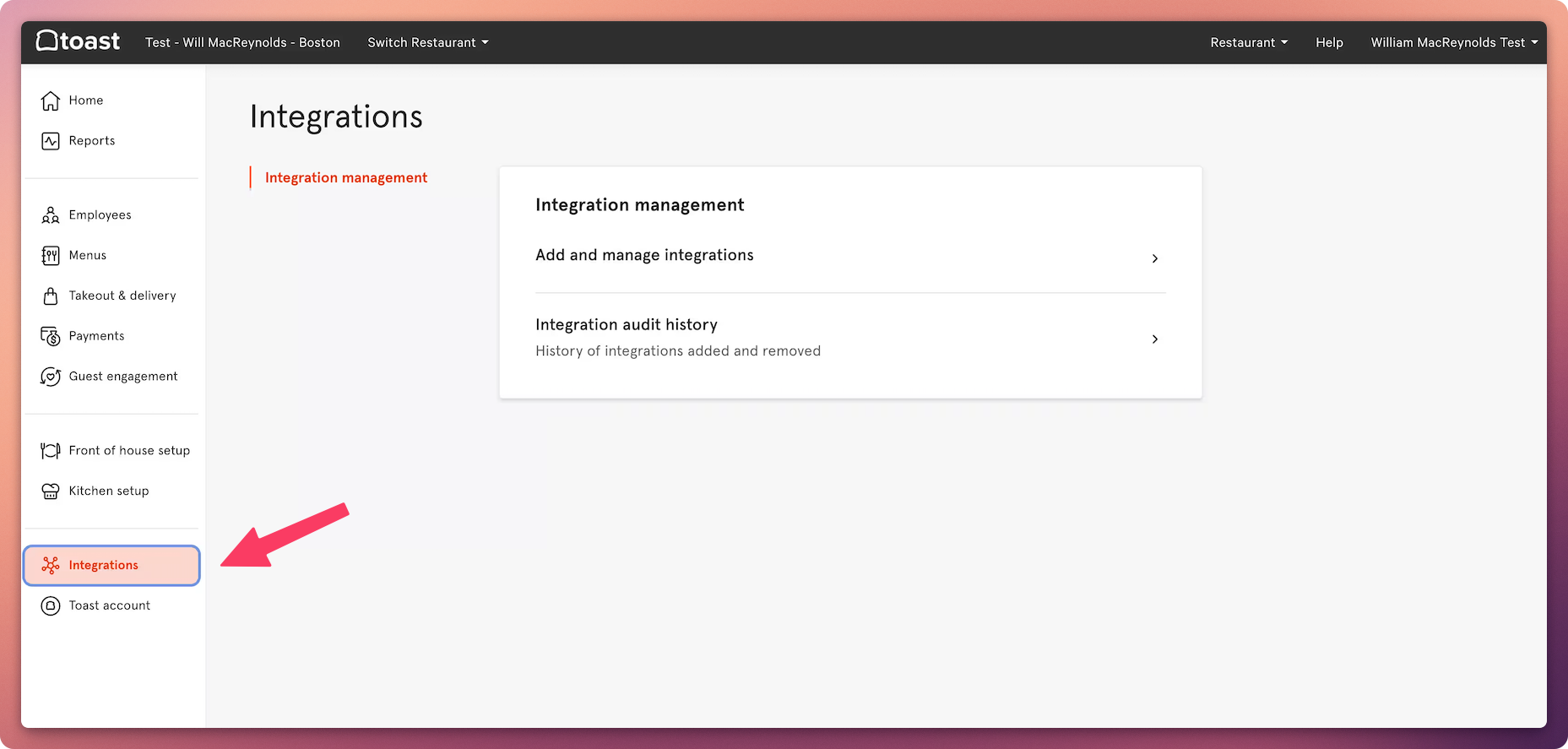
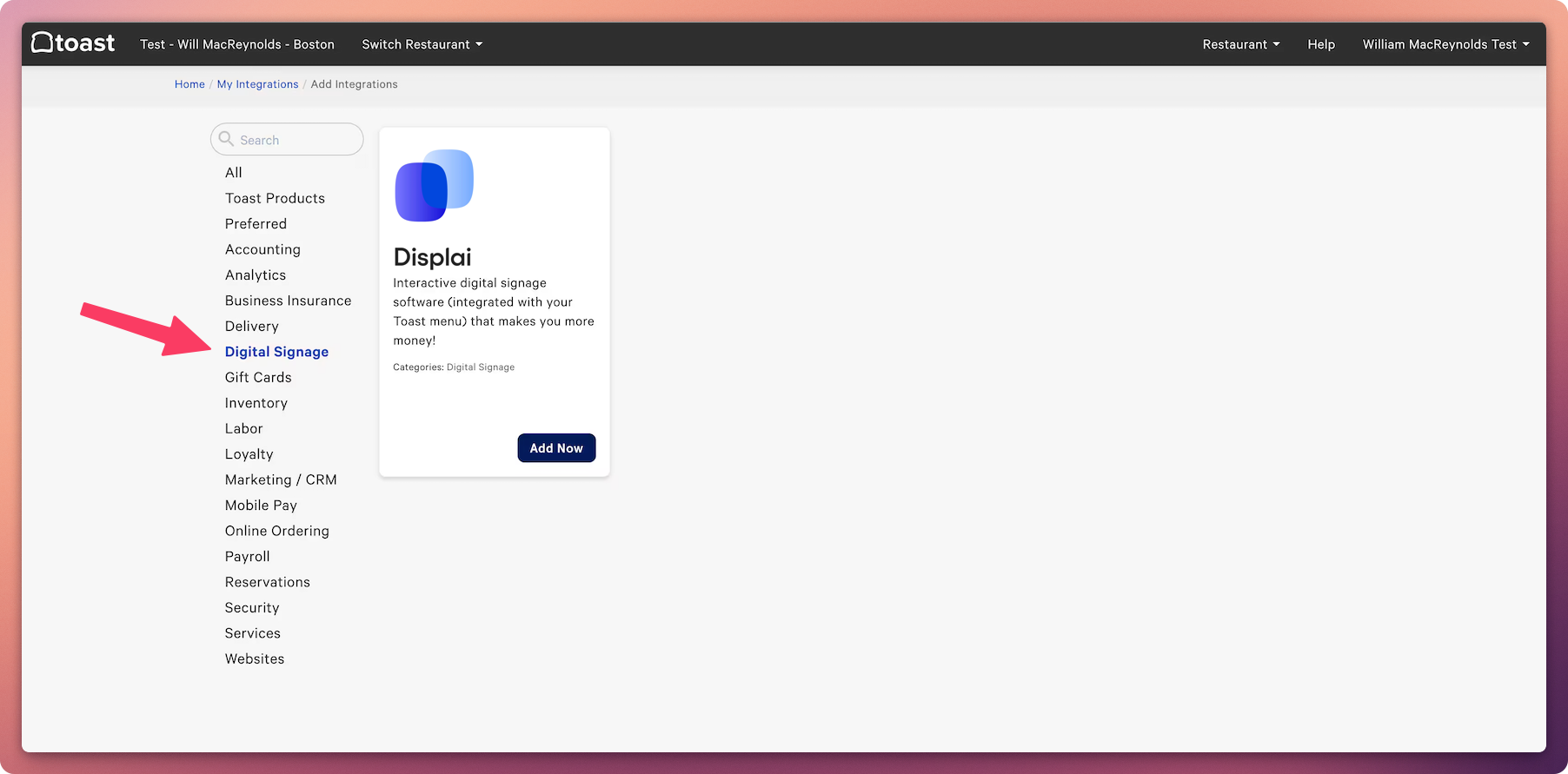
You will first need to grant Displai access to your Toast account for each location. This can be done in a few seconds within your Toast dashboard. See the screenshots below the video.
For Toast users:
Click on the left hand menu panel and navigate to “Integrations”
Within integrations, select “Digital Signage.” Once there, Displai will become available. Click on the Displai integration and you will be prompted to login.
Related articles
Section titled “Related articles”- Connect Toast POS to Displai Install the Displai integration in Toast and add your location GUIDs so your Toast menu data syncs to Displai.
- Connect Square POS to Displai Connect your Square POS account to Displai from the Integrations page so your Square menu items sync automatically.
- Display Clover menus on your screens Show your Clover point-of-sale menus on your screens and keep them in sync, with control over items, prices, themes and out-of-stock display.
- Display menus on your screens Build digital menus with images, categories, items, variants and pricing in the Menus app, then publish them to your screens.
Still having trouble?
Text the 24/7 line or email support.