


How-to · Hoopla
Map TalkDesk data into Hoopla
Pull TalkDesk call data into Hoopla by creating data sets that filter calls and mapping them to metrics on a sync interval.
Once your TalkDesk account has been successfully connected, you may now start mapping TalkDesk Data into Hoopla. This can be done in two steps: Creating a Data Set and Mapping Metrics.
Creating Data
Section titled “Creating Data”-
To create a Data Set, click on the “Create Data Sets’ button under the Create Data section.
-
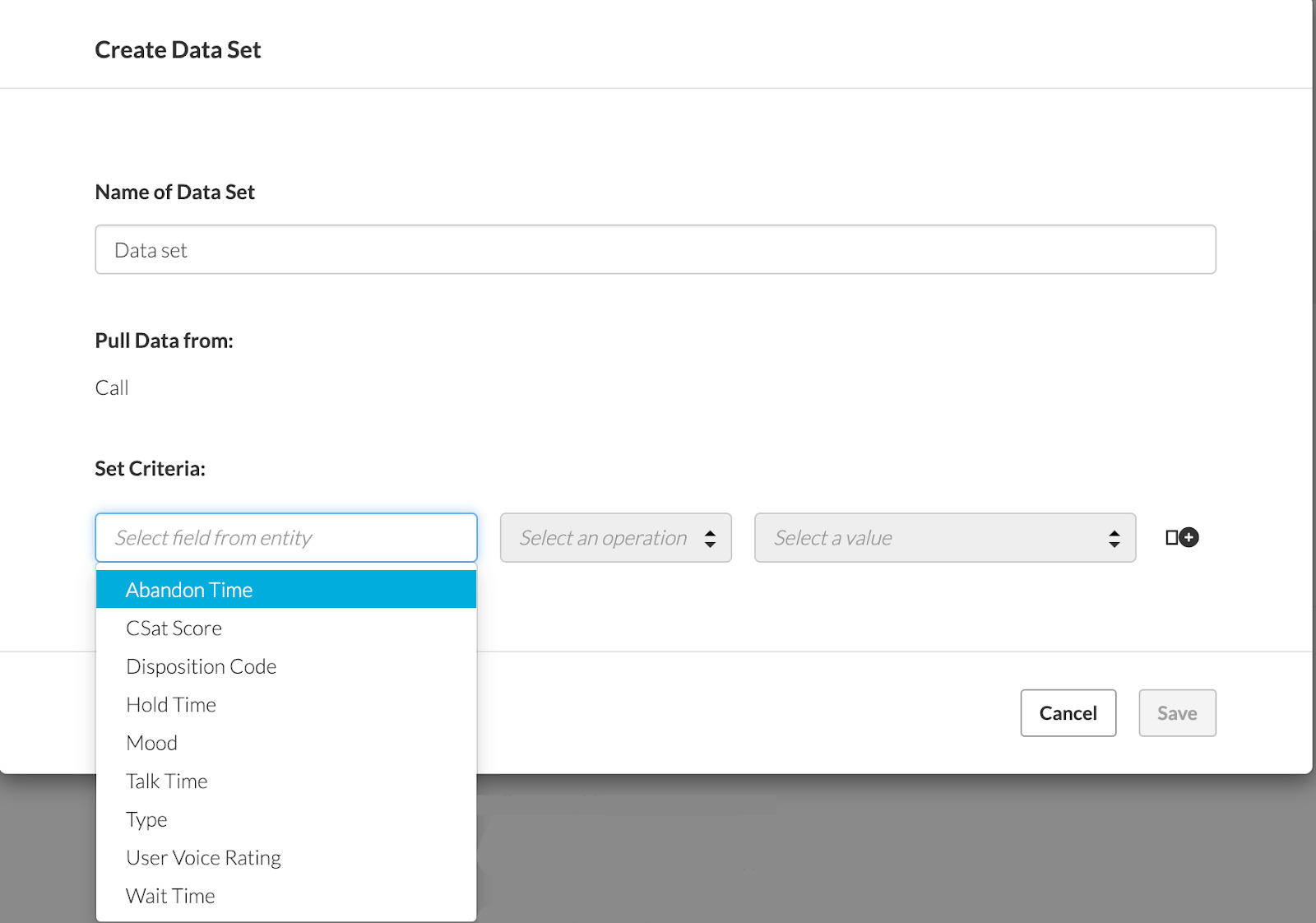
Once clicked, a modal will open up, prompting you to do the following:
Create a name for this data set (this is for internal use only and will not show up on Hoopla TV)
At the moment we are only supporting the Call entity, so that will automatically be displayed in the modal.
Select an Entity field you wish to track. Select from the below options:
Abandon Time
CSAT Score
Disposition Code
Hold Time
Mood
Talk Time
Type
User Voice Rating
Wait Time
- Select an operation for this entity (this will help Hoopla filter the data being pulled into Hoopla so that we are only capturing the most relevant data):
Less than, Greater than or Equal to (Abandon Time, Hold Time, Talk Time & Wait Time)
Equals (CSAT Score, Disposition Code, Mood, User Voice Rating)
-
Select a value for the data (such as a specific score or rating, or a minimum/maximum threshold for call time).
-
Once the above steps have been completed, click Save.
-
All saved Data Sets will be saved within the Create Data sections
You may edit or delete any Data Set by clicking into it.
Mapping Metrics
Section titled “Mapping Metrics”-
After creating a Data Set, continue to the next and final step for mapping TalkDesk data into Hoopla.
-
Under the Map Data section, click on the “Map Metrics” button to get started.
-
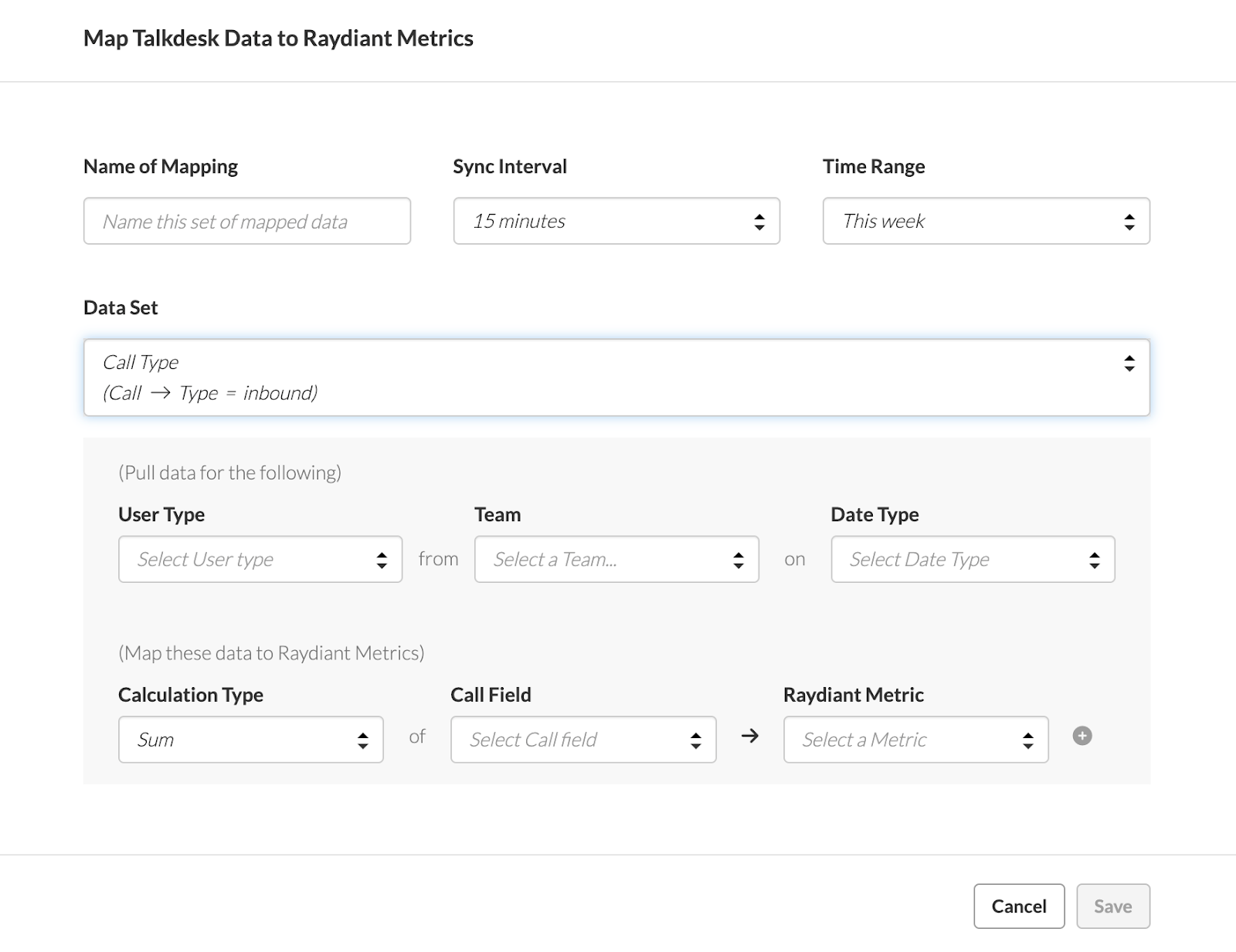
Once clicked, a modal will open up, prompting you to do the following:
Give the Metric mapping a name (this is for internal use only and will not show up on Hoopla TV)
Select a sync interval:
10 minutes
15 minutes
30 minutes
1 hour
6 hours
12 hours
One day (24 hours)
Note - the data we receive from Hoopla is 1 hour old, so we are pulling data that is 1 hour removed from the sync interval (e.g. If syncing every hour, we are pulling data from the previous hour).
Select a time range (pull all data that takes place in the specified time range):
This Year
This Fiscal Year
This Quarter
This Fiscal Quarter
This Month
This Week
Today
Last Year
Last Fiscal Year
Last Quarter
Last Fiscal Quarter
Next, select one of the Data Sets created in the “Create Data” Section.
Once a Data Set has been created, we will reveal six fields that must be selected by the Admin:
User Type - This refers to a TalkDesk role; select from “User” or “Handling User.”
Team - This refers to a Hoopla Team; you must select one.
Date Type - This refers to the field in TalkDesk that we will reference when pulling for a specific time range; the options are “Starts on” or “Ends on.”
Calculation Type - This refers to how we will calculate the data; choose from Average (e.g. average hold time), Count (e.g. total number of calls) or Sum (e.g. total number of minutes).
Call Field -
Abandon Time
CSAT Score
Disposition Code
Hold Time
Mood
Talk Time
Type
User Voice Rating
Wait Time
Hoopla Metric - select from an existing Metric or create a new metric in this field.
Click the plus button after the Hoopla Metric Field and click Save.
Once saved, Hoopla will start syncing data at the specified interval.
All saved Metric Mappings will be saved within the Create Metrics section.
You may edit or delete any Metric Mapping by clicking into each one individually.
Related articles
Section titled “Related articles”- Authorize the TalkDesk integration in Hoopla Connect your TalkDesk account to Hoopla after installing the Hoopla app, then review the account name and time zone.
- Add or remove TalkDesk users in Hoopla Choose which TalkDesk users Hoopla brings call-center data for, either during installation or later from My Apps in TalkDesk.
- Install the Hoopla app in TalkDesk Request an installation link from support and install the Hoopla app in TalkDesk so you can bring TalkDesk data into Hoopla.
Still having trouble?
Email our support team.