


How-to · Hoopla
Authorize the Tableau integration in Hoopla
Connect your Tableau Cloud account to Hoopla using your Tableau site URL and a personal access token.
Authentication
Our Tableau integration is brand new and we’d love to hear your feedback! Let us know what you think by contacting us atsupport@displai.ai*.*
The Tableau integration is only available for Tableau Cloud users.
Steps for Authentication:
-
Navigate to Configure>Integrations (inapp.hoopla.net)
-
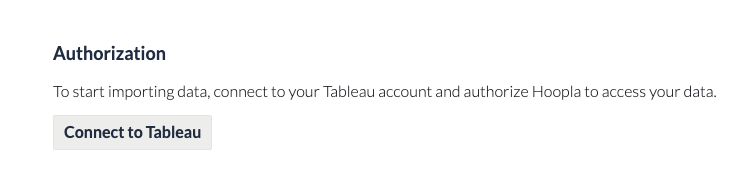
Click into the Tableau tile and then click the “Connect to Tableau” button
-
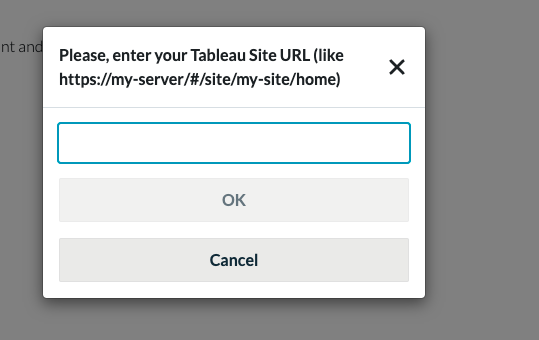
You will then be prompted to input your Tableau site url - this is usually something likehttps://my-server/#/site/my-site/home
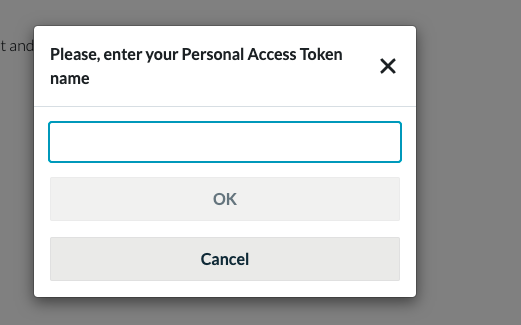
4, Next, you will need to input a personal access token name (like “hoopla tableau access token”)
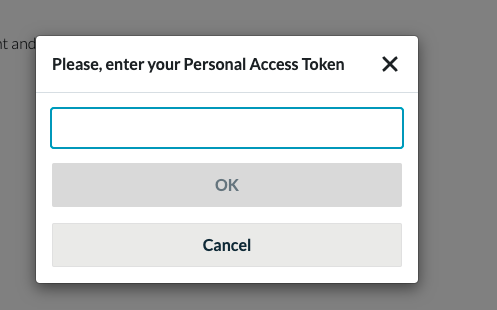
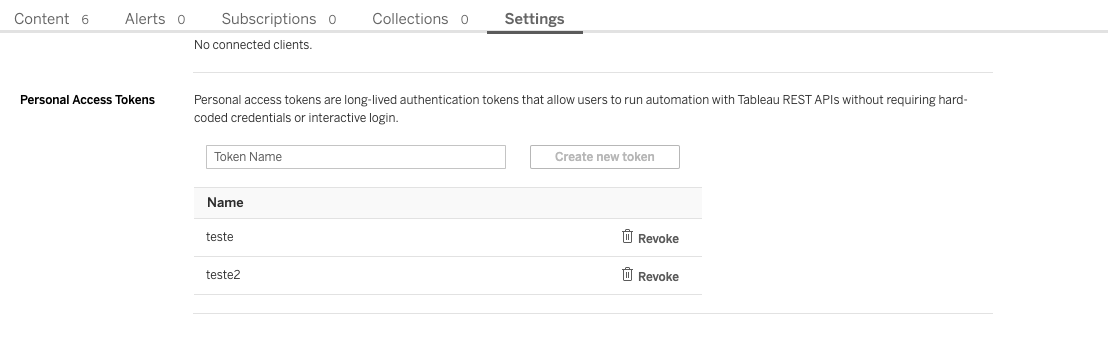
- The final step is to input the personal access token.
- The personal access token is something that is set within Tableau, within your User Settings tab (see screenshot below)- if you need help please check outthis article that walks through how to set personal access tokens
Related articles
Section titled “Related articles”- Map data from Tableau to Hoopla Pull performance data from Tableau worksheets into Hoopla metrics by creating a data set and mapping it to a metric grouped by user email.
Still having trouble?
Email our support team.