


How-to · Hoopla
Add users with file upload
Bulk add users to Hoopla from a CSV file, including how to format it and what happens when some rows fail.
When to use this
Section titled “When to use this”This option should not be used if you have Salesforce, Dynamics or TalkDesk Integrations. Those integrations bring in users via the integration.
You have the option to add multiple users by uploading a file in .csv, .xls or .xlsx format.
Format your File for Hoopla
Section titled “Format your File for Hoopla”-
You must have a column called Email, populated with email addresses of the users to be added.
-
The remaining columns contain the first and last names of your users.
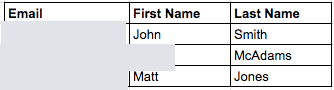
Upload your Users
Section titled “Upload your Users”-
In the Configure tab, click Users and Teams in the left nav. Alternatively, click the Users and Teams tile.
-
Click on Users sub-tab.
-
Click Add > Many Users. Click Add via XLS/CSV button below the text box and select your file to upload.
-
Click Add when the user list from your file has been populated.
The newly-added users will receive email invitations to join Hoopla once SETUP has been turned off in the settings. Alternatively, you can send invites from the individual user’s profile once they are added.
Verify
Section titled “Verify”Confirm that the uploaded users appear in Users and Teams. Invitations are sent after SETUP is turned off, or you can send them from each user’s profile.
If it doesn’t work
Section titled “If it doesn’t work”Check that the file uses CSV, XLS, or XLSX format and has an Email column populated for each user. Use your integration’s user-provisioning procedure for Salesforce, Dynamics, or TalkDesk. Contact support if the file still cannot be imported.
Related articles
Section titled “Related articles”- Add users manually Add a single user to Hoopla, set their role and team, and see what happens after their invitation email is sent.
- Create teams Create, edit and delete teams, or sync them from Salesforce reports, so you can run team leaderboards and competitions.
- Types of user roles Compare the Admin, Team Admin, Player, and Fan roles in Hoopla.
Still having trouble?
Email our support team.