


How-to · Hoopla
Update your profile in the Hoopla mobile app
Update your photo, newsflash media and profile details using the Hoopla mobile app.
Personalize the way you are displayed on Hoopla from your mobile app
Section titled “Personalize the way you are displayed on Hoopla from your mobile app”- *If you do not yet have the mobile app, you can find information on how to download it here.
The first step is to complete your profile by adding a photo and custom walk-up video and song. The photo will represent you on the Leaderboards and Newsflashes, while the video and song will only fire on the TV when you trigger a Newsflash (by achieving a set goal).
Let’s get creative and follow these steps:
Step 1 – Log into Mobile
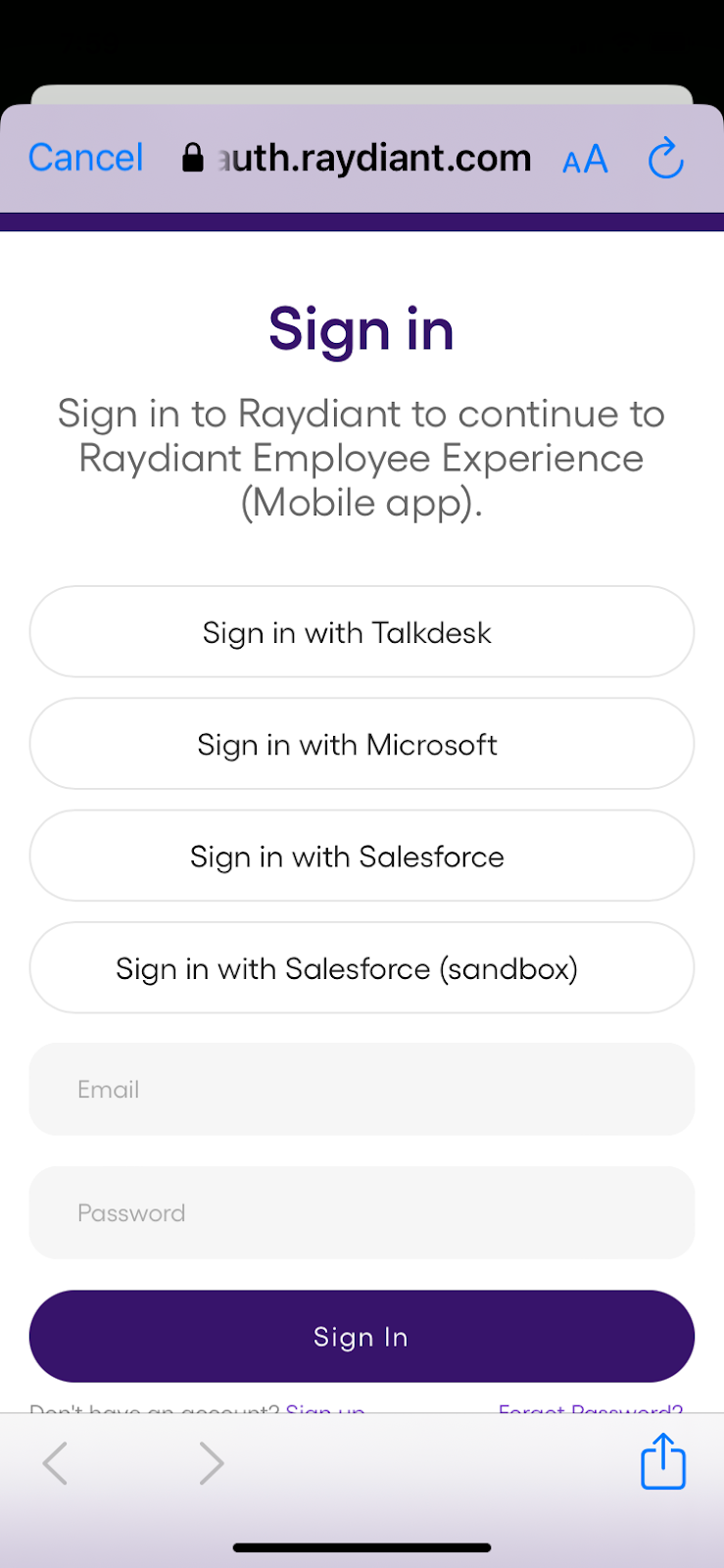
Section titled “Step 1 – Log into Mobile”- Open the Mobile App and log in using the method that your user was provisioned on. If you received an email to set up your password, then you use your email and password. If not, it is likely you will log in using one of the other methods, but check with your Admin if you are unsure.
Step 2 – Access your profile
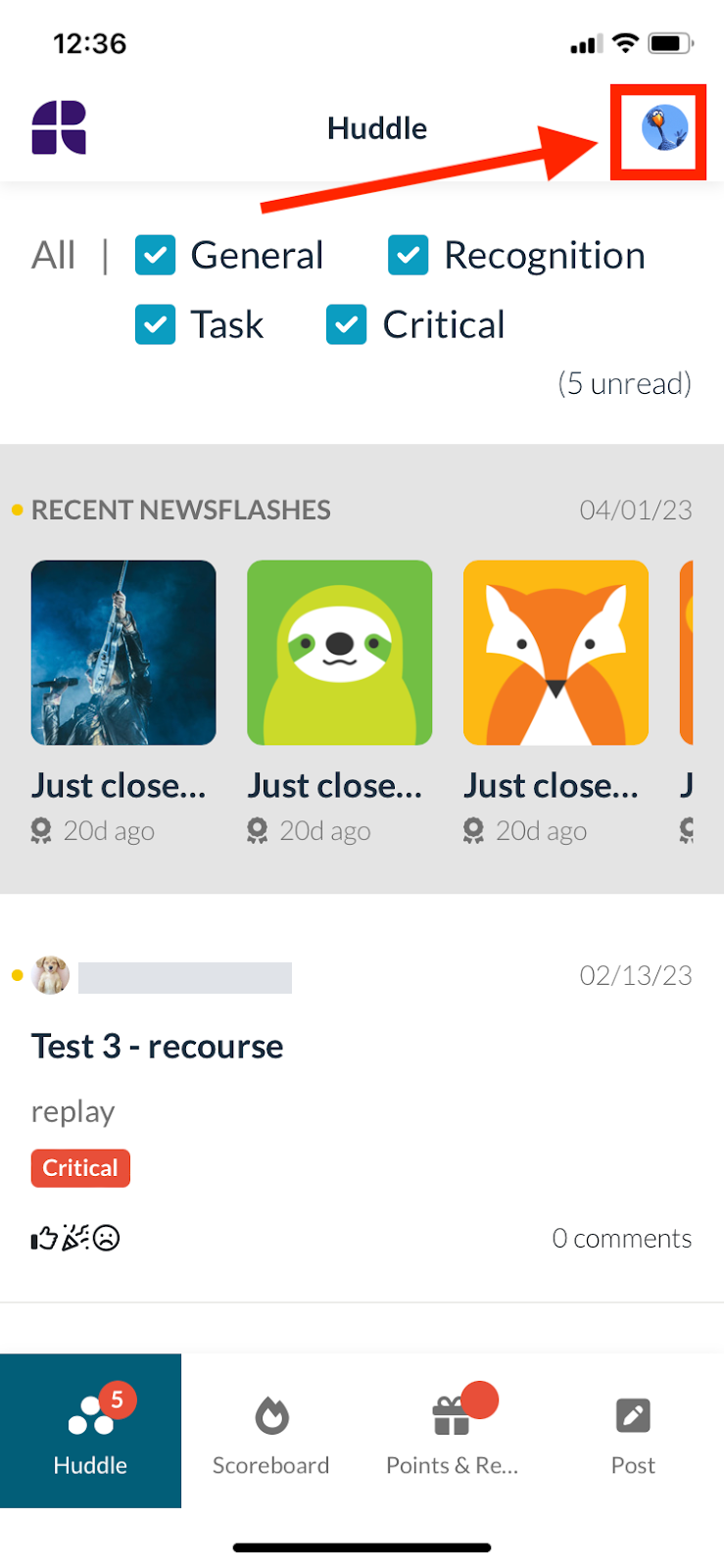
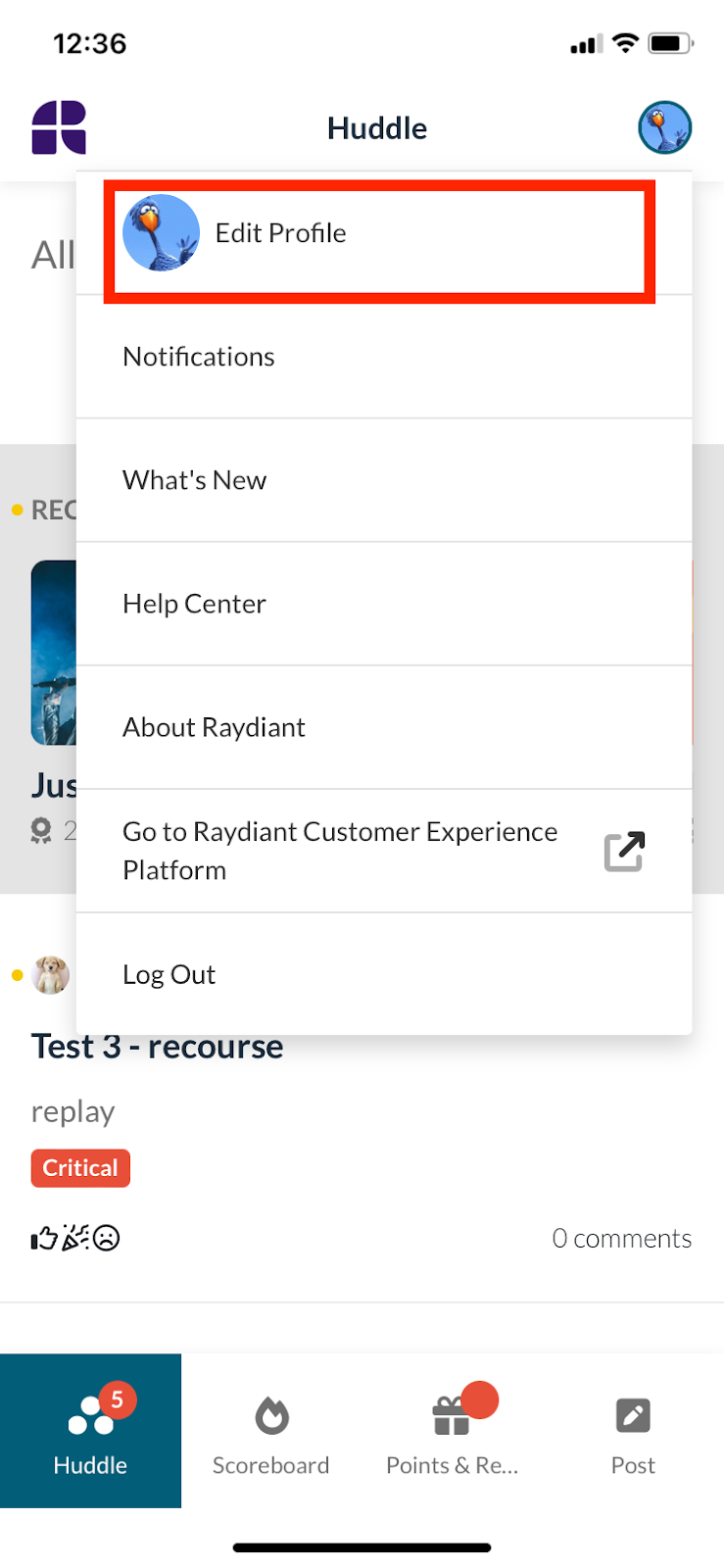
Section titled “Step 2 – Access your profile”Click your name in the top right-hand corner and select Edit Profile.
Step 3 - Get Creative
Section titled “Step 3 - Get Creative”Note: If you are a Salesforce or Microsoft Dynamic user, there are some areas that you cannot update in your profile.
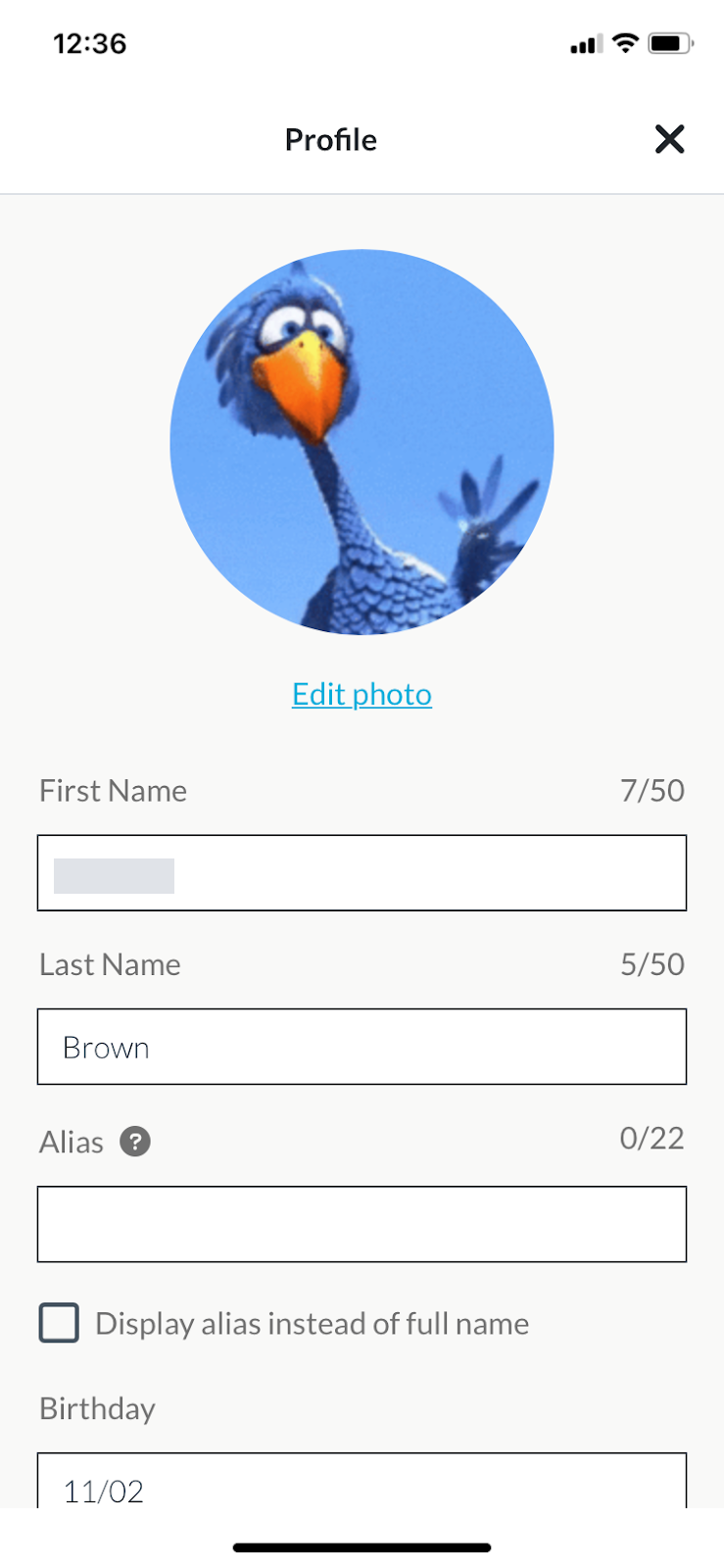
Update your Photo, Name, and Email
This photo will appear on Leaderboards and Newsflashes!
-
Click the current image.
-
Choose a photo from your device. Square photos work best. Images can be jpeg, png, or gif and less than 200MB. The ideal profile picture size is 300 x 300.
-
Confirm your selection in your device’s photo or file picker.
Salesforce Users: Photos in Salesforce will automatically be uploaded; however, you can upload a new photo to show in Hoopla.
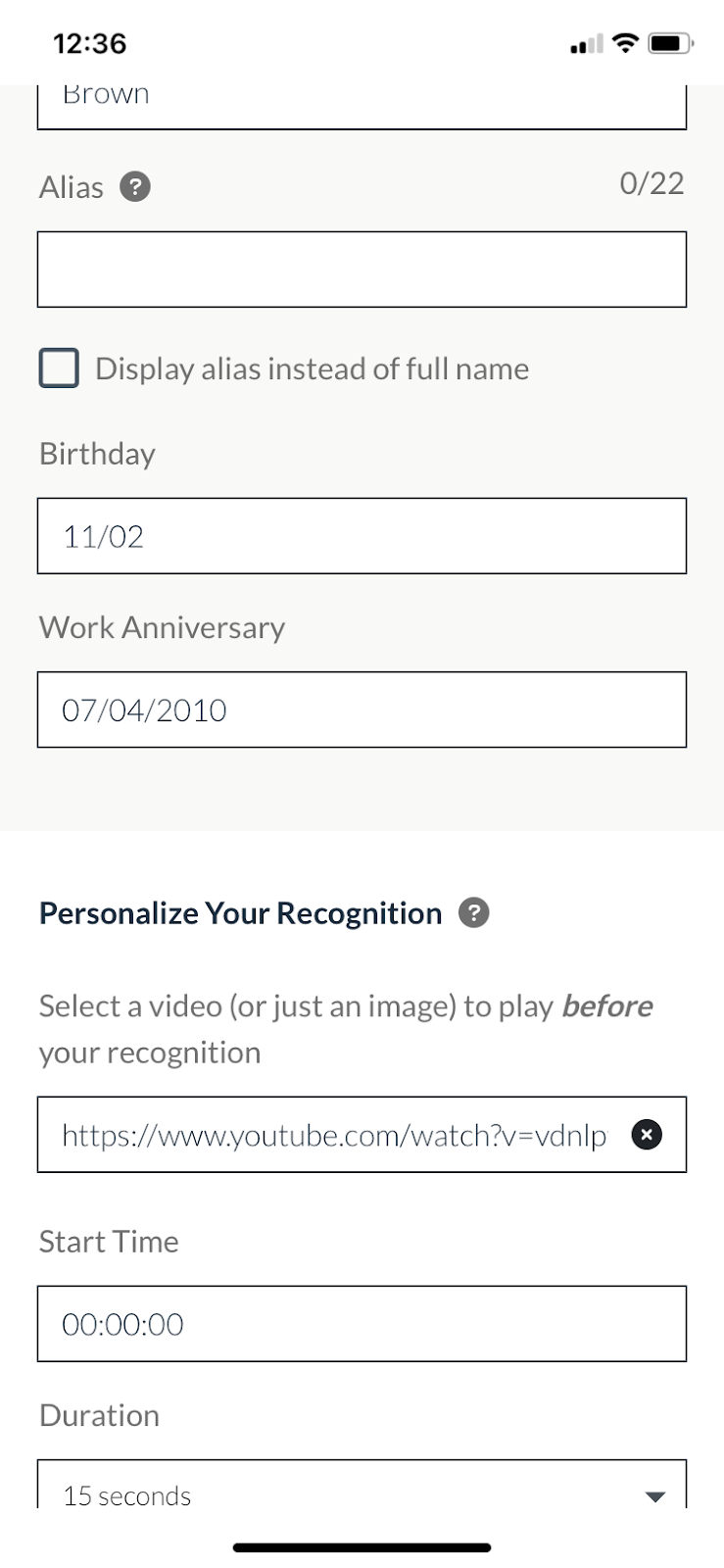
You can add an Alias if you would prefer that your name appear differently on the screens
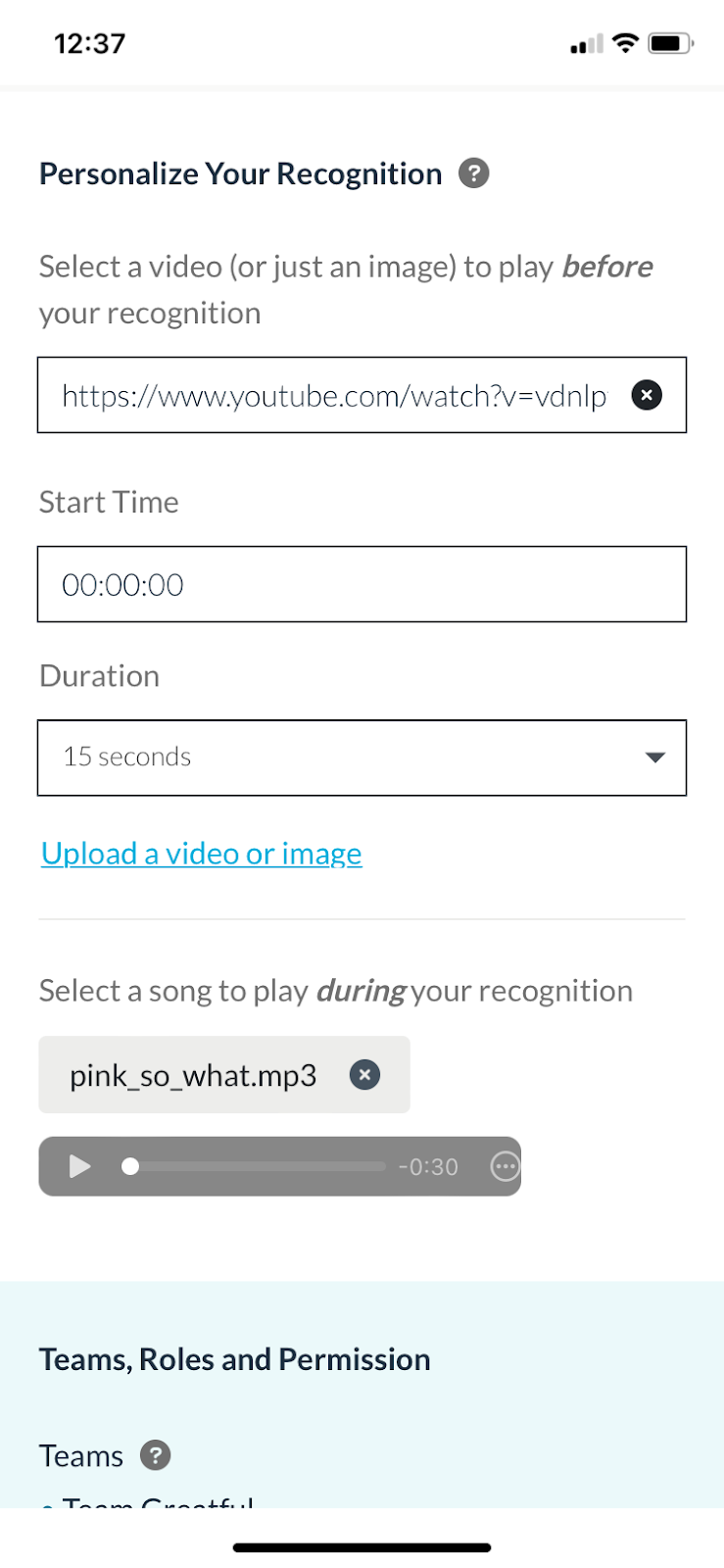
Upload your personalized Transition video and Song
-
This Transition will play (if allowed by your admin) when you trigger a Newsflash on Hoopla TV. We recommend uploading a video that will grab everyone’s attention!
-
You can upload a video or insert a YouTube URL.
-
Videos must be in MP4 format and less than 200MB.
-
YouTube Videos: You can select the start time of the video and the duration that it will play.
-
This song will play (if allowed by your admin) when your picture is shown during the message portion of a Newsflash on Hoopla TV. We recommend uploading a song that fits you and one that will grab everyone’s attention!
-
Songs must be in MP3 format and edited to start at the best part of the song. Try using a ringtone!
Add your Birthday and Work Anniversary
-
If your admin has added birthdays and anniversaries to the TV channel, you will be included!
-
If you prefer not to share these dates with others, delete them by clicking on the ‘x’.
Click Save at the bottom of the profile options once you are done.
Hoopla Tip: Some other things you can do in Hoopla:
Personalize your newsflash with a selfie or custom message before it hits the TV (if your admin has turned on this capability)
Challenge your peers to Faceoff contests!
Download our mobile app .
Still having trouble?
Email our support team.