


How-to · Hoopla
Remote employee kit for Hoopla
Stay connected to your team while working remotely with the Hoopla mobile and web apps, Slack and Microsoft Teams updates, and email summaries.
With the Hoopla Remote Toolkit, you have everything you need to motivate & engage your employees in ANY environment.
Use Hoopla on your Mobile Device
Section titled “Use Hoopla on your Mobile Device”Get started by downloading the Hoopla app for your mobile device (available for iOS and Android devices) and start utilizing all the features. Click here for more information on:
-
Downloading the mobile app and enabling notifications to see Newsflashes
-
Engaging your team by “liking” and commenting peer’s successes
-
Inviting a coworker to a face-off challenge
Log into the Hoopla app
Section titled “Log into the Hoopla app”When you log into https://app.hoopla.net/login, you have access to the following:
-
**Performance Console:**The Performance console is a personalized space in your Hoopla app where you can see how you are performing and check how you stack up against others on your team.
-
Huddle: The Huddle page is a great way to find updates like who recently had newsflashes, upcoming birthdays and work anniversaries and get the latest messages. Send your players our guide to Starting a Faceoff with Another Player.
-
Scoreboard**:**Players can view all Leaderboards in which they have been added as either a Player or Watcher. Click any Leaderboard to see ranking details and Metric values. In the challenges section, you can see information on requests, scores and past challenges.
-
Watch Channels**:**Your admin can add users as “watchers”, which gives them the ability to watch channels from the web for up to 10 hours.
Push Information to Your Employees
Section titled “Push Information to Your Employees”Utilize Channel Links: Take advantage of these links by creating custom channels to broadcast information to your whole company or utilize already existing channels. You can copy the link or schedule it to be sent out at each week.
Huddle Messages: Use the post messaging feature in Huddle to send message to your players and the screens.
Email Summaries: Email summaries are a great way to engage your users wherever they are. Send daily, weekly or monthly emails that summarize key metrics, highlight important leaderboards, and more to keep your remote employees motivated and engaged.
Slack Integration**:**Utilize the Hoopla-Slack integration to continue to recognize your peers! The bi-directional integration pushes Newsflashes, Leaderboards, Challenges, and Calendar Events (Birthday’s and Anniversaries) from Hoopla into Slack. Learn more about Hoopla/Slack best practices and get your players and fans in on the action with this guide.
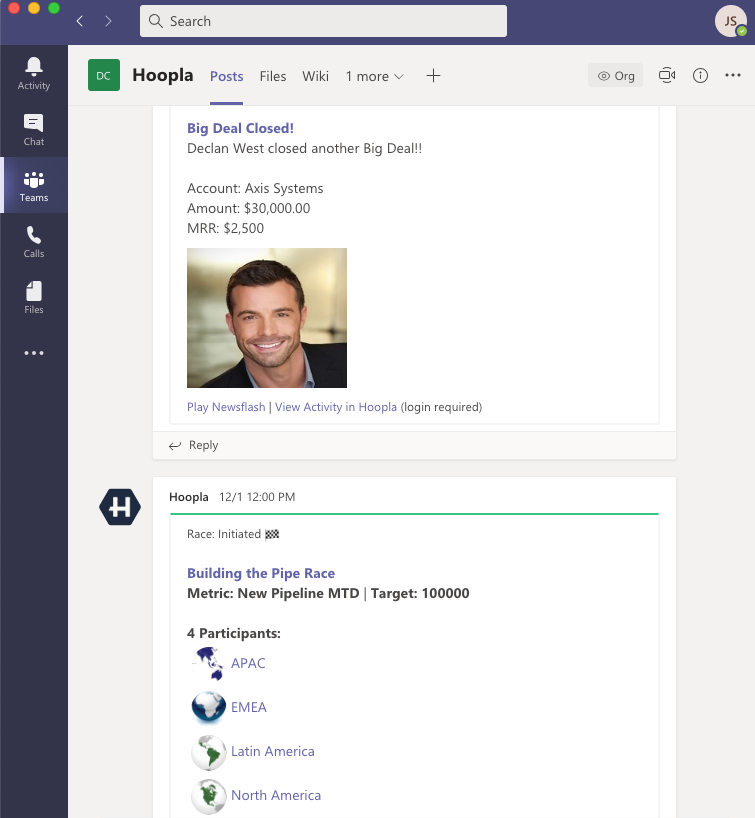
Microsoft Teams Integration: Start using Microsoft Teams to view your Hoopla Channel(s).
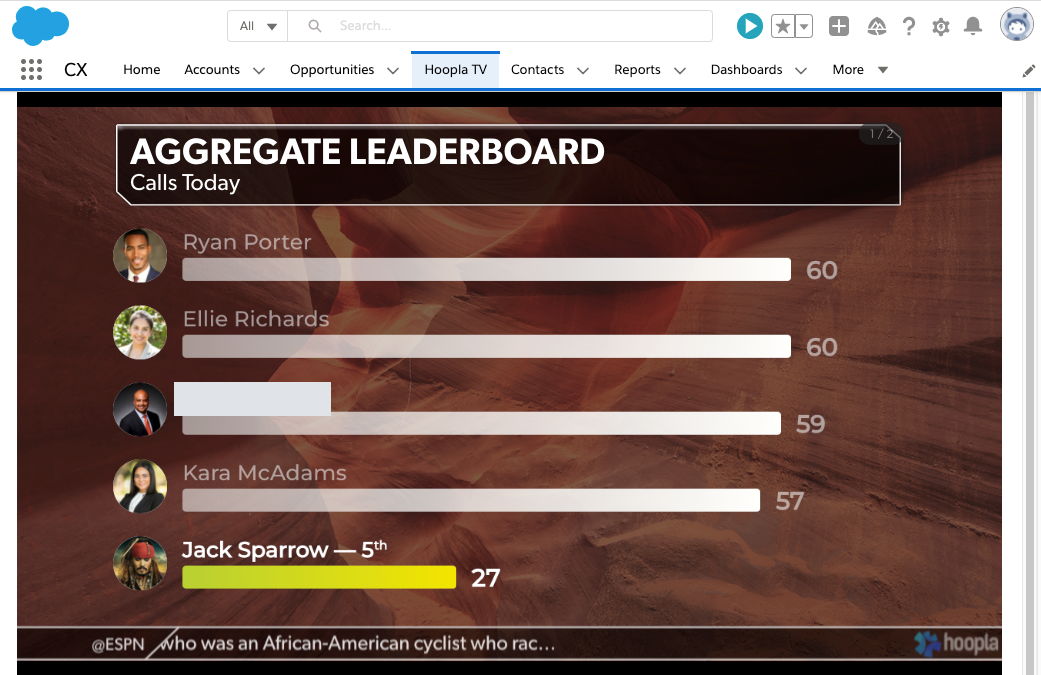
Add a Custom Hoopla Tab in Salesforce or install our Widget**:** Users have the ability to add and watch their Hoopla channel from Salesforce or use the tab as a login page into the Hoopla app.
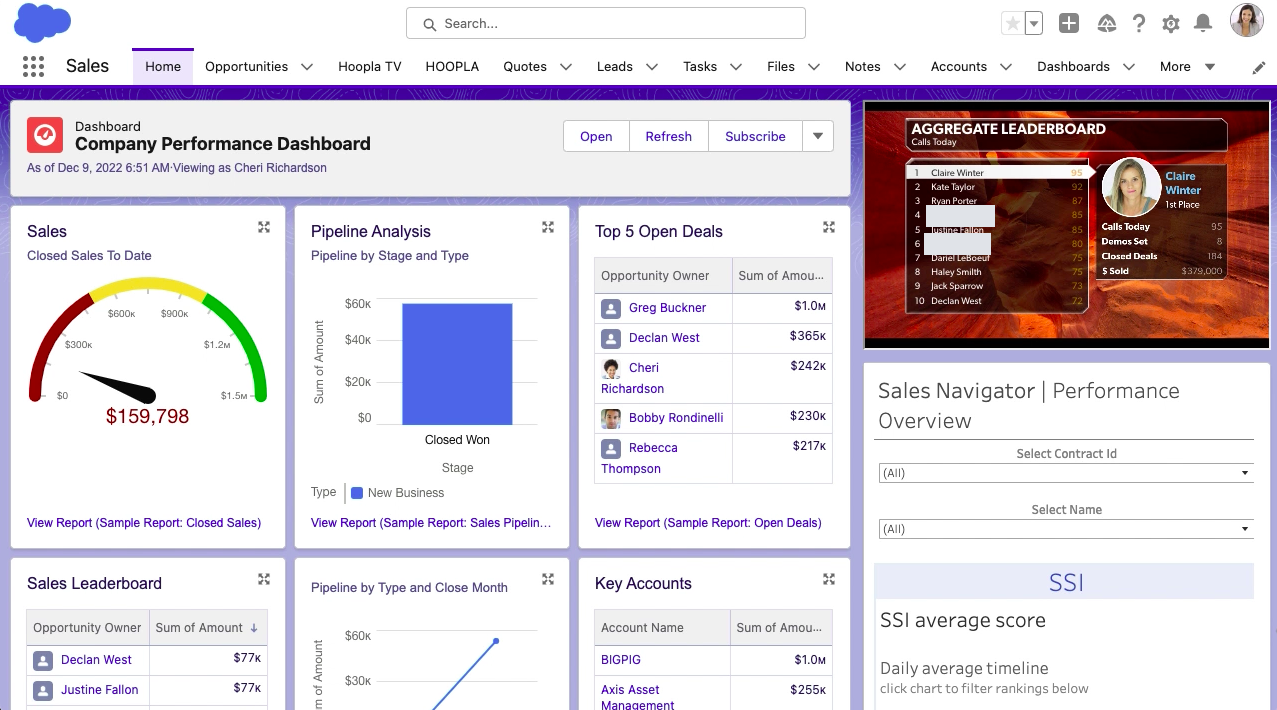
Install our Salesforce Widget and put your channel on any Salesforce page.
Get Players Engaged - Update your Profile
Section titled “Get Players Engaged - Update your Profile”Personalizing the way you are displayed on Hoopla increases engagement. Follow the steps here on how to update your profile picture, song, video and more.
**Hoopla Pro-Tip:**Create player themes for each month, such as updating your picture to your doppelganger, baby picture or favorite actor month.
Additional Tools
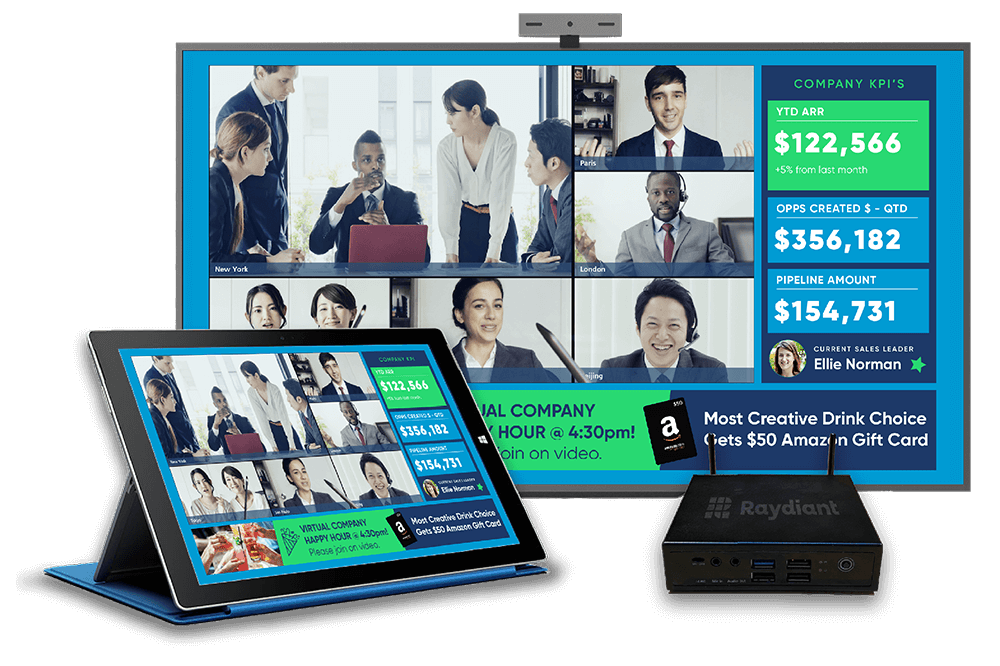
Section titled “Additional Tools”SecondScreen:With our partnership with Displai, you have access to a second screen platform/hardware to further improve communication, motivation and engagement with your teams while working at home. The all-in-one communications and messaging hub combines video conferencing, internal communications, and real-time data sharing on a screen separate from their workstation or laptop, so employees can work without interruption.
- Remote Tips Custom Content: Utilize our regularly updated Remote Tips to help your employees work efficiently. Add a Post step to your Channel, use the “Remote Tips” tag, and select shuffle all.
Related articles
Section titled “Related articles”- Use Hoopla on your mobile device Download the Hoopla mobile app for iOS or Android, log in, and use its Activity, Rankings, Quickfire, and Notifications tabs.
- Using Hoopla with Slack: player and fan guide See and interact with Hoopla newsflashes, challenges, leaderboards, and calendar events in Slack, and post a newsflash with /hoopla.
- Watch channels on your computer View your team’s TV channels in your browser from the Watch Channels tab when you are away from the office.
- Share Hoopla channels via link Turn on sharing for a channel and copy its link so people without Hoopla accounts can view it on their phone or desktop.
Still having trouble?
Email our support team.